
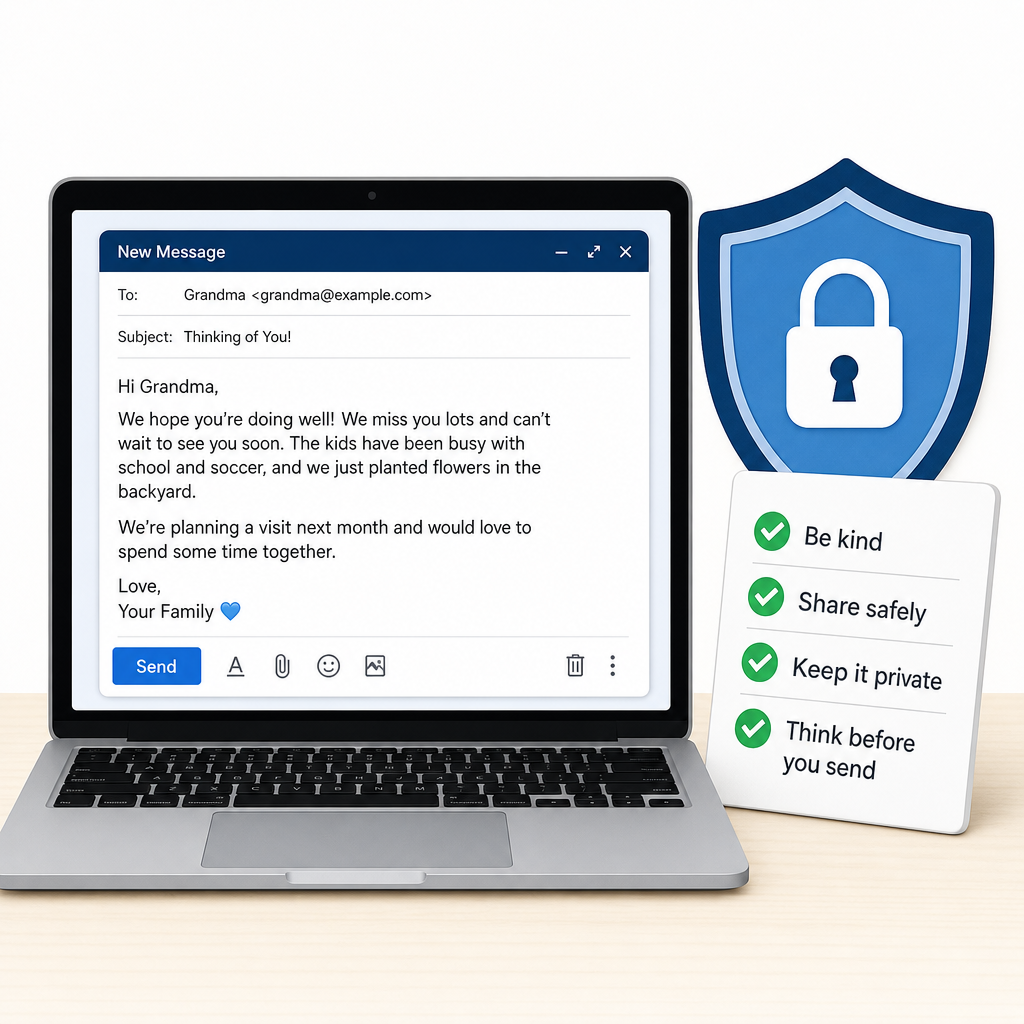
Family emails do not need to take half an hour. With an AI writing tool, you can turn a few rough notes into a warm, clear message, then review it before sending. This guide shows you how to protect privacy, write a useful prompt, check the draft, and send an email that sounds like you.
Table of Contents
- Before You Start
- Quick Fix Steps
- Deeper Diagnosis
- Preventive Care
- When to Seek Help
- Frequently Asked Questions
Before You Start
- Time: About 10–20 minutes.
- Difficulty: Easy.
- You need: A phone, tablet, or computer; an email account; and access to an AI writing tool.
- Prepare: The purpose of the email, the key facts, the recipient names, and the tone you want.
Warning: Do not paste private information into an AI tool unless you understand how that service handles data. Leave out passwords, bank details, government identification numbers, medical details, home security information, and anything your family would not want shared.
AI can make mistakes, invent details, or misunderstand dates. It is a writing helper, not a final fact-checker. You remain responsible for checking the message before sending it.
Quick Fix Steps
1. Write rough notes first
Open a simple notes app or use paper. Write the basic facts in your own words. Include what happened, what you need from the family, important dates, and a clear next step.
For example: “Family lunch at my home, Saturday at 1 p.m. Please reply by Wednesday. Bring a side dish if you can.” Do not worry about grammar yet.
2. Remove sensitive details
Replace private information with general wording. Use “my appointment” instead of a medical diagnosis, or “the payment” instead of an account number. You can add personal details yourself after the AI creates the draft.
3. Ask AI for a draft
Open your preferred AI writing tool and paste a prompt such as:
Draft a friendly family email. Use plain language and short paragraphs. Explain that [event or update]. Include [key facts]. Ask people to [reply or take action] by [date]. Do not add facts that I did not provide. Keep it under 150 words.
Tip: Tell the tool how you want to sound. Try “warm and casual,” “respectful and direct,” or “reassuring but brief.”
4. Read the draft slowly
Check every name, date, time, location, price, and request. Make sure the draft does not claim that someone agreed to something when they did not. Delete any sentence that sounds unlike you.
5. Improve the message
Ask for one focused change at a time, such as: Make this less formal and keep the same facts. You can also ask: Rewrite this for someone who may have trouble reading long paragraphs.
6. Copy, paste, and send carefully
Copy the final text into your email app. Add the correct recipients, subject line, and any attachment. Read the To and Cc fields one more time before selecting Send.
Note: If the email contains sensitive information, consider sending it directly to each person instead of using a large group. Check whether “Reply all” is really needed.
Deeper Diagnosis
If the first draft is confusing, use these checks before asking AI to rewrite it.
Check the purpose
Complete this sentence: “I want the reader to know or do ______.” If you cannot complete it clearly, the email may need a clearer goal. Put the main point near the beginning.
Check the facts
Compare the draft with your notes, calendar, text messages, or other trusted information. AI may change “next Friday” into a specific date or confuse the time zone. Use an exact date when there could be confusion.
Check the audience
Ask whether every recipient needs every detail. A message to close relatives may be casual, while a message to a wider family group may need more context. Remove jokes, slang, or criticism that could be misunderstood.
Check the tone
Look for words that sound blaming, demanding, or overly dramatic. Ask AI to suggest a kinder version, but choose the final wording yourself. A useful prompt is: Make this clear and kind without hiding the request.
Check the email on your device
On Windows or macOS, use your normal webmail or email program. On iPhone or iPad, open your email app and review the recipient fields and attachment area. On Android, open your email app, tap the recipient line, and check the address before sending.
Zoom in if text is hard to read. Most phones and computers let you increase text size in Accessibility settings. Also open attachments before sending to confirm that they are the correct files.
Preventive Care
Save useful prompts
Keep a private note with general prompts for invitations, updates, thank-you messages, and family announcements. Do not store passwords or confidential family information in that note.
Use a simple email checklist
- Is the subject line specific?
- Is the main point in the first few lines?
- Are names, dates, times, and locations correct?
- Is the requested action easy to find?
- Did I attach the right file?
- Did I check the recipient list?
Protect your accounts
Use a different, strong password for your email and AI accounts. Turn on two-step verification if available; this adds a second check, such as a code, when you sign in. Keep your phone, computer, browser, email app, and AI app updated.
Warning: Download AI apps only from the official app store or the service’s official website. Avoid unexpected installer links, browser pop-ups, and messages asking for your password. Never disable security software just to install an unknown tool.
Keep a copy of important messages
For an important family plan, save the final email or key details in your calendar or notes. Do not rely on AI chat history as your only copy. Review your account privacy and history settings occasionally.
When to Seek Help
Ask a trusted person to review the message if it involves a serious family disagreement, legal matter, money, health information, travel documents, or a large group of recipients. A second reader can spot a wrong date or a sentence that sounds harsher than intended.
Contact your email provider’s support if you cannot sign in, messages repeatedly bounce back, an attachment will not send, or you see activity you do not recognize. Change your password from the provider’s official website and turn on two-step verification if you suspect someone accessed your account.
For urgent safety, medical, financial, or legal situations, do not wait for an AI draft. Contact the appropriate professional or emergency service directly.
With a few notes, a careful prompt, and a final human review, AI can help you write family emails that are clear, kind, and easy to act on. Keep private information out of the tool, verify every important fact, and send only after checking the recipients and attachments.
Frequently Asked Questions
Can AI send the email for me?
Some tools may offer sending or email integration, but beginners should review and send the message from their usual email app. This gives you one final chance to check the facts and recipients.
What if the AI draft sounds too formal?
Ask it to use shorter sentences and a warm, conversational tone. You can also edit the draft yourself by replacing formal words with the phrases you normally use.
Can I include names and family details?
Use only the details needed for the draft, and remove sensitive information. When in doubt, use placeholders such as “[relative’s name]” and add the real details after reviewing the text.
How do I make an email easier to read?
Use a descriptive subject, short paragraphs, simple words, and a clear request. Ask AI to create a version with bullet points if there are several dates, tasks, or choices.
Leave a Reply