
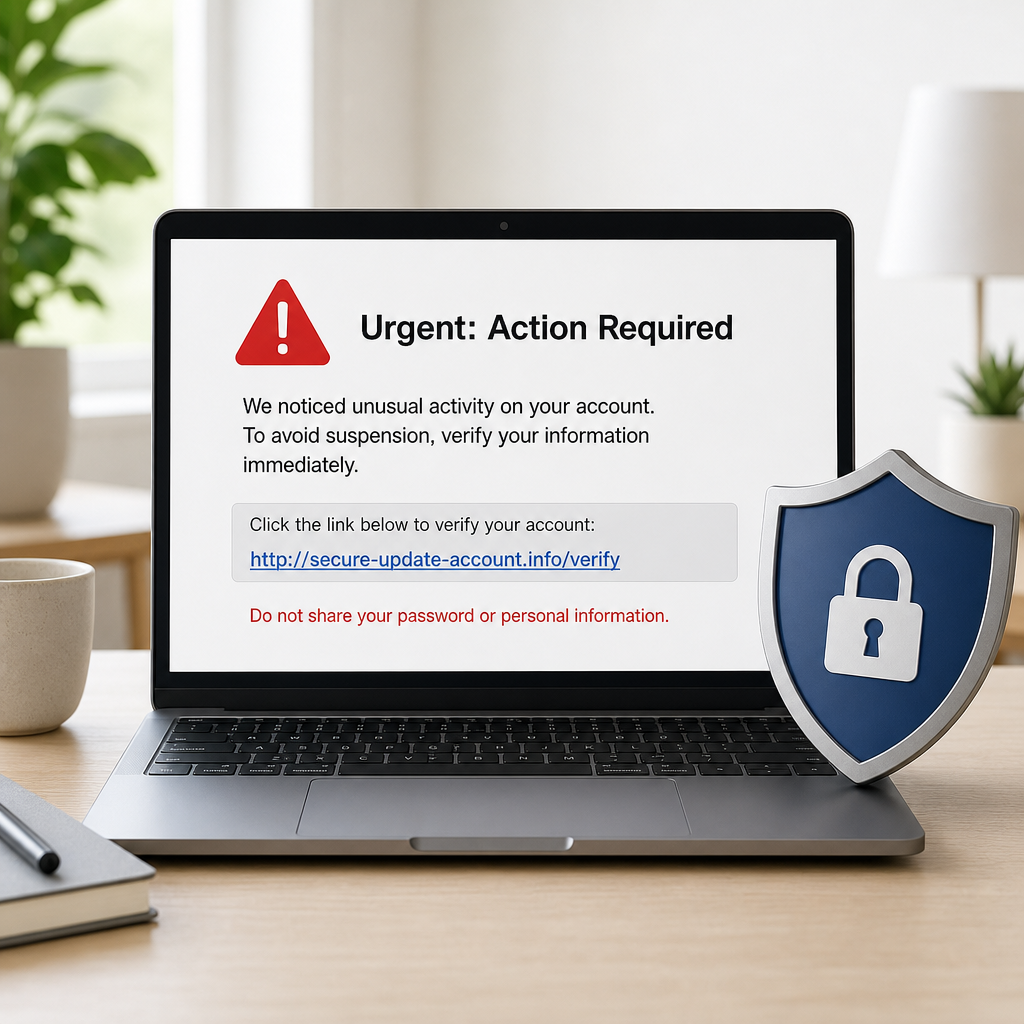
Phishing messages try to trick you into sharing passwords, payment details, or access to an account. On a shared home laptop, one person’s mistake can affect everyone. This guide will help you spot warning signs, check a suspicious message safely, respond if someone clicked, and make the laptop safer for the whole household.
Table of Contents
- Before You Start
- Quick Fix Steps
- Deeper Diagnosis
- Preventive Care
- When to Seek Help
- Frequently Asked Questions
Before You Start
- Time: Allow 10–20 minutes for a quick check. A full cleanup may take longer.
- Difficulty: Easy for the first steps; Medium if an account or device may be compromised.
- Have ready: A phone or another trusted device, your account recovery details, and the contact information for your bank or service provider.
- Do not rush: Keep the suspicious message open only if you can do so safely. Do not click its links, open attachments, call numbers in the message, or install software it recommends.
Warning: Do not factory-reset the laptop, edit the Windows registry, or download a “cleanup” installer just because a message says to. These actions can delete files or install more malware. Get advice first and back up important files.
Quick Fix Steps
1. Pause and check the request
Phishing often uses fear, urgency, or a tempting reward. Be cautious about messages claiming your account will close, a payment failed, a package is waiting, or you must act immediately.
2. Check who sent it
Look at the complete sender address, not just the display name. A message that says it is from a bank but comes from an unrelated or misspelled domain is suspicious. Remember that a familiar address can also be compromised, so inspect the request itself.
3. Inspect links without opening them
On a computer, move the pointer over a link without clicking. The destination may appear near the bottom of the window. On a phone or tablet, press and hold carefully to preview the address. Watch for misspellings, extra words, unusual country codes, or shortened links.
Tip: Do not sign in through a message link. Instead, type the company’s known website address yourself, use its official app, or contact it using a phone number from a bill or official website.
4. Treat attachments as unsafe until verified
Do not open unexpected invoices, documents, compressed files, or “security tools.” Verify the request through a separate method, such as a phone number you already trust. Be especially careful if the message asks you to enable macros, change security settings, or allow remote control.
5. Report, delete, and tell other users
Use the email or messaging service’s Report phishing option, then delete the message. Tell everyone who uses the laptop what happened without blaming anyone. A shared warning can prevent the next person from making the same mistake.
6. If someone clicked or entered information
Stop entering information and close the page. From a different, trusted device if possible, change the affected password through the official website. Turn on multi-factor authentication, which adds a second sign-in check, and contact the bank immediately if payment details were entered.
Deeper Diagnosis
Check the account safely
- Open the service’s official website by typing its address yourself or using a saved, trusted bookmark.
- Review recent sign-ins, devices, forwarding rules, recovery email addresses, and phone numbers.
- Sign out unfamiliar devices and remove unknown apps or connected services.
- Change the password to a new, unique one. Do not reuse a password used by another person or website.
- Check financial accounts and statements for unusual activity. Contact the organization using a verified number if anything looks wrong.
Check the shared laptop
Ask what happened: Was a file opened? Was a password entered? Was software installed? Write down the message, time, website, and actions taken. Do not keep experimenting on the laptop if it shows pop-ups, new toolbars, locked files, unknown programs, or repeated security warnings.
Update the operating system, web browser, and security software using their built-in update screens. Run a full scan with the security software already included with the operating system or supplied by a trusted provider. Avoid random “virus removal” downloads from advertisements.
Use the correct operating-system tools
Windows: Open Settings > Windows Update to check updates. Then open Windows Security > Virus & threat protection and start a full scan.
macOS: Open System Settings > General > Software Update. Review installed applications in Applications and remove only software you recognize as unwanted. Ask for help before deleting system files.
iPhone or iPad: Open Settings > General > Software Update. Review unknown configuration profiles under Settings > General > VPN & Device Management, but do not remove a work or school profile without checking first.
Android: Open Settings > System > Software update, though menu names vary. Review installed apps and remove unfamiliar ones only after confirming they are not required by the household, work, or school.
Note: A clean scan does not prove that an account is safe. If a password was entered, change it anyway from a trusted device and review account activity.
Preventive Care
- Use separate user accounts: Give each household member their own standard account. A standard account has fewer permissions than an administrator account, reducing the damage from mistakes.
- Keep software current: Turn on automatic updates for the operating system, browser, apps, and security tools.
- Use unique passwords: Consider a reputable password manager. Do not save passwords in a shared browser profile. Sign out of banking, email, and shopping accounts when finished.
- Turn on multi-factor authentication: Prefer an authenticator app or security key when available. Never share a verification code with someone who contacted you unexpectedly.
- Back up important files: Keep a separate backup, such as an external drive disconnected after use or a trusted cloud backup. Test that you can restore a file.
- Agree on a household rule: No one installs software, gives remote access, or shares a code because of an unexpected call or message. Ask another person first.
When to Seek Help
Contact the bank immediately if card, payment, or identity information was entered. Contact the affected service if an account shows unknown sign-ins, changed recovery details, sent messages you did not write, or a password no longer works.
Seek professional help if the laptop remains controlled by pop-ups, files are encrypted, security tools are disabled, unknown remote-access software was installed, or several accounts were exposed. Do not keep using the device for banking while investigating.
Ask your internet provider for help only when the issue involves the home internet connection itself, such as repeated disconnections or an unknown device on the home network. A router is the box that creates your home Wi-Fi network; a phishing message usually does not require changing router settings.
Frequently Asked Questions
Can a message be phishing even if the logo and name look real?
Yes. Logos and display names are easy to copy. Check the complete sender address, link destination, request, and urgency. Verify through an official website or trusted contact method.
Is it safe to reply and ask whether the message is real?
No. Replying can confirm that your address is active, and the account may belong to an attacker. Contact the organization separately.
Should I delete the browser history after clicking a phishing link?
Deleting history is not the main fix. Change any exposed passwords, review account activity, update the device, and run a trusted security scan. Ask for help if anything was downloaded or installed.
Can family members share one browser account?
It is safer to use separate operating-system and browser profiles. This reduces accidental access to another person’s email, saved passwords, and payment information.
Phishing protection starts with slowing down. Check the sender and destination, use official channels instead of message links, and tell the household when something looks suspicious. If anyone clicked, secure accounts from a trusted device, scan the laptop, and get help before taking destructive actions.
Leave a Reply