
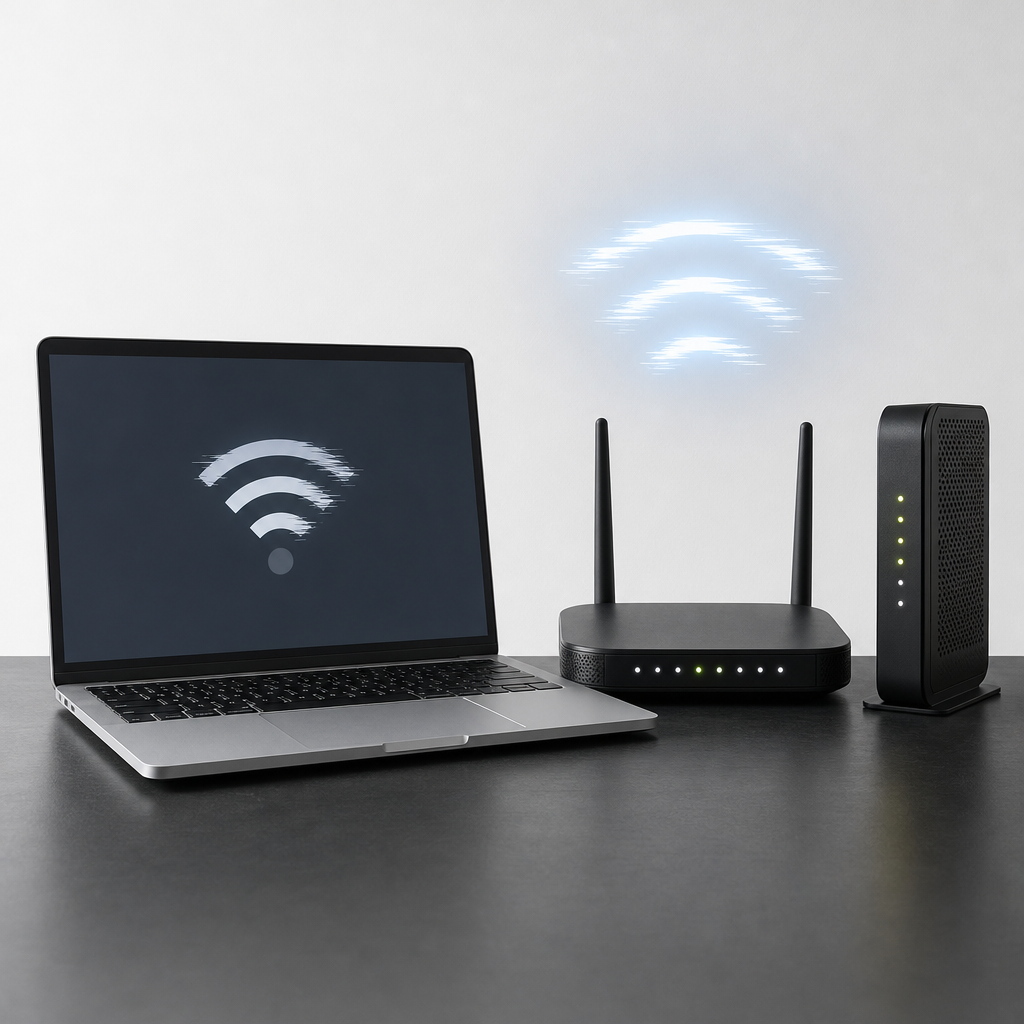
A laptop that keeps losing Wi-Fi after a firmware change can often be fixed without replacing anything. This guide walks you through safe checks, simple resets, and operating-system settings so you can restore a steady connection and identify whether the laptop, router, or internet provider is responsible.
Table of Contents
- Before You Start
- Quick Fix Steps
- Deeper Diagnosis
- Preventive Care
- When to Seek Help
- Frequently Asked Questions
Before You Start
A router is the box that creates your home Wi-Fi network. Firmware is the built-in software that controls a router or device. A firmware change can improve security but may also change wireless settings or expose a compatibility problem.
- Time: Allow 20–40 minutes.
- Difficulty: Easy for the quick fixes; Medium for deeper diagnosis.
- You need: Your Wi-Fi name and password, access to the router, and a second device if possible.
- Possible problems: A reset can erase custom settings. An incorrect driver or firmware download can make a device harder to use.
Warning: Do not factory-reset the router yet. A factory reset erases its Wi-Fi name, password, parental controls, and other settings. Also avoid registry edits, unofficial driver sites, and firmware files that are not meant for your exact model.
Quick Fix Steps
- Save your work and restart. Restart the laptop. Then unplug the router and modem, if you have separate boxes. Wait 60 seconds, plug them back in, and wait several minutes for the Wi-Fi light to return.
- Move closer to the router. Test the laptop in the same room. Keep it away from thick walls, large metal objects, microwaves, and cordless-phone bases. If the connection improves nearby, the problem may be signal range rather than firmware.
- Forget and reconnect to Wi-Fi. Open your device’s Wi-Fi settings, select your home network, choose Forget or Remove, then connect again. Enter the Wi-Fi password carefully. This creates a fresh connection profile.
- Turn Wi-Fi off and on. Use the laptop’s Wi-Fi switch or Airplane Mode for about 10 seconds, then turn Wi-Fi back on. Check that Airplane Mode is off.
- Test another device. Use a phone or tablet in the same location. If only the laptop drops, focus on the laptop. If every device drops, focus on the router, modem, or internet service.
- Pause heavy network activity. Temporarily stop cloud backups, video uploads, game downloads, and streaming on other devices. Then test a simple website for a few minutes.
Tip: If the problem began immediately after a router firmware update, write down the date and update version before changing anything else. This information helps support staff.
Deeper Diagnosis
Check the laptop’s network settings
Use the appropriate instructions below. Names can vary slightly by operating-system version.
Windows
- Open Settings, choose Network & internet, then Wi-Fi. Confirm Wi-Fi is on.
- Choose your network and open its properties. Make sure it is not marked as a metered connection unless you intended that setting.
- Open Settings > System > Troubleshoot > Other troubleshooters. Run the network or internet troubleshooter.
- Open Device Manager, expand Network adapters, and note the wireless adapter name. Do not uninstall it yet.
macOS
- Open System Settings > Wi-Fi. Turn Wi-Fi off, wait 10 seconds, and turn it on again.
- Select Details beside your network and check that Limit IP address tracking is not causing a problem on a network that needs special login settings. You can turn it back on later.
- Hold the Option key while selecting the Wi-Fi menu to view connection details such as signal and channel. Very low signal suggests a range or interference issue.
iPhone or iPad
Open Settings > Wi-Fi, tap the information button beside the network, and choose Forget This Network. Rejoin it afterward. Only use Reset Network Settings as a later step because it removes saved Wi-Fi networks, VPN settings, and related connections.
Android
Open Settings > Network & internet or Connections > Wi-Fi. Select the network, choose Forget, and reconnect. Menu names differ between phone makers. Avoid a full phone reset; it is not needed for this laptop problem.
Check for safe updates
Install operating-system updates using the built-in update screen. For a Wi-Fi driver, use the laptop maker’s official support page or the operating system’s approved update tool. Confirm the exact laptop model first. Do not download a driver from an advertisement, file-sharing site, or random driver-updater program.
Check the router
- Look at the router lights. Power should be steady, and the internet or WAN light should normally be steady or blinking. A red or unlit internet light may indicate a service problem.
- Using a device already connected to Wi-Fi, open the router’s official management address shown on its label or instructions. Sign in only if you know the administrator password.
- Review the wireless settings without changing them. Check that Wi-Fi is enabled and that the network name, password, security mode, and channel settings look normal.
- If the firmware update offers an official previous version or rollback option, read the manufacturer’s instructions first. Do not interrupt power during a firmware installation. If no official rollback exists, contact support instead.
Note: A router factory reset is a last resort. Before using it, photograph or write down the current settings and confirm that you have the internet-provider login details if required.
Preventive Care
- Keep the laptop and router updated, but install firmware only from the official manufacturer or internet provider.
- Back up important files before major operating-system, driver, or firmware changes.
- Change the router administrator password from the default. Use a long, unique password and store it in a password manager.
- Keep the Wi-Fi password private. Use a guest network for visitors and smart-home devices when available.
- Before an update, record the current firmware version and important Wi-Fi settings. This makes troubleshooting or recovery easier.
- Place the router in an open, central location. Keep its vents clear and avoid enclosing it in a cabinet.
When to Seek Help
Contact your internet provider if multiple devices lose internet access, the modem’s internet light stays red or off, or the connection remains down after a normal restart. Ask whether there is an outage and whether the firmware change is known to cause problems.
Contact the laptop or router manufacturer if only one device is affected after its firmware or driver change, the device cannot see any networks, or the official rollback instructions do not work. Give support the model number, firmware version, operating system, exact time the problem began, and the steps you already tried.
Get professional help before a factory reset if you rely on the connection for work, have custom business settings, or are unsure which firmware file applies. Stop immediately if an update fails, the router repeatedly restarts, or you see unusual administrator-login messages.
In most cases, restarting equipment, rebuilding the Wi-Fi connection, checking signal strength, and installing the correct official driver restores reliable service. If the issue remains, your notes and test results will help support identify whether the cause is the laptop, router, or internet service.
Frequently Asked Questions
Should I reset the router after a firmware update?
Usually no. Try restarting and reconnecting first. Reset only when official instructions recommend it and you have recorded the settings you will need to restore.
Why does my phone work while the laptop disconnects?
The laptop may have an outdated wireless driver, power-saving setting, or damaged Wi-Fi profile. Forgetting and reconnecting to the network, then checking for an official driver update, are safe first steps.
Can I roll back the firmware?
Only if the router maker provides an official rollback for your exact model. Never use a firmware file from another model or an unofficial download.
What if every device keeps dropping?
Check router lights, test near the router, and ask your internet provider about an outage. Persistent whole-home drops usually point to the router, modem, interference, or the service connection rather than one laptop.
Leave a Reply