
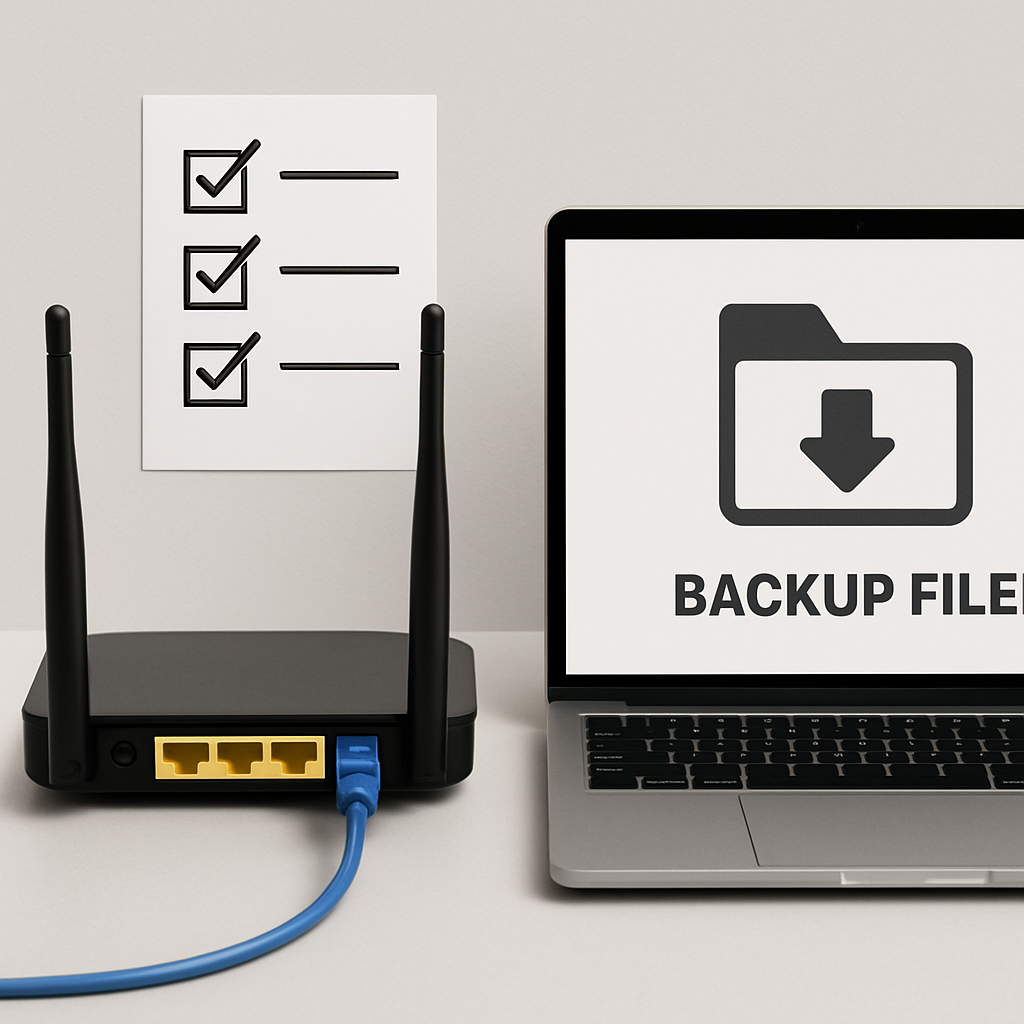
Want to change your Wi‑Fi without losing your setup? This guide shows you how to back up and restore your router settings safely. You’ll learn quick steps, deeper checks, and when to get help—no jargon, just clear directions.
Table of Contents
- Before You Start
- Quick Fix Steps
- Back Up Your Router Settings
- Restore Your Router Settings Safely
- Deeper Diagnosis
- Preventive Care
- When to Seek Help
- Frequently Asked Questions
Before You Start
Quick definitions: Router: the box that creates your home Wi‑Fi network. Backup: a copy of your router’s settings saved as a file. Restore: loading that file back onto the router.
- What you need: a phone, tablet, or computer connected to your router (Wi‑Fi or Ethernet), and some free space to save a file.
- Time estimate: 10–20 minutes for backup; 10–30 minutes for restore.
- Difficulty: Easy for backup; Medium for restore.
- What can go wrong: power loss during restore; using the wrong backup file; forgetting the router password; restoring between different models or firmware versions.
Warning: Do not factory reset unless you must. A reset wipes all settings and can disconnect your home until you set it up again.
Quick Fix Steps
- Connect to your router. Use Wi‑Fi or, for extra safety during restore, an Ethernet cable.
- Find the router login address (often 192.168.0.1 or 192.168.1.1). See the OS steps below.
- Sign in to the router’s admin page in a browser. Look for a menu named System, Administration, Maintenance, or Backup/Restore.
- Export/Download the backup. Save it with a clear name like “router-backup-YYYY-MM-DD.bin”. Keep a second copy on a USB drive or cloud storage.
- If restoring: plug in power, connect by Ethernet, then choose Restore/Import. Select the backup file and confirm. Wait until the router fully reboots.
- Verify after restore: check Wi‑Fi name and password, internet access, and any custom settings (port forwards, parental controls, DNS).
Note: During restore, do not close the browser, unplug the router, or switch networks.
Back Up Your Router Settings
1) Find your router’s login address
Use one of these methods to discover your router’s IP address (the number you type into your browser):
Windows
- Press Windows key, type “cmd”, open Command Prompt.
- Type
ipconfigand press Enter. - Look for “Default Gateway”. That number (for example, 192.168.1.1) is your router’s address.
macOS
- Click the Apple menu > System Settings > Network > select your active network > Details > TCP/IP. Note “Router”.
- Or use Terminal: type
netstat -nr | grep defaultorroute -n get defaultand note the gateway IP.
iOS (iPhone/iPad)
- Open Settings > Wi‑Fi.
- Tap the “i” next to your connected network.
- Find “Router”. That is the address to type in your browser.
Android
- Open Settings > Network & Internet (or Wi‑Fi) > your connected network.
- Tap Advanced (or gear icon) and look for “Gateway”.
2) Log in to the router
- Open a web browser and enter the router address you found (for example, http://192.168.1.1).
- Sign in with the router admin username and password. This is different from your Wi‑Fi password in many homes.
- If you don’t know it, check the label on the router or your setup notes. If you changed it and forgot, see “When to Seek Help”.
3) Export the backup
- In the router menu, open System, Administration, Maintenance, or Backup/Restore.
- Click Export, Backup, or Download Settings. The file usually ends in .bin, .cfg, or .zip.
- Save it to your Documents folder first. Then copy it to another safe place.
Tip: Name the file with the date and router model so it’s easy to identify later.
Warning: Do not edit the backup file. Changing it can corrupt the file and break the restore.
Restore Your Router Settings Safely
1) Prepare
- Use a wired Ethernet connection if possible. This prevents disconnections mid‑restore.
- Plug the router into stable power. Avoid doing this during storms or on a weak power strip.
- Confirm the backup matches your router model and, ideally, the same or compatible firmware version.
2) Start the restore
- Log in to the router’s admin page.
- Open the Backup/Restore or Maintenance menu.
- Choose Restore/Import and select your backup file.
- Confirm and wait. The router may reboot one or more times.
Warning: Do not power off the router or close the browser while it restores. Interruptions can corrupt settings.
3) Verify after restore
- Reconnect to your Wi‑Fi (the name may return to your old one). Test internet on two devices.
- Check custom items: Wi‑Fi password, guest network, parental controls, port forwards, DNS, and time zone.
- If something looks wrong, restart the router once, then recheck.
Deeper Diagnosis
If you can’t reach the admin page
- Confirm you are connected to the router’s network (not mobile data or a neighbor’s Wi‑Fi).
- Try another browser or device. Disable VPN temporarily.
- Ping the router: Windows/macOS/Linux Terminal:
ping 192.168.1.1(replace with your router IP). If no replies, check cables or Wi‑Fi connection.
If backup/restore options are missing
- Look in different menus: System, Administration, Maintenance, Advanced.
- Some routers require “Advanced” mode to show backup options.
- Check your router’s manual (search the web for “your router model manual”).
If restore fails or loops
- Make sure the backup file is from the same router model and not edited.
- If your firmware changed recently, update or roll back to a compatible version before restoring. Follow your router’s official update steps only.
- Try a different Ethernet cable and a different browser for the restore process.
Warning: Avoid downloading third‑party “router fixers” or unofficial firmware unless you fully understand the risks. Malware and incompatibility are common.
About factory reset (last resort)
- A factory reset clears all settings. Only consider it if you cannot log in or the router is unstable after trying the steps above.
- If you must reset, press and hold the router’s reset button (usually 10–15 seconds) while powered on. Then set up from scratch and restore a known‑good backup.
Preventive Care
- Back up after any change: new Wi‑Fi name, password, guest network, parental rules, or port forward.
- Keep two copies: one local (Documents) and one off‑device (encrypted cloud or USB). Label with date and router model.
- Use a strong, unique router admin password. Store it in a password manager or a sealed note.
- Update firmware on a schedule (for example, every 3–6 months). Back up first, then update using the router’s official method only.
- Use a small UPS (battery backup) if your area has unstable power. This prevents mid‑restore power loss.
- Document key settings in a simple text note: ISP login (if used), Wi‑Fi names, passwords, custom DNS, port forwards.
When to Seek Help
- You cannot log in after multiple tries, and the label/defaults do not work.
- Backup or restore errors persist across two different devices/browsers.
- Restore finishes, but the router keeps rebooting or has no internet.
- You suspect malware, unauthorized changes, or tampering.
- You rely on this network for work/medical devices and downtime is risky.
Contact your internet provider if your router is supplied by them, or the router’s support team if you purchased it. Provide your model, firmware version, and the steps you tried.
That’s it! You now know how to safely back up and restore your router settings, how to verify everything after, and how to prevent problems in the future. Keep your latest backup handy and refresh it after any change.
Frequently Asked Questions
Can I use a backup from a different router model?
Usually no. Backups are model‑specific and often firmware‑specific. Use a backup made from the same router and a similar firmware version.
How often should I back up?
Back up after any change and at least every 3–6 months. Keep the two most recent backups in case one is corrupted.
Will restoring change my Wi‑Fi password?
Yes, it reverts to the password saved in the backup. After restore, reconnect devices using that password.
Do I need to keep the router on during restore?
Yes. Keep it powered and avoid unplugging anything until the router fully reboots and your network returns.
Leave a Reply