
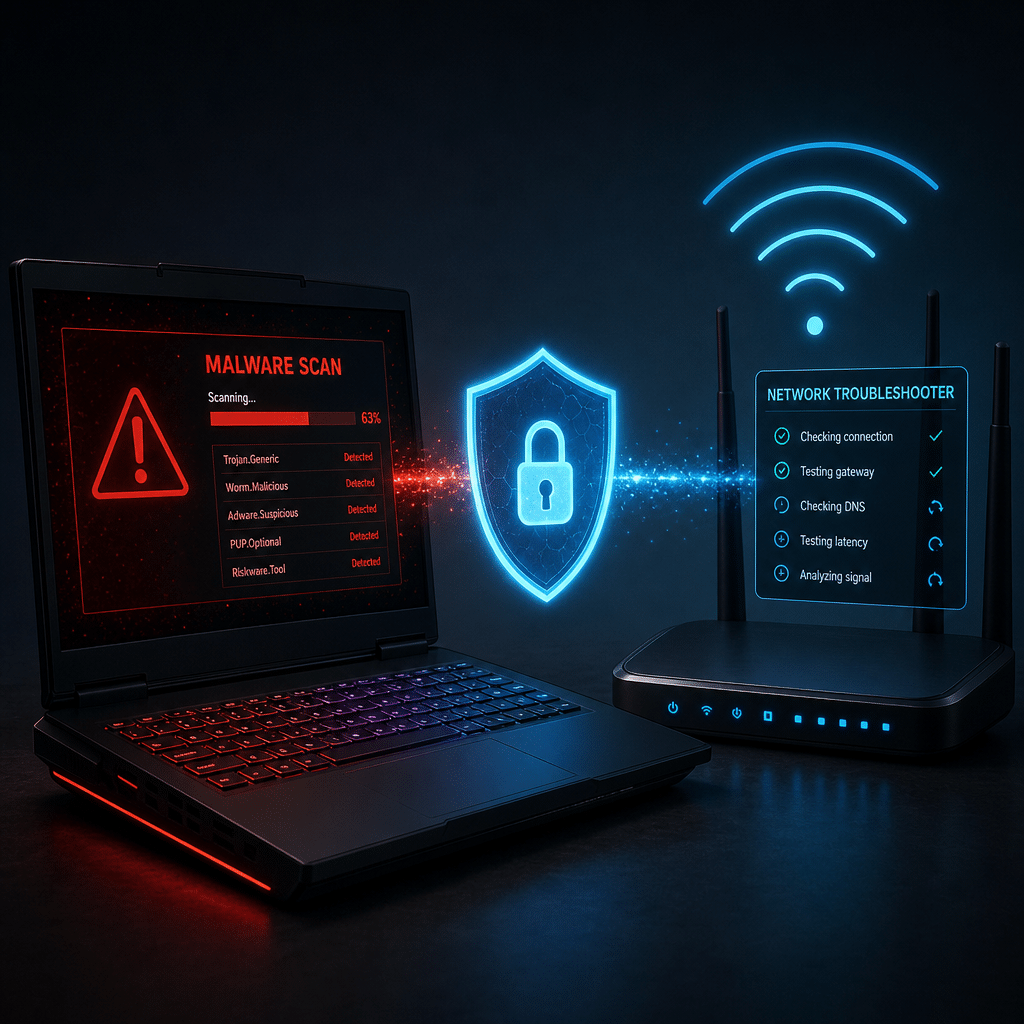
Gaming lag can come from malware, but it can also be caused by weak Wi-Fi, busy servers, overheating, or too many background apps. This guide helps you safely check your computer or phone, separate malware symptoms from ordinary connection problems, and know when to ask for help.
Table of Contents
- Table of Contents
- Before You Start
- Quick Fix Steps
- Deeper Diagnosis
- Preventive Care
- When to Seek Help
- Frequently Asked Questions
Before You Start
Difficulty: Easy to Medium. Allow 20–60 minutes for updates and malware scans. You will need an internet connection, your device charger if using a laptop or phone, and enough free storage for updates.
- Save open work and close your game before scanning.
- Make sure you know your important account passwords. Do not share them with anyone offering unexpected support.
- Back up important photos and documents before making major changes.
- Write down when the lag happens: only in one game, only online, or even in menus and offline games.
Warning: Do not download random “lag fixer” tools, cracked games, registry cleaners, or unofficial antivirus programs. They can contain malware. Do not edit the Windows registry or factory-reset a device unless a trusted professional guides you.
What can go wrong? A scan may slow the device temporarily, quarantine a file you need, or ask for a restart. Follow the security app’s instructions, and do not delete a file manually unless you know what it is.
Quick Fix Steps
1. Restart and check for updates
Restart the device and the router—the box that creates your home Wi-Fi network. Then install operating system, game, and security updates from the device’s normal settings or the game’s official launcher.
2. Check whether the problem is local or online
Try an offline game or the game’s training mode. If offline play is smooth but online play stutters, the cause may be Wi-Fi, your internet provider, or the game server rather than malware. If the whole device is slow, continue with the checks below.
3. Look for unusual activity
Close the game and watch the device for a few minutes. Be cautious if the processor, memory, disk, battery, or network stays very busy when no programs are open, or if you see unknown apps, pop-ups, new browser extensions, or unexplained account alerts.
4. Run a full security scan
Use the security protection already built into your operating system. Choose a full or complete scan, not only a quick scan. Keep the device plugged in and avoid gaming during the scan.
- Windows: Open the built-in Windows Security app, choose virus or threat protection, update protection information, and start a full scan.
- macOS: Install system updates through System Settings. Review Applications and browser extensions, and remove software you do not recognize. Use a reputable, well-known security scanner only from its official website.
- iPhone or iPad: Update iOS or iPadOS. Review installed apps and remove anything unfamiliar. iOS normally limits traditional malware, but unsafe profiles, scam apps, and stolen accounts can still cause problems.
- Android: Update Android and apps. Use the built-in app safety scanner in system settings or the official app store. Remove unfamiliar apps, especially those installed from outside the official store.
5. Restart after cleanup
If the scan finds a threat, let the security app quarantine or remove it. Restart the device, update your passwords from a clean device if an account may be exposed, and test the game again.
Deeper Diagnosis
Check background programs
On Windows, press Ctrl + Shift + Esc to open Task Manager. On macOS, open Activity Monitor from Applications. Sort by CPU, memory, disk, or network use. On phones, review battery and mobile-data usage in Settings. Search online for an unfamiliar process before removing it; many legitimate system processes have unfamiliar names.
Disable only programs you recognize from starting automatically. Do not end or delete system processes just because they use resources. If the lag begins after a newly installed app or browser extension, uninstall that item using normal system settings and restart.
Check the network separately
Stand near the router and test the game again. If possible, use an Ethernet cable for one test. If the lag disappears on Ethernet, Wi-Fi signal, interference, or router placement is more likely than malware.
Check the router’s status lights and internet connection. The exact lights differ by model, but an internet light that stays red, orange, or off can indicate an ISP or router problem. Open the router’s administration page only by using its documented address or official app, and never use a password from a random website.
Compare devices
Test another trusted device on the same Wi-Fi. If every device has lag, contact your internet provider or check for an outage. If only one device is affected, focus on its malware scan, updates, storage space, overheating, and background programs.
Note: Malware is more likely when lag appears with pop-ups, unknown apps, browser redirects, sudden battery drain, disabled security tools, or unexplained network use. Lag by itself is not proof of an infection.
Preventive Care
- Turn on automatic operating system, app, game, and security updates.
- Use a different, strong password for each important account. A password manager can help.
- Turn on multi-factor authentication for email, game, store, and payment accounts.
- Download games, drivers, and tools only from the device maker, game publisher, or official app store.
- Keep regular backups of important files. Test that you can open a backup.
- Review installed apps, browser extensions, and account login history every few months.
- Keep some free storage and clean dust from vents. Heat and low storage can look like malware-related slowdowns.
Tip: Keep your security protection enabled while gaming. If a trusted game is blocked, check the security app’s notification and the game publisher’s support page instead of turning protection off permanently.
When to Seek Help
Contact your internet provider if multiple devices lag, the router repeatedly loses its connection, or an outage affects your area. Contact the game publisher if only one game has problems while other online services work normally.
Ask a trusted computer professional for help if scans repeatedly find threats, security tools will not open, unknown accounts or payments appear, or the device redirects websites and reinstalls unwanted apps. Use a professional recommended by a trusted person, and ask what they plan to change before giving remote access.
Warning: A factory reset can erase personal files and may not fix compromised online accounts. Back up first, confirm your account recovery information, and use it only as a last resort with clear instructions.
After cleaning the device, change important passwords from a known-clean device, sign out of other sessions, and contact your bank quickly if you see unauthorized transactions.
Frequently Asked Questions
Can malware cause gaming lag?
Yes. Malware can use processor, disk, memory, or internet resources. However, Wi-Fi problems, overheating, game servers, and low storage are also common causes.
Should I install a special gaming antivirus?
Usually not. Start with the security protection built into your operating system. If you choose another scanner, download it only from the maker’s official website and avoid running multiple real-time security programs together.
What if the scan finds nothing?
Check Wi-Fi, Ethernet, router status, overheating, storage, drivers, game updates, and server status. A clean scan does not rule out every problem, but it makes malware less likely.
Should I reset my router?
Restarting the router is usually safe. A factory reset is different: it erases settings and may disconnect your home network. Do that only if you know your ISP settings and have the router’s setup instructions.
By comparing offline and online play, checking background activity, running a full scan, and testing another device, you can narrow down the cause without risky changes. Keep updates and backups active, and seek help when security or account problems continue.
Leave a Reply