
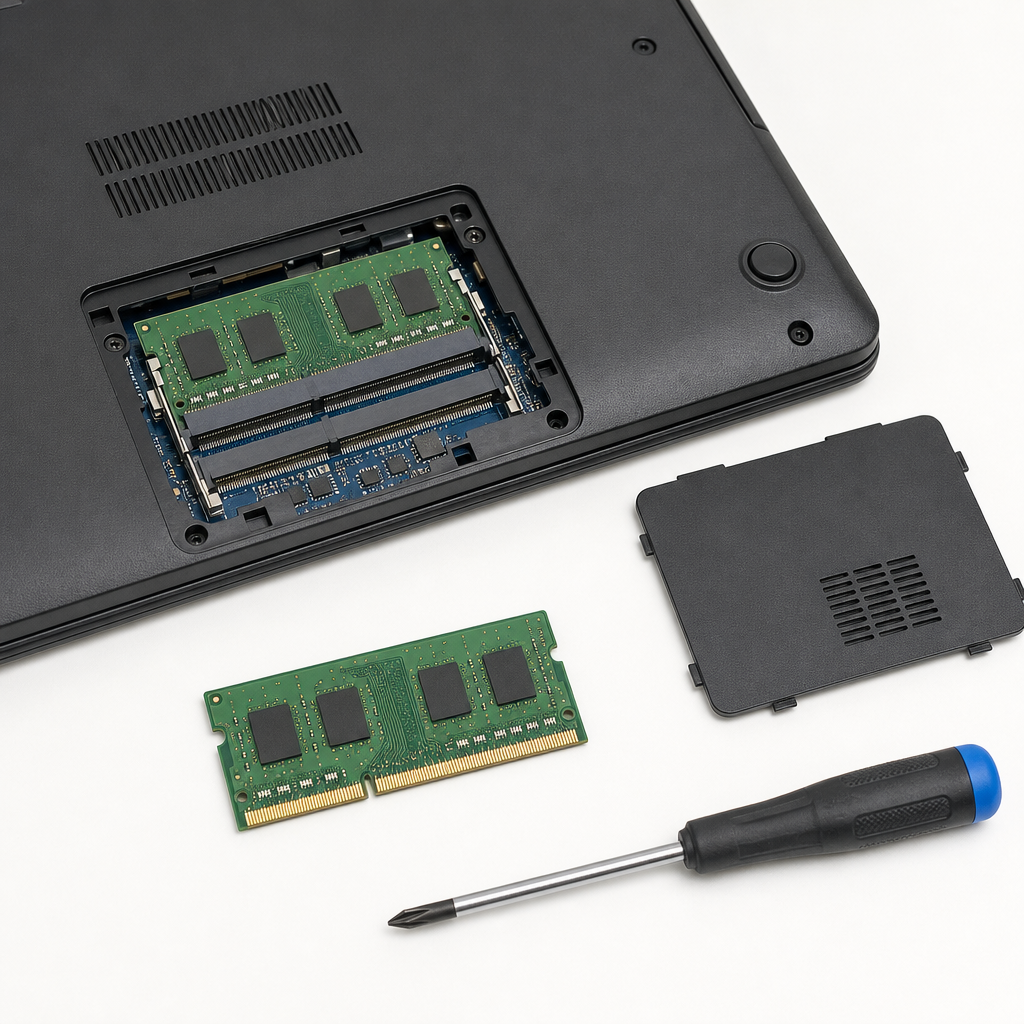
Adding RAM (the laptop’s short-term working memory) can make an old laptop feel faster when many programs are open. This guide shows you how to check compatibility, install a memory module safely, and confirm that the laptop recognizes it—without forcing parts or changing risky system settings.
Table of Contents
- Before You Start
- Quick Fix Steps
- Deeper Diagnosis
- Preventive Care
- When to Seek Help
- Frequently Asked Questions
Before You Start
Time: About 30–60 minutes. Difficulty: Easy to Medium. You will need the correct laptop RAM module, a small Phillips screwdriver, a clean table, and good lighting.
Check compatibility first
- Write down the laptop’s exact model number. Look on the bottom label, inside the battery area, or in the operating system’s system information.
- Search the laptop maker’s support site for its service manual or memory specifications. Use descriptive search terms such as “laptop model memory upgrade manual.”
- Confirm the memory type, such as DDR3, DDR4, or DDR5. Laptop memory is usually called SO-DIMM. Desktop RAM is usually larger and will not fit.
- Check the maximum supported memory, the number of slots, and the maximum size per slot. Some laptops have memory soldered to the main board and cannot be upgraded.
- Buy a module with the correct type and a compatible speed. A reputable computer shop or memory supplier may provide a compatibility checker.
Warning: Do not guess based only on appearance. The wrong module may not fit, and forcing it can damage the slot. Keep your files backed up before opening the laptop. This upgrade should not require a factory reset, registry edits, or downloading an installer.
Quick Fix Steps
- Back up important files. Copy documents and photos to an external drive or trusted cloud storage. Close all programs and shut down completely; do not use Sleep or Hibernate.
- Prepare a safe workspace. Disconnect the charger and every cable. Work on a hard, non-carpeted surface. Touch a grounded metal object before handling parts, or use an anti-static wrist strap if available.
- Remove power safely. If the battery is removable, take it out. If it is built in, follow the service manual’s instructions for disconnecting it. Then hold the power button for about 10 seconds.
- Open the memory cover. Remove only the screws needed for the access panel, and place them in a small container. If the whole bottom cover must come off, photograph the screw locations first.
- Install the module. Hold the RAM by its edges. Match the notch in the connector to the raised key in the slot. Slide it in at roughly a 30-degree angle, then press it down gently until the side clips click into place. Never force it.
- Close and test. Reconnect the battery, replace the cover, connect the charger, and start the laptop. If it starts normally, check the installed memory using the instructions below.
Tip: If adding a second module, matching the existing module’s capacity and speed is often the simplest choice. A matched pair may improve performance, but compatibility is more important than matching brands.
Deeper Diagnosis
Confirm the operating system sees the RAM
Windows: Open Settings, choose System, then About. Look for “Installed RAM.” You can also press Ctrl+Shift+Esc, open Task Manager, and choose Performance, then Memory.
macOS: Open the Apple menu, choose About This Mac, and select Memory. Many newer thin Mac laptops have soldered memory, so check the model before opening anything.
Linux: Open the system information tool provided by your distribution. You can also use the terminal command free -h to display recognized memory. The command only reports information; it does not change files.
iPhone, iPad, and Android: Most phones and tablets have memory soldered to the main board. You normally cannot add physical RAM. Instead, free storage space, remove unused apps, and install system updates from the device’s normal settings.
If the laptop will not start
- Turn it off, disconnect power, and wait a minute.
- Open the cover and check that the module is fully inserted and both clips are holding it evenly.
- If you installed two modules, remove one and test the laptop. Then test the other module by itself. This can show whether one module or slot is faulty.
- Check that the module type and maximum size match the service manual. Do not repeatedly power-cycle a laptop that smells hot, makes unusual sounds, or shows smoke.
- If the laptop starts but crashes, freezes, or shows less memory than expected, run the built-in memory test if your operating system provides one. Save your work first and follow the on-screen instructions.
Note: A small amount of memory may be reserved for graphics or hardware, so the usable amount can be slightly lower than the installed amount.
Preventive Care
- Keep the laptop’s operating system and firmware updated through its normal settings. Avoid unofficial update tools and “driver installer” downloads.
- Keep at least one current backup of important files. Test opening a few backed-up files so you know the backup works.
- Use a password manager and unique passwords for shopping, email, and cloud storage accounts.
- Keep vents clear and clean dust from the outside with the laptop powered off. Avoid blocking vents with blankets or soft furniture.
- Record the installed RAM type and capacity for future repairs. Store unused modules in an anti-static bag, not a loose plastic bag or on carpet.
When to Seek Help
Stop and ask a qualified technician for help if the bottom cover will not open, the battery is swollen, a screw is stripped, or a part does not fit without force. A swollen battery can be dangerous; do not press, puncture, or continue charging it.
Seek professional help if the laptop will not start after reseating the RAM, if memory errors continue with a known-compatible module, or if the laptop has soldered memory. A repair shop can test the module and slot without risking your files. Before handing over the laptop, back up your data and ask how it will be protected.
If the laptop is still slow after a successful upgrade, check storage health, startup programs, heat, and malware protection. More RAM cannot fix every performance problem, and an old hard drive may be the main limitation.
You have now checked compatibility, installed RAM carefully, and verified the result. Keep the service manual and purchase information, maintain regular backups, and consider a professional diagnosis if the laptop still behaves unexpectedly.
Frequently Asked Questions
Will more RAM make every old laptop faster?
No. It helps most when the laptop runs out of memory while several programs or browser tabs are open. A slow hard drive, weak processor, overheating, or unwanted software may be the real cause.
Can I mix different RAM brands?
Often, yes, if the type, capacity, and supported speed are compatible. However, mixed modules can sometimes cause instability. Matching modules is usually the safer choice.
How much RAM should an old laptop have?
For basic web browsing and documents, 8 GB is a practical target when supported. More demanding work may need 16 GB or more, but always follow the laptop’s maximum limit.
Do I need to change BIOS settings?
Usually not. The laptop normally detects compatible RAM automatically. Do not change firmware settings unless the service manual specifically instructs you.
Leave a Reply