
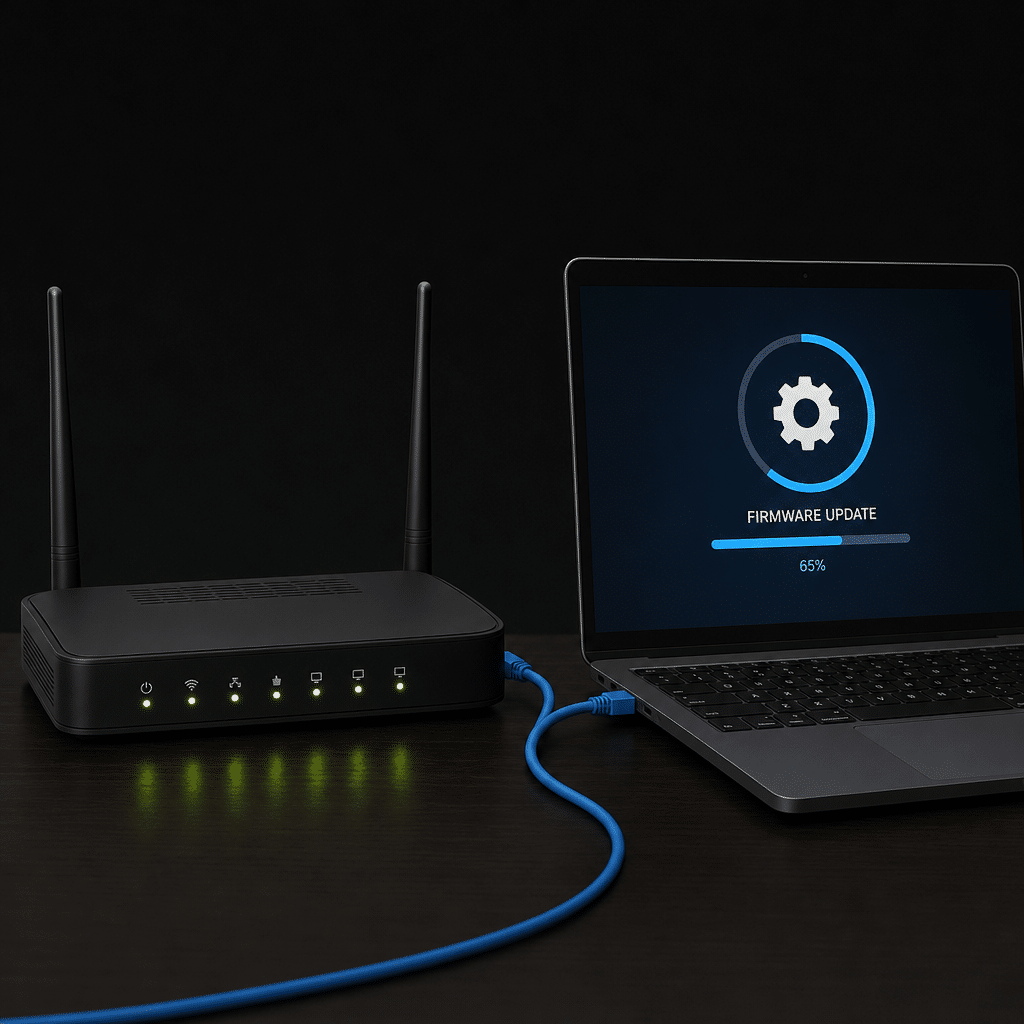
Want more control over a spare router? Installing open firmware can add features, improve privacy, and extend the device’s useful life. This guide walks you through a careful, beginner-friendly installation using a spare router—not the router your household currently depends on.
Table of Contents
- Before You Start
- Quick Fix Steps
- Deeper Diagnosis
- Preventive Care
- When to Seek Help
- Frequently Asked Questions
Before You Start
A router is the box that creates and manages your home network and Wi-Fi. Open firmware is alternative software made by an open-source community. Common projects include OpenWrt and similar options, but the correct file depends on your exact router model and hardware version.
- Time: Allow 30–60 minutes, plus extra time for testing.
- Difficulty: Medium.
- You need: A spare router, its power adapter, an Ethernet cable, and a computer with an Ethernet port or adapter.
- Also have ready: The router’s exact model and hardware revision, usually printed on its label.
- What can go wrong: The router may lose its settings, stop starting, or become unusable if the wrong file or an interrupted installation is used.
Warning: Do not experiment with the router that supplies your current home internet. Keep it disconnected and available as a backup. Never unplug the spare router during installation unless the official instructions specifically tell you to do so.
Download firmware only from the project’s official website or documentation. Avoid files shared in random forums, advertisements, or file-sharing sites. Read the project’s support list before downloading anything.
Quick Fix Steps
1. Identify the router exactly
Turn the spare router over and photograph its label. Record the brand, model number, hardware revision, and current firmware version if shown. A model with a similar name may use completely different firmware, so do not guess.
2. Check compatibility and download the correct files
On the official firmware website, search for the exact model and hardware revision. Read the installation notes, supported features, storage requirements, and recovery instructions. Some routers require an initial “factory” image, followed by a separate “upgrade” image; use the files in the order documented by the project.
Tip: Save the downloaded files and the official instructions in a folder named with the router model. If the site provides file checksums, compare them with the downloaded file to help confirm that the download is complete.
3. Connect a computer by Ethernet
Disconnect the spare router from your modem and from other network equipment. Connect the computer directly to one of the router’s numbered LAN ports with an Ethernet cable. Leave the router’s power connected.
Using a wired connection is safer than Wi-Fi because Wi-Fi can drop during the installation. If your computer has no Ethernet port, use a reliable USB-to-Ethernet adapter.
4. Back up the existing settings
Open a web browser and visit the router’s current administration address, often printed in its manual or label. Sign in using the current administrator password. Look for a menu named Backup, Save settings, or Administration, then save a backup file to your computer.
Warning: A backup from the old firmware may not work with the new firmware. Keep it for reference, but plan to configure the new system manually.
5. Install the firmware from the administration page
Find the firmware update or upgrade page. Choose the official file you downloaded, confirm the exact model shown on the page, and start the update. Do not browse away, press reset, close the computer, or remove power while the process is running.
The router may restart several times. Wait at least 10 minutes, or use the time stated in the official instructions. A progress bar that appears stuck may still be working.
6. Reset and complete the first-time setup
After installation, follow the project’s instructions for accessing the new firmware. You may need to perform a factory reset using the administration page or the physical reset button.
Warning: A factory reset erases saved settings, including Wi-Fi names and passwords. Write down anything you need first. After the reset, create a strong administrator password, set a new Wi-Fi password, and choose a Wi-Fi name that does not reveal your address or family name.
Deeper Diagnosis
Check whether the computer received a network address
If the administration page does not open, confirm that the Ethernet cable is connected to a LAN port, not the internet or WAN port. Then restart the computer’s network connection and try the address listed in the firmware documentation. Do not assume that the old router address is still correct.
Windows
Open Command Prompt and run ipconfig. Look for the Default Gateway value; that is often the address to enter in your browser. If the address begins with 169.254, restart the router and computer, then check the cable again.
macOS
Open System Settings, choose Network, select Ethernet, and review the connection details. The router address is usually shown as Router or Gateway.
iPhone or iPad
Use a computer for the installation when possible. On a Wi-Fi connection, open Settings > Wi-Fi, tap the information button beside the network, and look for Router. A phone may not support the wired setup needed for recovery.
Android
Open Settings > Network & internet > Wi-Fi, select the connected network, and look for Gateway or Router. Menu names vary by device. Use a computer and Ethernet cable for firmware installation or recovery.
Check the lights and recovery options
Power, Ethernet, and internet lights vary by model, so compare them with the official manual. If the power light never becomes steady, disconnect power for 30 seconds and try again. If the router repeatedly restarts, stop trying random files and read the project’s recovery guide; recovery may require a special web page, button timing, or manufacturer utility.
Preventive Care
- Check the firmware project’s official release notes every few months.
- Back up your working configuration after major changes, and store it somewhere safe.
- Use a unique administrator password and a different strong Wi-Fi password.
- Keep the router ventilated and use its original or correctly rated power adapter.
- Download updates only from official project pages. Confirm the model before installing.
- Test changes on the spare router before using similar settings on your main network.
Note: Open firmware updates may require manual installation. Turn on automatic updates only if the project clearly supports them for your device and you understand how to recover from a failed update.
When to Seek Help
Ask the firmware project’s community or a qualified technician for help if the router will not power on, the recovery page will not appear, or you are unsure which file matches your hardware revision. Include the exact model, revision, firmware file name, and what the lights are doing. Do not post passwords, Wi-Fi keys, or private network details.
Contact your internet provider if your main router or modem loses internet access after you reconnect your normal equipment. If the spare router is only for learning, it may be safer to replace it than attempt advanced recovery procedures that involve opening the case or connecting to circuit-board pins.
With the correct file, a wired connection, and a backup plan, you can turn a spare router into a useful testing device. Take your time, verify every model number, and keep your original router ready until the new setup works reliably.
Frequently Asked Questions
Will installing open firmware erase my Wi-Fi settings?
Usually, yes. Plan to create the Wi-Fi name, password, and other settings again. An old configuration backup may not be compatible with the new firmware.
Can I install firmware over Wi-Fi?
It may be possible, but Ethernet is strongly recommended. A brief wireless interruption during installation can damage the router’s software.
What if I choose the wrong firmware file?
Stop before installing if you notice the mismatch. If the installation already started, follow the project’s official recovery instructions and avoid repeatedly trying unrelated files.
Can I use the flashed router as my main router?
Yes, after careful testing, but begin with the spare device. Confirm that internet access, Wi-Fi coverage, passwords, and any services you need work correctly before replacing your main router.
Leave a Reply