
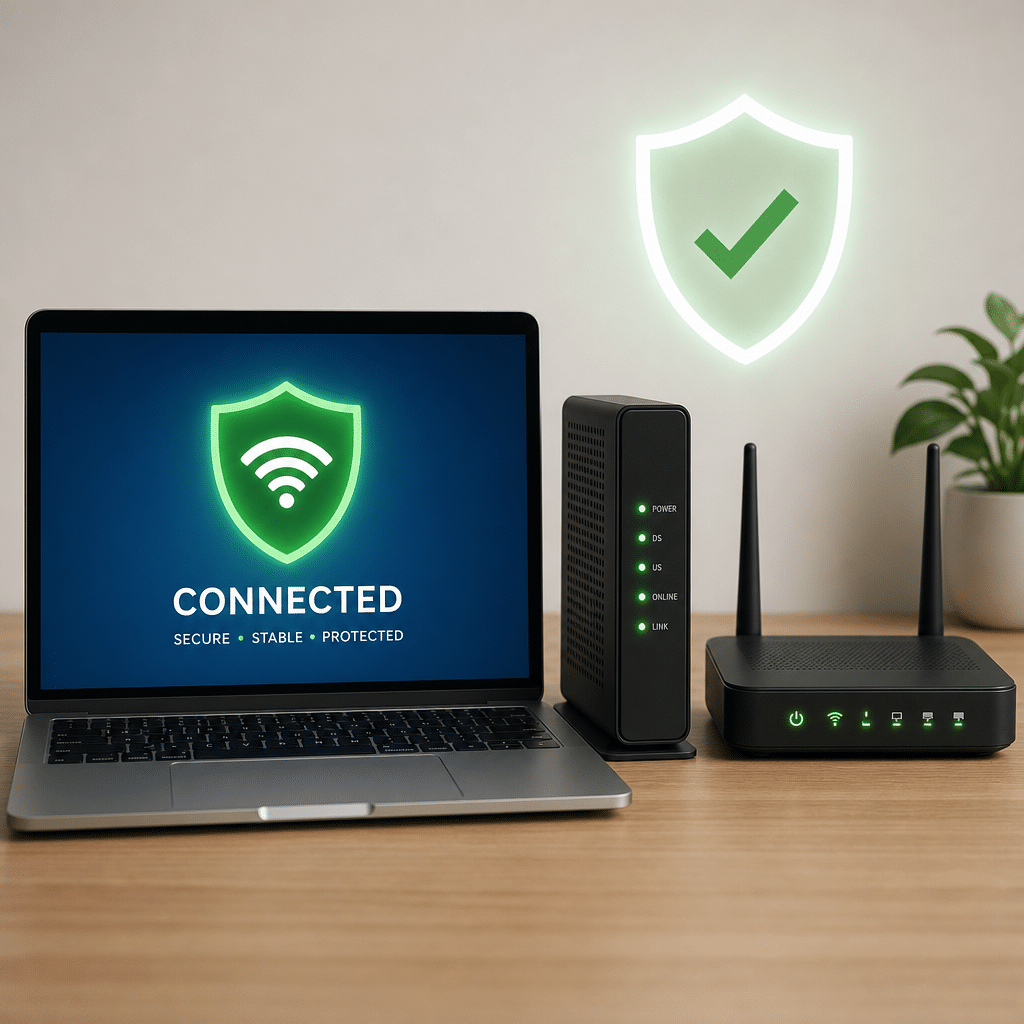
Internet problems can continue after malware is removed. Malicious software may have changed network settings, browser settings, or passwords. This guide helps you safely restore your connection, check whether the problem affects one device or the whole home, and know when to ask for help.
Table of Contents
- Before You Start
- Quick Fix Steps
- Deeper Diagnosis
- Preventive Care
- When to Seek Help
- Frequently Asked Questions
Before You Start
Time: Allow 20–45 minutes. Difficulty: Easy to Medium. You will need the affected device, your Wi-Fi password, and access to your router. A router is the box that creates your home Wi-Fi network. Your internet provider may call the other box a modem; it connects your home to the internet.
- Write down any error messages before closing them.
- Save open work and connect the device to power if its battery is low.
- If possible, use a second device to check whether the internet works elsewhere.
- Keep your internet provider’s support number available.
Warning: Do not download random “internet repair” tools. They can contain more malware. Do not edit the Windows Registry unless a trusted professional gives you exact instructions. A factory reset can erase files and settings, so use it only as a last resort after backing up important data.
Quick Fix Steps
1. Check whether the problem affects one device
Try the internet on a phone, tablet, or another computer using the same Wi-Fi. If other devices work, the problem is probably limited to the cleaned device. If nothing works, focus on the router, modem, or internet service.
2. Restart the device and network equipment
Restart the affected device. Then unplug the router and modem from power, wait 60 seconds, and plug them back in. Wait several minutes for the indicator lights to settle before testing a website.
Note: Pressing the small reset button on a router is different from unplugging it. The reset button may erase settings.
3. Check the connection and try another website
Make sure Wi-Fi is turned on and Airplane Mode is off. Open two or three trusted websites. One website may be temporarily unavailable, so do not assume your internet is broken after only one failed page.
4. Turn off suspicious proxy settings
A proxy is a service that sends web traffic through another computer. Malware sometimes changes this setting. Turn off a proxy unless you know your workplace or school requires one.
- Windows: Open
Settings > Network & internet > Proxy. Turn off a manually configured proxy. - macOS: Open
System Settings > Network > Wi-Fi > Details > Proxies. Clear unexpected proxy options. - iPhone or iPad: Open
Settings > Wi-Fi, tap the information button beside the network, and checkConfigure Proxy. - Android: Open
Settings > Network & internet > Internet, select the connected network, and check its proxy setting. Menus can vary by device.
5. Forget and reconnect to Wi-Fi
Remove the saved Wi-Fi network, then connect again and carefully enter the Wi-Fi password. This can fix a damaged saved connection. Do not do this if you do not know the password.
- Windows:
Settings > Network & internet > Wi-Fi > Manage known networks. - macOS:
System Settings > Wi-Fi > Details, then choose to forget the network if available. - iOS:
Settings > Wi-Fi, tap the information button, then chooseForget This Network. - Android: Touch and hold the network name, then choose
Forget.
Deeper Diagnosis
Check the modem and router
Look at the lights labeled Internet, Online, WAN, or similar. A steady connection light is usually normal; a red, amber, or flashing light may indicate a service or cable problem. Check that cables are firmly connected to the correct ports.
If the modem or router has no power light, try another wall outlet. If the internet light stays abnormal after a restart, contact your internet provider before changing advanced settings.
Test with a network cable
If your computer has an Ethernet port, connect it directly to the router with a network cable. If wired internet works but Wi-Fi does not, the issue is likely Wi-Fi settings, signal strength, or the router’s wireless service. If wired internet also fails, the issue may be the modem, router, service, or computer.
Run the built-in network troubleshooter
- Windows: Open
Settings > System > Troubleshoot > Other troubleshooters, then run the network troubleshooter. - macOS: Open
System Settings > Network. Review the connection status and use Apple’s built-in Wireless Diagnostics if offered. - iOS and Android: Toggle Wi-Fi off and on, restart the device, and test another network if one is available.
Tip: If the device works on another Wi-Fi network, your home network is the likely source. If it fails on every network, the device needs more attention.
Refresh network settings carefully
Use this step only after trying the simpler fixes. It removes saved Wi-Fi networks and may remove VPN settings, so make sure you know your passwords.
- Windows: Open
Settings > Network & internet > Advanced network settings > Network reset, then restart when prompted. - macOS: Remove and add the Wi-Fi service again under
System Settings > Network, or ask Apple Support for guidance. - iPhone or iPad: Use
Settings > General > Transfer or Reset > Reset > Reset Network Settings. - Android: Look under
Settings > System > Reset optionsfor a network reset. The wording varies.
Warning: Do not factory-reset the device or router yet. Those actions can erase files or disconnect every device in the home.
Preventive Care
- Install operating system, browser, router, and security updates from the built-in update screens.
- Run a full scan with a trusted, up-to-date security program. Quarantine threats rather than opening them.
- Change important passwords from a device you trust, especially email, banking, shopping, and router passwords. Use different passwords for different accounts.
- Turn on two-step sign-in where available. It asks for an extra code after your password.
- Back up photos and documents to an external drive or reputable cloud service. Test that a few files can be restored.
- Download programs only from the developer’s official site or your device’s official app store. Avoid cracked software, unexpected attachments, and urgent pop-ups.
- Change the router’s administrator password if malware may have accessed it. Use the router maker’s official instructions or ask your internet provider.
Note: If you suspect banking or email information was stolen, contact the affected company using its official website or phone number. Do not use a link from a suspicious message.
When to Seek Help
Contact your internet provider if the modem’s internet light remains abnormal, all home devices are offline, or a direct cable connection also fails. Ask whether there is an outage and whether they can test the line remotely.
Seek help from a trusted computer professional if redirects continue, security warnings return, unknown accounts appear, or the device cannot stay connected on any network. Bring the exact error messages and a list of steps you already tried.
If you see signs of account theft, contact your bank and email provider immediately. If you find unknown router settings or devices, change passwords from a clean device and ask for router-specific help. Avoid paying anyone who contacts you unexpectedly and demands remote access or immediate payment.
In many cases, restarting the equipment, correcting proxy settings, reconnecting to Wi-Fi, and updating the device restores internet access after malware removal. Work from the simple checks to the advanced ones, protect your files and accounts, and stop before any reset that could erase data.
Frequently Asked Questions
Why did malware affect my internet connection?
Malware can change proxy, DNS, browser, VPN, or network settings. It may also damage network components or alter router settings.
Should I reset my router after removing malware?
Not automatically. First change important passwords and check for unknown router settings. A router reset may be appropriate if the router was compromised, but it erases Wi-Fi settings and should follow the router’s official instructions.
Why does Wi-Fi work but websites do not load?
Your device may be connected to the router but not the internet. Check modem lights, proxy settings, VPN software, and whether other devices can browse.
Can I use a free internet repair program?
Be cautious. Use built-in operating system tools and guidance from your device or internet provider. Do not install a repair program from an unexpected advertisement or pop-up.
Leave a Reply