
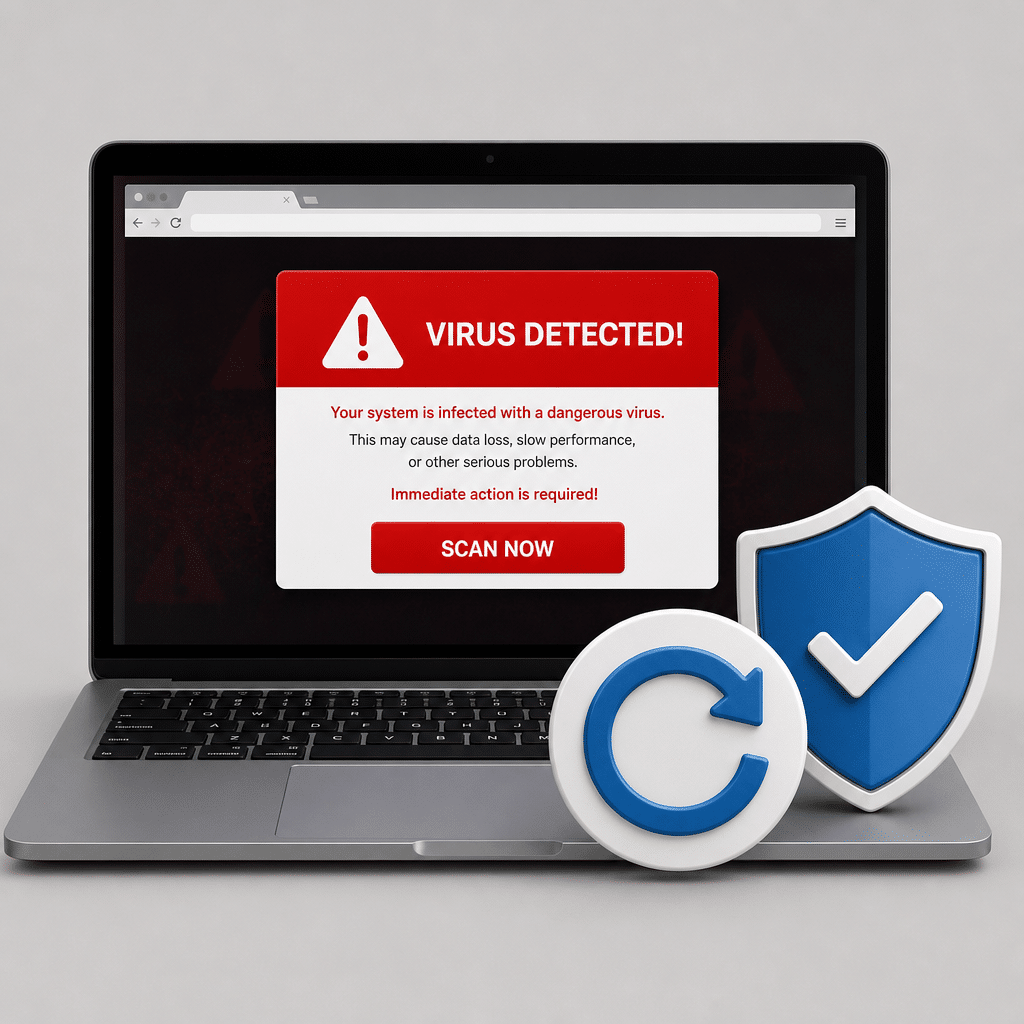
A pop-up claiming your device is infected can be alarming. Many of these messages are fake alerts designed to make you call a number, install software, or pay money. This guide will help you close the alert safely, reset your browser, remove unwanted extensions, and check whether your device needs more help.
Table of Contents
- Before You Start
- Quick Fix Steps
- Deeper Diagnosis
- Preventive Care
- When to Seek Help
- Frequently Asked Questions
Before You Start
Time: Allow 20–45 minutes. Difficulty: Easy to Medium. You will need the affected device, an internet connection, and access to your device password if your operating system asks for it.
- Do not call a phone number shown in the alert.
- Do not install a “cleaner,” remote-control app, or security tool from the pop-up.
- Do not give anyone your password, payment details, or remote access.
- If you downloaded a file or entered a password after seeing the alert, make a note of what happened.
Warning: Browser reset steps remove settings such as extensions, saved site permissions, and sometimes locally stored browser data. If your browser syncs bookmarks and passwords, check that synchronization is enabled before resetting. Never use a factory reset or edit the Windows registry as a first step; those actions can erase data or damage your system.
Quick Fix Steps
1. Stop interacting with the alert
Do not click buttons such as “Scan,” “Remove virus,” or “Call support.” If the alert is a web page, it may use loud sounds, flashing colors, or a fake countdown to pressure you. These signs do not prove that your device is infected.
2. Close the browser safely
First, try closing the browser window using its normal close button. If the page will not close, use the following option for your device:
- Windows: Press
Ctrl + Shift + Escto open Task Manager. Select your browser, then choose End task. - macOS: Press
Option + Command + Esc. Select the browser and choose Force Quit. - iPhone or iPad: Open the app switcher and swipe the browser away.
- Android: Open recent apps and swipe the browser away. If necessary, open Settings, find the browser under Apps, and choose Force stop.
3. Reopen without restoring the suspicious page
Open the browser again. If it asks whether to restore your previous tabs, choose the option that opens a new or blank page. Do not reopen the tab that showed the alert.
4. Remove unfamiliar extensions or add-ons
An extension is a small add-on that changes what your browser can do. Remove anything you do not recognize, especially if it appeared recently or claims to protect your device.
- Open the browser menu and look for Extensions, Add-ons, or Manage extensions.
- Review the list carefully. Disable suspicious items first, then remove them if the browser allows it.
- Keep extensions you trust and actually use. Fewer extensions mean fewer opportunities for unwanted behavior.
5. Reset browser settings
Open the browser settings and search for Reset settings, Restore settings to their original defaults, or a similar option. Read the confirmation screen before continuing. This normally resets the home page, search engine, new-tab page, permissions, and temporary data; it should not uninstall the browser.
Tip: If you cannot find the option, use the browser’s built-in Help search for “reset settings.” Use the official browser settings page, not a download link from a pop-up.
6. Clear recent browsing data
In browser settings, open Privacy or History, then clear cached files and cookies for a recent time period. Cookies are small files websites use to remember you. Clearing them may sign you out of websites, so make sure you know your account passwords before continuing.
Deeper Diagnosis
Check for unwanted software
If alerts return even when the browser is closed, another program or app may be involved. Review recently installed programs and remove only software you recognize as unwanted. If you are unsure about an item, search for its exact name using a separate, trusted device before uninstalling it.
- Windows: Open Settings, then Apps, then Installed apps. Sort by installation date and review recent items.
- macOS: Open Finder, then Applications. Look for unfamiliar apps, but do not delete system items just because their names look technical.
- iPhone or iPad: Review the App Library and remove apps you did not install or no longer need.
- Android: Open Settings, then Apps. Review recently installed apps and check their permissions.
Run a trusted security scan
Update your device’s built-in security software, then run a full scan. Download security tools only from your operating system’s official app store or the security company’s official website. Do not trust a tool recommended by the alert itself.
Warning: Never run several full-time antivirus programs at once. They can interfere with each other. One trusted, updated protection program is usually better than several competing programs.
Check important accounts
If you typed a password into a suspicious page, change that password immediately from the real website or its official app. Use a different password for every important account, starting with email, banking, shopping, and your main device account. Turn on two-step verification, which requires an additional code or approval when signing in.
Check your home network only if other devices are affected
A router is the box that creates your home Wi-Fi network. If the same strange redirects or alerts appear on several devices, restart the router by unplugging it for 30 seconds and plugging it back in. Do not press the small reset button unless your internet provider or a qualified technician tells you to; it can erase your Wi-Fi settings.
If the problem continues on multiple devices, sign in to the router’s official administration page using its printed instructions. Check for unfamiliar DNS or administrator settings, but do not change them unless you know what they do. Contact your internet provider if the page is unfamiliar or you cannot safely review it.
Preventive Care
- Install operating system, browser, and app updates promptly. Updates fix security weaknesses.
- Keep regular backups of photos and documents on an external drive or reputable cloud service. Test that you can open a few backup files.
- Use unique passwords and a password manager if possible. Protect the password manager with a strong main password and two-step verification.
- Download software only from official app stores or the maker’s official website. Avoid “cracked” software and unexpected email attachments.
- Review browser extensions, notification permissions, and installed apps every few months.
- Teach household members that real security companies and internet providers do not demand payment through alarming pop-ups.
When to Seek Help
Contact your internet provider if several devices have the same problem, your router settings changed unexpectedly, or your internet service keeps redirecting pages. Contact your bank immediately if you entered payment information into a suspicious page.
Seek help from a reputable computer professional if pop-ups continue after a scan and browser reset, new accounts or programs appear without permission, files are encrypted, or you cannot safely remove a suspicious program. Ask for a written estimate before work begins. Avoid technicians who contact you unexpectedly or demand immediate payment.
If you suspect identity theft, contact the affected service through its official website and follow your local consumer-protection or fraud-reporting guidance. Keep screenshots, emails, phone numbers, and receipts as evidence.
After these steps, the browser should open normally, suspicious extensions should be gone, and your important accounts should be better protected. Keep your device updated, avoid urgent pop-ups, and ask for help before taking destructive actions such as a factory reset.
Frequently Asked Questions
Was my device definitely infected?
No. A browser warning can be a fake web page. A trusted security scan and ongoing symptoms are better evidence than the pop-up itself.
Will resetting my browser delete my photos and documents?
Normally, no. Browser reset affects browser settings and data, not files stored elsewhere on your device. Still, back up important files before major troubleshooting.
Should I factory-reset my phone or computer?
Usually not as a first step. A factory reset erases apps, settings, and often personal data. Consider it only after trusted support recommends it and you have a verified backup.
What if I called the number in the alert?
Disconnect any remote-control session, uninstall remote-access software you did not request, change important passwords from a clean device, and contact your bank if payment details were shared. A reputable professional can check the device.
Leave a Reply