
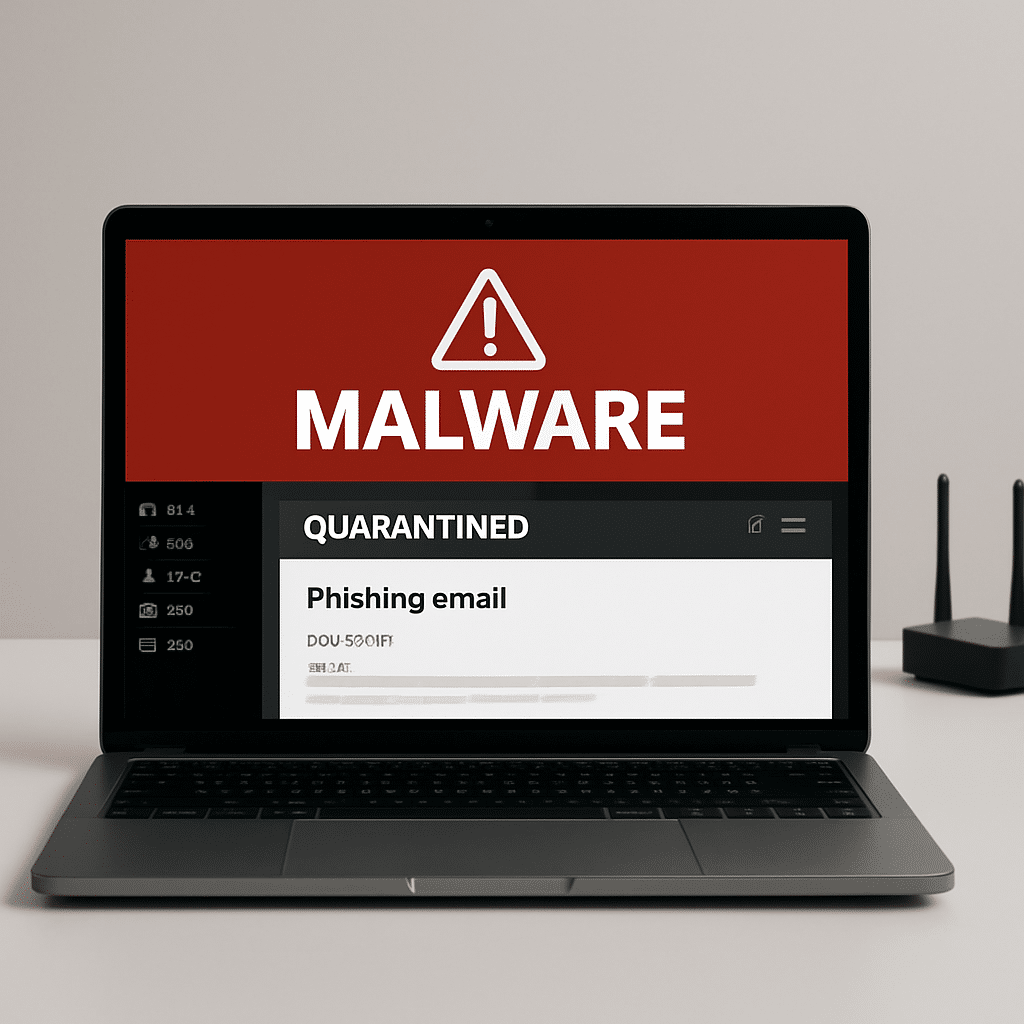
You got a “phishing training” email, clicked nothing, and now your device pops up a malware alert. Don’t panic. This guide helps you confirm if it’s a safe drill, clear the alerts without turning off protection, and know when to ask for help.
Table of Contents
- Before You Start
- Quick Fix Steps
- Deeper Diagnosis
- Preventive Care
- When to Seek Help
- Conclusion
- Frequently Asked Questions
Before You Start
This situation is common. Some simulated phishing emails use links or attachment types that security tools don’t like. Your goal: stay protected while confirming whether it’s only a drill.
- What you need: your email account, your security app (antivirus or built-in protections), and a way to contact the training organizer (work IT, school, or service).
- Difficulty: Easy to Medium.
- Time: 15–30 minutes for checks and scans.
- What can go wrong: real malware, deleting needed files, or turning off protection and forgetting to re-enable it.
Warning: Do not disable antivirus, firewall, or “real-time protection” to make a drill pass. That creates real risk.
Tip: If this might be a work/school drill, check any official notice or training portal before doing anything else.
Quick Fix Steps
- Pause and do not click. Close the email tab or window. Do not open attachments. Do not enter any passwords. Take a breath.
- Capture what you see. Take screenshots of the alert and the email. Note the time and the sender’s address. This helps support verify the event.
- Check if a drill was announced. Look for an email, calendar note, or training portal message about a phishing simulation. If you find one, compare the sender domain (the part after @) with the drill instructions.
- Confirm your protection is on. Open your device’s security app and make sure it says “Protected” or “On.” Do not press “Allow,” “Ignore,” or “Whitelist” yet.
- Run a quick scan. Use your built-in or installed security app to run a quick scan. Let it finish. Follow its guidance if it finds a real threat.
- Handle the email safely. If you’re fairly sure it’s a drill and the scan is clean, move the message to Junk/Spam or delete it. If something was quarantined, leave it quarantined for now.
- Report the event. Tell the training organizer (work IT/security or the drill contact) that your security app flagged the drill. Ask them for guidance. If it’s a personal drill or unknown, treat it as suspicious and keep protections on.
Note: Some drills use attachments like .html or short links. Security tools may flag those even if the file is harmless in the drill context.
Windows
- Open Settings > Privacy & security > Windows Security > Virus & threat protection.
- Check for alerts or quarantined items. Run a Quick scan.
- Do not click “Allow” unless your IT or training organizer confirms it’s safe.
macOS
- Open System Settings > Privacy & Security. Ensure security features (e.g., Gatekeeper) are on.
- If you use an antivirus app, open it and review alerts/quarantine. Run a Quick scan.
- Leave any flagged item in quarantine until confirmed safe.
iOS
- Open Settings > General > Software Update and install updates.
- If you have a mobile security app, open it to review alerts and run a scan if available.
- Delete the suspicious email from the Mail app. Do not open attachments or profiles.
Android
- Open Settings > Security to confirm protections are on.
- If you use a mobile security app, review alerts and run a scan.
- Delete the suspicious email in your mail app. Do not install any downloaded files.
Deeper Diagnosis
If alerts keep popping up, do a deeper check. These steps help you tell a harmless drill from a real threat without risky actions.
1) Review quarantine details
- Open your security app’s Quarantine or History. Look for the item name, type (file, script, URL), and time.
- Compare the time with when you opened the drill email. If they match, the drill likely triggered it.
Warning: Avoid “Restore” or “Allow” unless you confirmed with the training organizer or IT that it is safe and expected.
2) Check your Downloads folder
Make sure nothing sneaky landed there.
- Windows: open
C:\Users\YourName\Downloads - macOS: open
~/Downloads - iOS/Android: open your Files/Downloads app
Delete any unexpected file you did not open. Then empty the Recycle Bin/Trash.
3) Inspect the email safely
- Look at the sender’s full address, not just the display name.
- Hover over links (or long-press on mobile) to preview the URL. Do not click. The domain should match the announced drill domain.
- If your mail app supports “View Original” or “View Message Source,” you can verify the sending domain and date. If this sounds too technical, skip it and ask the organizer.
4) Run a full scan
- Start a Full (or Deep) scan in your security app. This can take 20–60 minutes.
- Keep the device plugged in. You can use the device while it scans, but avoid risky browsing.
5) Update definitions and system
- Update your security app’s virus definitions.
- Update your operating system (Windows/macOS/iOS/Android) to the latest version.
Tip: If the alert mentions “phishing site” or “suspicious script,” that often points to a blocked link rather than a full infection.
Preventive Care
Build habits that reduce false alarms and real risks.
- Keep your OS and security app updated. Set automatic updates on.
- Back up important files weekly to an external drive or trusted cloud. Test restoring a file. Label the backup so you know its date.
- Use strong, unique passwords and turn on two-factor authentication (2FA) for email and banking.
- Download software only from official stores or the developer’s site. Avoid “free” installers from random pages.
- Use a standard user account for daily work. Only use admin rights when needed. This limits damage if you click something bad.
- Learn common phishing signs: urgent language, mismatched domains, strange attachments, and unexpected password prompts.
Note: If your organization provides a training portal, bookmark it. Compare any training email with the portal details before you click.
When to Seek Help
Know when to bring in a pro or your organization’s support.
- You clicked a link and entered a password. Change that password immediately and contact your organization’s IT/security or your email provider.
- Your security app finds real malware or keeps alerting after a full scan. Ask a professional to clean the system.
- Multiple devices on your home network show alerts. This suggests a broader issue.
- You see new toolbars, random pop-ups, or programs you did not install.
- Bank, email, or social media shows suspicious activity.
Warning: Avoid factory resets unless a professional recommends it and you have verified backups. A reset erases your data.
Who to contact:
- Work/school users: your IT/security help desk or the named drill organizer.
- Personal users: your email provider’s support or a reputable local technician.
- If you entered financial details: contact your bank or card issuer right away.
Conclusion
A phishing drill can sometimes look scary to your security tools. With calm checks, quick scans, and careful verification, you can stay protected, avoid risky “Allow” clicks, and report a false alarm the right way. Keep your system updated, back up often, and ask for help when in doubt.
Frequently Asked Questions
Why would a phishing drill trigger a malware alert?
Drills sometimes use links, redirects, or attachment types that resemble real threats. Your security app blocks first to be safe. That’s normal behavior.
Should I whitelist the drill email or domain?
Not on your own. Whitelisting lowers protection. Only do it if your organization instructs you and provides exact steps. For home users, avoid whitelisting—report the false positive instead.
Is it safer to open drill links on my phone?
Phones are sandboxed, but not immune. The safest choice is to verify the drill first. If you must check, preview links without tapping and never enter passwords unless you are sure it’s legitimate.
What if the alert says PUA/PUP (Potentially Unwanted)?
That often means adware or a bundled tool, not a virus. Remove or quarantine it, run a full scan, and review recent downloads. If unsure, ask a professional.
Leave a Reply