
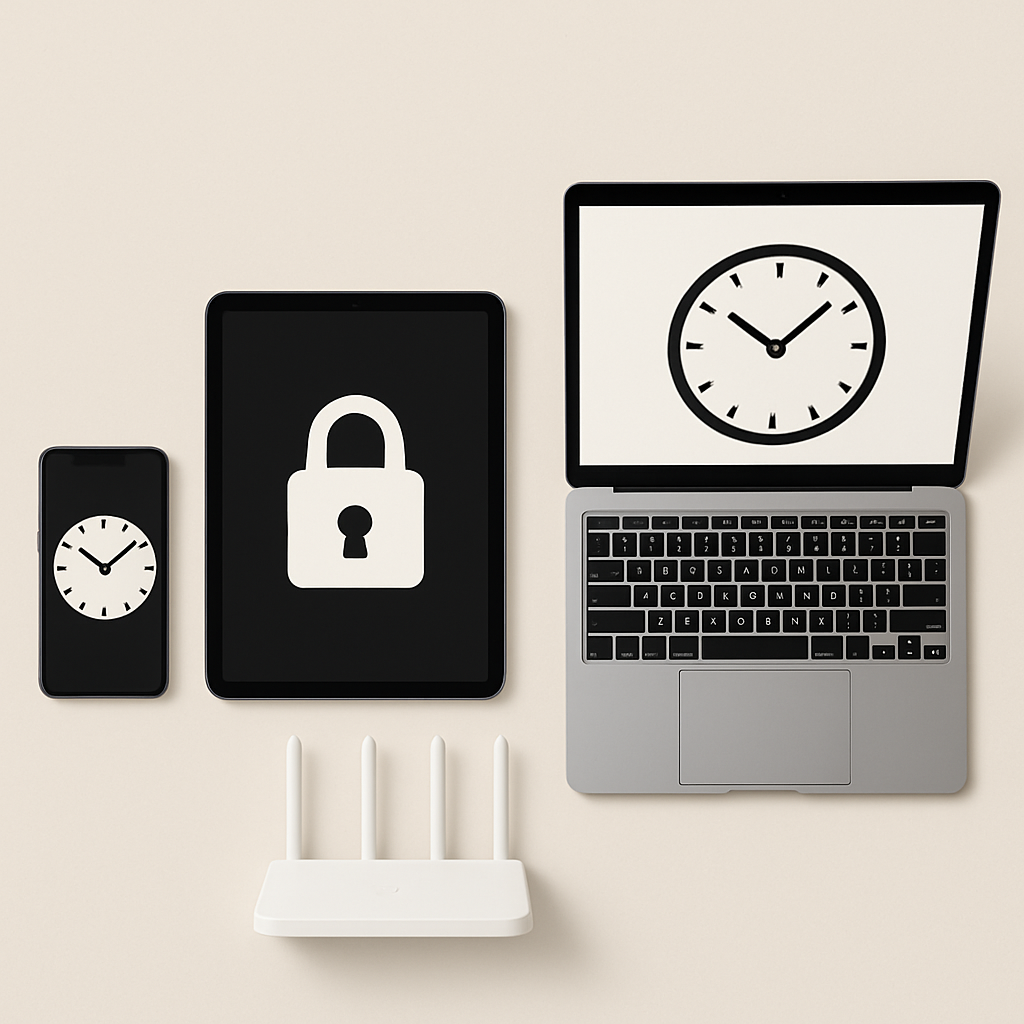
Want healthier tech habits at home? This guide shows you how to set Screen Time (parental controls and app limits) across iPhone/iPad, Android, Windows, and Mac. You’ll create simple daily limits, bedtime “downtime,” and sharing across devices so the rules are clear and consistent.
Table of Contents
- Table of Contents
- Before You Start
- Quick Fix Steps
- Set Up on iPhone and iPad (iOS)
- Set Up on Android Phones and Tablets
- Set Up on Windows PCs
- Set Up on Mac (macOS)
- Deeper Diagnosis
- Preventive Care
- When to Seek Help
- Conclusion
- Frequently Asked Questions
Before You Start
- What you’ll need:
- Each device in the home (phones, tablets, and computers).
- Parent/guardian account details for each platform (Apple ID, Google account, or Windows account).
- Internet access for initial setup and syncing.
- Time estimate: 30–60 minutes for the first setup. 5–10 minutes per new device later.
- Difficulty: Medium (clear steps; some settings vary by device).
- What can go wrong:
- Forgetting the Screen Time/parental controls passcode.
- Child devices not showing because they are not signed into the correct family account.
- Limits not syncing if “Share across devices” is off, or if time/date is incorrect.
- Older devices may have different menus or fewer features.
Warning: Do not factory reset a device to bypass or “fix” Screen Time. You can lose data and may lock yourself out. Avoid installing parental control apps from outside official app stores.
Quick Fix Steps
- Decide your house rules. Example: bedtime 8:30–7:00, 2 hours of apps on school days, different limits on weekends.
- Make sure each person has their own user/account on each platform. Kids should not use the parent’s account.
- Turn on automatic time and the correct time zone on every device:
Settings > Date & Time > Set Automatically. - On each platform, enable the built-in screen time/parental controls. Create a Screen Time passcode only you know.
- Turn on “Share Across Devices” or “Use one schedule on all devices” where available.
- Set Downtime/Bedtime and daily App Limits. Start simple (e.g., 90 minutes/day for games and social).
- Test with one device first, then repeat on the rest. Make a quick adjustment if something feels too strict or too loose.
Set Up on iPhone and iPad (iOS)
Turn on Screen Time (your own device)
- Open
Settings>Screen Time. - Tap
Turn On Screen Time>Continue> chooseThis is My iPhone/iPad. - Enable
Share Across Devicesso limits sync to all your Apple devices signed into the same Apple ID.
Set a Screen Time passcode
- In
Settings > Screen Time, tapUse Screen Time Passcode. - Choose a passcode only adults know. Add a recovery Apple ID if prompted.
Downtime and App Limits
- Go to
Settings > Screen Time > Downtime. Set your quiet hours (e.g., 8:30 PM–7:00 AM). - Go to
App Limits>Add Limit. Pick categories (e.g., Games, Social) and set daily time. - Use
Always Allowedto keep essentials (e.g., Phone, Messages) accessible.
For a child’s iPhone/iPad
- On your device:
Settings > Family(orApple ID > Family Sharing) > add your child to your family group. - On the child’s device: sign in with the child’s Apple ID. Then go to
Settings > Screen Timeand chooseThis is My Child’s iPhone/iPad. - Set the passcode when asked and choose Downtime, App Limits, and Content & Privacy restrictions.
Tip: If you see “Not available during downtime,” you can temporarily extend time by tapping Ask For More Time and approving it on your device.
Set Up on Android Phones and Tablets
Turn on Digital Wellbeing (your own device)
- Open
Settings>Digital Wellbeing & parental controls. - Set your dashboard, app timers, and
Bedtime mode. Menus vary by device maker.
Parental controls for a child
- Go to
Settings>Digital Wellbeing & parental controls>Parental controls. - Follow the guided steps to create/manage a family account and link your child’s device. This is Android’s built-in family controls (often called Family Link).
- Set daily limits, bedtime, and content filters for the child’s account. These apply on linked Android devices.
Notes on syncing
- App timers you set in Digital Wellbeing for yourself are per device. For children, limits follow the child’s account across linked Android devices.
- Make sure automatic time and the correct time zone are enabled under
Settings > System > Date & time.
Warning: Avoid third-party “phone limiter” apps from unknown sources. Use the built-in parental controls and only install from the official app store.
Set Up on Windows PCs
Create a child account
- On the child’s PC: open
Start>Settings>Accounts>Family. - Add your child to your family group. Sign them into Windows with that child account.
Set screen time and app limits
- Open Windows family settings (built-in website/app linked from
Settings > Accounts > Family). - Pick your child >
Screen timeto set a schedule (school nights vs. weekends). - Turn on “Use one schedule on all devices” if your child signs into multiple Windows PCs.
- Go to
Apps and gamesto set individual app limits or block apps you don’t approve.
Tip: If your child uses an Xbox or another Windows device with the same account, your schedule can apply there too when “one schedule” is enabled.
Set Up on Mac (macOS)
Turn on Screen Time
- Open
System Settings(orSystem Preferences) >Screen Time. - Enable
Share Across Devicesso your limits apply to all your Apple devices signed into your Apple ID.
For a child on Mac
- Join the same family group used on iOS (Apple Family). In
System Settings > Family, add your child if needed. - In
Screen Time, select your child’s name from the sidebar. Turn onUse Screen Time Passcode. - Set
Downtime,App Limits, andContent & Privacyrestrictions.
Deeper Diagnosis
General checks
- Verify correct date/time:
Settings > Date & Time > Set Automatically. Wrong time breaks schedules. - Confirm the child is signed into the correct family account on every device.
- Check Wi‑Fi or mobile data is on for initial sync. Limits usually keep working offline once set.
- Restart the device after major changes to Screen Time or parental controls.
If iOS/macOS limits don’t sync
- On each device:
Settings/System Settings > Screen Time> ensureShare Across Devicesis on. - In
Settings > [your name] > iCloud, confirm you’re signed into the same Apple ID and Family group. - Update to the latest iOS/iPadOS/macOS. Older versions may have syncing issues.
If Android limits don’t apply
- Open
Settings > Digital Wellbeing & parental controlsand ensure the child’s device is linked and managed. - Update system apps from the official app store, especially parental controls components.
- Check for device maker variations: parental controls may appear under
SecurityorUsers & accounts.
If Windows schedules don’t stick
- Make sure the child signs into Windows with their child account, not a local or parent account.
- In family settings, toggle off/on “Use one schedule on all devices,” then reapply the schedule.
- Check
Settings > Time & languagefor the correct time zone and automatic time.
Note: School or work devices may have management profiles that override your settings. Check with the school/work IT if you see “Managed by organization.”
Preventive Care
- Review limits weekly. Adjust for school projects, vacations, or exams.
- Keep devices updated. Install OS updates and app updates for reliable syncing and new features.
- Use a unique Screen Time/parental passcode. Do not reuse your device unlock PIN.
- Discuss the “why” behind limits with kids. Involve them in choosing fair schedules.
- Only install apps from official stores. Avoid “bypass” tips from forums or videos.
- Back up important data before major OS upgrades, just in case.
When to Seek Help
- Limits never apply on a specific device after you’ve checked time, sign-in, and updates.
- You’re locked out by a forgotten Screen Time/parental passcode and recovery options fail.
- The device shows “managed by organization” and won’t allow changes you need.
- Frequent crashes or errors in settings screens.
Contact official support for your platform (Apple, Android device maker, or Windows support). If you prefer hands-on help, a trusted local technician can assist with account linking and passcode recovery steps.
Conclusion
You set up clear Screen Time rules across iPhone/iPad, Android, Windows, and Mac. You created a family group, turned on syncing, and applied downtime and app limits that fit your home. Keep reviewing your settings, update devices, and adjust as your family’s needs change. Small, consistent steps make healthy screen habits stick.
Frequently Asked Questions
Do Screen Time limits work offline?
Yes. Once limits are set and synced, they continue to work without internet. You need internet only to change or sync new rules.
Can kids bypass limits with a web browser or private mode?
Limits apply to apps and categories you choose. Block or limit the browser app if needed, and use content filters to restrict adult sites.
Can I set different limits for school days and weekends?
Yes. All platforms above let you set different schedules for different days. Look for per-day schedules in the screen time settings.
What if parents share a device?
Create separate user profiles when possible (Windows/Mac/Android). On iOS, rely on App Limits and Downtime, and avoid sharing the same Apple ID.
Leave a Reply