
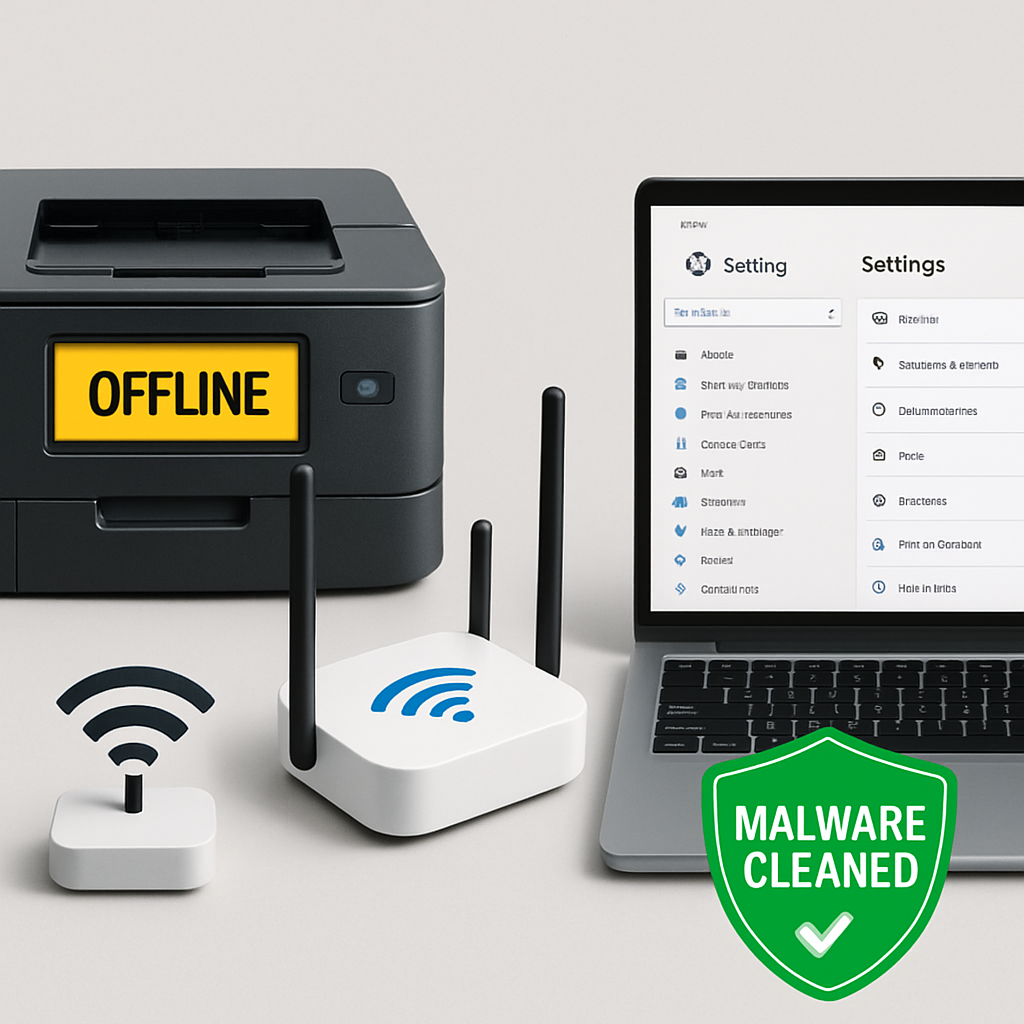
Just removed suspected malware and now your printer says “Offline”? You’re not alone. This friendly guide walks you through safe, step-by-step fixes to bring your printer back online on Windows, macOS, iOS, and Android. By the end, you’ll know what to check, what to reset (carefully), and when to call for help.
Table of Contents
- Before You Start
- Quick Fix Steps
- Deeper Diagnosis
- Preventive Care
- When to Seek Help
- Frequently Asked Questions
Before You Start
Malware cleanups can change settings. Firewalls may get stricter, print services may be turned off, or drivers may be removed. We’ll fix those safely.
- What you need: your Wi‑Fi password, access to your printer, and (optional) a USB cable for testing.
- Time: 20–45 minutes for most homes.
- Difficulty: Easy to Medium.
- What can go wrong: you might remove a printer you’ll need to add again, or reset a network and need to re-enter Wi‑Fi passwords.
Warning: Avoid downloading “driver updater” tools or random installers. If you need software, get it only from your printer maker’s official website. Double-check the web address before downloading.
Quick Fix Steps
-
Power cycle in the right order.
- Turn off the printer. Unplug it for 30 seconds.
- Restart the router (the box that creates your home Wi‑Fi network). Unplug 30 seconds, plug back in, wait 2–3 minutes.

- Restart your computer or phone.
- Turn the printer back on and wait until it’s fully ready.
-
Check basic connections.
- Wi‑Fi printers: make sure the printer shows it’s connected to your home Wi‑Fi (look for a Wi‑Fi or network icon on the printer screen).
- Ethernet printers: reseat both ends of the cable until they click.
- USB test (optional): connect the printer to a computer with USB to see if it prints locally. If USB works, the issue is likely network or drivers.

-
Set the printer online and as default.
Windows
- Press Windows key + R, type
ms-settings:printers, press Enter. - Select your printer > Open print queue > Printer menu: uncheck “Pause Printing” and “Use Printer Offline”.
- Back in Printers & scanners, select your printer and set it as Default.
macOS
- Open System Settings > Printers & Scanners.
- Select your printer and click Resume (if paused). Set Default Printer if available.
iOS (iPhone/iPad)
- Make sure your device is on the same Wi‑Fi as the printer.
- Open a document or photo > Share > Print > Select Printer. If it doesn’t appear, restart the device and try again.
Android
- Settings > Connected devices (or Connections) > Printing.
- Turn on the “Default Print Service” and “Service plug‑ins” if present. Tap the menu to search for printers on your network.
- Press Windows key + R, type
-
Clear stuck print jobs and restart the print service.
Windows
Note: This removes stuck files and restarts the Print Spooler (the service that manages print jobs).
- Press Start, type
cmd, right‑click Command Prompt > Run as administrator. - Copy/paste these, one at a time, pressing Enter after each:
net stop spooler
del /q /f %systemroot%\System32\spool\PRINTERS\*.*
net start spooler
Try printing again.
macOS
- System Settings > Printers & Scanners > select printer > Open Print Queue > delete any stuck jobs.
- Warning: “Reset printing system” removes all printers. Use only if needed, then add the printer again with the + button.
- Press Start, type
-
Remove and re‑add the printer.
- Windows: Settings > Bluetooth & devices > Printers & scanners > select the printer > Remove. Click Add device and pick your printer.
- macOS: System Settings > Printers & Scanners > select printer > Remove (–). Click + to add it again (choose the network version or AirPrint/IPP if offered).
- iOS/Android: In the print screen, tap Select Printer to rediscover. For Android, ensure Default Print Service is on.
Tip: Choose “AirPrint” or “IPP” when available. These built‑in drivers are reliable and safer than random downloads.
-
Check firewall/security after malware cleanup.
- Windows: Settings > Network & Internet > Windows Security > Firewall & network protection. Make sure your network is marked “Private,” not “Public,” so device discovery works.
- Third‑party security apps: ensure any “Network Protection” or “Intrusion Prevention” features allow local devices (printers) on your home network.
- Warning: If you briefly turn off a firewall to test printing, do it for only a few minutes, then turn it back on.
Deeper Diagnosis
1) Confirm the network is healthy
- Check that your internet works on another device.
- On the router, the power and internet lights should be solid, and Wi‑Fi should blink steadily.

2) Find the printer’s IP address
- Most printers can print a “Network Configuration” page from their menus. Look for an IPv4 address like 192.168.x.x.
- If you see 169.254.x.x or no address, the printer is not connected to your network. Reconnect it to Wi‑Fi from the printer’s panel and re‑enter your Wi‑Fi password carefully.
3) Ping the printer
- Windows: Press Windows + R, type
cmd, press Enter, then runping 192.168.x.x(replace with your printer’s IP). You should see replies. - macOS: Open Terminal (Spotlight > Terminal), run
ping 192.168.x.x, press Ctrl+C to stop. Replies mean the device is reachable. - No replies? The printer isn’t reachable—check Wi‑Fi band (2.4 GHz vs 5 GHz), distance, and that devices are on the same network.
4) Check the router’s device list
- Find your router’s address (gateway). Windows: open Command Prompt and run
ipconfig; look for “Default Gateway.” macOS: System Settings > Wi‑Fi > click the i next to your network; note the router address. - Open a browser and go to that address. Sign in, then look at Connected Devices or Client List. Your printer should appear with its IP.
- Note: If you can’t sign in, check the router label for the admin address and default credentials, then change the password after logging in.
5) Confirm Windows services (after malware cleanup)
- Press Windows + R, type
services.msc, press Enter. - Find “Print Spooler.” Status should be Running, Startup Type: Automatic. If not, double‑click, set to Automatic, click Start, then OK.
- Find “Function Discovery Provider Host” and “Function Discovery Resource Publication.” Set both to Automatic (Delayed Start) and Running. These help your PC find printers.
6) Try a USB isolation test
- Connect the printer to a computer with USB and add it. If USB printing works, the printer hardware is okay; focus on Wi‑Fi/Ethernet or firewall settings.
7) Reset printer network settings (last resort for Wi‑Fi issues)
Warning: A printer “Network Reset” forgets Wi‑Fi settings. You will need your Wi‑Fi name and password to reconnect.
- From the printer’s menu, look for Network or Settings > Reset Network Settings. Then set up Wi‑Fi again.
8) OS network resets (use with care)
- Windows: Settings > Network & Internet > Advanced network settings > Network reset. Warning: This removes network adapters and Wi‑Fi passwords. Only use if other steps fail.
- macOS: Remove and re‑add your Wi‑Fi network (forget the network, then reconnect). If needed, “Reset printing system” and re‑add the printer.
9) Re-scan for malware (safely)
- Run a full scan with your system’s built‑in security (e.g., Windows Security). Keep your OS up to date. Avoid installing unknown security tools.
Preventive Care
- Update regularly: Keep your OS and printer firmware updated. Only download from the printer maker’s official site.
- Use strong, unique passwords: Change the router’s default admin password. This protects network devices like printers.
- Back up important files: Use built‑in backup tools so you’re safe during major fixes.
- Safe downloads: Avoid third‑party driver sites and “optimizer” apps.
- Print a test page monthly: Keeps the printer awake and alerts you early if it goes offline.
- Optional: Give the printer a reserved IP address in the router (DHCP reservation). This prevents the address from changing and helps devices find it consistently.
When to Seek Help
- If the printer shows hardware errors (paper jams you can’t clear, constant error codes).
- If the Print Spooler keeps stopping or you can’t start required services.
- If you can’t reach the router or the printer never appears in the router’s device list.
- If printing only works with the firewall off—contact support to adjust rules safely.
- If you suspect malware remains—contact a trusted technician or your OS vendor’s support.
With these steps, most “Printer Offline” issues after malware removal can be solved at home. Start simple, work methodically, and use the warnings to avoid risky resets unless needed. If you hit a wall, gather details (printer model, IP address, what you tried) before calling support—it speeds up the fix.
Frequently Asked Questions
Why did malware cleanup break printing?
Security tools may tighten firewall rules, turn off discovery services, or remove drivers. Re‑enable services, re‑add the printer, and allow local network printing.
Should I disable my firewall to test?
Only briefly, and only if needed. Turn it back on immediately. Prefer allowing local network/private network access instead of turning it off.
What if my printer keeps changing its IP?
Set a DHCP reservation in your router so the printer keeps the same IP. Then re‑add the printer using that IP or via AirPrint/IPP.
Do I need to factory reset the printer?
Usually no. Try a network reset first. A full factory reset wipes all settings and should be a last resort.
Leave a Reply