
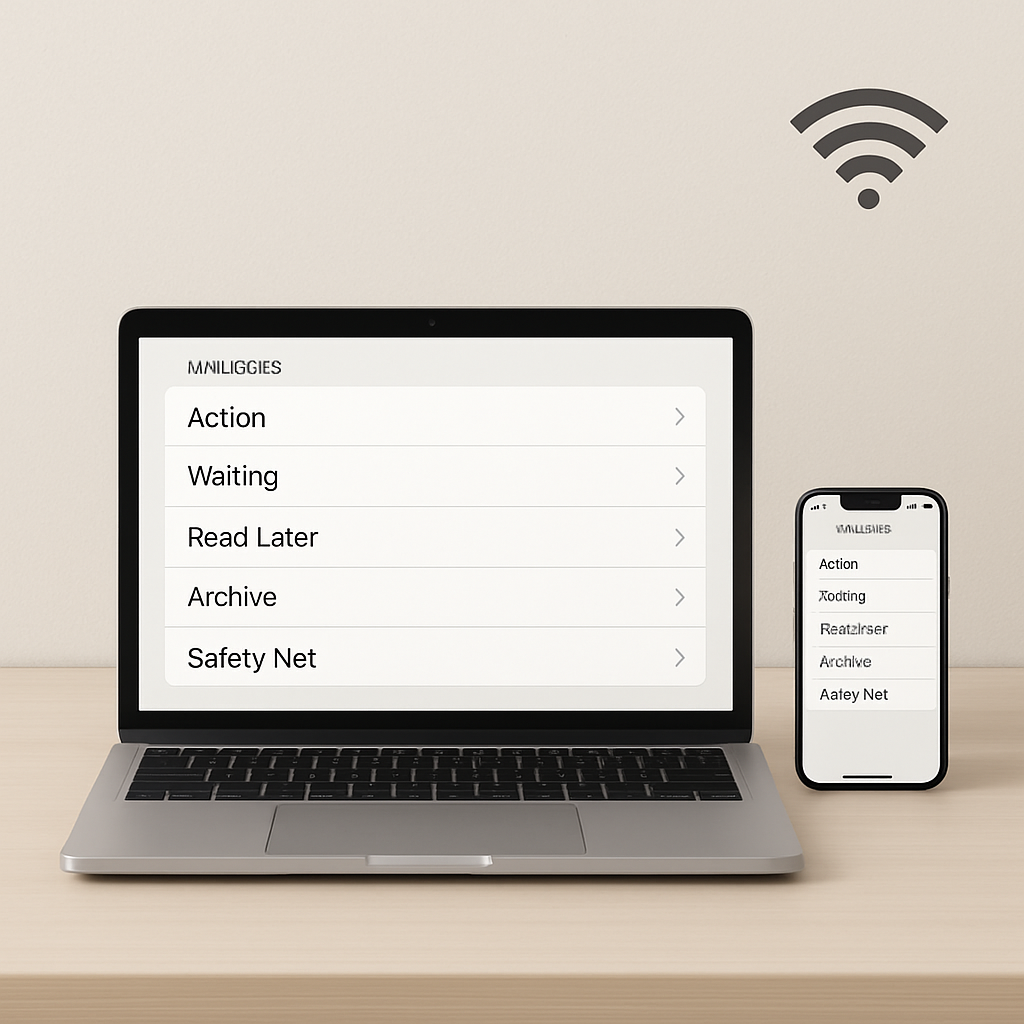
Your inbox doesn’t have to feel like a junk drawer. In this friendly, 4‑week routine, you’ll quickly reduce email clutter, set simple rules to keep things tidy, and make your inbox work for you. By the end, you’ll know how to bulk-archive safely, unsubscribe wisely, and prevent pile-ups on Windows, macOS, iOS, and Android.
Table of Contents
- Before You Start
- Quick Fix Steps
- Deeper Diagnosis
- Preventive Care
- When to Seek Help
- Conclusion
- Frequently Asked Questions
Before You Start
Goal: set up a safe workspace so you can clean fast without losing anything important.
- Prerequisites: access to your email on a computer and phone, a few minutes to check settings.
- Time estimate: 15–30 minutes per session, 3–4 sessions each week, for 4 weeks.
- Difficulty: Easy.
- What can go wrong: deleting important messages, creating a rule that moves too much, or clicking unsafe unsubscribe links.
Safety setup (do this first):
- Create a folder named
Safety Net. For the next 30 days, copy (not move) anything you mass-archive or mass-delete into this folder first. If your app doesn’t allow copy, move toArchiveinstead ofTrash. - Make a simple folder set:
Action(needs a reply),Waiting(you’re waiting on someone),Receipts,Read Later, andArchive. - Optional backup: export or download a mailbox copy if your provider supports it. Look for Settings > Export/Download. Save it to your computer or external drive.
Warning: Avoid permanent deletions until you’re comfortable. Emptying Trash removes messages for good. If unsure, use Archive instead of Delete.
Quick Fix Steps
These fast wins make a big dent right away.
- Turn off noisy notifications. Keep alerts only for people you care about (family, work). In your email app, open Settings and set notifications to Important or Starred only. This reduces stress while you clean.
- Sort by date and size. Use your app’s sort tools to find the oldest and largest emails. Move obvious clutter (old promos, expired offers) to
Archive. Put uncertain items intoSafety Net. - Bulk-move newsletters. Search for “unsubscribe” to find most newsletters. Select a batch and move to
Read LaterorArchive. This clears the surface so you can see real tasks. - Unsubscribe safely. Open a recent newsletter and use the built-in unsubscribe option in your email app if it’s available. If you must click a link, only do so for senders you recognize. For unknown senders, use “Report spam/junk” instead of clicking links.
- Flag tasks. For any message that needs action, add a flag/star and move it to
Action. If you’re waiting on a reply, move it toWaiting. - Set a 10-minute daily triage. Use the “2-minute rule”: if a reply takes under 2 minutes, do it now. Otherwise, move it to
Actionand schedule time.
Tip: Delete calendar invites only after you’ve accepted/declined them. Some apps remove the calendar event if you delete the invite too soon.
Windows/macOS (desktop email apps)
- Right-click the message list to sort by Size or Date.
- Use multi-select (Shift-click) to move batches to
Archive. - In Settings > Notifications, choose Important only or turn off sound/banners.
iOS/Android (mobile email apps)
- Set swipe actions to Archive and Flag for quick triage.
- Notifications: choose High priority or Starred senders only.
- Use long-press to select multiple messages and Archive in one tap.
Deeper Diagnosis
Now we stop the clutter at the source and free up space.
1) Review storage and attachments
- Check mailbox storage in Settings (look for Storage, Quota, or Account Info). If near the limit, target large messages first.
- Filter by size or search for “has attachment” if your app supports it. Download important attachments to your computer or cloud storage.
- After saving files, move those emails to
Archiveor delete them if safe. Some apps let you remove attachments without deleting the email—use that if available.
Warning: Never open unexpected attachments. If you don’t recognize the sender, delete or report it. Keep your device updated to reduce malware risks.
2) Create simple rules (also called filters)
- Open Settings > Rules/Filters. Create a rule: If Subject contains “newsletter” or “digest,” move to
Read Later. Check “Stop processing more rules” if present to avoid duplicates. - Create a rule for receipts: If From contains “receipt,” “order,” or “confirmation,” move to
Receipts. - Create a rule for known important senders: From = your boss/family. Mark as Important/Star and keep in Inbox.
- Test each rule on a small set (one folder or recent messages) before applying to all mail.
Note: Rules names vary (Rules, Filters, Smart Mailboxes). The idea is the same: match text, then move, label, or star.
3) Fix duplicates and old forwards
- If you see the same message twice, check whether you have forwarding from another account. Disable any old forwarding you no longer need.
- Remove duplicate notifications (for example, both app and calendar email alerts). Keep only one version.
4) Clean by sender and topic
- Pick a sender that clogs your inbox. Search that sender, select all older than a few months, and move to
Archive. Keep only the newest thread. - Repeat for 3–5 senders each session. This creates fast visual wins.
Preventive Care
Here’s your 4‑week routine. Small, steady steps beat one big cleanup.
Week 1: Surface cleanup
- Turn off noisy notifications; keep only important alerts.
- Make folders:
Action,Waiting,Receipts,Read Later,Archive,Safety Net. - Bulk-archive newsletters and promotions (use search for “unsubscribe”).
Week 2: Rules that work for you
- Add 2–3 rules: newsletters to
Read Later, receipts toReceipts, important senders stay in Inbox and are starred. - Review rules after a day. If something important moved, add an exception (for example, if Subject contains “invoice,” keep in Inbox).
Week 3: Storage and attachments
- Sort by size. Save large attachments you need; then archive or delete the email.
- Archive old threads older than 12 months, except tax, legal, or warranty items.
Week 4: Fine-tune and unsubscribe
- Unsubscribe from 5–10 senders you no longer read. For unknown senders, report spam instead of clicking links.
- Adjust notifications: allow alerts only for starred or important mailboxes.
- Review
ActionandWaiting. Close or file anything done.
Ongoing (monthly): skim your rules, clear Read Later, and empty Trash only after confirming Safety Net has nothing you need.
Security basics: keep your device updated, use strong passwords, and turn on two-factor authentication if your email service supports it.
Windows/macOS
- Settings/Preferences > Rules/Filters to create or edit rules.
- Use Views to sort by Size or by Attachments.
- Enable Conversation View to collapse long threads.
iOS/Android
- Set swipe actions to Archive and Mark as Read for quick cleanup.
- Use per-account notification settings to limit alerts.
- Long-press to bulk-select, then Archive or Move.
When to Seek Help
- Your mailbox is over its storage limit and your app keeps freezing.
- You see suspicious login alerts or messages sent from your account that you didn’t send.
- Rules behave oddly (for example, all mail goes to Trash). Turn off rules and contact your email provider’s support.
- You can’t export or access your account, or you’re locked out.
Tip: If you suspect hacking, change your password immediately, enable two-factor authentication, and review recent activity in your account’s security settings.
Conclusion
In four focused weeks, you created order: fewer pings, simple folders, smart rules, and a safer way to archive. Keep the routine light—10 minutes most days beats one big binge. With your new system, you’ll spot the real messages faster and stop clutter from creeping back.
Frequently Asked Questions
Q: Archive or Delete—what’s the difference?
A: Archive removes messages from the Inbox but keeps them for later search. Delete sends them to Trash, which is usually emptied automatically after some time. If unsure, Archive first.
Q: Is it safe to unsubscribe?
A: Safe for senders you recognize. For unknown or suspicious senders, don’t click links—use Report spam/junk. That tells your provider to filter similar mail.
Q: How many folders do I need?
A: Keep it simple: Action, Waiting, Receipts, Read Later, and Archive. Too many folders slow you down; search is faster.
Q: How long should I keep emails?
A: Keep tax, legal, and warranty messages as long as needed for records. For everything else, archiving for 1–3 years is common. Delete truly expired items.
Leave a Reply