
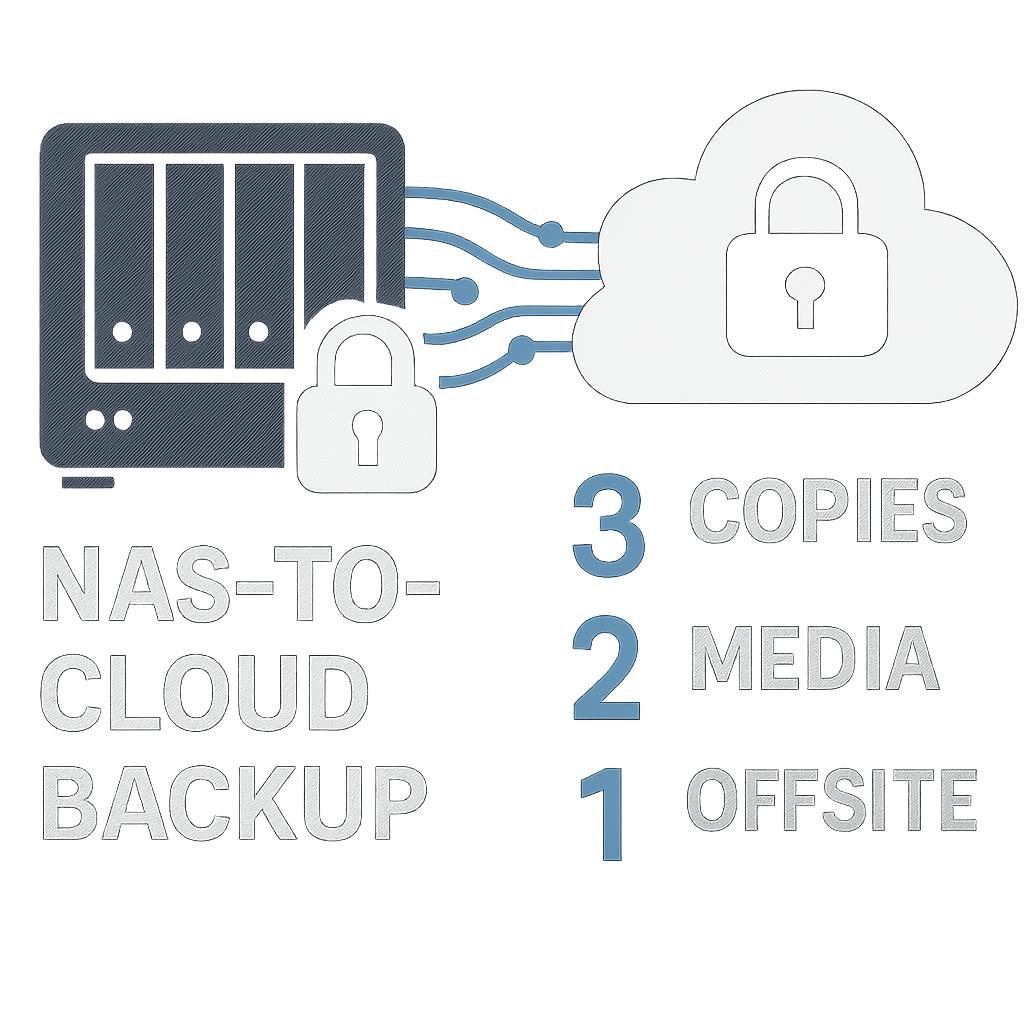
Your data is only as safe as your last successful restore. That’s why the 3-2-1 backup strategy remains the gold standard: three copies of your data, on two different media, with one copy offsite. For modern homes and small businesses, that often means automating NAS-to-cloud replication—reliable, encrypted, and verifiable.
This guide walks you through practical tools and workflows to automate 3-2-1 backups from your NAS to the cloud. We’ll compare native and open-source solutions, outline secure architectures, show step-by-step examples, and highlight verification, cost control, and disaster recovery planning.
Table of Contents
- What the 3-2-1 Rule Really Means
- NAS-to-Cloud Backup Architectures
- Choosing Tools for NAS-to-Cloud Replication
- Designing an Automated Backup Workflow
- Step-by-Step Example Workflows
- Security, Encryption, and Immutability
- Verification, Monitoring, and Testing
- Cost Optimization Tips
- Common Pitfalls and How to Avoid Them
- From Backup to Disaster Recovery
- Conclusion
- Frequently Asked Questions
What the 3-2-1 Rule Really Means
The 3-2-1 rule ensures resilience against accidental deletion, ransomware, fire or flood, and provider outages. You keep at least three copies of your data, stored on two different media types, with one offsite. A NAS plus cloud object storage is a popular, affordable way to meet the rule.
Today, many teams adopt a helpful variation: 3-2-1-1-0. That adds one offline or immutable copy and aims for zero backup errors verified by routine checks. Immutability—via cloud object lock or write-once media—prevents tampering and thwarts ransomware.
Key goals to keep in mind:
- Resilience: independent copies that don’t share single points of failure.
- Recoverability: tested restores that meet your recovery time and point objectives (RTO/RPO).
- Security: encryption at rest and in flight, least-privilege access, and immutability options.
NAS-to-Cloud Backup Architectures
There’s no one-size-fits-all. Choose a pattern that fits your gear, skills, and risk tolerance. Below are common designs for automating offsite backups from a NAS to the cloud.

Agentless NAS-to-Cloud
Your NAS runs a native app (e.g., Synology Hyper Backup, QNAP HBS 3, or TrueNAS Cloud Sync/Tasks) or a containerized tool (e.g., rclone+restic) that talks directly to cloud storage like Backblaze B2, Wasabi, or Amazon S3.
- Pros: Simple, low maintenance, no extra server required.
- Cons: Ties logic to the NAS; limited if the NAS apps lack features you need.
Proxy/Backup Server
An external backup server (physical or VM) pulls data from the NAS and pushes it to the cloud with software such as Veeam, Borg/Restic, Duplicacy, or Arq. The NAS serves files via SMB/NFS or snapshots via iSCSI/NFS exports.
- Pros: Centralized scheduling, broader feature set, flexible retention and reporting.
- Cons: Extra infrastructure and cost; more moving parts.
Hybrid with Cloud Gateway
A gateway or caching tier (e.g., rclone mount, a storage gateway, or S3-compatible target on-prem) stages backups locally and mirrors to cloud. Useful for bandwidth shaping and seeding large datasets.
- Pros: Smooth large transfers, local cache for faster restores, granular throttle controls.
- Cons: Additional complexity; requires careful monitoring.
Choosing Tools for NAS-to-Cloud Replication
Start with what your NAS already offers. Vendor-native tools are often the fastest path to automation and support snapshots, scheduling, and incremental transfers. When you need advanced features, open-source or commercial solutions can extend your capabilities.
Popular options
- Vendor-native: Synology Hyper Backup, Active Backup for Business; QNAP HBS 3; TrueNAS replication tasks or Cloud Sync.
- Open-source: rclone (sync and copy), restic and BorgBackup (deduplicated, encrypted backups), rsync for LAN copies.
- Commercial: Veeam Agent/Backup & Replication, Arq, Acronis, Duplicacy.
- Cloud targets: Backblaze B2, Wasabi, Amazon S3 (and S3-compatible), Google Cloud Storage, Azure Blob.
Features that matter
- Incrementals and deduplication: short backup windows and lower costs.
- End-to-end encryption with customer-managed keys.
- Versioning and GFS (Grandfather-Father-Son) retention.
- Immutability: S3 Object Lock or equivalent, write-once snapshots.
- Scheduling, bandwidth throttling, and resumable uploads.
- Verification: checksums, health checks, and easy test restores.
- Observability: logs, alerts, webhooks, and reporting.
Designing an Automated Backup Workflow
Think in stages: prepare data on the NAS, package it efficiently, send it securely, and verify the result. If your NAS supports snapshots (Btrfs, ZFS, or ext4 with LVM), take a consistent point-in-time snapshot before each backup job.
Plan for the first full transfer (seed) and fast daily incrementals. Adopt clear retention rules and budget guardrails to prevent runaway storage costs.
Core components of a solid workflow
- Scope: choose folders, shares, or datasets; exclude caches, temp files, and VM swap.
- Consistency: leverage filesystem snapshots or application-aware quiescing for databases/VMs.
- Packaging: enable compression and deduplication where available.
- Transport: use TLS; prefer multipart/resumable uploads (S3, B2, GCS).
- Encryption: client-side or server-side; store keys securely and test decryption.
- Scheduling: daily incrementals, weekly synthetic fulls; adjust to your RPO.
- Retention: GFS or time-based (e.g., 30 daily, 12 monthly, 7 yearly) aligned to compliance.
- Monitoring: email or webhook alerts; push success/failure to a status page.
- Testing: scripted or quarterly restore drills to a sandbox.
Step-by-Step Example Workflows
1) Synology NAS + Backblaze B2 using Hyper Backup
- Create a Backblaze B2 bucket; enable File Lock (immutability) and server-side encryption if desired.
- In Synology DSM, open Hyper Backup and create a new Data Backup task.
- Select Backblaze B2 as destination; enter KeyID/Application Key with a least-privilege policy.
- Choose shared folders/applications to protect; exclude caches and temporary directories.
- Enable client-side encryption in Hyper Backup; record and securely store the password/key.
- Set a schedule (e.g., nightly); enable integrity check and fast incremental transfers.
- Define retention (e.g., Smart Recycle or GFS) to meet your compliance and budget.
- Run the initial backup; verify with a small restore test to a non-production location.
2) TrueNAS (Core/Scale) + rclone + restic to Wasabi
- Create a Wasabi bucket; enable Object Lock (compliance mode if required) and versioning.
- On TrueNAS, take ZFS snapshots of datasets you’ll back up to ensure consistency.
- Install or containerize restic; initialize a repository on s3:s3.wasabisys.com/bucket with repository encryption.
- Use rclone or native restic S3 backend for uploads; configure multipart size for your bandwidth.
- Schedule a cron job: restic backup of snapshot mountpoints with tags (e.g., host, dataset).
- Add prune and forget policies (e.g., keep 30 daily, 12 monthly, 7 yearly); run restic check weekly.
- Send job logs to syslog and a webhook/Healthchecks endpoint for alerting.
- Document the restore command; perform a quarterly test restore to verify keys and process.
3) QNAP + AWS S3 with Immutability via HBS 3
- Create an S3 bucket; enable Object Lock and a lifecycle policy; restrict the IAM user to that bucket.
- In QNAP HBS 3, set up a one-way backup job to S3; choose versioned backups.
- Turn on client-side encryption; store the passphrase in a password manager with recovery steps.
- Schedule nightly incrementals; throttle bandwidth during business hours.
- Use the integrity verification feature; log results and email on failure.
- Test restore a small folder monthly; conduct a full DR simulation annually.
Security, Encryption, and Immutability
Backups are a prime ransomware target. Protect the path, the data, and the destination. Use unique credentials for backup jobs and apply the principle of least privilege—don’t reuse admin keys across services.
Immutability is your safety net. Even if an account is compromised, locked objects resist deletion or modification within the defined retention window.
- Client-side encryption: your NAS/tool encrypts before upload. You control the keys.
- Server-side encryption: handled by the cloud provider; still use TLS in transit.
- Object lock/File Lock: write-once retention at the bucket or object level.
- MFA Delete/Protected deletes: require multi-factor for destructive actions.
- Network hygiene: restrict NAS outbound access, rotate keys, and log API actions.
Verification, Monitoring, and Testing
A backup that hasn’t been tested is a wish. Automate integrity checks and ensure your team sees failures promptly. Build the habit of restoring something—anything—on a schedule.
Good practices include:
- Checksum verification: compare source and uploaded object digests where supported.
- Periodic repository checks (e.g., restic check, Borg check, Hyper Backup integrity scan).
- Out-of-band alerts: email, chat, or webhook to a status dashboard like Healthchecks or Uptime Kuma.
- Runbooks: a documented, step-by-step restore process with screenshots and expected durations.
- DR drills: quarterly table-top plus annual hands-on restores to a sandbox.
Cost Optimization Tips
Cloud storage is inexpensive—egress and API calls, less so. Keep total cost in check with smart design and right-sized retention. Small tweaks can yield big savings without compromising resilience.
- Choose the right tier: Wasabi or B2 for predictable pricing; S3 Standard-IA/Glacier tiers where restore latency fits.
- Reduce data: deduplicate and compress; exclude nonessential folders and system caches.
- Retention discipline: align with legal needs; avoid infinite versioning.
- Seed smartly: ship an initial copy via import services (where available) for very large datasets.
- Throttle and schedule: run big jobs off-hours; avoid excessive small-object operations.
Common Pitfalls and How to Avoid Them
- Sync vs. backup confusion: two-way sync can propagate deletions; prefer one-way versioned backups.
- Unencrypted credentials: store keys securely; rotate and limit scope.
- Missing snapshots: back up live, changing files without quiescing leads to corrupt restores.
- No test restores: untested encryption keys or passphrases can render backups useless.
- Runaway costs: broad includes + infinite retention = sticker shock. Tune filters and policies.
- Single admin: bus factor risk. Document procedures and share access responsibly.
From Backup to Disaster Recovery
Backups are a means to an end: rapid, confident recovery. Define your RPO (how much data you can afford to lose) and RTO (how long you can be down). Your schedule and tooling should meet these targets.
- RPO: drives frequency—hourly snapshots for active data; nightly for archives.
- RTO: drives architecture—local cache for fast restores; prebuilt recovery images/VMs.
- Runbook: contact list, credentials vault, restore steps, and validation checks.
- Alternatives: a warm standby NAS or VM plus cloud data shortens downtime.
Finally, measure. Track backup duration, data changed, verification results, and restore timings. Trends reveal bottlenecks before they become outages.
Conclusion
Automating 3-2-1 backups from a NAS to the cloud doesn’t have to be complex. Start with native tools, add open-source or commercial solutions where needed, and harden with encryption, immutability, and monitoring. Treat restores as a routine, not a surprise.
With a clear workflow, verified recoveries, and disciplined cost control, you’ll have backups you can trust—when they matter most.
Frequently Asked Questions
Is cloud sync the same as a backup?
No. Sync mirrors changes—including deletions and corruptions. A backup preserves historical versions and lets you recover from past points in time.
How often should I test restores?
At minimum, quarterly. Perform quick monthly spot checks and a full disaster recovery drill annually to validate keys, procedures, and timing.
Do I need immutable storage if I already have encryption?
Yes. Encryption protects confidentiality; immutability protects integrity by preventing deletion or alteration during the retention window.
What bandwidth do I need for offsite backups?
Estimate daily change rate (GB/day) and ensure your off-hours window can push that amount with some headroom. Use compression, deduplication, and throttling to fit.
Leave a Reply