
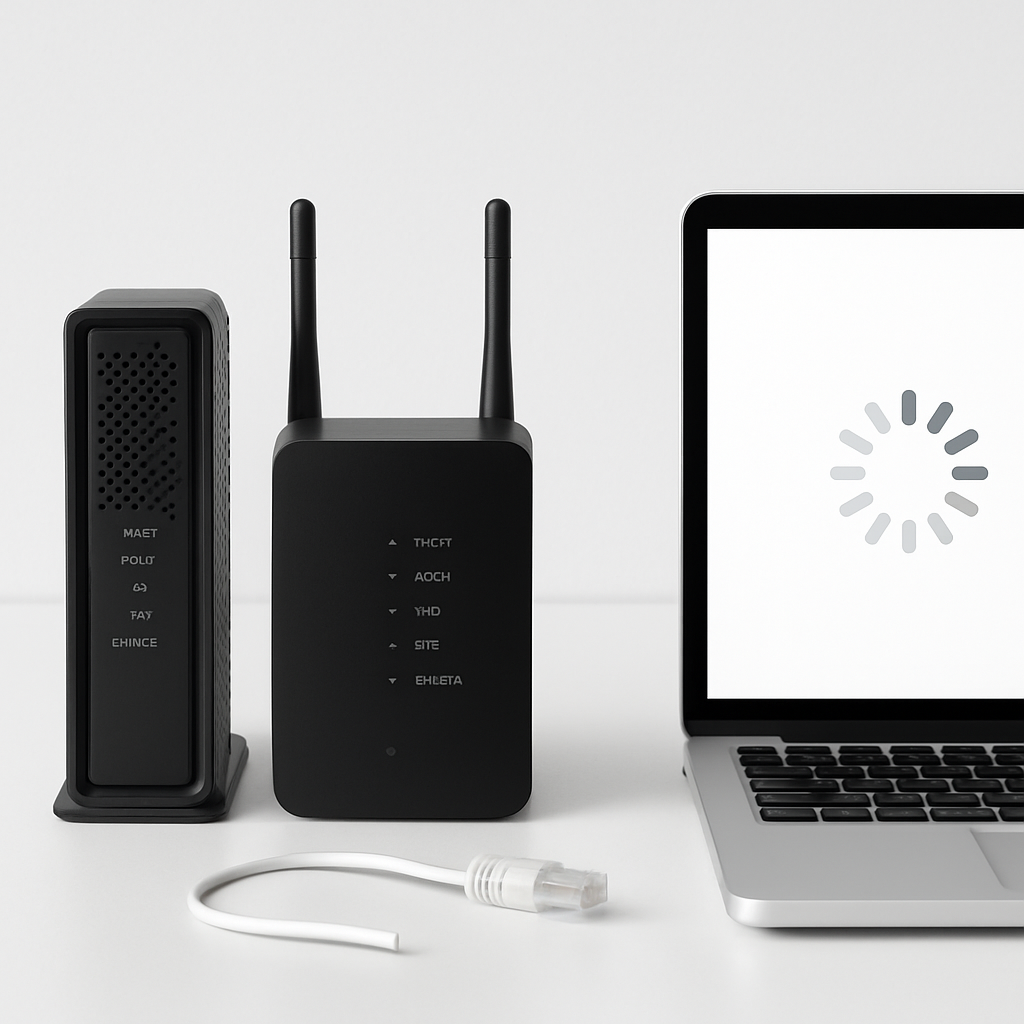
Just swapped your router or modem and now the web feels stuck in slow motion? This guide walks you through simple, safe steps to get your browsing speed back. You’ll check the basics, try quick fixes, and run a few deeper tests so you can browse, stream, and video call smoothly again.
Table of Contents
- Before You Start
- Quick Fix Steps
- Deeper Diagnosis
- Preventive Care
- When to Seek Help
- Conclusion
- Frequently Asked Questions
Before You Start
Quick definitions: A modem is the box that connects your home to your Internet Service Provider (ISP). A router is the box that creates your home Wi‑Fi network and shares the internet with your devices. Some ISP boxes combine both in one unit.
What you need
- Access to your modem/router and their power plugs.
- Wi‑Fi password and, if possible, the router admin password.
- One device for testing (a phone or computer). An Ethernet cable helps for wired tests.
- Your internet plan speed (for comparison during speed tests).
Time and difficulty
- Time: 15–45 minutes.
- Difficulty: Easy to Medium.
What can go wrong
- Temporary disconnections while rebooting or changing settings.
- Loss of custom settings if you do a factory reset. Warning: Only factory reset if other steps fail and you have your Wi‑Fi name and password ready to reconfigure.
Quick Fix Steps
- Power cycle in order. Unplug the modem, then the router. Wait 30 seconds. Plug in the modem first and wait 2–3 minutes for lights to stabilize. Then plug in the router and wait 2 minutes. Test again.
- Check cables and ports. Ensure the modem’s internet line (coax/DSL/fiber) is snug. The modem’s LAN port should go to the router’s WAN/Internet port. Try a different Ethernet cable and port. For faster plans, use CAT5e or better cables.
- Test close to the router. Stand 1–2 rooms away or in the same room. Run a speed test. If it’s fine nearby but slow far away, it’s likely Wi‑Fi range or interference, not your internet line.
- Try a wired test. Connect a computer to the router with Ethernet and run a speed test. If wired is fast but Wi‑Fi is slow, focus on Wi‑Fi settings and placement.
- Switch Wi‑Fi bands. Use 5 GHz (faster, shorter range) or 2.4 GHz (slower, longer range). If your router shows separate names (SSIDs), try the other one. If it’s a combined network, move closer to the router to nudge devices to 5 GHz.
- Forget and rejoin Wi‑Fi. On your device, “Forget” the network and reconnect by entering the password. This clears old settings that may conflict after a hardware change.
- Pause VPNs and heavy browser add-ons. Turn off VPNs and try an incognito/private window. If speeds improve, adjust or remove the culprit.
Tip: Keep an eye on modem/router lights. A solid “online”/“internet” light usually means the line is up. Flashing or red lights point to a line or authentication issue.
Deeper Diagnosis
1) Read the lights
Check the modem’s power, downstream/upstream, and online lights. The router’s power and internet/WAN lights should be steady. Wi‑Fi lights usually blink when devices are active.
Note: If the modem’s online light won’t stabilize after a reboot, contact your ISP before changing more settings.
2) Spot and fix double-routing
Slow browsing can happen if two routers are both doing NAT (Network Address Translation). This can add lag and cause website hiccups. It often occurs when you plug a new router into an ISP gateway that also has routing enabled.
- Signs: Devices get addresses like 192.168.x.x behind another 192.168.x.x network; port forwarding fails; speed feels inconsistent.
- Fix options (pick one): Put the ISP box in “bridge”/“modem only” mode, or set your new router to “Access Point”/“Bridge” mode so only one device routes. Warning: Changing modes can cut internet temporarily. If unsure, call your ISP or check your router manual for safe, step‑by‑step instructions.
3) Log in to the router admin page (generic)
- Find your router’s IP (often
192.168.0.1or192.168.1.1). See OS steps below. - Open a browser and enter the IP. Sign in with the admin credentials.
- Check: Internet/WAN status shows connected; DNS set to Automatic; time and date are correct.
- Update firmware if a new version is offered. Warning: Do not power off during firmware updates. Wait until the router fully restarts.
- Wi‑Fi settings: Ensure WPA2/WPA3 security, pick channel width defaults, and avoid overcrowded channels if your router can auto-select a less busy one.
4) OS steps to renew your connection
Windows
- Open Command Prompt as administrator. Run:
ipconfig /release, thenipconfig /renew, thenipconfig /flushdns. This refreshes your IP and clears DNS cache. - Settings > Network & Internet > Wi‑Fi/Ethernet > your network > toggle “Metered connection” off.
macOS
- System Settings > Network > Wi‑Fi > Details > TCP/IP > click “Renew DHCP Lease.”
- Optional DNS flush (Terminal):
sudo dscacheutil -flushcache; sudo killall -HUP mDNSResponder(enter your password when asked).
iOS (iPhone/iPad)
- Settings > Wi‑Fi > tap your network (i) > Forget This Network, then reconnect.
- Warning: “Reset Network Settings” removes all saved Wi‑Fi and VPNs. Use only if other steps fail.
Android
- Settings > Network & Internet > Internet/Wi‑Fi > your network > Forget, then reconnect.
- Toggle “Auto reconnect” and ensure the network is not set as “metered.” Menu names may vary slightly by device.
5) Placement and interference check
- Place the router high, central, and in the open. Avoid closets, metal shelves, and thick walls.
- Keep it away from microwaves, cordless phone bases, baby monitors, and Bluetooth hubs.
- If you have Wi‑Fi 5/6, prefer 5 GHz for speed. Use 2.4 GHz for distant rooms.
6) Wired bottlenecks
- If a wired device only links at 100 Mbps instead of 1000 Mbps, try a new CAT5e/CAT6 cable and a different router port.
- Ensure the computer’s network adapter is set to “Auto-negotiation.”
7) Browser clean-up
- Try a private/incognito window. If it’s faster, disable extensions one by one.
- Clear browser cache and cookies for problem sites only, to avoid losing useful logins.
Note: Avoid changing advanced settings like MTU or registry edits unless guided by a trusted professional. These can cause new problems if misconfigured.
Preventive Care
- Keep router firmware up to date. Enable automatic updates if available.
- Use strong, unique passwords for Wi‑Fi and the router admin page. Store them in a safe place.
- Choose WPA2 or WPA3 security. Avoid open or WEP networks.
- Label cables and document your setup (modem to router, router to switch, etc.).
- Back up router settings if your model allows exporting a configuration file.
- Download software and drivers only from official vendor sites or your device’s built-in update tools.
When to Seek Help
- Call your ISP if the modem’s online light won’t stabilize, or if wired speeds near the modem are consistently below 50% of your plan across multiple tests and times of day.
- Contact router support or a technician if firmware updates fail, the router reboots randomly, or Wi‑Fi drops persist after the wired test is fast.
- Ask your ISP to put their combo box in bridge/modem-only mode if double-routing is suspected and you’re unsure how to change it safely.
Conclusion
After a modem or router swap, slow browsing is usually caused by simple issues: cables, placement, Wi‑Fi band choices, or two routers both routing. By power cycling in order, verifying connections, testing wired vs. wireless, and checking basic settings, most homes restore normal speeds quickly. If problems persist on a wired test, your ISP can check the line. Otherwise, fine‑tune Wi‑Fi or seek support for the router.
Frequently Asked Questions
Why did browsing slow down after changing hardware?
Defaults changed. You may now have different Wi‑Fi bands, channels, or security settings, or even two routers doing the same job (double NAT). Cables or ports might also be mismatched.
Do I need new Ethernet cables?
If your plan is 200 Mbps or higher, use CAT5e or better. Old or damaged cables can cap speeds at 100 Mbps or cause drops. Swapping cables is a quick test.
Should I change DNS servers?
Leave DNS on Automatic unless pages resolve very slowly. Trying a well‑known public DNS can help, but it’s optional. If you change it and things get worse, switch back to Automatic.
Is a factory reset safe?
It’s safe but disruptive. You’ll lose Wi‑Fi names, passwords, and custom settings. Try other steps first, then reset only if needed—and have your setup details ready.
Leave a Reply