
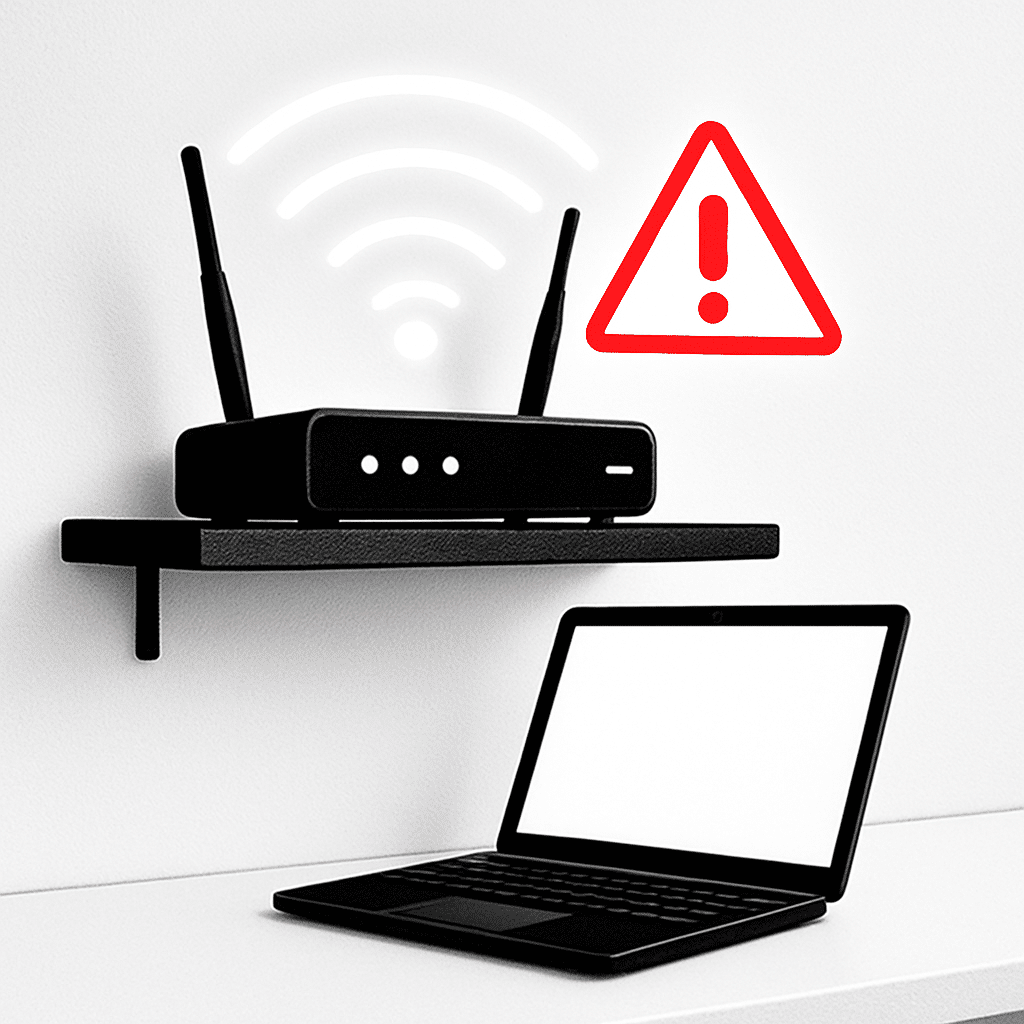
Want your home network to warn you about risky Wi‑Fi nearby? This guide shows you how to set up your router and your devices so you get alerts about unsecure hotspots and avoid accidental connections. You will also learn how to spot look‑alike networks and keep your Wi‑Fi safe for family and guests. Router: the box that creates your home Wi‑Fi network. Unsecure hotspot: a Wi‑Fi network with no password or very weak security (like WEP).
Table of Contents
- Before You Start
- Quick Fix Steps
- Deeper Diagnosis
- Preventive Care
- When to Seek Help
- Conclusion
- Frequently Asked Questions
Before You Start
Goal: Configure your router and devices to warn you about unsecure hotspots (open networks) and look‑alike Wi‑Fi names near your home.
- What you need: A phone or computer on your home Wi‑Fi, your router admin password, and access to email (for alerts).
- Time: 20–40 minutes.
- Difficulty: Medium (follow the steps; no deep networking knowledge required).
- What can go wrong: You might disconnect yourself briefly while saving settings. If you forget your router login, you may need to recover it. Avoid factory reset unless you have your ISP details and can re‑set everything.
Warning: Do not download random “Wi‑Fi security” tools from the internet for this task. Your router already has what you need. If a download is absolutely required by your router’s manual, get it only from the official support site.
Quick Fix Steps
- Give your Wi‑Fi a unique name (SSID) and strong security.
- Log in to the router admin page at
http://192.168.0.1orhttp://192.168.1.1(varies by home network). - Change SSID to something unique (not your address or family name).
- Set Security to WPA2‑PSK or WPA3‑Personal. Avoid WEP or “Open”.
- Log in to the router admin page at
- Turn on router security alerts (if available).
- Look for settings named “Email Alerts,” “Wireless Intrusion Detection,” “Rogue AP,” or “SSID conflict.”
- Enable alerts for “Open/Unsecured network nearby,” “SSID same as mine,” and “New nearby access points.”
- Add your email address for notifications.
- Teach your devices to warn about open networks.
- Windows: see steps under “OS Tips” below.
- macOS: see steps under “OS Tips” below.
- iOS and Android: turn on prompts before joining unknown networks.
- Enable a Guest Network with a welcome message (if supported).
- Turn on Guest Wi‑Fi with WPA2/WPA3.
- If your router offers a “portal” or “welcome page,” add a short note: “Only connect to ‘YOUR‑UNIQUE‑SSID’. Ignore any look‑alike or open versions.”
- Disable WPS (Wi‑Fi Protected Setup).
- Find WPS under Wireless settings and turn it off. This reduces the risk of unwanted joins.
OS Tips: Enable Warnings About Open Networks
Windows
- Open Settings > Network & Internet > Wi‑Fi.
- Turn off “Connect automatically” for networks you do not trust.
- Click “Manage known networks” and remove old or unknown entries.
- Tip: Windows shows “Open” under network name if it has no password. Avoid connecting.
macOS
- Go to System Settings > Wi‑Fi.
- Click “Details” next to your network. Ensure “Auto‑Join” is on only for your trusted SSID.
- Click “Known Networks” (or Advanced) and remove unknown or open networks.
- Note: macOS labels open networks clearly. Don’t join those.
iOS (iPhone/iPad)
- Settings > Wi‑Fi > turn on “Ask to Join Networks” or “Ask to Join Networks (Notifications).”
- Tap the “i” next to your home network and ensure “Auto‑Join” is on. Turn it off for public or unknown networks.
Android
- Settings > Network & Internet > Internet (names vary).
- Open Wi‑Fi preferences. Enable prompts/notifications before connecting to new networks.
- Turn off “Connect to open networks” if present. Remove saved public networks you don’t trust.
Deeper Diagnosis
1) Find your router login address
- Common addresses:
192.168.0.1,192.168.1.1, or10.0.0.1. - Windows: Open Command Prompt and type
ipconfig. Your “Default Gateway” is the router address. - macOS: Open Terminal and type
netstat -nr | grep default. The IP shown is the router. - iOS/Android: In Wi‑Fi details for your connected network, look for “Router,” “Gateway,” or “Manage router.”
2) Secure your Wi‑Fi correctly
- In Wireless settings, ensure Security is WPA2‑Personal (AES) or WPA3‑Personal.
- Set a strong passphrase (12+ characters, mix of words, numbers, symbols).
- Warning: Never leave your home Wi‑Fi “Open.” Open networks let anyone sniff traffic.
3) Turn on intrusion/rogue AP warnings (if offered)
- Look under Security > Wireless, Advanced > Wireless, or System > Alerts.
- Enable features with names like “Rogue AP detection,” “Evil twin/SSID conflict alerts,” or “Neighboring AP scan.”
- Set the scan to run daily. Turn on alerts for “AP using my SSID” and “Open networks near me.”
4) Set up email or push notifications
- Open the router’s Notifications or Email settings.
- Add your email address. If asked for an SMTP server, use your email provider’s official settings.
- Send a test email. Check your inbox and spam folder.
- Tip: If email setup is too complex, enable on‑screen or app notifications if your router’s mobile app supports them.
5) Check the router log
- Open System > Logs or Status > Logs.
- Look for entries like “Nearby AP detected,” “Open network,” or “SSID conflict.”
- If you find a nearby network with the same name as yours, consider slightly changing your SSID to keep it unique.
6) Test device‑side warnings safely
- Optional and careful: Use a spare phone to create a temporary open hotspot named “Test‑Open.”
- On your main device, make sure it clearly shows “Open” and asks before joining. Do not browse sensitive sites during this test.
- Turn off the test hotspot immediately when done.
Preventive Care
- Update router firmware quarterly.
- In the router admin page, open System > Firmware or Administration > Update.
- Warning: Don’t power off during an update. If unsure, schedule it when no one needs Wi‑Fi.
- Keep your SSID unique and stable.
- A unique name makes “look‑alike” attacks easier to spot.
- Review saved networks on devices monthly.
- Remove unknown public hotspots. Keep “Auto‑Join” only for trusted networks.
- Use DNS protection at home.
- In router Internet/DNS settings, choose your ISP’s secure DNS or a reputable public DNS with phishing protection.
- This does not replace Wi‑Fi security, but helps block risky sites.
- Guest network etiquette.
- Keep Guest Wi‑Fi separate from your main network. Use WPA2/WPA3 and a different password.
- If a portal page is available, add a short safety reminder for guests.
When to Seek Help
- You cannot log in to your router and password recovery fails.
- Firmware update errors appear, or the router reboots repeatedly.
- You receive frequent “same SSID nearby” or “rogue AP” alerts you did not set up.
- Your devices auto‑connect to open networks even after you disable auto‑join.
Note: A factory reset should be your last resort. Write down your ISP settings and Wi‑Fi names/passwords first. If unsure, contact your ISP or a trusted local technician.
Conclusion
You set a strong, unique Wi‑Fi name, enabled router alerts (where available), and taught your devices to ask before joining unknown networks. With these steps, you will spot unsecure hotspots, avoid accidental connections, and keep your home network safer. Check alerts now and then, keep firmware updated, and remind family to avoid open Wi‑Fi.
Frequently Asked Questions
Can my router warn me about unsafe hotspots when I am away from home?
No. Your router can only scan and alert about networks near your house. When you are out, your phone or laptop provides the warnings. Turn on “Ask to Join” and avoid networks labeled “Open.”
What exactly is an “open” network?
A Wi‑Fi network with no password. Anyone nearby can join. Traffic may be visible to others. Use only secure networks (WPA2 or WPA3) with a password.
Do I need WPA3?
Use WPA3 if all your devices support it. If not, use WPA2 (AES). Avoid mixed modes that enable old, weak options like WEP.
Do alerts work without email?
Many routers can show alerts on their status page or mobile app. If email setup is hard, check the logs weekly or enable app notifications if your router supports them.
Leave a Reply