
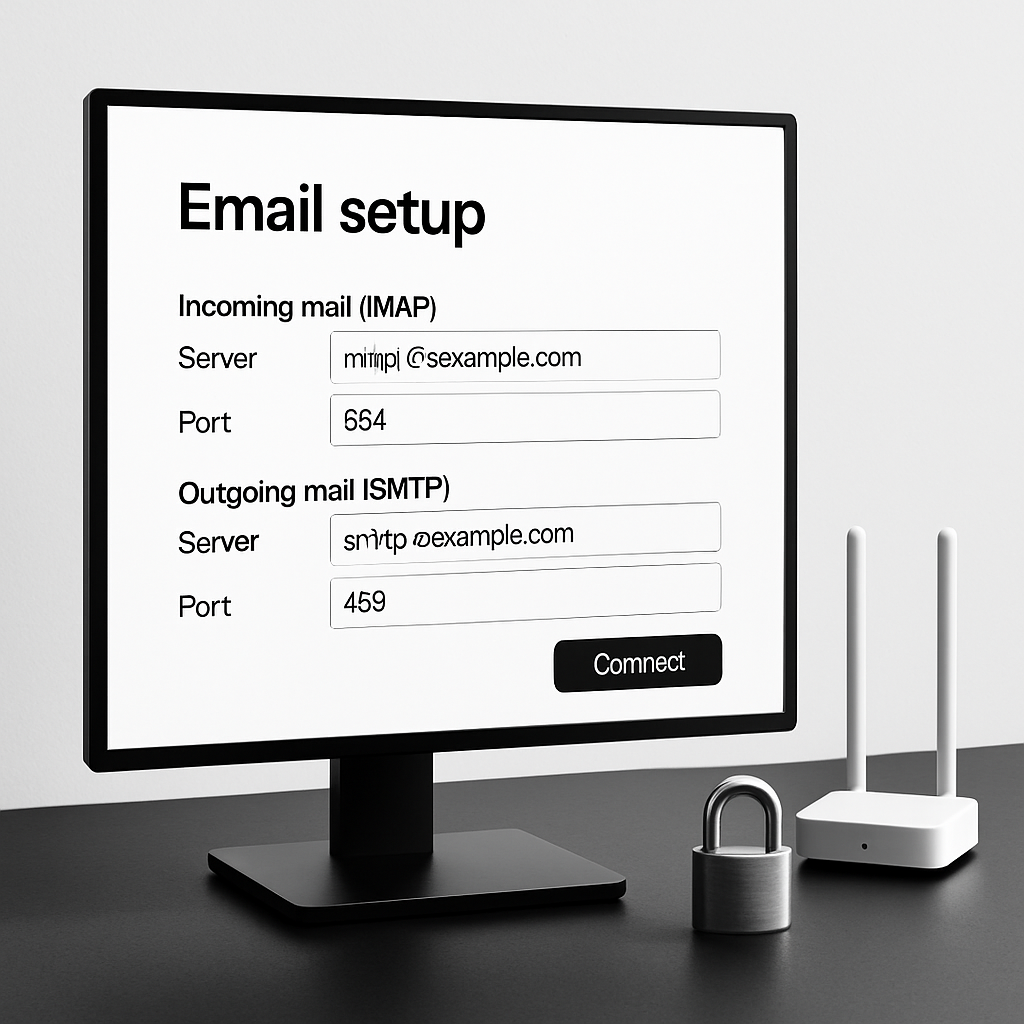
Just got a new home PC and want your email up and running fast? This friendly guide walks you through adding your email account to an app, testing it, and keeping it secure. You’ll learn the basics (IMAP, SMTP), quick fixes, and what to check if something doesn’t work first try.
Table of Contents
- Before You Start
- Quick Fix Steps
- Set Up Your Email App
- Deeper Diagnosis
- Preventive Care
- When to Seek Help
- Conclusion
- Frequently Asked Questions
Before You Start
Gather a few things first. This keeps setup smooth and avoids repeating steps.
- Your email address and password. If you use 2-step verification (a code sent to your phone), you may need an “app password” from your email provider’s security settings.
- Server details (if auto-setup fails): IMAP (incoming) and SMTP (outgoing) server names, ports, and security type. IMAP keeps mail on the server; POP downloads mail to your PC.
- A working internet connection. Test by opening a couple of websites.
- About 15–30 minutes. Difficulty: Easy to Medium.
What can go wrong: Wrong password, blocked sign-ins due to 2-step verification, incorrect server names or ports, or using POP in a way that removes messages from the server.
Warning: Avoid downloading email apps from unknown websites. Use the built-in app on your OS or the developer’s official site or app store only.
Quick Fix Steps
- Check your internet. Open a news site to confirm pages load.
- Find your email password. Turn off Caps Lock and type it slowly. If unsure, try signing in to your email in a web browser first.
- Open your PC’s built-in email app and choose Add Account. Sign in with your email and password. If asked, choose IMAP (recommended).
- Let the app auto-detect settings. When prompted about security, keep encryption on (SSL/TLS).
- Send a test email to yourself. Check Inbox and Sent folders. Look in Spam/Junk if you don’t see it.
- Restart the email app. If errors persist, restart the PC and try again.
- If you use 2-step verification, create and use an app password from your provider’s security page.
Windows (quick path)
- Press the Windows key, type “Mail”, open the Mail app.
- Go to Settings (gear) > Manage accounts > Add account.
- Sign in with your email and follow prompts.
macOS (quick path)
- Open the Mail app.
- Select Mail > Add Account… and choose your provider or “Other Mail Account”.
- Enter your name, email, and password.
Set Up Your Email App
1) Choose your app safely
- Use your OS’s built-in app or download a trusted third-party app from the official website or app store.
- Warning: Do not install from pop-up ads or random download sites.
2) Add your account
- Open the email app and look for Add account or Accounts.
- Enter your name (how others will see it), your email address, and your password.
- If your provider appears in a list, pick it. Otherwise, choose manual setup.
3) Pick IMAP (recommended)
- IMAP: Keeps mail on the server and syncs across devices. Best for most people.
- POP: Downloads mail to one device. Risk: it can remove messages from the server if not set to “leave a copy on server.”
- Tip: If you used IMAP on your old computer or phone, stick with IMAP here.
4) Enter manual settings (if needed)
If auto-setup fails, fill in these fields. Your provider’s names will vary.
- Incoming (IMAP) server:
imap.yourprovider.com, Port:993, Security:SSL/TLS - Incoming (POP) server:
pop.yourprovider.com, Port:995, Security:SSL/TLS - Outgoing (SMTP) server:
smtp.yourprovider.com, Port:465(SSL/TLS) or587(STARTTLS) - Username: often your full email address. Authentication: Normal password.
Note: Some providers require an “app password” if you use 2-step verification. Create it in your account’s security settings and paste it instead of your normal password.
5) Adjust sync and storage
- Choose how much mail to sync (for example, last 30 days vs. all). More mail uses more space and bandwidth.
- For POP, enable “leave a copy on server” if you check mail on multiple devices.
6) Add a simple signature and import contacts
- Create a short signature with your name and phone (optional).
- Export contacts from your old device as a CSV/VCF, then import into your new app.
Windows (deeper path)
- System account route:
Settings > Accounts > Email & accountsto add your email to Windows. - App route: In the Mail app, go to Settings (gear) > Manage accounts > Add account.
macOS (deeper path)
- System route:
System Settings > Internet Accountsto add your email for system-wide use. - Mail app route: Mail > Settings > Accounts to add or edit servers, ports, and security.
Deeper Diagnosis
1) Confirm your password and account access
- Sign in to your email in a web browser. If that fails, reset your password.
- Look for security alerts that might be blocking the app sign-in.
2) Check server names, ports, and encryption
- Verify IMAP/POP/SMTP names on your provider’s support page (search the web: “YourProvider IMAP settings”).
- Common secure ports: IMAP
993, POP995, SMTP465or587. Encryption:SSL/TLSorSTARTTLS.
3) Two-factor and app passwords
- If you use 2-step verification, create an app password and use it in the email app.
- App passwords are different from your normal password and can be revoked anytime.
4) Fix saved credentials
- Windows: Open
Control Panel > Credential Manager > Windows Credentials. Find entries for your mail server and remove them. Re-add your account in the email app. Warning: Removing the wrong credential can sign you out of other apps. Note what you delete. - macOS: Open
Applications > Utilities > Keychain Access. Search for your email/IMAP/SMTP entries and delete the old ones. Then re-enter your password in the Mail app.
5) Security software and firewalls
- Some antivirus tools scan email and can interfere with encrypted connections.
- Warning: If testing, only disable the email-scanning feature inside your antivirus—not real-time protection. Re-enable immediately after.
6) Account limits and storage
- If your mailbox is full, sending may fail. Empty Trash/Spam and archive old messages.
- Large attachments (over provider limits) may bounce. Try compressing files or sharing via a cloud link.
7) Re-add the account
- Remove the email account from the app, close the app, reopen, and add it again.
- Use manual server settings if auto-setup keeps failing.
Preventive Care
- Updates: Keep your OS and email app up to date for security fixes and better compatibility.
- Backups: If you use POP or store local folders, export mail/contacts regularly to a safe location (external drive or cloud).
- Passwords: Use a strong, unique password and enable 2-step verification. Consider a password manager.
- Safe downloads: Only install email apps or add-ins from official sources. Avoid clicking unknown attachments or links.
- Mailbox housekeeping: Archive old mail and empty Junk/Trash to prevent quota issues.
When to Seek Help
- You suspect your account was hacked or you’re locked out after a password reset.
- Repeated “username/password incorrect” even after webmail works and you tried an app password.
- You cannot locate correct IMAP/SMTP settings on the provider’s site.
- Important mail won’t send or keeps bouncing, and error messages are unclear.
- You need to migrate large local mail archives from an old PC.
What to have ready: Your email address, a contact phone (for verification), error messages (exact wording), and the server names/ports you tried.
Conclusion
You set up your email app, verified secure settings, and sent a test message. If anything misbehaved, you now know the quickest checks and the deeper steps to fix it. Keep things running smoothly with updates, smart passwords, and regular cleanups. Enjoy your new PC—your inbox is ready.
Frequently Asked Questions
Should I choose IMAP or POP?
Pick IMAP. It keeps mail on the server and syncs across devices. Use POP only if you know you want all messages downloaded to this PC, and enable “leave a copy on server.”
What if I forgot my password?
Try webmail and use the “Forgot password” option to reset it. Update the new password (or app password) in your email app afterward.
Why does my app say the server is insecure?
Ensure encryption is set to SSL/TLS (or STARTTLS) and you’re using the correct ports (IMAP 993, SMTP 465/587). Double-check server names on your provider’s support page.
Can I add the same email to my phone too?
Yes. Use IMAP on iOS or Android, sign in, and keep encryption on. Your inbox, sent mail, and folders will stay in sync.
Leave a Reply