
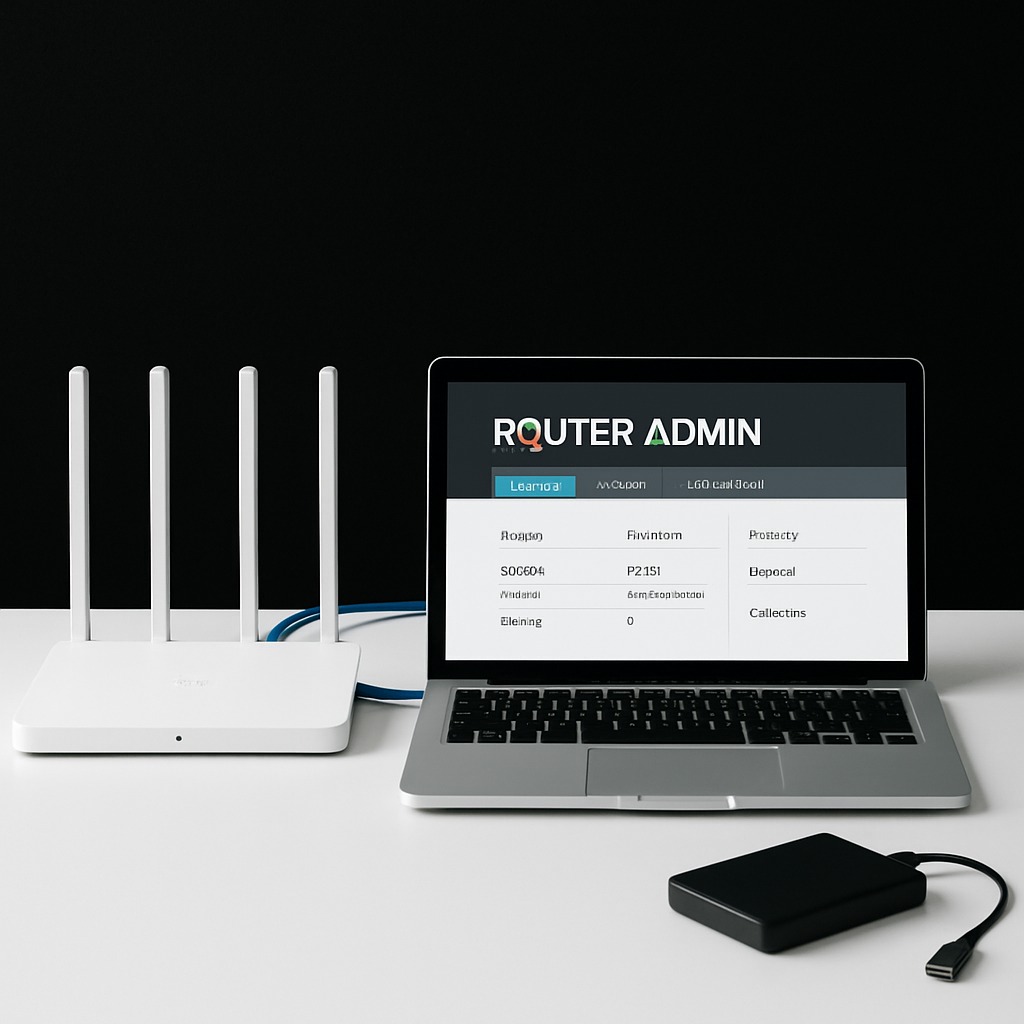
Getting ready for a ransomware drill? Great move. In this guide, you will secure your home Wi‑Fi, tidy up your devices, and set good habits so a practice drill (and real life) goes smoothly. We will keep it simple, safe, and step-by-step.
Table of Contents
- Table of Contents
- Before You Start
- Quick Fix Steps
- Deeper Diagnosis
- Preventive Care
- When to Seek Help
- Frequently Asked Questions
Before You Start
Router: the box that creates your home Wi‑Fi network. Modem: the box that connects your home to the internet. Sometimes they are one device. SSID: your Wi‑Fi network name. Firmware: the router’s built‑in software.
- What you need: your router’s admin login (often on a label), your Wi‑Fi password, and about 45–60 minutes without interruptions.
- Difficulty: Easy to Medium. You’ll follow clear steps inside your router’s admin page.
- What can go wrong: Wi‑Fi may briefly disconnect during changes or updates. Have the admin password handy so you can log back in if needed.
Warning: Do not click “Factory Reset” unless you have your internet provider’s setup details and a full configuration backup. Resetting wipes all settings. Avoid downloading firmware from unofficial sites.
Quick Fix Steps
-
Log in to your router safely
Connect to your Wi‑Fi. In a browser, open your router page using your gateway address, such as
http://192.168.1.1orhttp://192.168.0.1. If unsure, see “Deeper Diagnosis” for how to find the correct address.Tip: Use a computer connected by Ethernet if possible. It keeps you online during Wi‑Fi changes.
-
Change the router admin password
This is the password for the router settings, not your Wi‑Fi. Pick a long, unique passphrase (at least 12–16 characters). Save it in a password manager or a safe place.
-
Update router firmware
In the admin page, look for “Firmware” or “Update.” Enable automatic updates if available. If you run a manual update, keep the power on and do not close the browser until it finishes.
Warning: Never interrupt a firmware update. It can break the device.
-
Set strong Wi‑Fi security
Under Wireless or Wi‑Fi settings, set Security to WPA3 if offered; otherwise choose WPA2‑AES (sometimes called WPA2‑Personal with AES). Avoid mixed modes or TKIP if possible. Create a strong Wi‑Fi password (12+ characters, not reused elsewhere).
-
Disable risky features
Turn off WPS (Wi‑Fi Protected Setup), UPnP (Universal Plug and Play), and remote management (admin access from the internet). These can be abused by attackers.
-
Set up a Guest or IoT network
Create a separate network for smart devices, TVs, and guests. Use a different password. Keep your main devices (work laptop, family phones) on the primary network.
Deeper Diagnosis
1) Check modem and router lights
Look for steady power and internet lights. Wi‑Fi lights should blink gently when devices are active.
2) Find your router’s gateway address
- Windows: Press Windows key, type “cmd,” open Command Prompt, then run
ipconfig. Find “Default Gateway,” e.g.,192.168.1.1. - macOS: System Settings (or System Preferences) > Network > select your connection > Details/Advanced > TCP/IP. Or run
netstat -nr | grep defaultin Terminal. - iOS: Settings > Wi‑Fi > tap the “i” next to your network > Router.
- Android: Settings > Network & Internet > Internet/Wi‑Fi > tap your network’s gear > Advanced > Gateway.
3) Review connected devices
In the router admin page, find the “Devices,” “Clients,” or “Attached Devices” list. Rename known devices so you recognize them later (e.g., “Mary‑Laptop”). Remove or block any device you do not recognize. Change your Wi‑Fi password if you see unknown devices.
4) Confirm safe services
- Ensure the router firewall is on (often enabled by default).
- Disable admin access from the internet (remote management).
- Set DNS to automatic or to a reputable secure provider. If your router supports secure DNS (DNS over HTTPS/DoT), enable it.
5) Check device firewalls and updates
- Windows: Settings > Privacy & Security > Windows Security > Firewall & network protection. Then go to Settings > Windows Update > Check for updates.
- macOS: System Settings (or System Preferences) > Security or Privacy & Security > Firewall (turn on). Then General > Software Update.
- iOS: Settings > General > Software Update. Avoid sideloading apps.
- Android: Settings > Security and privacy (names vary) > Google Play Protect; Settings > System > System update. Install apps only from the official app store.
6) Back up before your drill
- Follow the 3‑2‑1 rule: 3 copies of important files, on 2 different types of storage, with 1 copy offline.
- Windows: Settings > Accounts > Windows Backup or Backup options. Add an external drive; run a backup.
- macOS: Time Machine > Select Disk > choose external drive > Back Up Now.
- iOS/Android: Use the built‑in cloud backup feature. Also back up photos/docs to a computer or external drive. Unplug the external drive when done.
Note: After backups finish, test restoring one file so you know it works.
Preventive Care
Weekly or monthly routines
- Check for router firmware updates. Keep automatic updates on if available.
- Review connected devices. Remove anything you do not recognize.
- Confirm your main network and guest/IoT network are separate and secured.
Password hygiene
- Use long, unique passwords for the router admin account and Wi‑Fi.
- Use a reputable password manager to store them safely.
- Enable multi‑factor authentication (MFA) on important accounts (email, cloud storage, banking).
Safe downloads and browsing
- Download apps only from official stores or the developer’s site.
- Keep macros off in office files unless you absolutely trust the source.
- Be cautious with email attachments and links, even if they look urgent.
Ransomware drill plan
- Write down steps: disconnect from Wi‑Fi, verify backups, restore a test file, and report the incident (in real life).
- Keep an offline contact list (ISP support, trusted tech help).
- Store a clean offline backup and unplug it after use.
When to Seek Help
- You cannot log in to the router even with the label’s credentials, and password recovery fails.
- Firmware updates fail or the router reboots repeatedly.
- Unknown devices keep appearing after you change the Wi‑Fi password.
- Your modem/router lights show errors (blinking red, no internet light) for more than 15 minutes.
- Wi‑Fi security options (WPA2/WPA3) are missing. The hardware may be too old.
- You suspect malware on a device and cannot remove it with built‑in tools.
If any of these occur, contact your internet provider’s support or a professional technician. Describe what you changed and when the issue began.
Conclusion: You tightened your Wi‑Fi security, updated your router, separated risky devices, and set up backups. These steps reduce the chance of a real incident and make your ransomware drill smoother and more realistic. Keep your passwords safe, your software up to date, and your backups tested.
Frequently Asked Questions
What is a ransomware drill?
A short practice session to make sure you can disconnect, protect, and restore your files quickly if ransomware ever hits. You test backups and your response steps without real danger.
Do I need a new router?
If your router is over 5–7 years old, cannot get updates, or lacks WPA2/WPA3, consider replacing it. Newer devices are faster and more secure.
WPA2 vs. WPA3—what should I choose?
Choose WPA3 if your devices support it. Otherwise, use WPA2‑AES. Avoid older or mixed modes that allow weaker encryption.
Should I hide my SSID?
Hiding the network name does not add much security. Strong encryption (WPA2/WPA3) and a unique password matter far more.
Leave a Reply