
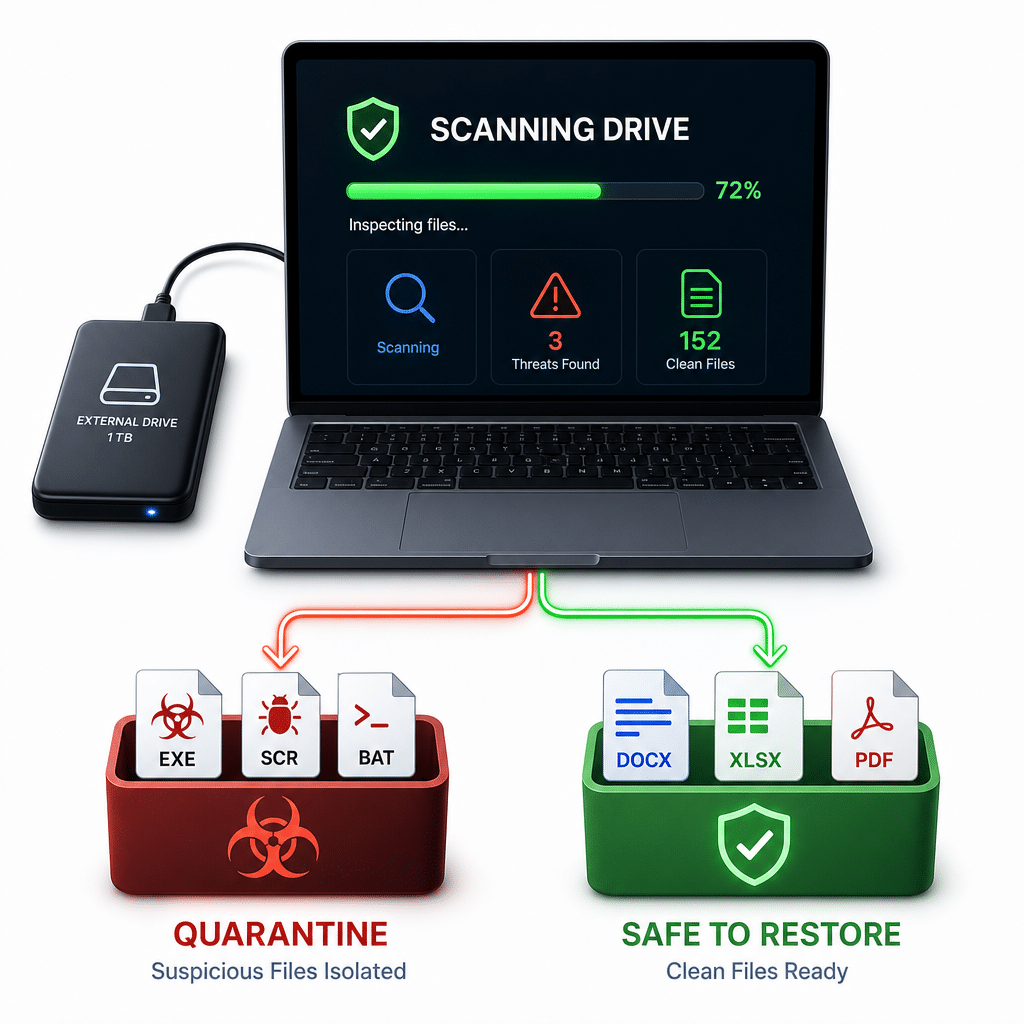
Restoring an infected backup can bring malware straight back to your computer. This guide shows you how to check backup files safely, isolate anything suspicious, and restore only clean files.
Table of Contents
- Before You Start
- Quick Fix Steps
- Deeper Diagnosis
- Preventive Care
- When to Seek Help
- Frequently Asked Questions
Before You Start
Plan for about 30 minutes for a small backup. A large backup may take several hours. The difficulty is Easy for basic scans and Medium if you need to use a separate computer or a rescue tool.
- Have your computer’s built-in security tool or a trusted security program ready.
- Have enough free storage for a temporary copy of the backup.
- Keep the original backup unchanged. Do not scan by moving, renaming, or opening files in the only copy.
- Know which files you actually need. Personal documents, photos, and videos are usually safer than old programs or installers, but they still need scanning.
Warning: Do not restore the backup yet. Do not double-click unknown files, run old installers, enable macros in office documents, or allow a suspicious program to make changes.
Something can go wrong if malware is hidden inside a compressed folder, such as a ZIP file, or if your security software is out of date. A scan can also produce a false alarm, so do not permanently delete an important file until you have checked the result.
Quick Fix Steps
- Disconnect the backup from automatic access. If it is on a USB drive, unplug it until your security software is ready. If it is in cloud storage, do not download or sync the whole backup yet. If you suspect the computer is already infected, disconnect it from the internet.
- Update your security software. Connect to the internet only long enough to update, if the computer appears safe. Use the built-in security tool included with your operating system or a well-known security program downloaded from its official website. Avoid “free scanner” pop-ups.
- Connect or download the backup carefully. Use a temporary folder or a separate empty drive. Do not let a cloud app automatically restore or sync everything. Keep the original backup untouched.
- Run a full scan. Right-click the backup drive or folder and choose the security program’s scan option. If available, choose a full or custom scan that includes archives and removable drives.
- Review the results. Let the security tool quarantine detected files. Quarantine means the file is locked away so it cannot run. Write down the file name and location before deleting anything.
- Restore only after a clean result. Copy a small group of needed files to a new folder first. Scan that folder again, then open the files one at a time. Keep the original backup until you have confirmed that the restored files work.
Tip: Scanning the backup does not guarantee that the computer is clean. Scan the computer itself before and after restoring files.
Deeper Diagnosis
Use your operating system’s security scan
Menu names vary by version, but the process is similar. Look for a security, antivirus, or device protection area. Choose a full scan, custom scan, or removable-drive scan instead of a quick scan when checking a backup.
Windows
Open the built-in Windows Security app from the Start menu. Choose the virus and threat protection area, update protection definitions, and start a full scan. For a specific backup, use the scan option available after right-clicking its drive or folder.
macOS
Keep macOS updated through System Settings. macOS includes protections that block many known threats, but a trusted security scanner can provide an additional check for downloaded files, old installers, and Windows malware stored on a backup. Scan the mounted backup before opening its contents.
iPhone or iPad
iOS and iPadOS normally do not allow traditional antivirus scans of the whole device. Do not install an unknown “cleaner” app. Check backup files on a trusted Mac or Windows computer, and update the phone or tablet before restoring data.
Android
Install apps only from the device’s official app store and keep the built-in app scanning feature enabled. For a backup containing APK files, which are Android app installation files, do not install them during testing. Scan the backup on a computer first and delete suspicious APK files.
Check compressed files and installers
Ask your security tool to scan inside ZIP, RAR, and similar archives if that option exists. Do not extract an archive just to inspect it unless your scanner has already checked it. Treat files ending in .exe, .msi, .dmg, .pkg, .apk, or files that ask for administrator permission as high-risk.
Note: Never upload private tax records, medical files, passwords, or family photos to a public online scanner. If you use an online service, read its privacy terms and upload only a non-sensitive sample.
If a scan reports a threat, choose quarantine first. Search the security program’s report for the detection name, and check whether the same file appears in multiple backup copies. Do not restore system files, scripts, cracks, unknown browser extensions, or old installers unless a qualified professional confirms they are safe.
Preventive Care
- Keep devices updated. Turn on automatic updates for the operating system, browsers, apps, and security tools.
- Use more than one backup copy. Keep one copy disconnected or protected from automatic changes. This helps if ransomware encrypts files.
- Test backups regularly. Every few months, restore a few harmless files to a temporary folder and scan them.
- Use strong, unique passwords. Protect cloud backup accounts with a password manager and multi-factor authentication, which requires an additional sign-in check.
- Download carefully. Use official websites or trusted app stores. Avoid pop-up download buttons, pirated software, and email attachments you did not expect.
- Keep file extensions visible. A file named “photo.jpg.exe” is a program, not a photo. Your operating system’s file settings can usually show the full name.
Warning: Do not factory-reset a device or edit the system registry as a first response. Those actions can erase evidence or data. Back up important clean files and get advice first.
When to Seek Help
Stop and get professional help if malware returns after quarantine, the security tool cannot start, files are being renamed or encrypted, or you see unknown administrator accounts. Also seek help if you cannot tell whether an important system file is safe to delete.
Use a separate, known-clean device to change important passwords if you suspect the computer is infected. Contact your backup provider for account or cloud-sync problems. Contact your internet provider if your home internet service is also behaving unusually, but remember that your internet provider may not remove malware from your computer.
A computer repair professional can create a safe copy of personal files, use an offline rescue scan, and reinstall the operating system when necessary. Ask what data will be erased before approving a reset or reinstallation.
By keeping the original backup untouched, scanning before opening files, quarantining threats, and restoring only small groups of clean files, you greatly reduce the chance of bringing malware back. Keep a separate backup and repeat these checks whenever you restore older data.
Frequently Asked Questions
Can I restore files after one quick scan?
A quick scan is better than no scan, but a full or custom scan is safer for an old or suspicious backup. Scan the computer and the restored files too.
What if the scanner finds a virus in the backup?
Quarantine the file and do not open it. Restore only unaffected personal files after a second scan, and keep the original backup in case a professional needs to examine it.
Is a cloud backup automatically safe?
No. Cloud services protect availability, not necessarily file contents. Malware may have been uploaded before the backup was created, so scan files before downloading or restoring them.
Should I delete the entire backup?
Usually not immediately. Preserve it, record the detected file, and make a new clean backup if possible. Delete it only after you have another verified copy or professional advice.
Leave a Reply