
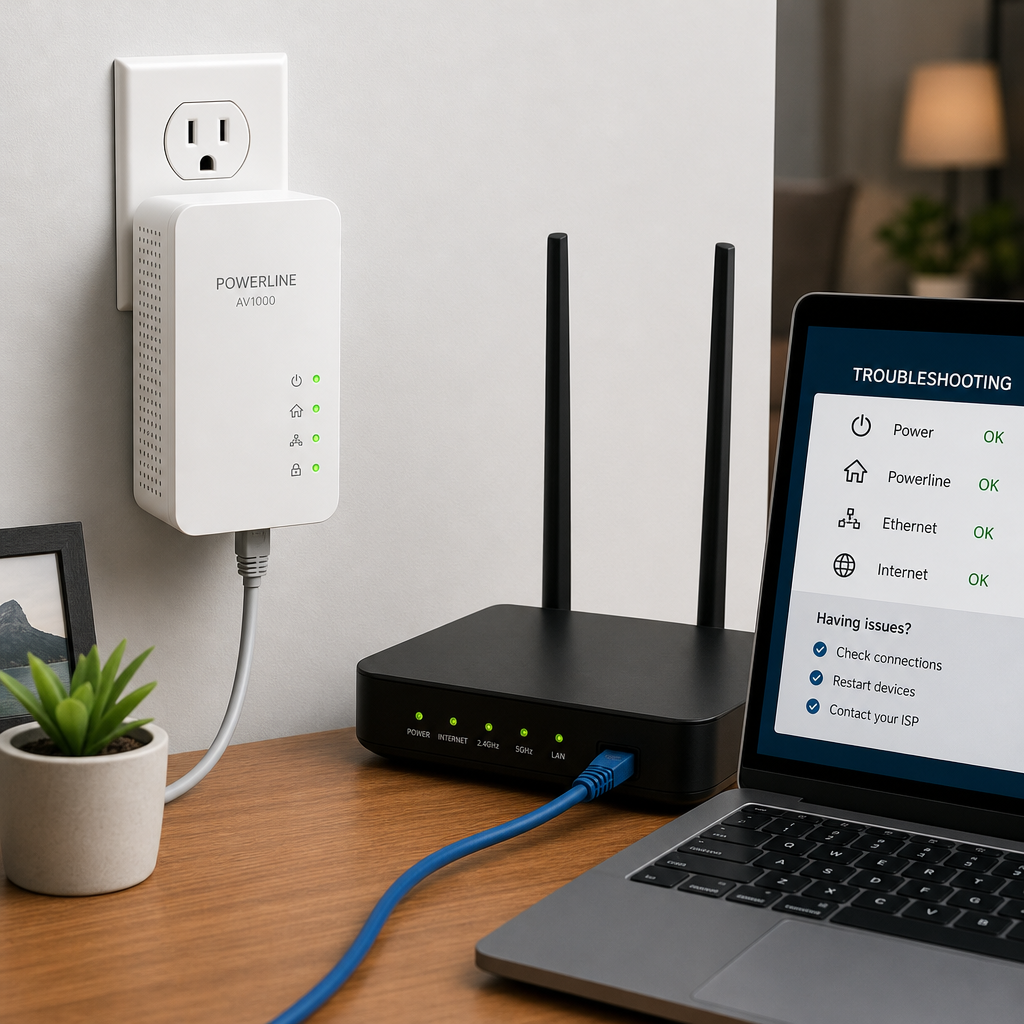
Powerline adapters use your home’s electrical wiring to carry a network connection between rooms. With an AI assistant and a few safe checks, you can often find out why the connection is slow, missing, or dropping. This guide helps you collect useful information, try simple fixes, and know when to stop and ask for help.
Table of Contents
- Before You Start
- Quick Fix Steps
- Deeper Diagnosis
- Preventive Care
- When to Seek Help
- Conclusion
- Frequently Asked Questions
Before You Start
Difficulty: Easy to Medium. Time: About 15–30 minutes. You need the powerline adapters, their power cables, your router, and a phone or computer. A router is the box that creates your home Wi-Fi network. You should also know your Wi-Fi name and password.
AI can suggest likely causes, but it cannot see your wiring or guarantee that a suggestion is correct. Do not share your Wi-Fi password, router administrator password, full address, or personal files with an AI service. Describe the problem without private information.
Warning: Do not open an adapter, remove its casing, or work on electrical outlets. Never use an adapter that is hot, cracked, smells burnt, sparks, or has a damaged cable. Unplug it and seek professional help.
Take a photo of the adapter lights before changing anything. Use meaningful alt text if you save the image, such as Powerline adapter showing power, network, and link lights.
Quick Fix Steps
1. Ask AI a clear question
Tell the AI the adapter brand and model only if you are comfortable sharing it, plus what you see. Include which lights are on, whether the router works normally, and whether one or all devices are affected.
For example: My powerline adapter has a power light but no link light. The router works on Wi-Fi, and the problem affects one room. What safe checks should I try? Ask for one step at a time. If the AI suggests a download, ask for the manufacturer’s official support page and verify the address yourself.
2. Check the simple connections
- Confirm the router has power and that its internet connection works over Wi-Fi.
- Make sure the first adapter is firmly connected to the router with an Ethernet cable.
- Make sure the second adapter is in the room where you need the connection.
- Unplug both adapters for 30 seconds, then plug them directly into wall outlets.
Tip: Avoid power strips, surge protectors, extension cords, and outlets controlled by a wall switch. They can block or weaken the signal between adapters.
3. Wait for the link
Give the adapters up to two minutes to start. A power light usually means the unit has electricity. A network or Ethernet light often means a cable is connected. A link light shows that the adapters can communicate through the electrical wiring.
4. Test a different wall outlet
Move the remote adapter to an outlet in the same room, or close to the first adapter. If it works there, the original room, outlet, or household electrical equipment may be affecting the signal. Do not keep moving equipment if an outlet is loose, warm, or damaged.
5. Restart the connected device
Restart the computer, game console, smart TV, or other device connected to the adapter. If possible, test with a different Ethernet cable and another device. This separates an adapter problem from a device or cable problem.
Deeper Diagnosis
Check the router and internet service
Connect a phone or computer directly to the router’s Wi-Fi. If Wi-Fi also has no internet, the powerline adapters may not be the main problem. Check the router lights and your internet provider’s service-status page, or contact the provider.
Ask AI to explain your router’s lights using the exact model number. Do not let an AI assistant invent a meaning for a light. Confirm the explanation in the router’s printed guide or official support documentation.
Check your device’s network settings
Make sure the device is set to obtain an address automatically. An IP address is the local network number given to your device. Avoid changing advanced settings unless you know how to restore them.
Windows
Open Settings > Network & internet. Select Ethernet and check that it says connected. You can also open Command Prompt and run ipconfig. If the result shows no IPv4 address, restart the adapter and router before changing settings.
macOS
Open System Settings > Network > Ethernet. Check that the connection is active. Select Details > TCP/IP and look for an assigned IP address. Do not delete network services unless you have written down the original settings.
iPhone or iPad
Open Settings > Wi-Fi, tap the connected network, and check whether the device has an IP address. iPhones and iPads usually connect to a powerline adapter through Wi-Fi or a compatible accessory, so test another device if possible.
Android
Open Settings > Network and internet or Connections. Check Wi-Fi details and try Forget and reconnect only if you know the Wi-Fi password. Menu names vary by device.
Pairing and reset
Some adapter sets must be paired using a button. Use the official manual for the correct timing. Warning: A factory reset erases pairing and custom settings. Do it only after recording the model, reading the official instructions, and confirming that you can pair the units again. Do not press reset buttons repeatedly based only on an AI guess.
Use AI to compare results
Give AI a small log: outlet used, light colors, device tested, and whether the connection worked nearby. Ask it to rank three possible causes and suggest the safest next test. Do not paste private logs, passwords, or screenshots containing personal information.
Preventive Care
- Keep adapters in open, dry areas with space around them. Do not cover them.
- Use direct wall outlets whenever possible.
- Update adapter firmware only through the manufacturer’s official website or app. Check the model carefully.
- Before installing software, verify the web address, scan the file with your security software, and avoid “driver updater” tools or pop-up downloads.
- Save the official manual and pairing instructions in a safe place.
- Use a strong, unique router administrator password. Never give it to an AI chatbot.
- Record which outlet works best and label each adapter “router” or “room.”
Note: Firmware updates can fail if power is interrupted. Do not unplug an adapter during an update, and do not update unless the instructions clearly identify your exact model.
When to Seek Help
Contact your internet provider if the router has no internet even when your device is connected directly to Wi-Fi. Contact the adapter manufacturer if the units will not pair after following the official manual, or if the correct lights never appear in a nearby wall outlet.
Ask a qualified electrician to inspect the outlet or wiring if an outlet is loose, hot, discolored, buzzing, or sparking. Seek professional help rather than repeatedly testing a suspected electrical fault.
Stop troubleshooting if an AI recommendation asks you to disable security software, edit the Windows registry, install an unknown program, expose router passwords, or change electrical wiring. Ask for a safer alternative or use official support.
Conclusion
Use AI as a careful troubleshooting partner, not as the final authority. Start with cables, direct wall outlets, restarts, and a second device. Record the lights and test results, protect your private information, and verify downloads and reset instructions through official sources. If the problem points to internet service, faulty hardware, or unsafe wiring, contact the appropriate professional.
Frequently Asked Questions
Can AI tell me exactly what an adapter light means?
It can suggest an explanation, but light meanings vary by model. Confirm the answer in the official manual or support page.
Why does the adapter work in one outlet but not another?
Electrical circuits, filters, surge protectors, and household appliances can affect the signal. Test direct wall outlets and avoid damaged or unusual outlets.
Should I factory-reset the adapters?
Only as a later step. Record the current setup, read the exact official instructions, and make sure you know how to pair the adapters again.
Is a powerline adapter as fast as Wi-Fi?
Performance depends on your home’s wiring, outlet locations, interference, and adapter age. A nearby direct wall outlet usually gives the best result.
Leave a Reply