
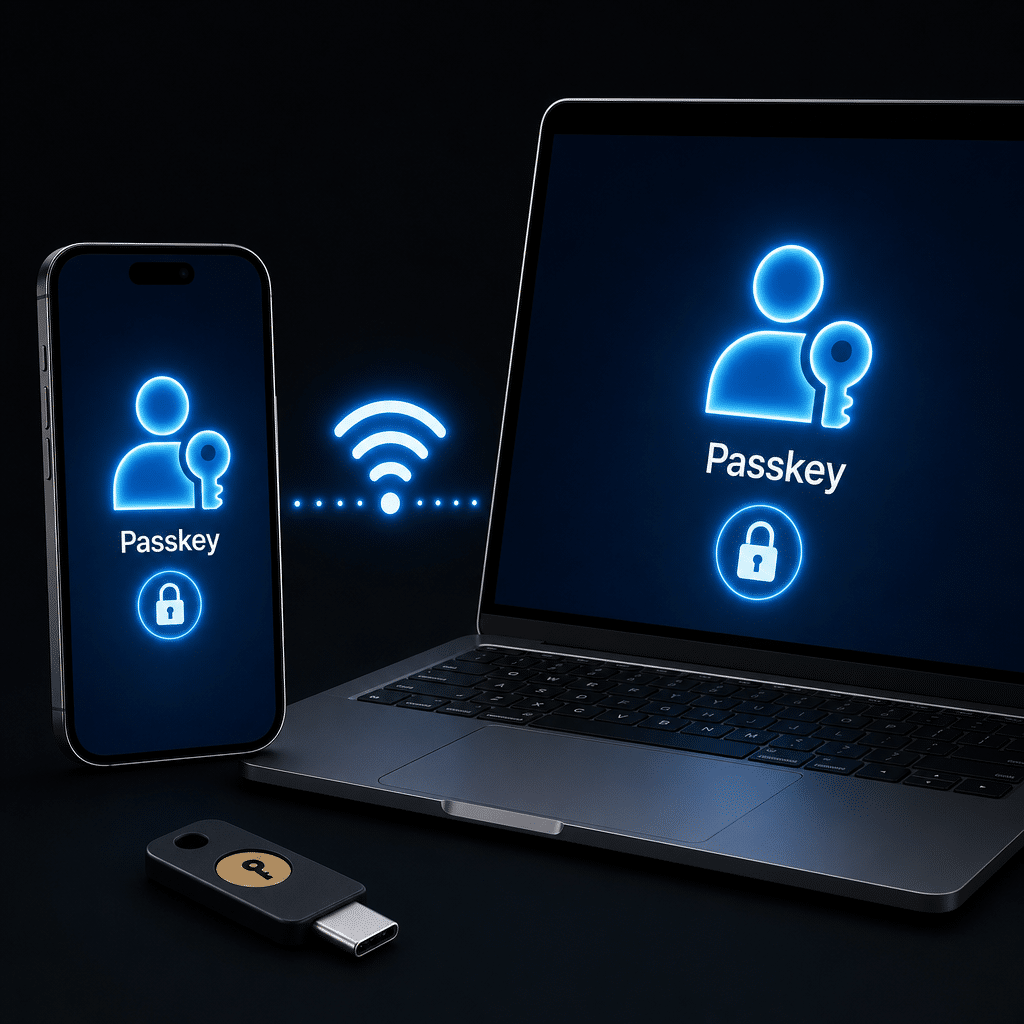
A passkey lets you sign in without typing a password. It usually uses your fingerprint, face scan, device PIN, or screen lock. If a passkey will not sign in, this guide will help you check the account, device, internet connection, and passkey settings safely.
Table of Contents
- Before You Start
- Quick Fix Steps
- Deeper Diagnosis
- Preventive Care
- When to Seek Help
- Frequently Asked Questions
Before You Start
A passkey is a secure sign-in method saved on a phone, tablet, computer, or security key. It may be stored only on one device, or synced through your device account so it can work on several devices.
- Time: Allow 10 to 20 minutes.
- Difficulty: Easy to Medium.
- You need: The device with the passkey, its screen-lock PIN or password, and access to the account’s backup sign-in method.
- Check first: Make sure you are signing in to the correct website or app. Look carefully at the web address.
Warning: Do not factory-reset your phone or computer, remove every passkey, or install a password tool just to test a sign-in. Those actions can make recovery harder. First confirm that you can use another sign-in method, such as a password, recovery code, or email verification.
Quick Fix Steps
1. Check the device basics
- Connect to a trusted Wi-Fi or mobile-data network.
- Charge the device if its battery is low.
- Set the device date and time to automatic. An incorrect clock can prevent secure sign-in.
- Restart the device, then try the passkey again.
Tip: If you are using a shared or public computer, try your personal device instead. Never approve a sign-in request that you did not start.
2. Use the correct passkey option
- On the sign-in page, choose Use a passkey, Sign in with passkey, or a similar option.
- If the page shows several devices, select the device that actually holds your passkey.
- Unlock that device with its fingerprint, face scan, PIN, or screen-lock password.
If you see a QR code, scan it with the phone that has the passkey. Keep both devices nearby and turn on Bluetooth when the page asks for a nearby-device connection.
3. Update the app, browser, and device
Install updates only through your device’s normal settings or the official app store. Do not download an installer from a pop-up, email, or unfamiliar website.
- Windows: Open Settings, choose Windows Update, and select Check for updates. Also update your browser from its own Help or About menu.
- macOS: Open System Settings, choose General, then Software Update. Update your browser from its official menu.
- iPhone or iPad: Open Settings, choose General, then Software Update. Update the app through the App Store.
- Android: Open Settings, choose System or Software update. Update the app through Google Play or your device maker’s official store.
4. Try another sign-in method once
Choose Use another method or Try another way. Sign in with your password, recovery code, or verified email if available. This helps you confirm that the account itself still works.
After signing in, open the account’s security settings and check whether the passkey is listed. Do not remove it yet unless you have a working replacement sign-in method.
5. Try a private browser window
Open a private or incognito window, go directly to the official website, and try again. This temporarily avoids some old cookies and extensions. If it works there, disable browser extensions one at a time or clear cookies for that website.
Deeper Diagnosis
Check whether the passkey is on this device
Look in the device’s password or credential manager. The wording differs by device, but search Settings for passkeys, password manager, or credentials. Confirm that the account and website are listed.
- Windows: Search Settings for Passkeys or open the password manager in your browser.
- macOS: Open the Passwords area in System Settings and search for the website.
- iPhone or iPad: Open Settings, choose Passwords, unlock the device, and search for the website.
- Android: Open Settings and search for Password Manager or Passkeys. The exact location varies by Android version.
Check account and sync settings
If the passkey is missing, make sure you are signed in to the same device account used when the passkey was created. For example, a phone may not show a passkey created while using a different account or profile.
- Confirm that account sync is turned on for your device password manager.
- Check that you have enough free storage and a working internet connection.
- Sign out of the device account only if you know its password and have a current backup. Signing out can temporarily hide synced credentials.
Check the website or app
Try the same account in the official app and in a current browser. If one works and the other does not, update or reinstall only the app from its official store. Before reinstalling, confirm that you know the account password or have another recovery method.
Note: A service may have a temporary outage or may not support passkeys in every browser. Check its official status page or help center using a separate tab.
Preventive Care
- Keep your operating system, browsers, and account apps updated.
- Maintain at least two recovery options, such as a password and a recovery code stored safely.
- Keep your phone number and recovery email current in the account settings.
- Save recovery codes offline in a secure place. Do not store them in a public note or send them in ordinary email.
- Use a screen lock that only you know. Never share your device PIN with someone who may access your passkeys.
- Download apps and updates only from official stores or the device maker’s website.
- Review the account’s passkey list every few months. Remove old devices only after confirming another sign-in method works.
Warning: Do not approve an unexpected fingerprint, face, PIN, or QR-code request. It could be an attempt to sign in to your account.
When to Seek Help
Contact the website or app’s official support when the passkey is listed but repeatedly rejected, the account is locked, or every sign-in method fails. Use the support link reached from the official website or app, not a phone number shown in a pop-up.
Contact your internet provider only if the page will not load or your whole home connection is failing. A router is the box that creates your home Wi-Fi network; restarting it may help with connection problems, but it will not usually repair a missing passkey.
Ask a trusted technician for help if you cannot access the recovery email, lost the device that held the passkey, or are considering a factory reset. Before handing over a device, back up important files and avoid sharing passwords or recovery codes.
Most passkey problems are fixed by restarting the device, using the correct passkey option, updating software, or choosing another sign-in method. If the passkey is missing, confirm the device account and sync settings before removing anything. Keep a backup recovery method ready so the next sign-in is safer and easier.
Frequently Asked Questions
What if I lost the phone with my passkey?
Use another trusted device or a recovery method to sign in. Then open the account’s security settings, remove the lost device’s passkey, and create a replacement.
Can I use a passkey on another device?
Often, yes. If passkeys are synced, sign in to the same device account on the second device. Otherwise, use the website’s QR-code or nearby-device option, if offered.
Should I delete and recreate the passkey?
Only after confirming that another sign-in method works. Create the replacement first when possible, test it, and then remove the old passkey.
Why does my fingerprint or face scan fail?
Clean the sensor or camera, unlock the device with its PIN or password, and try again. If the device itself cannot unlock, repair that device-lock issue before troubleshooting the website.
Leave a Reply