
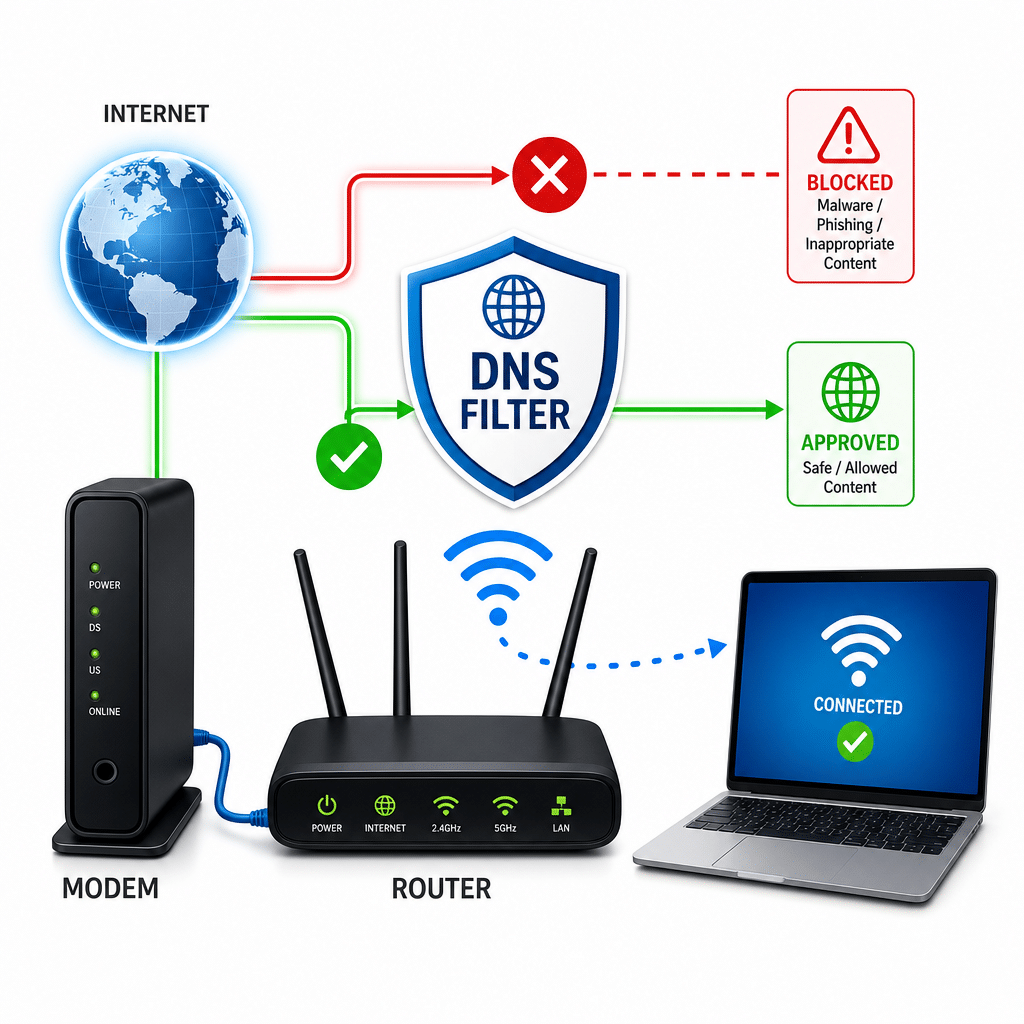
When a DNS filter blocks an address an app needs, the app may stop loading, show a connection error, or work only on mobile data. DNS is the service that turns a website or app name into an internet address. Follow these safe steps to find the cause, restore the app, and keep useful filtering in place.
Table of Contents
- Before You Start
- Quick Fix Steps
- Deeper Diagnosis
- Preventive Care
- When to Seek Help
- Frequently Asked Questions
Before You Start
Set aside about 15–30 minutes. This guide is Easy for the quick fixes and Medium if you need to change a filter rule or router setting.
- Have access to the affected device and your home Wi-Fi password.
- Know who manages your DNS filtering. It may be a router, an app, or a family safety service.
- Write down the app name, the exact error, and whether other apps work.
- If possible, keep a second internet connection, such as mobile data, for testing.
Warning: Do not factory-reset the router, edit the Windows registry, or download “repair” installers from random websites. Those actions can erase settings, damage the system, or install malware. Make one change at a time so you can undo it.
Quick Fix Steps
1. Check whether the problem is really DNS
Try the app on mobile data, if available, or on another trusted Wi-Fi network. If it works there but fails on home Wi-Fi, DNS filtering or another home-network setting is a strong possibility.
2. Restart the app and device
Close the app completely, then open it again. Restart the phone, tablet, computer, or streaming device. This clears temporary network information without changing your settings.
3. Restart the network equipment
A router is the box that creates your home Wi-Fi network. Unplug the router and, if separate, the modem—the box that connects your home to the internet. Wait 60 seconds, reconnect the modem first, wait for its normal lights, then reconnect the router.
4. Refresh the device’s DNS information
DNS cache is a short-term list your device keeps to speed up connections. Clearing it can remove an outdated or incorrect entry.
Windows
Open Command Prompt from the Start menu. Type ipconfig /flushdns and press Enter. You should see a confirmation message. Restart the affected app.
macOS
Open Terminal from Applications, then Utilities. Copy and run sudo dscacheutil -flushcache; sudo killall -HUP mDNSResponder. Enter your Mac password if asked. Nothing may appear while you type it.
iPhone or iPad
Turn Airplane Mode on for 10 seconds, then turn it off. If that does not help, go to Settings > Wi-Fi, tap the information button beside your network, choose Forget This Network, and reconnect. Make sure you know the Wi-Fi password first.
Android
Turn Airplane Mode on and off, then restart the device. You can also go to Settings > Network and internet > Internet, select your Wi-Fi network, and choose Forget. Menu names can vary by device.
5. Check the filter’s blocked list
Open the filtering service or your router’s management page. Look for blocked requests, recent activity, or a security log around the time the app failed. Approve only the specific domain that the app needs, if you recognize it and trust the app.
Tip: Do not allow every blocked request at once. Some apps use several services, so add one clearly related domain at a time and test after each change.
Deeper Diagnosis
Check whether all devices are affected
Test the same app on another device connected to the same Wi-Fi. If several devices fail, the router or DNS filter is likely involved. If only one device fails, check that device’s network settings, app updates, and security software.
Review router and filter settings
- Find the router’s address in its manual, on its label, or in your device’s Wi-Fi details. Common addresses include
192.168.0.1and192.168.1.1, but yours may differ. - Type that address directly into a browser’s address bar. Do not use a search result or an unfamiliar download page.
- Sign in with the router administrator password. Look for sections named DNS, Security, Parental Controls, Filtering, or Logs.
- Check whether safe-search, category blocking, malware protection, or a custom blocklist is blocking the app’s service.
- Save a note or screenshot of the original setting before changing anything. Change one rule, save, and test the app.
Warning: Some routers let you replace DNS servers entirely. Do not change them unless you know why and have recorded the original values. A safer first choice is to create an exception for one trusted service.
Compare device DNS settings
On Windows, open Settings > Network & internet > Wi-Fi, select the connected network, and review DNS settings. On macOS, open System Settings > Network > Wi-Fi > Details > DNS. Avoid entering public DNS addresses just to bypass a household filter; ask the filter administrator first.
On iPhone or iPad, check Settings > Wi-Fi > network information for DNS or configuration profiles. On Android, check Settings > Network and internet > Private DNS. If Private DNS is set to a custom provider, temporarily return it to the household’s approved setting and test again.
Update the app safely
Install updates only through the device’s official app store or the software maker’s clearly identified website. Avoid “cracked,” “patched,” or urgent repair downloads. If an update introduced the problem, check the app maker’s support page for a known DNS or connectivity issue.
Preventive Care
- Keep the router, devices, and apps updated. Turn on automatic updates when practical.
- Review filter logs monthly. Remove old rules and keep a short list of approved exceptions.
- Use a unique router administrator password and store it in a password manager.
- Export or photograph router and filter settings before major changes.
- Keep important photos and files backed up. Network troubleshooting should not be your only protection.
- Explain filtering changes to everyone who manages the home network, so another person does not undo a safe exception.
Note: A filter exception can reduce protection for that domain. Approve only services you trust, and remove the exception if the app no longer needs it.
When to Seek Help
Contact your internet service provider if the modem shows warning lights, the whole home loses internet, or the connection repeatedly drops after a restart. Contact the app maker if the app fails on multiple networks or shows a service outage.
Ask the person who manages your household filter for help if you cannot identify a blocked request or do not have administrator access. Consider a qualified technician if router settings are unknown, the administrator password is lost, or changes keep affecting many devices.
Get urgent help if you see unfamiliar administrator accounts, repeated security warnings, unexpected redirects, or evidence that the router or device may be compromised. Do not enter passwords into a suspicious page while investigating.
Most app failures after DNS filtering can be fixed by restarting equipment, clearing the DNS cache, and allowing one trusted service. If the issue returns, document the app, device, network, and blocked domain before contacting support. That information makes the next fix faster and safer.
Frequently Asked Questions
How can I tell if DNS filtering is blocking an app?
If the app works on mobile data or another Wi-Fi network but not at home, and the filter log shows a blocked request, DNS filtering is likely involved.
Should I turn off DNS filtering completely?
Usually no. Check the blocked list and create a narrow exception for a trusted domain instead. Turn filtering off only briefly for a controlled test, then turn it back on.
Why does clearing DNS cache help?
It removes old saved address information. The device then asks the current DNS service for fresh information.
Will forgetting Wi-Fi erase my files?
No. It removes the saved Wi-Fi connection and password from that device. You will need to reconnect afterward.
Leave a Reply