
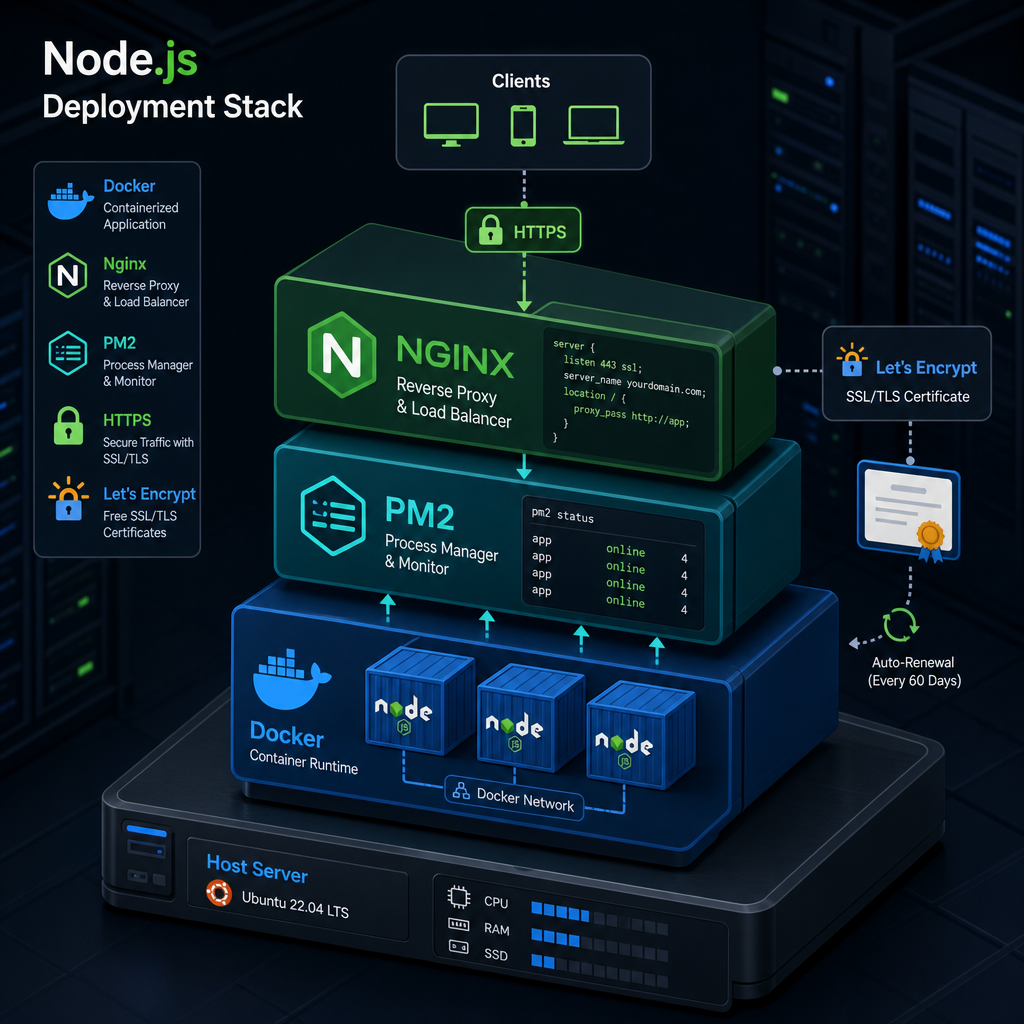
Deploying a Node.js application is straightforward until production requirements arrive. You need reliable process management, isolated services, secure HTTPS, a public reverse proxy, and a deployment workflow that is easy to maintain. Combining Docker Compose, Nginx, Let’s Encrypt, and PM2 provides a practical way to address those needs on a single server or small cloud instance.
This guide explains how the pieces fit together and how to design a production-ready deployment. You will learn how to containerize a Node.js application, use PM2 to manage the application process, route traffic through Nginx, and automate TLS certificates with Let’s Encrypt.
Table of Contents
- Understand the Deployment Architecture
- Prepare the Node.js Project
- Create the Docker and Compose Configuration
- Configure Nginx as a Reverse Proxy
- Add HTTPS with Let’s Encrypt
- Deploy and Verify the Application
- Production Maintenance and Security
- Conclusion
- Frequently Asked Questions
Understand the Deployment Architecture
A typical deployment uses several cooperating layers. Nginx is the public entry point, Docker Compose defines and connects the containers, the Node.js container runs the application, and PM2 supervises the Node.js process inside that container.
The request flow is simple: a browser connects to your domain over HTTPS, Nginx receives the request on ports 80 or 443, and Nginx forwards application traffic to the Node.js service on an internal Docker network. The Node.js service does not need to be exposed directly to the public internet.
- Nginx: Handles incoming HTTP and HTTPS traffic, domains, redirects, and proxy headers.
- Let’s Encrypt: Issues trusted TLS certificates for your domain.
- Docker Compose: Defines services, networks, volumes, ports, and restart behavior.
- Node.js: Runs the web application and listens on a container port such as 3000.
- PM2: Keeps the Node.js process running and provides logs, monitoring, and graceful reload options.
PM2 is most valuable when you have a clear reason to use it. Containers already provide restart capabilities, so running multiple PM2 cluster workers inside a container can add unnecessary complexity. For many deployments, one PM2-managed process per container combined with Docker Compose scaling is easier to understand and operate.
Prepare the Node.js Project
Before creating containers, make sure the application behaves correctly in a production environment. It should listen on the host address 0.0.0.0 rather than only on localhost. Otherwise, the process may be running successfully while remaining unreachable from the Nginx container.
Keep configuration outside the source code. Read values such as the database URL, session secret, and runtime mode from environment variables. Do not commit passwords, private keys, or production certificate files to your repository.
Use a production start command
Your package configuration should include a predictable production command. For example, the command can launch an ecosystem configuration through PM2 in runtime mode. The application should also provide a lightweight health endpoint, such as /health, that returns a successful response when the service is ready.
Install dependencies using a lock file and use a production-only installation in the final image where possible. This reduces image size and limits the number of packages exposed in production.
Choose a project layout
A clear layout makes the deployment easier to maintain. A common structure includes the application source, a Dockerfile, a Compose file, an Nginx configuration directory, and an optional scripts directory for certificate setup.
- Dockerfile: Describes how to build the Node.js image.
- docker-compose.yml: Defines the application, proxy, and certificate services.
- nginx: Contains virtual host configuration.
- ecosystem.config.js: Defines the PM2 application name and start command.
Create the Docker and Compose Configuration
The Dockerfile should use a small, maintained Node.js base image. Install dependencies in a separate build step, copy only the files required at runtime, and run the process as a non-root user when the application permits it.
A production image commonly follows this sequence:
- Set the working directory.
- Copy the package manifest and lock file.
- Install dependencies with a reproducible command.
- Copy the application source.
- Expose the internal application port.
- Start the application through PM2 in foreground mode.
PM2 must remain attached to the container’s main process. Do not daemonize it in the background, because Docker uses the foreground process to determine whether the container is running. The PM2 runtime command is designed for this container-friendly behavior.
Define services with Docker Compose
Use Compose to define at least an application service and an Nginx service. The application service can be built from the project Dockerfile, while Nginx can use an official Nginx image with a mounted configuration file.
Only Nginx needs to publish ports 80 and 443 to the host. The Node.js service should be reachable through the private Compose network rather than with a public port mapping. In the Nginx configuration, the upstream hostname should match the Compose service name, not localhost.
Add a restart policy such as unless-stopped to services that should recover after a server reboot or process failure. Use a named volume for application data that must persist, such as uploaded files, and keep disposable build artifacts out of persistent volumes.
Manage environment variables
Compose can load variables from an environment file, but that file should be protected with appropriate permissions and excluded from version control. For sensitive deployments, use a secret manager or the host’s secure environment facilities instead of placing credentials directly in a Compose file.
Set the application environment to production and provide a stable port value. If the application connects to a database or cache, consider defining those services in Compose as well, but use persistent volumes and backups for stateful data.
Configure Nginx as a Reverse Proxy
Nginx should listen for your domain and forward requests to the internal Node.js service. A reverse proxy configuration typically specifies the upstream service, the forwarded host, the original client IP, and the protocol used by the client.
Forwarding these headers matters because frameworks often use them to generate absolute URLs, identify secure requests, enforce authentication rules, and record accurate client addresses. Configure the Node.js framework to trust the proxy when appropriate, but avoid blindly trusting arbitrary proxy chains.
Support WebSockets and long-running requests
If your application uses WebSockets, server-sent events, or streaming responses, configure the relevant connection and upgrade headers. Increase proxy read timeouts only where necessary; excessively long timeouts can leave abandoned connections consuming server resources.
Redirect HTTP to HTTPS
Once the certificate is available, the port 80 server block should redirect normal traffic to HTTPS. Keep an exception for the Let’s Encrypt HTTP-01 challenge path if your certificate client uses that validation method. A redirect ensures users and search engines consistently reach the secure version of the site.
Nginx can also serve static assets directly, set cache headers, limit request sizes, and apply basic rate controls. These features reduce work for Node.js and can improve both performance and resilience.
Add HTTPS with Let’s Encrypt
Let’s Encrypt provides free, publicly trusted certificates, but the certificate authority must verify that you control the domain. Before requesting a certificate, point the domain’s DNS records to the server and allow inbound traffic on ports 80 and 443 through the firewall.
A common Docker-based design uses Certbot alongside Nginx. Mount one shared volume for certificate files and another shared volume for webroot challenge files. Certbot writes the challenge token to the webroot, and Nginx serves that token to the certificate authority.
Bootstrap the first certificate
- Point the domain and any required subdomains to the server.
- Start Nginx with an initial HTTP configuration.
- Request the certificate using the webroot validation method.
- Update Nginx to load the certificate and private key.
- Test the Nginx configuration and reload it.
- Redirect regular HTTP traffic to HTTPS.
The first certificate request may require a temporary Nginx configuration without SSL directives. This avoids a circular dependency: Nginx needs the certificate to start HTTPS, while Certbot needs Nginx to serve the validation file. Once the certificate exists, switch to the complete HTTPS configuration.
Plan for renewal
Let’s Encrypt certificates are short-lived, so renewal must be automated. Run a scheduled Certbot renewal command and reload Nginx after a successful renewal. Renewal should be tested regularly with a dry-run command so configuration or DNS problems are discovered before the certificate expires.
Protect the certificate volume and private key. The private key should be readable only by the processes that need it, and backups should be handled carefully because copying a private key increases its exposure.
Deploy and Verify the Application
After the configuration is ready, build and start the stack with Docker Compose. Review the service status and inspect logs for both the application and Nginx. A healthy deployment should show the Node.js process online, Nginx listening on the expected ports, and no repeated restart loop.
Verify the deployment in layers rather than relying only on a browser:
- Check that the Node.js health endpoint responds inside the application container.
- Confirm that Nginx can resolve and reach the application service name.
- Test the domain over HTTP and confirm the HTTPS redirect.
- Inspect the certificate subject, issuer, expiration date, and hostname.
- Test application routes, static files, forms, authentication, and WebSockets if used.
- Restart the server or services and confirm that the stack recovers as expected.
When releasing a new version, pull the updated source, rebuild the application image, and recreate the relevant service. Use a controlled migration process for database changes. For important systems, deploy a versioned image and keep a rollback image available rather than relying on an uncommitted working directory.
Production Maintenance and Security
A deployment is not finished when the first page loads. Regular maintenance keeps the system reliable and reduces security risk.
- Keep the host operating system, Docker, base images, Node.js, and dependencies updated.
- Run dependency audits and remove packages that are no longer needed.
- Limit exposed host ports to those required for web traffic and administration.
- Use SSH keys, disable password authentication where practical, and restrict administrative access.
- Monitor CPU, memory, disk usage, container restarts, response time, and certificate expiration.
- Rotate secrets and review access permissions periodically.
- Back up databases, uploaded files, and essential configuration; test restoration rather than assuming backups work.
PM2 logs can grow over time, so configure log rotation or route logs to a centralized logging system. Docker logs also require a retention policy. Without one, a busy application can eventually fill the server’s disk and cause unrelated services to fail.
Common troubleshooting checks
If Nginx returns a bad gateway error, confirm that the application is running, listening on 0.0.0.0, and reachable through the Compose service name and port. If the certificate request fails, check DNS propagation, firewall rules, the challenge path, and whether another service is already using port 80.
If HTTPS works but the application generates HTTP links, review forwarded headers and the framework’s trusted-proxy setting. If containers repeatedly restart, inspect the application logs and verify that required environment variables and database connections are available.
Conclusion
Docker Compose, Nginx, Let’s Encrypt, and PM2 form a practical deployment stack for Node.js applications. Compose provides repeatable service definitions, Nginx handles public traffic, Let’s Encrypt supplies trusted HTTPS, and PM2 adds process supervision and useful operational controls.
The most important principles are to expose only the reverse proxy, keep secrets outside source control, automate certificate renewal, use health checks and logs, and test recovery before production traffic depends on the system. Start with a simple architecture, document it, and add complexity only when the application genuinely needs it.
Frequently Asked Questions
Do I need PM2 if my Node.js app runs in Docker?
Not always. Docker restart policies and an external orchestrator may be sufficient. PM2 can still provide familiar Node.js process management, graceful reloads, and application-level logs, but it should run in the foreground inside the container.
Should Nginx and Node.js run in the same container?
Usually, no. Separate containers follow the single-responsibility principle and make updates, logs, scaling, and troubleshooting easier. Docker Compose provides the private network needed for communication between them.
How often does Let’s Encrypt renew certificates?
Let’s Encrypt certificates are valid for a limited period, so an automated renewal task should run regularly. The renewal client renews only when needed, and Nginx should be reloaded after a successful renewal.
Why does Nginx return a 502 Bad Gateway error?
The upstream application may be stopped, listening on the wrong address or port, or referenced with the wrong Compose service name. Check application logs, service status, and connectivity from the Nginx container.
Leave a Reply