
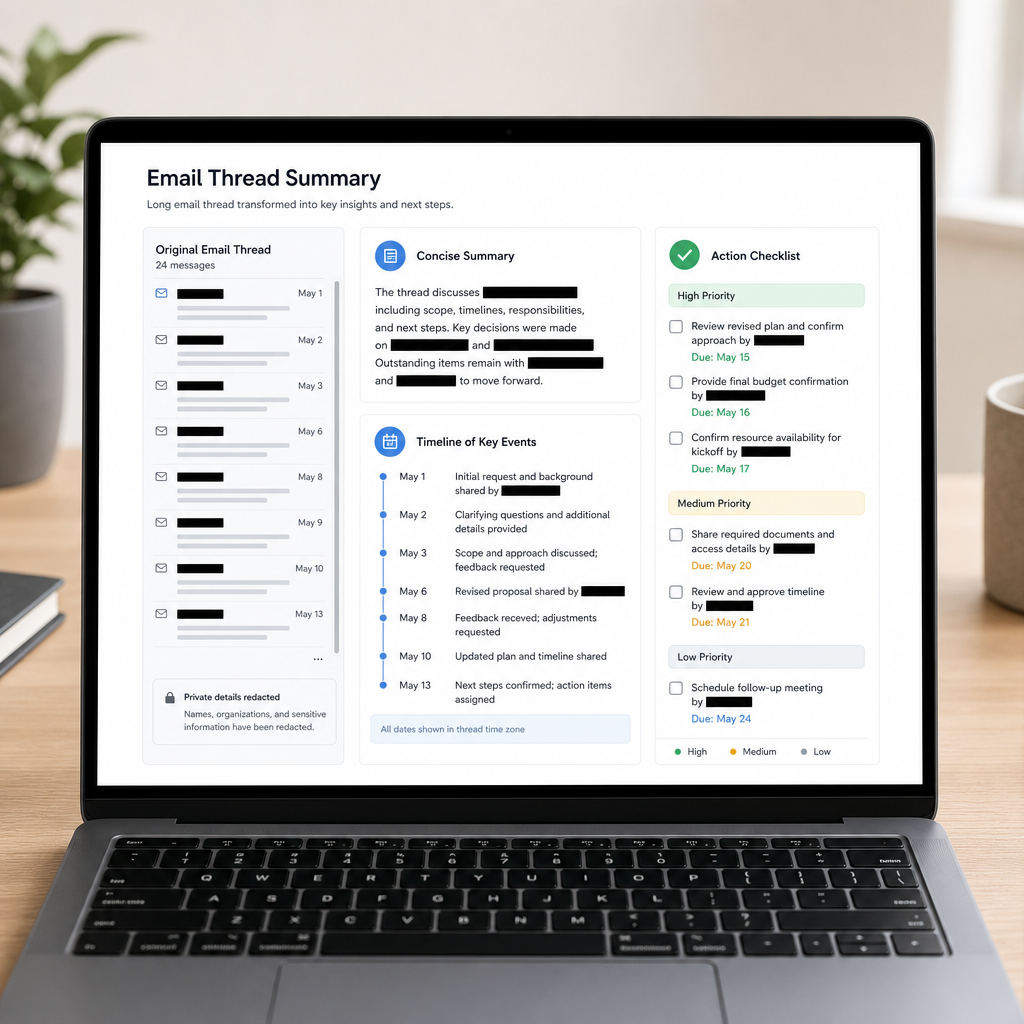
Long email threads can hide the one detail you need. With an AI assistant and a few safety checks, you can turn a long conversation into a short summary, a list of decisions, and clear next steps—without losing important context.
Table of Contents
- Before You Start
- Quick Fix Steps
- Deeper Diagnosis
- Preventive Care
- When to Seek Help
- Frequently Asked Questions
Before You Start
Time: About 10–20 minutes. Difficulty: Easy. You need access to the email conversation and an AI tool that can accept pasted text or uploaded files.
- Decide what you want: a short overview, a timeline, decisions, action items, or unanswered questions.
- Check the AI tool’s privacy policy and settings. Do not assume that pasted information is private.
- Remove passwords, payment details, home addresses, phone numbers, medical information, and other sensitive data before sharing text.
- Keep the original email thread. AI can miss details or make an incorrect statement.
Warning: Do not paste confidential work, legal, financial, or personal information into an AI service unless you have permission and understand how the service handles your data. If unsure, summarize the sensitive parts yourself or use an approved private tool.
Quick Fix Steps
1. Open and clean up the conversation
Open the email thread in your usual email app or website. Expand hidden messages if needed. Copy only the messages that matter, and remove repeated signatures, advertisements, tracking links, and private details.
2. Add simple labels
Before copying, add a short marker before each message, such as From: Alex | Date: March 3. These labels help the AI understand who said what and when.
3. Ask for a structured summary
Paste the cleaned text into the AI tool. Then use a prompt like this:
Summarize this email conversation in plain language. Include: 1) the main topic, 2) a short timeline, 3) decisions made, 4) open questions, 5) action items with the person responsible and due date if stated. Do not guess. Mark anything unclear as “not stated.”
4. Check the result against the original
Compare names, dates, amounts, deadlines, and decisions with the actual emails. A summary is a helper, not a replacement for the original conversation.
5. Ask for a shorter or more useful version
If the first result is too long, ask: Reduce this to five bullet points without removing deadlines or unresolved questions. You can also request a table with columns for Task, Owner, Due date, and Status.
Deeper Diagnosis
If the summary seems incomplete or confusing, work through these checks before trusting it.
Check that the whole thread was included
Look for collapsed messages, forwarded sections, attachments, and replies stored in separate threads. If the conversation is very long, send it in labeled parts, such as Part 1 of 3, and ask the AI to wait until all parts are provided.
Separate facts from opinions
Ask the AI: Make two lists: confirmed facts supported by the emails, and opinions or claims that need checking. This helps prevent guesses from appearing to be decisions.
Request a timeline
For scheduling or customer-service threads, use: Create a date-ordered timeline. Quote or closely paraphrase the email that supports each event. Check time zones and dates yourself, especially when people are in different locations.
Try these device variations
- Windows: Select the needed email text, press
Ctrl+C, switch to the AI tool, and pressCtrl+V. UseCtrl+Fin the email to find names, dates, or keywords. - macOS: Select the text, press
Command+C, then paste withCommand+V. UseCommand+Fto search the thread. - iPhone or iPad: Touch and hold text, adjust the selection handles, choose Copy, then paste into the AI app or website. For long threads, use a computer if selecting text becomes difficult.
- Android: Touch and hold text, adjust the selection, tap Copy, and paste it into the AI app or website. Avoid uploading screenshots unless you have checked every visible detail.
Handle attachments carefully
AI may not read every attachment correctly, especially scanned documents, images, or spreadsheets. Open important files yourself and verify figures, names, and instructions. Never follow payment or account-change instructions based only on an AI summary.
Tip: Ask for exact supporting excerpts: For each action item, include the sentence from the email that supports it. This makes errors easier to spot.
Preventive Care
- Use folders, labels, or stars for conversations that contain decisions or deadlines.
- At the end of an important thread, write your own short recap and send it to the participants for confirmation.
- Save the original emails. Do not delete them just because you created an AI summary.
- Review the AI tool’s privacy, retention, and training settings occasionally. Turn off history or training use when appropriate.
- Use a strong, unique password and two-step sign-in for your email and AI accounts.
- Download AI apps only from the official app store or the service’s genuine website. Avoid unknown installers, browser extensions, and “free” tools that request unnecessary access to your inbox.
Note: AI tools can produce confident but false summaries. Treat the output as a draft, particularly for legal, financial, medical, employment, or safety-related messages.
When to Seek Help
Ask a trusted person, your workplace administrator, or a qualified professional for help when:
- The email contains legal notices, contracts, medical instructions, tax information, or a large financial decision.
- You are unsure whether sharing the conversation violates a work, school, or privacy rule.
- The AI summary conflicts with the original emails and the difference could cause harm or a missed deadline.
- An app asks for full inbox access, your email password, payment information, or an unusual installer.
- You suspect phishing, account takeover, or a fraudulent request. Contact the organization using a phone number or website you already trust, not a link in the email.
Once you have checked privacy, cleaned the thread, and verified the important details, AI can make long email conversations much easier to manage. Start with a simple summary, then request a timeline and action list. Always keep the original messages and make the final decision yourself.
Frequently Asked Questions
Can AI summarize an entire inbox?
Some tools offer inbox access, but giving an app access to every message creates a larger privacy risk. For most home users, copy only the specific conversation you need.
What if the email thread is too long?
Split it into labeled parts. Ask the AI to summarize each part first, then provide those smaller summaries and request one combined result. Check that dates and decisions were not lost.
Can I trust an AI-generated action list?
Use it as a draft. Confirm every owner, deadline, amount, and commitment against the original emails before acting.
Should I upload screenshots?
Only when necessary and after hiding private information. Pasted text is usually easier for the AI to process and easier for you to review.
Leave a Reply