
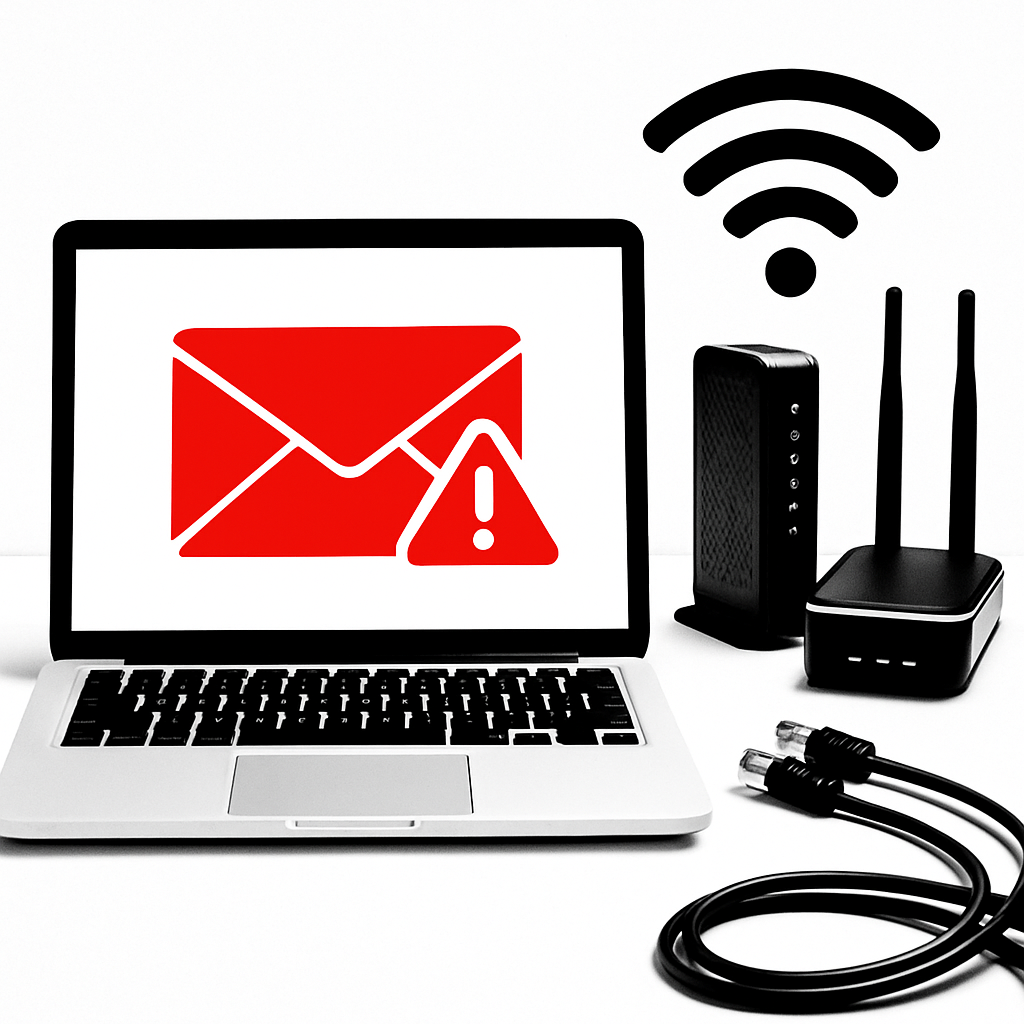
Email won’t send or receive at home, but works elsewhere? Your modem or router might be the cause. This guide walks you through fast fixes and deeper checks to get your email app working again, safely and step by step.
Table of Contents
- Before You Start
- Quick Fix Steps
- Deeper Diagnosis
- Preventive Care
- When to Seek Help
- Conclusion
- Frequently Asked Questions
Before You Start
Key terms:
- Modem: the box that connects your home to your internet provider.
- Router: the box that creates your home Wi‑Fi network. It may be the same box as the modem.
- Email protocols: IMAP/POP receive mail; SMTP sends mail. Your app uses these over the internet.
What you need
- Your Wi‑Fi password.
- Another device with mobile data (for testing), if possible.
- About 20–40 minutes.
- Difficulty: Easy to Medium.
What can go wrong
- Temporary loss of internet while rebooting equipment.
- Losing custom router settings after a factory reset.
- Blocking yourself out of the router if you change the admin password and forget it.
Warning: Avoid a factory reset unless told to in this guide. A factory reset erases your Wi‑Fi name, password, and any custom settings.
Quick Fix Steps
- Test on mobile data. On your phone, turn off Wi‑Fi. Open your email app and try sending a small message to yourself. If it works on mobile but not on home Wi‑Fi, the issue is likely your modem/router or ISP.
- Try webmail. Use a browser to log in to your email provider’s webmail (for example, mail.example.com). If webmail works but your app does not, the network may be blocking app ports, or the app settings need review.
- Power cycle your modem and router. Unplug power from both for 30 seconds. Plug in the modem first and wait 2–3 minutes for lights to stabilize. Then power the router and wait 2 minutes.
- Reconnect your device to Wi‑Fi. Forget the network, then join again using the correct password.
Windows
Settings > Network & Internet > Wi‑Fi > Manage known networks > select your network > Forget. Reconnect from the Wi‑Fi list.
macOS
System Settings > Wi‑Fi > Details next to your network > Forget This Network. Reconnect from the Wi‑Fi menu.
iOS
Settings > Wi‑Fi > tap the “i” > Forget This Network. Rejoin the network.
Android
Settings > Network & Internet > Internet > tap your Wi‑Fi > Forget. Reconnect.
- Restart your device. A simple restart clears stuck network sessions that can block email.
- Check date and time are automatic. Incorrect time can break secure connections.
- Windows/macOS/iOS/Android: Enable “Set time automatically.”
- Temporarily turn off VPNs or security apps. Some block email ports. Test again, then turn them back on if not the issue.
Deeper Diagnosis
1) Check modem/router lights
- Power: solid.
- Internet/Online: solid (not blinking for long periods).
- Wi‑Fi: blinking shows activity.
Tip: If the Internet/Online light is off or blinking for more than 5 minutes after reboot, contact your ISP. The connection may be down.
2) Compare other internet tasks
- If streaming or web browsing also fail, it’s a general internet issue. Focus on the modem/ISP.
- If only email fails, your router may be blocking email ports or DNS is failing to resolve your mail server.
3) Log in to your router
Find your router’s address (gateway), then sign in using the label on the device or your saved admin password.
Find the router’s address
Windows
Open Command Prompt and run ipconfig. Look for “Default Gateway” (often 192.168.0.1 or 192.168.1.1). Enter it in your browser.
macOS
Open Terminal and run netstat -nr | grep default or route -n get default. Use the gateway IP in your browser.
iOS
Settings > Wi‑Fi > tap “i” next to your network > Router. Enter that IP in Safari.
Android
Settings > Internet > tap Wi‑Fi > tap your network > Advanced > Gateway. Enter that IP in your browser.
Warning: Do not click “Factory Reset” or “Restore Defaults.” This erases your Wi‑Fi setup.
What to check in the router
- Firewall or Security level: set to Normal/Medium, not “High” or “Strict.”
- Parental controls/Content filters: temporarily disable to test. Re‑enable afterward if not the cause.
- Outbound port rules: look for any rule blocking ports 465, 587 (SMTP submission), 993 (IMAP SSL), 995 (POP SSL). Remove or disable such blocks for testing.
- Guest network: if you’re on Guest Wi‑Fi, switch to the main network.
Note: Some ISPs block port 25. Most email apps should use 465 or 587 for sending. Check your app’s settings later if needed.
4) Try alternative DNS
DNS turns names like mail.example.com into addresses. A DNS problem can stop email apps from finding the server.
Change DNS on one device first to test. Use a reputable public DNS, such as 1.1.1.1 and 9.9.9.9 or 8.8.8.8 and 8.8.4.4.
Change DNS on your device
Windows
Settings > Network & Internet > Change adapter options > right‑click Wi‑Fi > Properties > Internet Protocol Version 4 (TCP/IPv4) > Properties > “Use the following DNS server addresses.” Enter the DNS IPs. Repeat for IPv6 if used.
macOS
System Settings > Wi‑Fi > Details > DNS > Add servers. Enter the DNS IPs. Click OK/Apply.
iOS
Settings > Wi‑Fi > tap “i” > Configure DNS > Manual > Add Server. Enter DNS IPs. Save.
Android
Settings > Internet > tap your Wi‑Fi > Advanced > IP settings: Static (or Private DNS if available). Enter DNS IPs. Save.
Test your email app again.
5) Advanced toggles (optional)
- IPv6: In the router, try toggling IPv6 off, apply, test; if no change, turn it back on.
- MTU: If sending large attachments fails, ask your ISP for the recommended MTU. Change only if you know how.
Warning: Before updating firmware, back up router settings. Firmware updates can interrupt internet and may change features.
6) Command‑line quick tests
Replace mail.example.com with your email server’s name from your provider’s settings.
Windows
- Open Command Prompt.
- Run:
nslookup mail.example.com(confirms DNS). - Run:
ping mail.example.com(basic reachability; some servers do not reply). - Run:
tracert mail.example.com(shows path; look for timeouts close to home).
macOS
- Open Terminal.
- Run:
dig mail.example.comornslookup mail.example.com. - Run:
ping mail.example.com. - Run:
traceroute mail.example.com.
iOS/Android
- Use webmail to test reachability. For command‑line tests, you’ll need a network utility app from your app store.
Tip: If DNS fails but mobile data works, your router or ISP DNS is likely the culprit. Keep the alternative DNS if it fixes the issue.
Preventive Care
- Update router firmware a few times per year. Back up settings first. Apply updates during low‑use hours.
- Keep your email app and device OS updated for security and compatibility.
- Use a strong, unique router admin password. Do not reuse your email password.
- Place modem/router in a cool, ventilated area. Overheating can cause random network issues.
- Periodically review router security/parental controls so they do not block needed services.
- Document your working email port settings (e.g., IMAP 993, SMTP 465/587) for future reference.
When to Seek Help
- Modem “Online/Internet” light never stabilizes after a reboot. Call your ISP to check the line.
- Email works on mobile data but never on your home Wi‑Fi, even after DNS changes and router checks. Ask your ISP if any ports are blocked.
- You cannot access your router admin page or you forgot the admin password. Contact your ISP or the router maker for recovery steps.
- You rely on a work or school email with special security. Contact your IT support for the correct ports and server names.
- You are considering a factory reset. Get guidance first to avoid losing settings you can’t easily restore.
Check your email provider’s status page and your ISP’s outage map before spending more time. Outages do happen.
Conclusion
You checked the basics, rebooted safely, verified DNS, and reviewed router settings. If your email now sends and receives on home Wi‑Fi, great job. If not, your tests help you explain the issue to your ISP or support team, speeding up a fix. Keep your notes and settings handy for next time.
Frequently Asked Questions
Why would email fail when browsing works?
Email apps use specific ports (like 465/587/993/995). A router firewall, DNS issue, or ISP block can affect those ports while web browsing still works.
Should I factory reset my router?
Only as a last resort. It erases your Wi‑Fi name, password, and custom settings. Try power cycling, DNS changes, and firewall checks first. Back up settings before any reset.
Which ports do email apps use?
Common secure ports are IMAP 993, POP 995, and SMTP 465 or 587. Your provider’s help page will list the exact values.
Does changing DNS affect email?
Yes. If DNS can’t find your mail server, email fails. Using a reliable public DNS often fixes this quickly.
Leave a Reply