
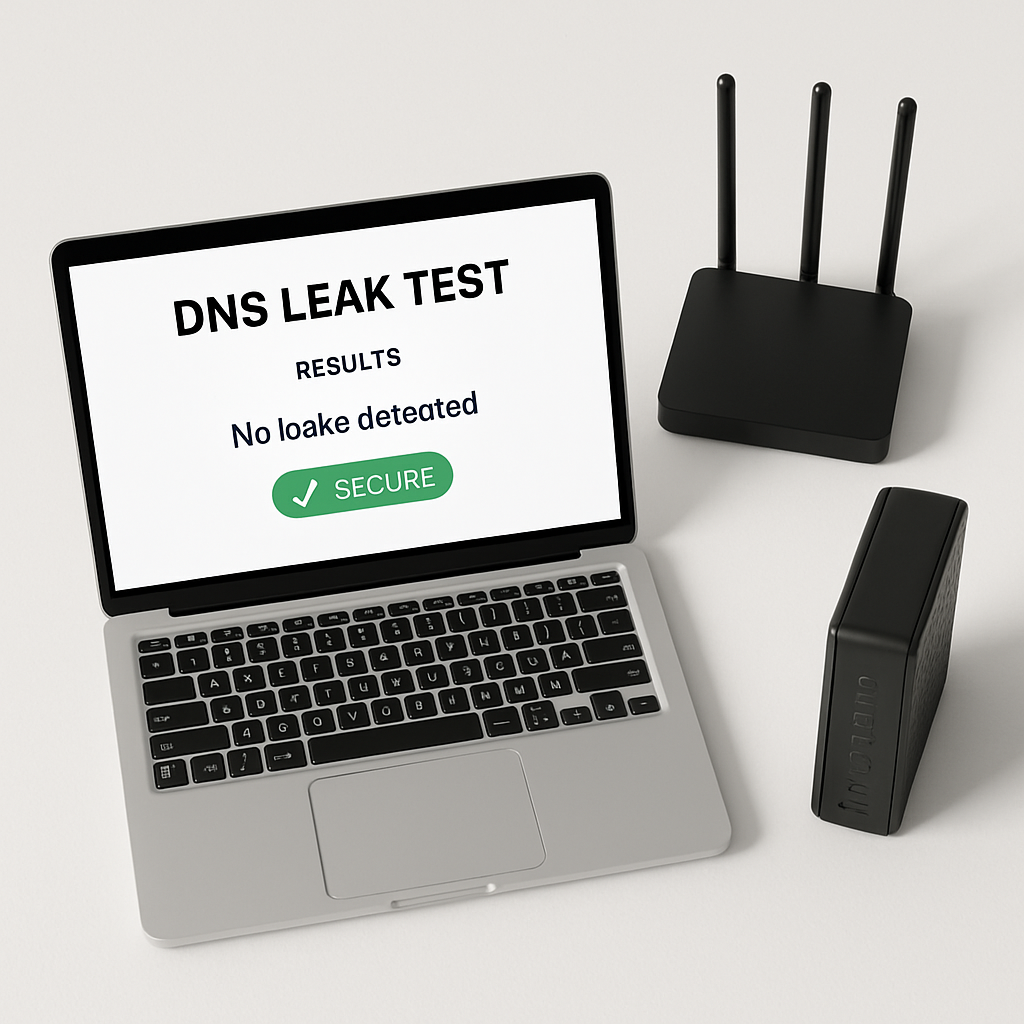
Worried that your computer is leaking DNS requests and exposing where you browse? This guide shows you how to test for DNS leaks and turn on DNS over HTTPS (DoH) on Windows and Mac. You will learn quick fixes, deeper checks, and safe ways to keep your browsing requests private.
Table of Contents
- Before You Start
- Quick Fix Steps
- Deeper Diagnosis
- Preventive Care
- When to Seek Help
- Conclusion
- Frequently Asked Questions
Before You Start
First, a quick definition: DNS (Domain Name System) turns website names into IP addresses. A DNS leak is when your device still uses an unencrypted or unexpected DNS server, even if you thought it was protected. DoH (DNS over HTTPS) hides DNS lookups inside encrypted HTTPS traffic.
- What you need: Your Windows or Mac computer, your usual web browser, and internet access.
- Estimated time: 20–40 minutes for testing and setup.
- Difficulty: Easy to Medium. You will follow on-screen menus and simple checks.
- What can go wrong: Choosing the wrong DNS settings can break internet access. Always write down your current settings before changing them.
Router: the box that creates your home Wi‑Fi network. Modem: the box that connects your home to the internet from your provider (sometimes it’s combined with the router).
Warning: Avoid downloading DNS “tuning” tools from random sites. Do not edit the Windows Registry or install macOS configuration profiles from untrusted sources.
Quick Fix Steps
-
Run a quick DNS leak test
In your browser, search for “DNS leak test” and open a well-known testing site. Click the Standard or Extended test. Note the DNS servers shown (for example, your ISP name or a public resolver).
Tip: Do not click pop-up ads or “optimizer” downloads on testing pages.
-
Enable Secure DNS in your browser (fastest change)
Most modern browsers have a “Secure DNS” or “DNS over HTTPS” setting. Open your browser’s Settings, then look under Privacy/Security. Turn on Secure DNS and choose a reputable provider, or keep “Use current service with secure DNS” if offered.
Note: This protects that browser’s traffic. Other apps may still use regular DNS unless the system also uses DoH.
-
Windows 11: Turn on system-wide DoH
- Open Settings > Network & Internet.
- Select Wi‑Fi (or Ethernet) > click your connected network.
- Next to “DNS server assignment,” click Edit.
- Set to Manual. Turn on IPv4 (and IPv6 if your ISP supports it).
- Enter DNS server addresses from a reputable encrypted-DNS provider (for example: 1.1.1.1 / 8.8.8.8 / 9.9.9.9). Then set Encryption to “Encrypted only (DNS over HTTPS)” for each entry.
- Click Save.
Tip: Write down your old DNS settings before changing them, so you can revert if needed.
-
macOS: Use browser DoH now; optional advanced system DoH later
macOS can use encrypted DNS system‑wide via a configuration profile, but that is advanced. For a quick win, keep DoH enabled in your browser as in Step 2.
Advanced (optional): Some DNS providers offer a signed macOS profile that enables DoH/DoT system‑wide. Only download from the provider’s official website. Warning: Installing profiles changes system networking. Back up and read the provider’s instructions carefully. If unsure, skip this and use browser DoH.
-
Flush DNS and restart the connection
Turn Wi‑Fi off and back on, or unplug and replug Ethernet.
Windows: open Command Prompt and run
ipconfig /flushdns.macOS: open Terminal and run
sudo dscacheutil -flushcache; sudo killall -HUP mDNSResponder(you will be asked for your password). -
Re-run the DNS leak test
Open the test site again. You should now see your chosen encrypted DNS service, or at least not your ISP if you switched providers. If the test still shows your ISP or mixed servers, go to Deeper Diagnosis.
-
Optional: Try another network for comparison
Connect your computer to a phone hotspot or a trusted guest network. Run the test again. If it works there, your home router may be forcing DNS—see Deeper Diagnosis.
Deeper Diagnosis
1) Check your modem/router basics
- Look at the lights: Power solid, Internet/Online solid or blinking normally, Wi‑Fi solid/blinking. Red or flashing lights can mean a line or account issue.
Tip: If the router and modem are separate, power-cycle both: unplug for 20 seconds, then plug in the modem, wait 2 minutes, then plug in the router.
2) See if the router forces DNS
- Open your browser and go to your router’s admin page (often
http://192.168.0.1orhttp://192.168.1.1). Router: the box that creates your Wi‑Fi network. - Sign in with the router admin password. Check Internet/WAN settings for “DNS” or “Encrypted DNS/DoH/DoT.” If the router forces its own DNS, your computer’s settings may be overridden.
- Warning: Do not factory reset the router unless you know the consequences. You can lose Wi‑Fi names, passwords, and ISP settings.
3) Confirm OS network settings
Windows 11
- Settings > Network & Internet > your connection > DNS. Ensure each DNS entry shows “Encrypted only (DNS over HTTPS).”
- Open Command Prompt and run
ipconfig /all. Under your adapter, check “DNS Servers.” They should match the ones you set.
macOS (Ventura/Sonoma and later)
- System Settings > Network > Wi‑Fi > Details > DNS shows DNS servers in use (not necessarily encrypted). If you use a profile for DoH/DoT, verify it’s installed under System Settings > Privacy & Security > Profiles.
- Warning: Remove profiles only if you created them and know what they do.
- Optional command: open Terminal and run
scutil --dns | grep -i nameserverto list active DNS servers.
4) Browser checks
- Use a Private/Incognito window to avoid extensions interfering. In your browser’s Privacy/Security settings, ensure “Secure DNS” or “Use DNS over HTTPS” is ON.
- If there’s a choice between “Use current service provider” and “Choose a provider,” try the provider list to avoid ISP fallback.
5) Look for blockers
- VPNs, firewalls, parental controls, or workplace filters can block or redirect DoH. Temporarily turn off VPNs to test (if safe to do so). Re-run the leak test.
- Public Wi‑Fi with captive portals may not allow encrypted DNS until you sign in.
Preventive Care
- Keep Windows/macOS and your browsers updated. Updates improve networking and security.
- Use one consistent encrypted DNS provider per device to avoid conflicts. Keep a note of the IPs or DoH URL.
- Avoid mixing many DNS entries. Start with two (primary and secondary) from the same provider.
- Secure your router: change the admin password, update firmware, and disable remote admin unless needed.
- Reboot your router/modem monthly to clear glitches.
- Back up your computer regularly before making major network changes.
- Download profiles or tools only from the official provider’s site. When in doubt, stick with browser-level DoH.
When to Seek Help
- You still see ISP DNS in leak tests after enabling browser DoH and (on Windows) system DoH.
- Your router says “DNS error,” or you cannot change DNS without it breaking internet access.
- You are on a work/school device or network with managed profiles or policies.
- You frequently get DNS errors like
DNS_PROBE_FINISHED_NXDOMAINacross multiple sites. - Call your ISP and ask if they support encrypted DNS (DoH/DoT) or allow custom DNS. If your router is ISP-supplied, request their instructions.
- Consider a local tech professional if configuration profiles or router settings feel overwhelming.
Conclusion
You tested for leaks, enabled DoH in your browser, and—on Windows—turned on system-wide encrypted DNS. If needed, you checked your router and confirmed settings. Keep things stable with updates and simple, consistent DNS choices. Your browsing requests should now be harder to snoop or redirect.
Frequently Asked Questions
Is DoH the same as a VPN?
No. DoH encrypts only DNS lookups. A VPN encrypts most traffic and can hide your IP from websites. You can use both, but start with DoH for simple DNS privacy.
Which DNS addresses should I use?
Pick any reputable public resolver that offers DoH. Examples include providers that publish IPv4/IPv6 addresses like 1.1.1.1, 8.8.8.8, or 9.9.9.9, plus a matching DoH service. These are examples, not endorsements—use the provider you trust.
Will DoH slow down my internet?
Usually no. Many users see similar or better performance. If pages feel slower, try a different reputable provider or switch between IPv4 and IPv6 as supported.
Do I need to set this up on my phone too?
It helps. iOS and Android support encrypted DNS in system settings or via the browser. Search your phone’s Settings for “Private DNS,” “Encrypted DNS,” or “Secure DNS.”
Leave a Reply