
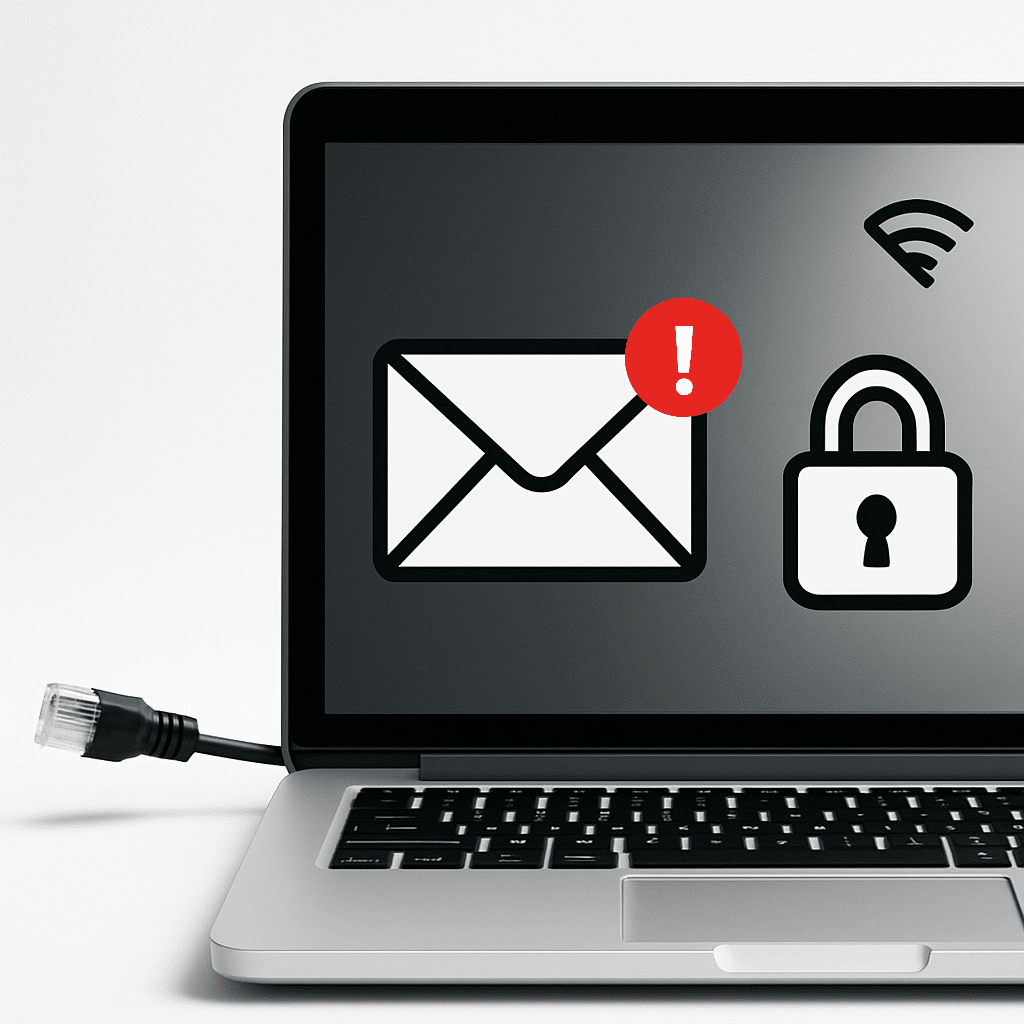
Worried your email app on your PC is acting strange—sending messages you didn’t write, popping up odd windows, or showing new toolbars? This guide walks you through safe, clear steps to stop suspected malware, secure your email account, and get back to normal. You’ll learn quick fixes first, then deeper checks if the problem sticks around.
Table of Contents
- Before You Start
- Quick Fix Steps
- Deeper Diagnosis
- Preventive Care
- When to Seek Help
- Conclusion
- Frequently Asked Questions
Before You Start
Set yourself up for success and avoid accidental data loss.
- Prerequisites: access to your email via a web browser (webmail), your email password, and (ideally) a second device you trust.
- Time estimate: 45–90 minutes for quick fixes and checks.
- Difficulty: Medium (you can do it step-by-step).
- What can go wrong: deleting your local email data, installing a fake tool, or locking yourself out of your account.
Safety notes: Avoid registry edits and system tweaks you don’t fully understand. Do not factory reset your PC unless a professional advises it and you have a verified backup. When downloading any tool, use only the software’s official website and double-check the URL.
Quick Fix Steps
-
Disconnect from the internet. This stops more spam emails from sending and blocks further tampering while you secure things.
Windows
Select your Wi‑Fi icon, toggle Wi‑Fi Off. If you use Ethernet, unplug the cable.
macOS
Click the Wi‑Fi icon, turn Wi‑Fi Off. If using Ethernet, unplug the cable.
iOS/Android (if you use the same email account on your phone)
Turn on Airplane mode briefly to stop sync while you change your password later.
-
Secure your email account from a different, trusted device. Use your phone or another clean computer.
- Sign in to your email via webmail (type the provider’s address directly into the browser).
- Change your email password to a strong, unique one. Consider a password manager.
- Turn on two-factor authentication (2FA/MFA) if available. See how to find MFA for your service.
-
Review critical account settings in webmail. Attackers often add secret rules to forward or delete your messages.
- Check for mail forwarding to unknown addresses and remove anything you didn’t set.
- Review rules/filters that move or auto-reply to mail. Delete suspicious ones.
- Look at Signatures and Out-of-Office messages for changes.
- Find Security or Recent Activity: sign out of all devices/sessions and remove unknown “connected apps” or “app passwords.”
-
Run a full antivirus scan on your PC. Use your system’s built-in security or a reputable tool you already trust.
Windows
Open Windows Security > Virus & threat protection > Scan options > Full scan. Let it finish and follow any cleanup prompts.
macOS
Use the security software you already have to run a full disk scan. If you don’t use one, you can rely on macOS built-in protections while you continue other steps.
Warning: If you choose to add an on-demand malware scanner, download only from the vendor’s official site. Avoid ads and “free fixers” that appear in search results.
-
Update your system and email app. Updates close security holes.
- Windows/macOS: install OS updates. Then update your email app (from the app’s built-in updater or the official store/site).
- Restart your PC when updates finish.
-
Remove suspicious add-ins and clear the app’s cache. Some malware rides along as an add-in/extension.
- Open your email app’s Settings > Add-ins/Extensions. Disable or remove anything you don’t recognize.
- In the app’s storage/cache settings, clear cached content if offered. This does not delete your online mail.
-
Reconnect and test. Turn Wi‑Fi back on and send a small test email to yourself. Check your Sent folder to confirm nothing else is sending on its own.
Deeper Diagnosis
If trouble remains after the quick fixes, use these checks to pinpoint the cause.
1) Separate account compromise from device malware
- Sign in to webmail. If strange emails appear in Sent/Drafts there, your account settings were likely compromised—keep focusing on password, MFA, and removing bad rules.
- If webmail looks clean but the PC email app misbehaves, the app or PC is likely the problem—continue below.
2) Create a fresh mail profile (or re-add the account)
- Inside your email app, add your account again as a new profile/account. Do not delete the old one yet.
- Test sending/receiving. If issues vanish in the new profile, move to it and remove the old profile later.
- Note: Some apps store messages locally. Ensure anything important is synced to the server or backed up before removing the old profile.
3) Check startup apps and background items
Windows
Press Ctrl+Shift+Esc > Startup tab. Disable unknown or unnecessary entries (right-click > Disable). Restart and test the email app.
macOS
System Settings > General > Login Items. Remove or disable items you don’t recognize. Restart and test.
4) Verify proxy and network settings
A fake proxy can redirect your traffic.
Windows
Settings > Network & Internet > Proxy. Turn off any Manual proxy you did not set. Ensure “Use setup script” is off unless required by your workplace.
macOS
System Settings > Network > select your network > Details > Proxies. Uncheck any proxies you don’t use. Click OK > Apply.
5) Check the hosts file (view only)
The hosts file can silently redirect email or security websites.
- Windows path:
C:\Windows\System32\drivers\etc\hosts - macOS path:
/etc/hosts
Tip: You can open the file to view. Look for many unfamiliar entries or lines redirecting key sites (e.g., your email provider) to odd IPs. If you find suspicious entries, make a note. If you aren’t confident editing safely, stop and seek help.
6) Safe Mode scan (if malware blocks cleanup)
- Windows: Hold Shift while selecting Restart > Troubleshoot > Advanced options > Startup Settings > Restart > choose Safe Mode with Networking. Run your antivirus full scan again.
- macOS: Shut down. Turn on and keep holding the power button to enter startup options (Apple silicon) or hold Shift after the chime (Intel). Choose Safe Mode, then run your security scan.
7) Optional integrity check (Windows)
Open Command Prompt as Administrator and run:
sfc /scannow
This checks and repairs core system files. Let it complete, then restart.
8) Router sanity check (optional)
Router: the box that creates your home Wi‑Fi network. If multiple devices show strange email behavior, ensure your router hasn’t been altered.
- Log in to the router’s admin page (check the label on the router or your ISP guide).
- Confirm DNS settings are automatic or set to a service you trust. Change the router admin password if it’s still the default.
- Warning: Do not reset the router to factory defaults unless you have your ISP details handy and know how to reconfigure it.
Preventive Care
Keep your email and PC clean going forward with these simple routines.
- Update regularly: Turn on automatic updates for your OS and apps. Restart weekly to finish installs.
- Backups: Keep a copy of your files on another drive or cloud. Follow 3-2-1 if possible: 3 copies, 2 different places, 1 offsite.
Windows
Settings > Accounts > Windows backup or Control Panel > Backup and Restore. Set a schedule to an external drive.
macOS
System Settings > Time Machine. Add a backup disk and turn it on.
iOS/Android
Use built-in backup (iCloud/Google) for contacts, photos, and app data. Make sure your email account syncs only what you expect.
- Password hygiene: Use unique passwords and turn on MFA everywhere possible. See guidance on strong passwords.
- Safe downloads: Only get apps from official stores or the developer’s real website. Avoid “free cleaners” and pop-up offers.
- Email safety: Be cautious with links and attachments. Verify the sender, and when in doubt, open the message in webmail first or ask the sender to confirm.
When to Seek Help
- You still see new spam in Sent or strange rules reappear after changing your password and enabling MFA.
- Scans keep finding threats that won’t remove, or the email app crashes repeatedly.
- You can’t access your account, recovery options are blocked, or your contacts report more suspicious mail from you.
- You notice financial alerts, new charges, or password reset emails for other services. Contact your bank and change passwords immediately.
At this point, consider a reputable local technician or your email provider’s support. Bring notes: what happened, when it started, and what you already tried. This saves time and money.
Conclusion
You’ve secured your account, scanned your PC, and checked the places attackers like to hide (rules, add-ins, startup, and proxies). If the problem is gone, keep up with updates, backups, and MFA to stay safe. If it persists, don’t hesitate to ask for professional help before attempting risky steps like factory resets.
Frequently Asked Questions
How can I tell if it’s my account or my PC?
If odd emails appear in webmail’s Sent folder, the account was likely compromised. If webmail is clean but the PC app misbehaves, focus on the device and the app.
Should I delete and reinstall my email app?
Only after you’ve secured your account and tried a new profile. If you reinstall, get the installer from the official site or app store. Warning: Back up any local mail first.
Do I need to change all my passwords?
Start with email, then change passwords for any accounts that use the same password (avoid reuse) and any services that received password-reset emails. Turn on MFA wherever possible.
Are old attachments safe to open?
Be cautious. Save the file, scan it with your antivirus, and open only if you trust the sender and expect the content. When in doubt, ask the sender to confirm.
Leave a Reply