
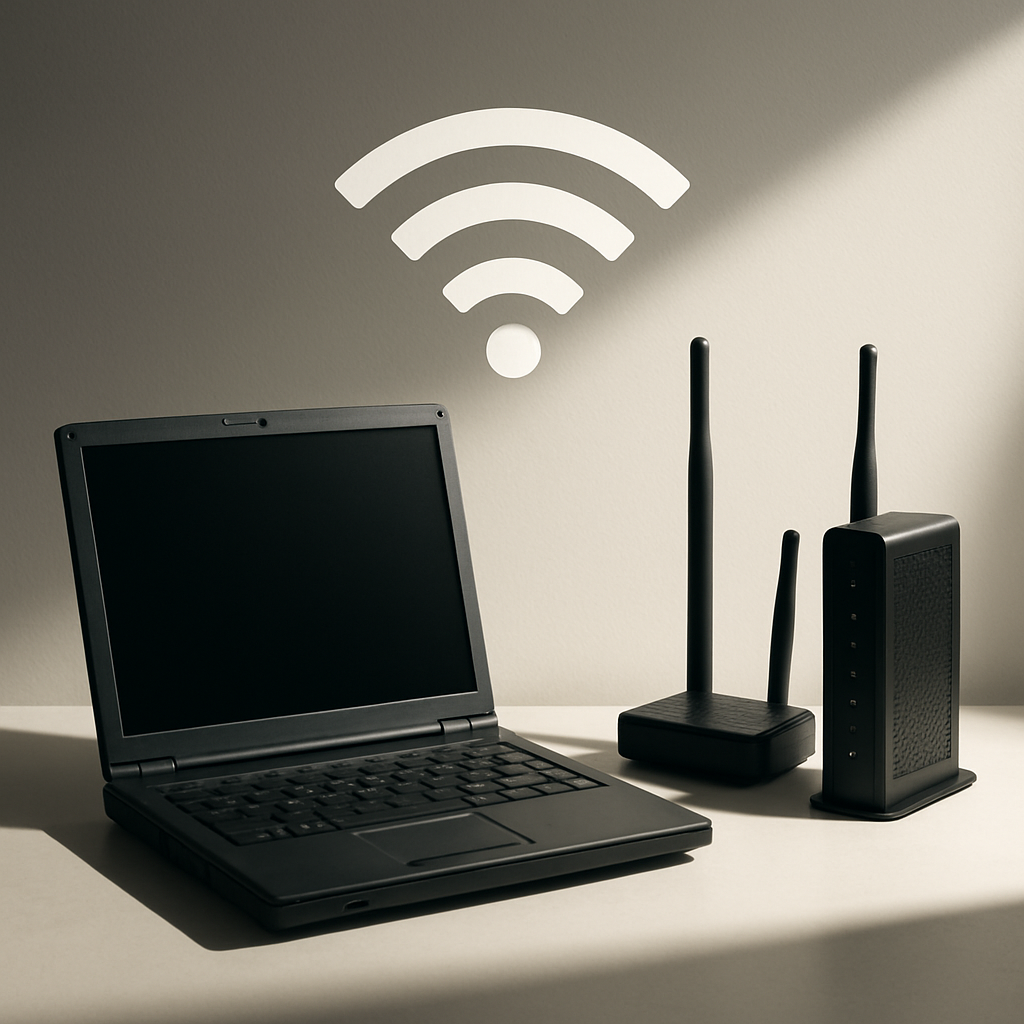
Your older laptop felt fine yesterday, but after a recent upgrade (new router, faster internet plan, or OS update) the Wi‑Fi seems slower or unstable. This guide walks you through safe, practical steps to improve speed and reliability, even on aging hardware. By the end, you will know what to try first, how to diagnose the cause, and what to do if you need extra help.
Table of Contents
- Before You Start
- Quick Fix Steps
- Deeper Diagnosis
- Preventive Care
- When to Seek Help
- Conclusion
- Frequently Asked Questions
Before You Start
Router: the box that creates your home Wi‑Fi network. Modem or gateway: the box that connects your home to the internet. Your laptop connects to the router, which then reaches the internet through the modem.
- What you need: your laptop, your Wi‑Fi password, and (if possible) a phone to compare speeds.
- Time needed: 20–60 minutes.
- Difficulty: Easy to Medium.
- What can go wrong: You might temporarily lose Wi‑Fi while restarting devices or changing settings.
Warning: Avoid factory resets, registry edits, or installing drivers from unknown websites. These can cause data loss or make things worse. Only reset or update firmware if you understand the steps and have backups of your settings.
Quick Fix Steps
- Power cycle your gear. Turn off your laptop. Unplug the router and modem for 30 seconds. Plug them back in, wait 2–3 minutes for lights to stabilize, then turn your laptop on.
- Move closer to the router. Test in the same room as the router. Thick walls, metal, and appliances can block Wi‑Fi.
- Forget and reconnect your Wi‑Fi. This clears bad saved settings and forces a fresh connection.
- Try the other band. If you see two network names (often ending in 2.4 and 5), try both. 2.4 GHz goes farther; 5 GHz is usually faster close by.
- Turn off VPN and heavy apps during testing. VPNs, cloud backups, and video calls can skew results.
- Update your operating system. Updates often include Wi‑Fi fixes and newer drivers.
- Test with Ethernet, if possible. Plug your laptop directly into the router using a cable or a USB‑to‑Ethernet adapter. If wired is fast but Wi‑Fi is slow, the issue is wireless, not your internet plan.
How to forget and reconnect (by device)
Windows
- Select Start > Settings > Network & Internet > Wi‑Fi > Manage known networks.
- Select your network > Forget. Reconnect from the Wi‑Fi list and enter the password.
macOS
- Go to System Settings > Wi‑Fi.
- Click Details next to your network (or Advanced), remove it, then reconnect and enter the password.
iOS
- Settings > Wi‑Fi > tap the “i” next to your network > Forget This Network.
- Reconnect from the list and enter the password.
Android
- Settings > Network & Internet > Internet (or Wi‑Fi) > tap your network > Forget.
- Reconnect from the list and enter the password.
Tip: If your router broadcasts separate names for 2.4 GHz and 5 GHz, label them clearly so you can choose on your laptop, for example “Home‑2G” and “Home‑5G”.
Deeper Diagnosis
1) Compare against another device
- Stand near the router with your laptop and a phone or tablet.
- Run a speed test on both devices (search “speed test” in your browser). If the phone is fast but the laptop is slow, the laptop’s Wi‑Fi is likely the issue.
2) Check modem and router lights
Look for steady power and internet lights, and blinking activity lights. Red, orange, or no light on “Internet” usually means a service or modem issue.
Note: If lights look wrong and power cycling didn’t help, your internet service might be down. See When to Seek Help.
3) Update Wi‑Fi drivers safely (laptop)
Warning: Do not download drivers from random websites or “driver updater” tools. Use your operating system’s updates or your laptop manufacturer’s support page.
Windows
- Update Windows: Start > Settings > Windows Update > Check for updates.
- Then update the Wi‑Fi driver: Right‑click Start > Device Manager > Network adapters > your Wi‑Fi adapter > Update driver > Search automatically.
- If needed, visit your laptop maker’s support site, search your exact model, and install the latest Wi‑Fi driver.
macOS
- System Settings > General > Software Update. Install updates and restart.
- Apple bundles Wi‑Fi drivers with macOS updates, so no separate driver install is needed.
4) Check power saving settings (Windows)
- Right‑click Start > Device Manager > Network adapters.
- Double‑click your Wi‑Fi adapter > Power Management. Uncheck “Allow the computer to turn off this device to save power.” Click OK.
- Optional: Start > Settings > System > Power & battery > Additional power settings. Select High performance or set Wireless Adapter Settings > Power Saving Mode to Maximum Performance.
5) See what your adapter supports
Windows
- Press Start, type
cmd, open Command Prompt. - Run:
netsh wlan show drivers. Look for “Radio types supported” (e.g., 802.11n/ac/ax) and “Hosted network supported.” - Run:
netsh wlan show interfacesto see the current band and channel.
macOS
- Hold Option and click the Wi‑Fi icon in the menu bar to see PHY Mode (e.g., 802.11ac), channel, and RSSI (signal strength).
- Or run:
networksetup -getinfo Wi-Fiin Terminal for connection details.
6) Router settings to help older laptops
Warning: Changing router settings affects your whole network. Write down current settings first. Do not factory reset unless instructed by your ISP or you have your settings saved.
- Find your router admin page. It is often at
http://192.168.1.1orhttp://192.168.0.1. Check the label on the router for exact details. Log in using the admin credentials on the label or what you set before. - Update router firmware if a safe update is offered in the admin page. Read the on‑screen notes and do not power off during the update.
- Wi‑Fi mode: Use a mixed/compatibility mode so older devices connect (for example, allow 802.11n/ac on 5 GHz and 802.11b/g/n on 2.4 GHz). Avoid “ax‑only/6‑only” if your laptop is older.
- Channel width: On 2.4 GHz, set 20 MHz for stability in crowded areas. On 5 GHz, 40–80 MHz is fine if interference is low.
- Channels: On 2.4 GHz, try channels 1, 6, or 11. On 5 GHz, pick a different channel if neighbors use the same one.
- Separate SSIDs (names) for 2.4 and 5 GHz. This lets you choose the best band on your laptop.
Tip: After a change, reconnect your laptop and test again in the same spot for a fair comparison.
7) Reduce interference and improve placement
- Place the router high, central, and in the open. Avoid closets, metal shelves, and behind TVs.
- Keep it away from microwaves, cordless phone bases, baby monitors, and thick walls.
8) Consider a USB Wi‑Fi adapter or Ethernet
- If your laptop only supports older Wi‑Fi (e.g., 802.11n), a modern USB Wi‑Fi adapter can add faster, more reliable Wi‑Fi. Plug it into a USB 3.0 port if available.
- For the most reliable speed, use Ethernet (a direct cable to the router) where practical, even part‑time for big updates or backups.
9) Optional network tests
These quick tests help tell where the slowdown is.
Windows
- Open Command Prompt and run:
ping 8.8.8.8 -n 10. Low, steady times mean the connection is stable. - Run:
ipconfig /allto confirm you have a valid IP address (not starting with 169.254).
macOS
- Open Terminal and run:
ping -c 10 8.8.8.8. Look for low, consistent latency. - If you see frequent timeouts, move closer or switch bands and test again.
Note: These commands test connectivity, not your maximum speed. Use a browser‑based speed test for throughput.
Preventive Care
- Update regularly. Keep your OS and router firmware up to date. Schedule a monthly reminder.
- Use strong security. Set Wi‑Fi to WPA2 or WPA3 and a strong password. Avoid WEP.
- Document settings. Write down your Wi‑Fi name, password, and router admin login. Keep it in a safe place.
- Reboot occasionally. A monthly router restart can clear glitches.
- Be cautious with downloads. Only get drivers from your OS updates or the laptop maker’s site. Skip “driver updater” tools.
- Reduce clutter on 2.4 GHz. Move or power off interference sources during important calls or uploads.
When to Seek Help
- Call your ISP if modem/router “Internet” lights are off or red, or if wired Ethernet speed is much slower than your plan.
- Contact the laptop maker if the Wi‑Fi adapter disappears from Device Manager (Windows) or if your laptop cannot see 5 GHz while other devices can.
- Consider a professional or a tech‑savvy friend if you need new cable runs, access point placement, or mesh setup to cover a large home.
- If you depend on stable work calls, a USB Wi‑Fi adapter or Ethernet is a quick, low‑cost fix while waiting for deeper troubleshooting.
Conclusion
You tried quick fixes, checked settings, and learned how to match your older laptop with your newer network. Most issues come down to interference, outdated drivers, or settings that favor only the newest devices. With small changes—better placement, mixed‑mode Wi‑Fi, proper channel width, or a USB Wi‑Fi adapter—you can regain stable, faster Wi‑Fi. Keep notes of what worked so future upgrades go smoothly.
Frequently Asked Questions
Why did my Wi‑Fi get worse after a router or OS upgrade?
New routers may default to newer Wi‑Fi modes or wide channels that older adapters struggle with. OS updates can also change power or driver behavior. Use mixed modes, set 20 MHz on 2.4 GHz, and update drivers.
Should I use 2.4 GHz or 5 GHz?
Use 5 GHz when you are close to the router for higher speed. Use 2.4 GHz when you need more range or are behind walls. Try both and see which is more stable in your spot.
Will a VPN slow my Wi‑Fi?
Often, yes. VPNs add encryption and can route traffic farther. Turn it off for testing to measure your true Wi‑Fi speed.
Is a router factory reset a good idea?
Only as a last resort. It erases all settings. Try the steps here first, and back up settings before any reset. If unsure, ask your ISP or a professional.
Leave a Reply