
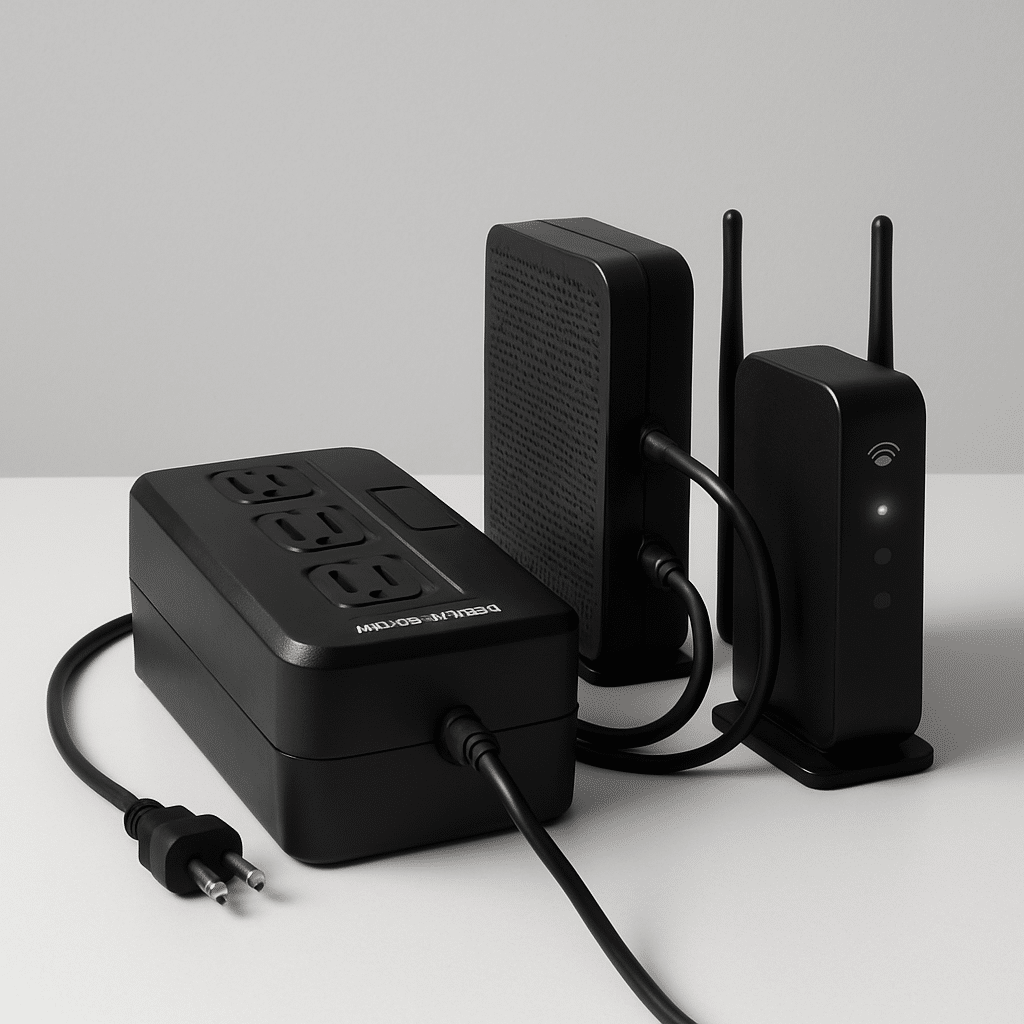
Power flickers and outages don’t have to knock your internet offline. In this friendly, step-by-step guide, you’ll set up a small uninterruptible power supply (UPS) so your modem (the box that connects your home to the internet) and router (the box that creates your home Wi‑Fi network) stay online when the lights go out.
Table of Contents
- Before You Start
- Quick Fix Steps
- Plan Your UPS and Runtime
- Connect and Test Your UPS
- Deeper Diagnosis
- Preventive Care
- When to Seek Help
- Conclusion
- Frequently Asked Questions
Before You Start
Goal: keep your modem and router running during a power outage by plugging them into a UPS. A UPS is a small battery box with surge protection and a few battery-backed outlets.
- Prerequisites: your modem and router power adapters, access to their wall outlets, a basic household UPS (line-interactive is common).
- Time: 30–60 minutes, including testing and tidy-up.
- Difficulty: Easy to Medium (simple math, careful plugging).
- What can go wrong: overloading the UPS, using the wrong outlets, poor placement, or your internet provider’s network also losing power (you can’t fix that from home).
Warning: Do not plug high-heat or high-watt devices (space heaters, laser printers, kettles) into the battery outlets. This can overload the UPS and cause shutdowns or damage.
Warning: Some UPS units ship with the internal battery disconnected for safety. Always connect the battery per the manual before turning it on. Unplug the UPS from the wall while opening any battery compartment.
Quick Fix Steps
- Find the battery-backed outlets on your UPS. They are usually labeled “Battery + Surge.” The others may say “Surge Only.”
- Plug only your modem and router power adapters into the battery-backed outlets. Leave everything else unplugged for now.
- Turn on the UPS. Wait for a steady “On” light (and no fault indicators).
- Unplug the UPS power cord from the wall for 1–2 minutes to simulate an outage. Check that your Wi‑Fi stays up and webpages still load.
- If internet drops immediately, move plugs to the correct battery-backed outlets and repeat the test.
- When it works, plug the UPS back into the wall to recharge. Label the battery outlets “Modem/Router only.”
Tip: If you have a fiber ONT (the small box where fiber enters your home), it also needs power. If it has its own power brick, put that brick on the UPS too—or use a second UPS near the ONT.
Plan Your UPS and Runtime
To choose or check the right UPS size, estimate how many watts your modem, router, and any ONT use. Most home networking gear needs 10–20 W each, but labels vary.
1) Make a quick power list
- Modem: check its label for watts (W), or volts (V) and amps (A). Estimate W = V × A.
- Router or mesh base: check its label too.
- Fiber ONT (if present): include it if it uses a wall power brick.
Example: Modem 12 W + Router 15 W + ONT 15 W = ~42 W total. Round up to 50 W for comfort.
2) Match UPS capacity
- UPS labels show VA (volt-amps) and W (watts). Use the W number.
- Choose a UPS with at least 3× your total W for good runtime and headroom. For a 50 W load, a 300–600 W (500–1000 VA) unit is common for 45–180 minutes, depending on battery size.
- Line-interactive UPS with automatic voltage regulation (AVR) is fine for networking gear.
Note: Runtime charts vary by model. Your actual time depends on battery health and temperature.
3) Plan placement and airflow
- Place the UPS on a firm, dry surface with a few inches of space around it.
- Keep it off carpets and away from water sources (sinks, aquariums, basements prone to leaks).
- Avoid sealed cabinets; batteries dislike heat.
Connect and Test Your UPS
1) Prepare the UPS
- Unplug the UPS from the wall while you attach any internal battery connector (if required by your model). Close covers fully.
- Plug the UPS into the wall and press power. Let it charge for at least 3–8 hours for best first-run results.
Warning: Never open a UPS beyond the battery compartment described in the manual. High voltages inside can be dangerous.
2) Connect only what you need
- Plug the modem and router power adapters into battery-backed outlets. If needed, add the ONT power brick.
- Use the “Surge Only” outlets (not battery) for non-critical devices like a network switch or smart hub, if desired.
- Avoid daisy-chaining power strips into the UPS battery outlets.
3) Test a real power cut
- With the UPS on and internet working, gently unplug the UPS’s wall plug to simulate a blackout.
- Watch modem/router lights. They should stay on.
- Open a webpage or stream short video for 2–3 minutes. If all good, plug the UPS back in.
Tip: If your internet still drops during a neighborhood outage, your provider’s local equipment may also be down. Your UPS protects your home gear only.
Deeper Diagnosis
Check you used the right outlets
- Move each plug to a battery-backed outlet (often marked with a battery icon). “Surge Only” outlets won’t keep devices on during an outage.
- If the UPS has an LCD, check load (% or W). Keep it well under 60–70% for longer runtime.
Confirm device power needs
- Recalculate watts from labels. If you’re over the UPS’s watt rating, remove non-essentials.
- If a router has multiple radios/USB devices, power draw may spike. Disconnect extras while testing.
Test your connection on battery
Use a simple “ping” test while the UPS is unplugged from the wall.
Windows
- Press Start, type “Command Prompt,” open it.
- Ping your router:
ping 192.168.1.1 -n 20(replace the number if your router uses a different address). - Ping the internet:
ping 8.8.8.8 -n 20. If router pings work but internet pings fail, your ISP may be down.
macOS
- Open Terminal.
- Ping your router:
ping -c 20 192.168.1.1 - Ping the internet:
ping -c 20 8.8.8.8
iOS / Android
- Install a reputable network utility app from your app store to run a ping (avoid apps with poor reviews).
- Alternatively, just open several sites and a speed test. If local Wi‑Fi works but sites fail to load, the wider network may be out.
Note: To find your router’s address, check your device’s network details (often 192.168.0.1 or 192.168.1.1).
Listen for UPS alarms
- Rapid beeps can mean overload. Remove a device and retest.
- Occasional beep during outage is normal (on-battery alert).
Consider your ONT or wall power unit
- If you have fiber, the ONT or its power supply must be on the UPS. If it’s in a garage/closet, consider a second UPS located there.
- Some ONTs have built-in batteries; check the status light and replace the internal battery if it’s failed.
Warning: Don’t press “Reset” on your modem/router during testing; that can erase your settings. Use only power cycling if needed.
Preventive Care
- Monthly: test for 3–5 minutes by unplugging the UPS from the wall. Watch for clean shutdowns and stable internet.
- Every 6 months: dust the UPS vents and check cable tightness. Heat and dust shorten battery life.
- Every 2–4 years: expect to replace the UPS battery. Short runtime, swelling, or frequent alarms are signs.
- Keep firmware and apps updated on your router and devices. Schedule updates for when the UPS is fully charged.
- Document your setup: a photo of the connections and a note of what’s on battery vs surge-only.
Tip: Want longer runtime? Reduce load. Turn off guest Wi‑Fi, unplug non-essentials, or use a slightly bigger UPS dedicated to networking only.
When to Seek Help
- Electrical smells, hot casing, or battery swelling: turn off and unplug the UPS immediately. Replace the battery or the unit.
- Runtime under 5 minutes for a small load (modem + router): battery is likely worn out or load is too high.
- Frequent power issues in your home (tripping breakers, flickering lights): call a licensed electrician.
- Fiber ONT or ISP-provided power unit with errors: contact your internet provider for support or battery replacement options.
- Unsure about safe battery handling or recycling: ask a local electronics recycler or city hazardous waste program.
Conclusion
You’ve sized, connected, and tested a UPS so your modem and router stay online during outages. With occasional tests and battery care, you’ll enjoy steady Wi‑Fi when it matters most. If you need more runtime, reduce load or step up to a higher-capacity UPS—and keep critical gear only on the battery outlets.
Frequently Asked Questions
How long will my internet stay up on a UPS?
Typical home networking gear (30–60 W total) can run 45–180 minutes on a mid-size UPS. Actual time depends on battery health and temperature.
Can I plug my PC or TV into the UPS too?
You can, but it reduces runtime for your modem/router. For longest internet uptime, keep only networking essentials on battery outlets.
Will a UPS keep my internet up if the whole neighborhood loses power?
Not always. Your provider’s local equipment may go dark. Your UPS keeps your home side running; the wider network is out of your control.
Do I need a pure sine wave UPS?
Most modems and routers work fine on line-interactive UPS units. Pure sine wave is nice to have but not required for typical networking gear.
Leave a Reply