
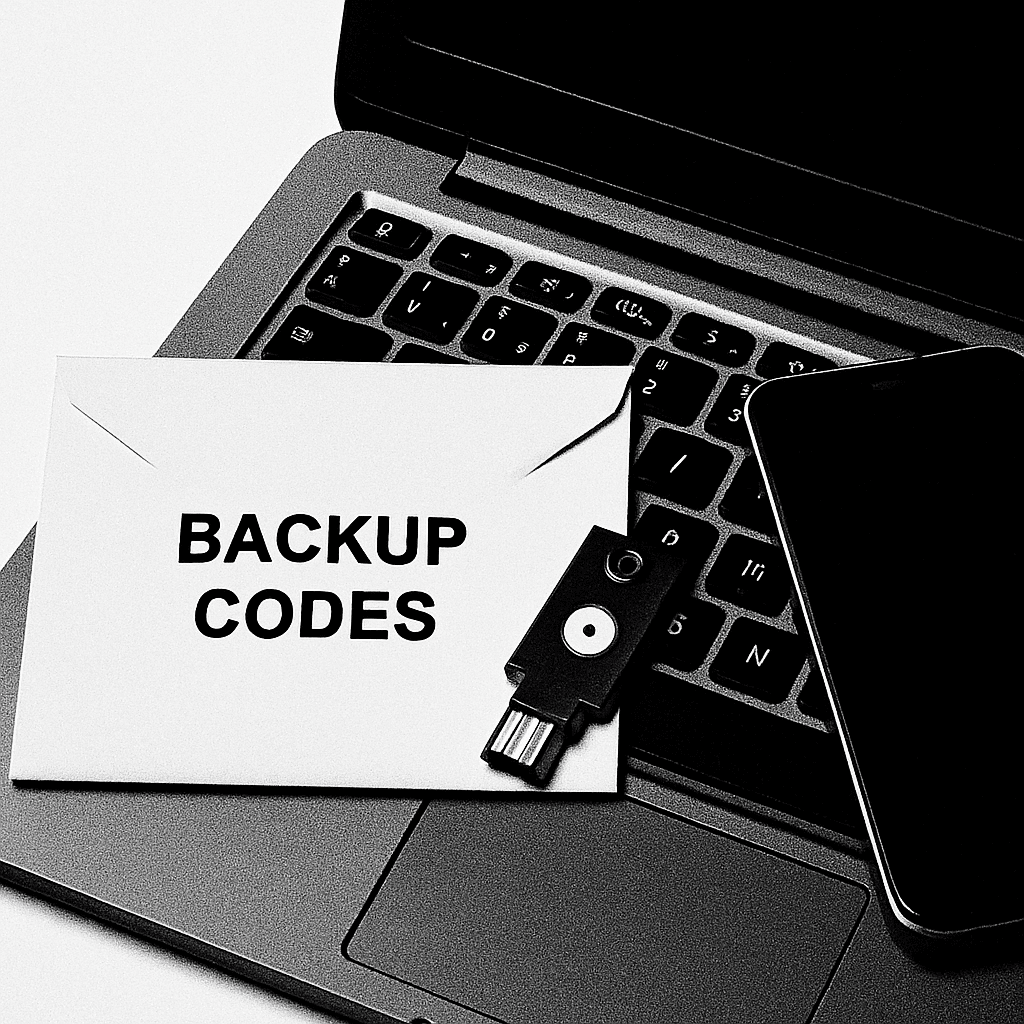
You want your trusted person to help if you’re away, ill, or after death—without risking your accounts today. In this guide, you’ll build a safe, simple plan to transfer two‑factor authentication (2FA) access to a legacy contact. You’ll create backup codes, add a second sign‑in method, document everything clearly, and store it securely. No tech jargon—just step‑by‑step actions you can do in an evening.
Table of Contents
- Before You Start
- Quick Fix Steps
- Deeper Diagnosis
- Preventive Care
- When to Seek Help
- Frequently Asked Questions
Before You Start
What you’ll need
- Your primary device(s) signed in to your accounts.
- A trusted legacy contact (partner, family member, or executor) who can join you in person.
- Paper and pen for notes, or a printer for backup codes.
- A safe place to store items (locking drawer or safe).
Time needed: 60–90 minutes for the first setup. 10–15 minutes for future reviews.
Difficulty: Medium (follow the steps; no advanced skills required).
What can go wrong
- Locking yourself out by removing your only 2FA method.
- Exposing secrets by sending codes over email or text.
- Violating an account’s terms by sharing passwords directly.
How to avoid problems
- Always add a new method before changing or removing an old one.
- Use built‑in features: backup codes, security keys, and official “legacy/inactive account” tools when available.
- Share locations (where items are stored), not raw codes, whenever possible.
Warning: Do not factory reset a phone that holds your authenticator app until you have added a second method and tested it. A reset can permanently remove 2FA access.
Quick Fix Steps
- Pick your legacy contact and agree on rules. Write their full name, phone, and email. Agree when they may use access (e.g., emergency only, after X days of no response, or with a second person’s confirmation).
- Update recovery info on key accounts. For email, cloud storage, banking, and password manager accounts, open Security/Sign‑in settings. Confirm your recovery email and phone number are current.
- Create and print backup codes. Most accounts with 2FA offer single‑use backup codes. Generate them, print them, and label the page with the account name and date. Seal in an envelope marked “Backup Codes – Do Not Open Unless Needed.”
- Add a second sign‑in method. Options (use one or more):
- Security key: Add an extra hardware security key to your account, label it “Legacy,” and store it sealed.
- Another authenticator app: If allowed, add a second authenticator on a spare device you control (not your contact’s daily phone). Store the device powered off and sealed.
- Emergency access via your password manager: If your password manager offers an emergency/legacy feature, enable it with a waiting period (e.g., 7–30 days) so you can deny accidental requests.
- Write a simple instruction note. Include where items are stored, when access is allowed, and who to contact. Place it with the codes/key.
- Test once safely. Use a low‑risk account. Sign out and sign back in using a backup code or the extra key. Confirm you can still sign in with your original method, too.
- Set a reminder. Review your kit every 6–12 months or after you change phones.
Tip: Never email or text backup codes or QR secrets. If you must store anything digitally, encrypt it and protect it with a strong, unique password.
Deeper Diagnosis
1) Map your most important accounts
- Email accounts (these often control password resets for everything else).
- Cloud storage and photo libraries.
- Banking, payments, taxes, and shopping.
- Password manager (if you use one).
- Social media and subscriptions you care about.
Create a short list. Next to each account, note: “2FA type” (App code, SMS, Security key), and “Allows multiple methods?”
2) Add safer fallback methods first
- Backup codes: Generate for each account. Print and seal them.
- Security key: Add a second key named “Legacy.” Store it separately from your daily key.
- Authenticator app: If the account lets you add another app, do it on a spare phone locked with a PIN, then store the phone. Avoid installing on your contact’s everyday device.
Warning: Do not delete your existing 2FA method during this process. Only add additional methods.
3) Use account “legacy” or “inactive” features when available
Some services let you name a trusted contact to access limited data after a waiting period or after confirmed inactivity. Look in your account’s Security or Privacy settings for terms like “Legacy contact,” “Trusted contact,” or “Inactive account manager.” Enable it and follow the on‑screen steps.
4) Build a paper or sealed digital “Recovery Kit”
- What to include: A list of key accounts, printed backup codes (sealed), location of any security keys, and your instruction note.
- Where to store: A fireproof safe at home or a safe‑deposit box. Tell your legacy contact where it is, not what’s inside.
Copy‑paste this instruction template, fill it in, and print:
Legacy Access Instructions (Date: YYYY-MM-DD)

My legacy contact: [Full Name, Phone, Email]
Allowed to use only when: [e.g., I am unreachable for 30+ days / medical emergency / after death]
Second confirmers (if any): [Names]

Where to find items:
- Backup codes: [Safe location]
- Security key labeled "Legacy": [Location]
- Password manager emergency access: [Enabled: Yes/No, Wait period: X days]

How to use:
1) Try security key first.
2) If not possible, use one printed backup code (mark it USED).
3) Contact [Attorney/Executor/Family Member] after use.
5) OS variations: secure the device that holds your kit
Windows
- Set a strong sign‑in password or PIN: Settings > Accounts > Sign‑in options.
- Turn on device encryption: Settings > Privacy & security > Device encryption (or full‑disk encryption if available).
- When printing backup codes, choose “Print to PDF” only if you will encrypt and store it securely. Paper is simpler and safer for most people.
macOS
- Set a strong user password: System Settings > Users & Groups.
- Turn on disk encryption: System Settings > Privacy & Security > FileVault.
- Prefer printed codes over unencrypted files. If you must store a PDF, keep it on an encrypted disk and in a locked location.
iOS
- Use a strong passcode: Settings > Face ID/Touch ID & Passcode.
- Encryption is on when a passcode is set. Avoid taking photos of QR codes or secrets; cloud backups can leak them.
Android
- Set a strong screen lock: Settings > Security > Screen lock.
- Encryption is usually on by default; confirm in Settings > Security.
- Do not store screenshots of codes. Prefer paper backups in a safe place.
Note: If your authenticator app offers an “export/transfer” feature, use it only when moving to your own new device. For legacy sharing, add a separate method through the account’s security settings. Avoid sending exported QR codes to anyone.
Preventive Care
- Review yearly: Check that backup codes, contact info, and the instruction note are current.
- Update after device changes: When you replace a phone, add the new authenticator before wiping the old one. Test sign‑in.
- Password hygiene: Use unique passwords stored in a reputable password manager. Do not share your master password; use its emergency/legacy feature instead.
- Safe downloads: Install authenticator and security apps only from your device’s official app store. Avoid random installers.
- Label clearly: Mark physical items “Legacy – Do Not Use Unless Needed” to reduce accidents.
- Minimize copies: Keep as few copies of codes as possible. Destroy old pages after you regenerate codes.
When to Seek Help
- You’re locked out and have no backup codes or keys: Use the account’s official recovery form or support channel. Be ready to verify identity.
- A key or envelope is lost/stolen: Revoke that method in your account security settings, generate new backup codes, and replace the key.
- Business or estate complexity: Consult a professional (IT support, digital estate planner, or attorney) to align with policies and laws.
- Possible account compromise: Change your password, review recent activity, revoke unknown devices, and add or rotate 2FA methods.
Warning: Avoid third‑party “unlocking” services. Use only official support pages. Scammers often pose as recovery helpers.
Frequently Asked Questions
What is a legacy contact?
A trusted person you authorize to access certain accounts or recover access in emergencies or after death. Many services offer built‑in options—check Security or Privacy settings.
Can I just give them my passwords?
It’s risky and often against terms. Instead, enable emergency access in your password manager, add a security key, and store printed backup codes in a sealed envelope.
Is emailing backup codes okay?
No. Email and SMS can be intercepted. Use printed codes in a safe or an encrypted, access‑controlled store you fully manage.
How often should I update the kit?
Review it yearly or whenever you change phones, passwords, or 2FA methods. Destroy old codes after generating new ones.
With these steps, you’ve created a safe, respectful way to transfer 2FA access to your legacy contact. You added backup options, documented clear rules, and tested your plan—so help is there when needed, and your accounts stay protected today.
Leave a Reply