
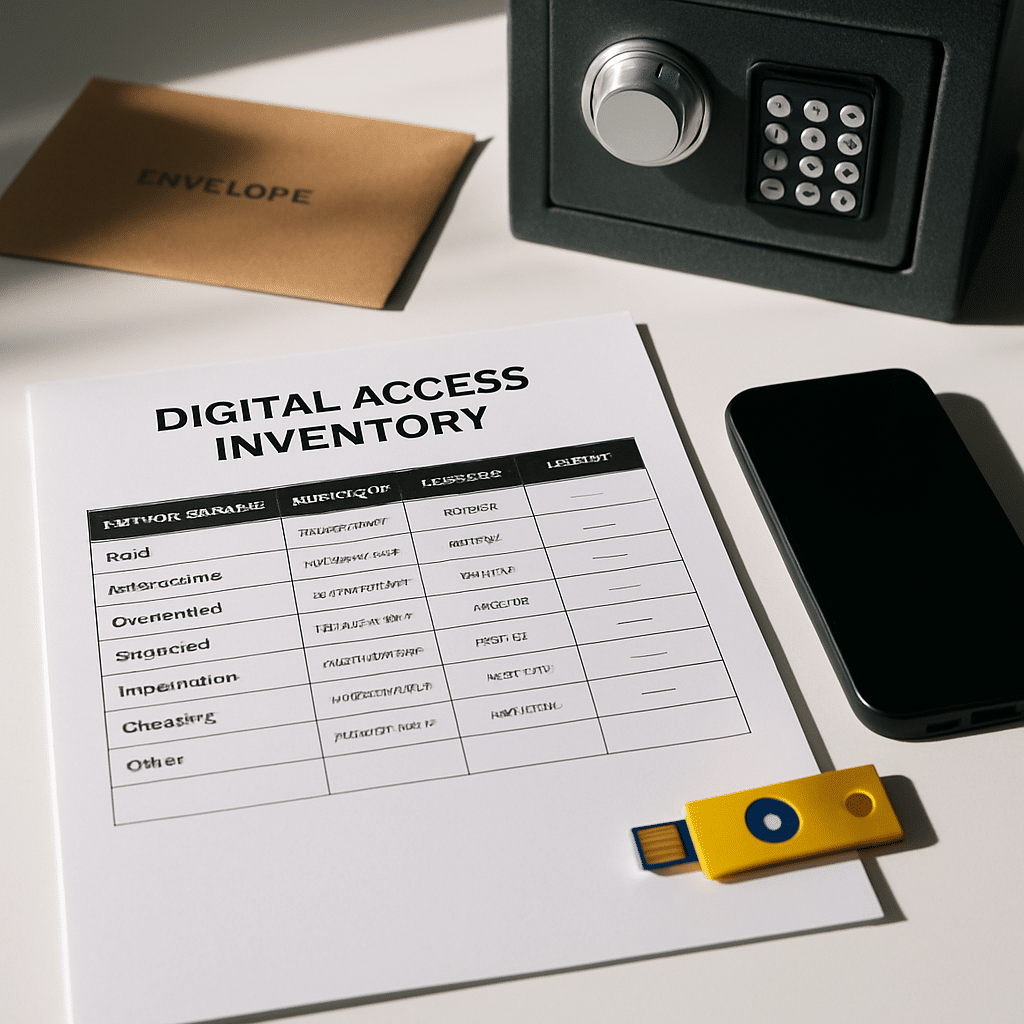
If you were suddenly unavailable, could your family pay bills, manage subscriptions, and protect your photos and files? This guide helps you build a clear list of your digital accounts and two-factor authentication (2FA) devices so trusted people can act when needed. You’ll create a simple inventory, add backup codes and recovery methods, and store it safely—step by step.
Table of Contents
- Before You Start
- Quick Fix Steps
- Build Your Digital Inventory
- List Accounts from Password Managers
- Capture 2FA Devices and Backups
- Record Recovery Methods and Contacts
- Share Securely with Heirs
- Organize and Store Safely
- Deeper Diagnosis
- Preventive Care
- When to Seek Help
- Conclusion
- Frequently Asked Questions
Before You Start
Goal: create a list of accounts and how to access them, including 2FA devices and backup codes. You’ll keep passwords out of the document and instead point to where they are stored (for example, a password manager).
- What you’ll need: your phone, a computer, a notepad or document, your password manager (if you use one), and a safe place to store a printout.
- Time estimate: 60–90 minutes for a first pass; 15 minutes for monthly updates.
- Difficulty: Easy to Medium.
- What can go wrong: exposing passwords in plain text, losing 2FA if you reset a phone, or exporting passwords to an unsafe file.
Warning: Do not factory reset any phone or security key until you confirm 2FA has been moved to a new device. Resetting can permanently lock you out.
Warning: Avoid emailing or texting passwords, backup codes, or QR codes. Treat them like house keys.
Quick Fix Steps
- Pick your “primary email account.” This is the inbox where password resets land. Write it at the top of your inventory.
- List your top 10 must-access accounts first: banking, email, mobile carrier, cloud storage, photo library, password manager, and key subscriptions.
- For each, write how you sign in (username/email) and where the password lives (for example, “saved in my password manager”). Do not copy the password itself.
- Open each account’s Security/2FA page. Note the 2FA method (app, SMS, security key, passkey). If available, generate backup codes and print them.
- Identify 2FA devices: phones, tablets, security keys, authenticator apps. Write model names and where they are kept.
- Store a printout of your inventory and backup codes in a sealed envelope in a safe place. Tell your trusted person where it is.
Build Your Digital Inventory
Create a simple table with these columns: Service, Username/Email, Where Password Is Stored, 2FA Method(s), Backup Codes Location, Recovery Email/Phone, Notes/Heir Instructions.
Example entry (no real passwords):
- Service: “Bank – Main Checking”
- Username/Email: “[email protected]”
- Where Password Is Stored: “In my password manager”
- 2FA Method(s): “Authenticator app on my iPhone + USB security key”
- Backup Codes Location: “Printed in safe, envelope ‘Bank Codes’”
- Recovery Email/Phone: “[email protected] / (555) 555-5555”
- Notes: “Call to notify if account will be closed.”
Save your file with a clear name, like Digital-Access-Inventory-YYYY-MM-DD.pdf. Print it and keep it secure.

List Accounts from Password Managers
If you use a password manager, it’s the fastest source of your account list. If you save passwords in your web browser, you can view and export a list there too.
Warning: Exports (often CSV files) are unencrypted. If you export, do it briefly for reference, then delete securely after you finish.
Windows (browser-saved passwords)
- Open your web browser’s Settings or Preferences.
- Go to Passwords (or Autofill & Passwords). Look for Export. You may need to enter your computer password.
- Use the list to fill your inventory. Then delete the export file from your Downloads folder.
- To open Windows Credential Manager quickly, press Windows+R, type
control /name Microsoft.CredentialManager, and press Enter. Review Web Credentials for saved logins.
macOS (Keychain and browser-saved passwords)
- Open Keychain Access: Finder > Applications > Utilities > Keychain Access, or open
/Applications/Utilities/Keychain Access.app. - Search for website names you recognize. Right-click entries to view details (you’ll be prompted for your Mac password).
- Also check your browser’s Passwords settings for a consolidated list and possible export.
iOS (iPhone/iPad)
- Go to Settings > Passwords. Authenticate with Face/Touch ID or passcode.
- Review saved accounts. Tap any entry for details. Some browsers have separate in-app password lists.
Android
- Open Settings > Passwords (or Passwords & accounts). Tap your password manager or Password Manager entry.
- Review saved logins. Some device makers place this under Privacy or Security.
Tip: Also scan your email inbox for words like “Welcome,” “Receipt,” “Verification,” “Security alert,” and “Password reset” to catch accounts not in your manager.
Capture 2FA Devices and Backups
2FA (two-factor authentication) adds a second step after your password. Common types include codes from an authenticator app, text messages (SMS), hardware security keys, and built-in passkeys.
- Open each important account’s Security or Login settings. Find the 2FA section.
- Write down the current 2FA method(s) in your inventory.
- If available, generate new backup codes. Print them. Label by service and date. Store with your inventory.
- If you use a hardware security key, register a spare key on the same accounts. Label and store the spare safely.
- For authenticator apps, ensure you can move them to a new phone if needed (see below). Do not screenshot secret QR codes.

Authenticator apps (iOS/Android)
- Open your authenticator app. Look for Export/Transfer/Sync options to move codes to a new device. Follow in-app steps.
- If no export exists, add a second device by scanning the account’s 2FA QR code again from its Security settings.
- Warning: Never store the QR code or “secret key” in cloud photos or email. Treat it like a master password.
Passkeys and security keys (Windows/macOS/iOS/Android)
- Check your device’s Passwords/Passkeys area to review saved passkeys and registered security keys.
- On iOS: Settings > Passwords > Password Options > Passkeys & Security Keys.
- On Android: Settings > Passwords (or Google) > Passkeys/Security Keys.
- On Windows/macOS: Check your browser’s Passkeys settings and your system Security settings.
Record Recovery Methods and Contacts
Recovery methods help when 2FA or passwords fail. Add them to your inventory so heirs know the right path.
- Recovery email and phone: list which address and number each account uses. Keep them current.
- Trusted contacts: some services let you name people who can help with account recovery.
- Legacy access features: many platforms offer settings to manage your account if you’re inactive or deceased.
Helpful starting points (examples):
- Set up an inactive account plan (lets you choose contacts and data sharing after inactivity).
- Set up a legacy contact (allows access to data after death with a key and proof).
- Choose a legacy contact or memorialization option.
Share Securely with Heirs
Decide who gets access and when. Share enough to act, not everything at once.
- What to share: location of your inventory, your primary email address, where passwords live (for example, “in my password manager”), and where backup codes and keys are stored.
- Use sealed envelopes for printed codes and spare security keys. Label with “Only open if needed.”
- If your password manager offers emergency access, enable it and set a waiting period. Test with a trusted person.
- Note: Avoid putting your master password in plain text. Use an emergency access feature or sealed instructions stored safely.
Organize and Store Safely
- Keep one printed inventory and one digital copy in a secure place (fireproof safe, locked drawer). Consider an off-site copy you control.
- Mark each page with a date. When you update, print a new copy and shred the old one.
- If storing a digital copy, keep it on an encrypted device. Name it clearly:
Digital-Access-Inventory-YYYY-MM-DD.pdf. - Bundle related items: inventory printout, backup codes, spare security key, and simple instructions for heirs.

Deeper Diagnosis
Use these checks to find missing accounts or fix 2FA snags.
Find hidden or forgotten accounts
- Search email for “welcome,” “verify,” “receipt,” “invoice,” and “security alert” to uncover services you use.
- Check bank and card statements for recurring charges. Add those services to your inventory.
- Review app subscriptions: iOS Settings > Your Name > Subscriptions; Android Play Store > Profile > Payments & subscriptions.
- Open each browser you use and review its saved passwords list for additional accounts.
If you lost a 2FA device
- Try backup codes saved in your safe. That’s the fastest path.
- Use account recovery. Be ready to prove identity (IDs, older passwords, or security questions).
- Contact support via the service’s Help/Support page if recovery fails. Explain that the 2FA device is unavailable.
- Warning: Do not wipe or trade in an old phone until you verify all 2FA has been moved or removed.
Preventive Care
- Update your inventory whenever you add or close an account. Review monthly.
- Rotate or regenerate backup codes yearly, or after a device change. Destroy old codes.
- Keep your recovery email and phone number current on all major accounts.
- Register at least two 2FA methods per critical account (for example, authenticator app + spare security key).
- Keep devices and apps updated. Updates patch security holes that could put accounts at risk.
When to Seek Help
- You’re locked out of a critical account, have no backup codes, and recovery attempts fail: contact the service’s support team.
- You need access to a deceased person’s accounts or devices: consult the platform’s legacy/inactive settings and consider legal advice.
- You suspect identity theft or unauthorized access: freeze credit, change passwords, and contact your bank and relevant services immediately.
- You feel overwhelmed: a trusted tech-savvy friend or a reputable local professional can help you set up the inventory.
Conclusion
With a clear digital access inventory, your trusted people can protect your accounts, pay bills, and preserve memories without guesswork. You listed key accounts, documented 2FA devices and backup codes, set recovery methods, and stored everything safely. Keep it updated, and tell your heir where it lives. A small routine now saves big headaches later.
Frequently Asked Questions
Should I include actual passwords?
No. Point to where they are stored (for example, your password manager). Share access through an emergency feature or sealed instructions, not plain text.
Where should I keep backup codes?
Print them, label with the service and date, and store with your inventory in a safe place. Avoid cloud storage and email for codes.
What if my authenticator app is lost?
Use printed backup codes or a spare security key. If those aren’t available, start the account’s recovery process and contact support.
How often should I update the inventory?
Review monthly or after any major change: new phone, new account, or closed service. Reprint and shred old copies.
Leave a Reply