
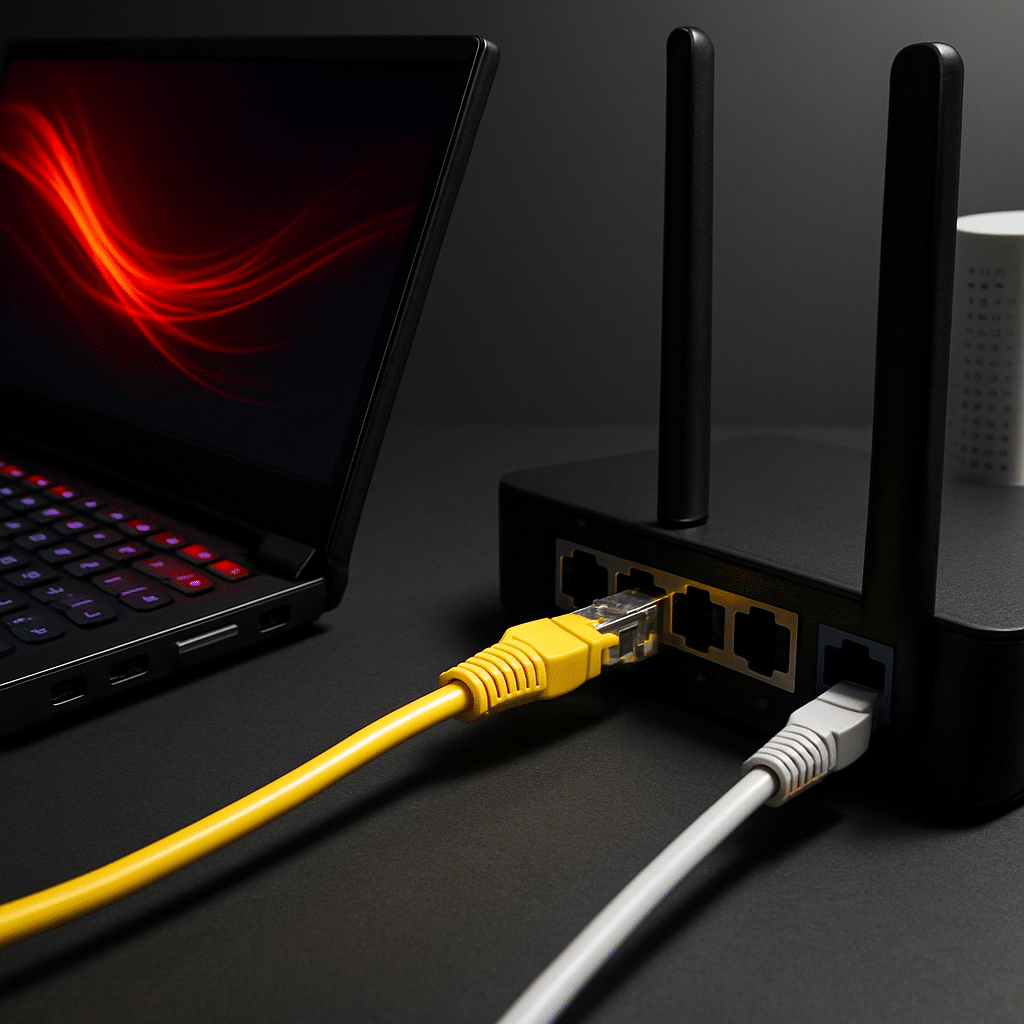
Lag ruining your matches? This guide shows you how to tweak your home router (the box that creates your Wi‑Fi network) so your games get first dibs on your internet. You will set up traffic prioritization, reduce spikes (jitter), and keep things stable—without needing to be a networking pro.
Table of Contents
- Before You Start
- Quick Fix Steps
- Set Up QoS to Prioritize Gaming
- Optimize Wi‑Fi for Gaming
- Deeper Diagnosis
- Optional: Improve NAT for Online Gaming
- Preventive Care
- When to Seek Help
- Conclusion
- Frequently Asked Questions
Before You Start
Goal: Prioritize gaming traffic using QoS (Quality of Service). QoS tells the router which device or app should go first when your internet is busy. We will also fine‑tune Wi‑Fi and check for common bottlenecks.
- Prerequisites: Your router’s admin login (usually a username and password), your gaming device’s name/MAC address, and a computer or phone on the same network.
- Time estimate: 30–60 minutes.
- Difficulty: Medium (lots of small, safe steps).
- What can go wrong: Mistyped settings may slow internet temporarily. You can revert by disabling changes or restoring a saved backup.
Warning: Do not factory reset your router unless you have to. A reset erases all settings. If you must, back up the configuration first (see Preventive Care).
Note: Some internet provider gateways limit advanced settings. If menus are missing, you may need to call your provider to enable bridge mode or ask for help changing QoS.
Quick Fix Steps
- Use a wired connection if possible. Plug your gaming device into the router with Ethernet. Wired beats Wi‑Fi for lower latency.
- Prefer 5 GHz (or 6 GHz) Wi‑Fi for gaming. If you must use Wi‑Fi, connect the gaming device to the faster band. Keep it within one or two rooms of the router.
- Reboot in order. Turn off your modem and router for 30 seconds. Power on the modem and wait for stable lights, then power on the router. Test your game again.
- Update router firmware from the router’s built‑in update page. Never download firmware from random sites. Warning: Do not power off during an update.
- Turn on Wi‑Fi Multimedia (WMM). In Wireless settings, ensure WMM or Multimedia Power Save is enabled. This helps time‑sensitive traffic like games and voice.
- Use your router’s Device Priority or QoS wizard. Move your console/PC to High or Highest priority. Save and reboot the router if asked.
- Pause heavy uploads during gaming. Cloud backups and big file syncs can add lag. Schedule them for off‑hours.
Set Up QoS to Prioritize Gaming
QoS (Quality of Service) or SQM (Smart Queue Management) reduces bufferbloat (delay caused by full upload/download queues) and lets your game traffic cut the line.
Step 1 — Find your router login page
- Try:
http://192.168.1.1orhttp://192.168.0.1in a browser. If those fail, find the Default Gateway using the steps below.
Find your Default Gateway (router address)
Windows
- Press Windows key, type “Command Prompt,” open it.
- Type
ipconfigand press Enter. - Look for “Default Gateway,” for example
192.168.1.1.
macOS
- Apple menu > System Settings > Network > your active network.
- Click Details > TCP/IP. Note the “Router” address.
- Or in Terminal:
route -n get defaultand read “gateway.”
iOS/iPadOS
- Settings > Wi‑Fi > tap the “i” next to your network.
- Find “Router.”
Android
- Settings > Network & Internet > Internet > your Wi‑Fi > gear icon.
- Advanced or IP settings. Look for “Gateway.”
Step 2 — Log in and locate QoS/SQM
- Open a browser and go to your router address (for example,
http://192.168.1.1). - Sign in with your router’s username/password. If you never changed it, check the sticker on the router or your ISP documentation.
- Look for a menu named one of these: “QoS,” “Traffic Prioritization,” “Device Priority,” “Smart Queue Management (SQM),” or “Applications & Gaming.”
Step 3 — Choose prioritization method
- Device‑based prioritization: Pick your console/PC from a list, or add it using its MAC address (a 12‑character ID like
AA:BB:CC:DD:EE:FF). - Application‑based prioritization: Choose “Gaming,” “Real‑Time,” or similar categories if offered.
Find your device’s MAC address
Windows
- Press Windows key, type “Command Prompt.”
- Type
ipconfig /all. Find “Physical Address” for Ethernet or Wi‑Fi.
macOS
- Apple menu > System Settings > Network > your adapter > Details.
- Look for “MAC Address.”
iOS/iPadOS
- Settings > General > About.
- Note “Wi‑Fi Address.”
Android
- Settings > About phone > Status (or SIM & status).
- Look for “Wi‑Fi MAC address.”
Step 4 — Enter your internet speeds accurately
- QoS/SQM often asks for your upload and download speeds. Enter the speeds from your plan or a wired speed test.
- Tip: Set them to about 85–95% of your real speeds to reduce bufferbloat. Example: If upload is 20 Mbps, enter 17–19 Mbps.
Step 5 — Save, reboot if prompted, and test
- Apply settings. If your router requests a reboot, allow it.
- Test ping stability. Search for “bufferbloat test” and run one while someone streams video in your home. Your ping should stay steady.
Optimize Wi‑Fi for Gaming
- Place the router in the open, high up, and central to your play area. Avoid metal cabinets and thick walls.
- Use 5 GHz or 6 GHz for gaming. Consider naming your 2.4 GHz and 5 GHz bands differently (e.g.,
Home-24andHome-5G) so you can choose the faster one. - Set channel width to 40 or 80 MHz on 5 GHz for speed; if your area is crowded, try 40 MHz for stability.
- Enable WMM. Keep legacy options (like “802.11b rates”) off to reduce slow clients dragging the network down.
Deeper Diagnosis
Check your modem and router lights
- Internet light should be solid (not blinking red/orange). If the modem shows errors, call your ISP.
Verify you are not double‑NATed
- Double NAT happens when you have both an ISP gateway and your own router doing routing. Symptoms include Strict NAT in games.
- Check your router’s WAN IP. If it looks like a private IP (
10.x.x.x,192.168.x.x,100.64.x.x), you may be behind carrier‑grade NAT or double NAT. Ask your ISP about bridge mode or a public IP.
Check for hidden upload hogs
- Cloud backups, video calls, or security cameras can saturate upload. Pause them during gaming, or use QoS to deprioritize them.
Confirm QoS is active
- Many routers show a live devices list with priority. Your gaming device should be labeled High or Highest. If not, re‑add it.
- Run a speed test while gaming. If ping stays low and stable even while streaming runs in the background, QoS is working.
Optional: Improve NAT for Online Gaming
NAT (Network Address Translation) controls how devices reach the internet. Games prefer Open or Type A/NAT Type 1–2 for best matchmaking.
- First try UPnP: In your router, enable UPnP (Universal Plug and Play). It auto‑opens ports for games as needed.
Warning: UPnP and port forwarding open holes for specific traffic. Only enable on trusted home networks. Avoid DMZ unless you understand the risks.
Port Forwarding (only if needed)
- Find your console/PC’s IP address and set it to a reserved/static lease in the router so it does not change.
- In “Port Forwarding/Virtual Server,” add the ports your game/service requires (check the game publisher’s official support page).
- Point them to your device’s IP. Save and test NAT again in your game.
Tip: Use either UPnP or manual port forwarding—not both for the same ports.
Preventive Care
- Update firmware quarterly from the router’s built‑in updater. Do not use third‑party downloads.
- Back up your router config before major changes. Look for “Backup/Restore” in the admin menu and save a file to your computer.
- Use strong, unique passwords for Wi‑Fi and the router admin page. Consider a password manager.
- Keep cables snug, especially Ethernet. Replace frayed or old patch cables (Cat 5e or Cat 6 are fine for gigabit).
- Schedule heavy cloud backups and game downloads overnight so they do not compete during play.
When to Seek Help
- Persistent ping spikes (over 80–100 ms to nearby game servers) or jitter above 20 ms even after QoS is enabled.
- Frequent disconnects, modem lights showing errors, or speed far below your plan on a wired test.
- Strict/Type 3 NAT that will not improve with UPnP or port forwarding.
- Missing QoS menus on an ISP‑provided gateway. Ask your ISP to enable bridge mode or assist with prioritization.
- If wiring is old or damaged and you are not comfortable replacing it, contact a professional.
What to have ready: Your plan speed, modem/router model, test results (ping/packet loss), and the times problems occur.
Conclusion
By enabling QoS/SQM, prioritizing your gaming device, and tuning Wi‑Fi, you give your games the fastest path through your home network. You should see fewer spikes, smoother voice chat, and more consistent matchmaking. Keep your router updated, back up settings, and review priorities anytime your household adds new devices. Happy lag‑free gaming!
Frequently Asked Questions
Will QoS make my internet slower?
QoS can slightly cap top speeds during busy times but improves consistency. Games benefit from stability more than raw speed.
Ethernet or Wi‑Fi—what’s better for gaming?
Ethernet is best for the lowest latency and fewest drops. If you must use Wi‑Fi, use 5 GHz or 6 GHz and keep the router close.
What numbers should I enter for QoS speeds?
Use 85–95% of your real measured speeds (especially upload). This leaves headroom so queues do not fill and cause lag.
Is “Gaming Mode” on my router a gimmick?
It depends. If it enables QoS, WMM, or SQM, it helps. If it is only a label with no controls, set up QoS manually as shown above.
Leave a Reply