
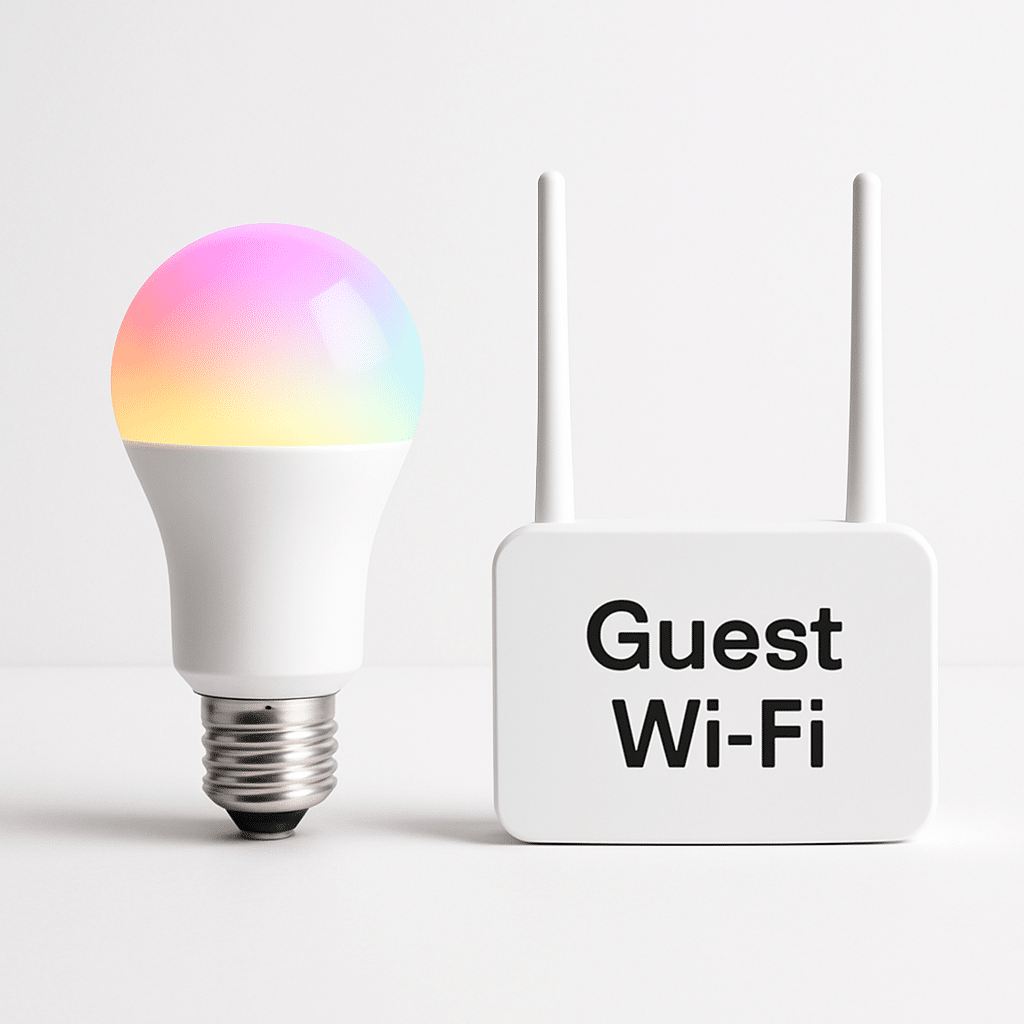
Your smart bulbs, cameras, and plugs are helpful—but they don’t need to mingle with your laptops and phones. In this guide, you’ll set up a separate guest Wi‑Fi just for home IoT devices. This adds a safety layer, keeps your main network tidy, and can make troubleshooting easier.
Table of Contents
- Before You Start
- Quick Fix Steps
- Step-by-Step Setup
- Connect Your IoT Devices
- Deeper Diagnosis
- Preventive Care
- When to Seek Help
- Frequently Asked Questions
Before You Start
Router: the box that creates your home Wi‑Fi network. Guest network: a separate Wi‑Fi name (SSID) that keeps devices apart from your main network. IoT: small smart devices like bulbs, plugs, sensors, and cameras.
- What you need: your router’s admin login, a phone or computer, and at least one IoT device ready to connect.
- Time estimate: 20–40 minutes.
- Difficulty: Easy to Medium.
- What can go wrong: some IoT devices only support 2.4 GHz; passwords get mixed up; isolation not enabled, leaving devices exposed.
Warning: Do not click “Factory Reset” on your router unless support specifically tells you to. A reset erases all settings and can knock your home offline.
Quick Fix Steps
- Open your router’s app or admin page in a browser (often
http://192.168.1.1orhttp://192.168.0.1). Sign in. - Find “Guest network” or “Guest Wi‑Fi.” Toggle it On.
- Name it clearly, like
Home-IoT-Guest(SSID = Wi‑Fi name). Avoid your main Wi‑Fi name. - Set security to WPA2 or WPA3. Create a long password (passphrase). Example: four random words plus numbers.
- Turn on isolation. Look for options like “Guest Isolation,” “Block Access to Local Network,” or “AP Isolation.” This prevents guests from seeing your main devices.
- Choose 2.4 GHz (many IoT gadgets need it). If you can’t choose, leave it as default—most guest modes broadcast both bands.
- Connect one test device to the new network. Check that the internet works and it cannot access your router’s admin page.
Tip: Write down the guest SSID and password or save them in a password manager.
Step-by-Step Setup
1) Sign in to your router
- Connect your phone or computer to your main Wi‑Fi.
- Open a browser and try
http://192.168.1.1orhttp://192.168.0.1. If unsure, check your device’s “Gateway” (see Deeper Diagnosis below). - Log in using your router admin username and password (this is different from your Wi‑Fi password on many routers).
Note: Many routers offer an official app. Only install apps from your device’s built‑in app store. Avoid third‑party downloads.
2) Create the guest network
- Find Wireless or Wi‑Fi settings, then Guest or Additional SSID.
- Turn Guest Network On. Set SSID (e.g.,
Home-IoT-Guest). - Security: choose WPA2 or WPA3 (avoid “Open” or “WEP”). Set a strong passphrase (12+ characters).
- Band: choose 2.4 GHz if your devices are older; otherwise leave Dual‑Band. Do not disable your main Wi‑Fi.
- Turn off WPS if you see it; manual passwords are safer.
3) Restrict access (the safety part)
- Enable isolation features. Look for “Guests cannot access intranet/LAN,” “AP/Client Isolation,” or “Block access to private network.” Turn these On.
- Optional: enable a simple bandwidth limit so cameras don’t hog the connection.
- Apply/Save. Your router may restart Wi‑Fi for a moment.
Warning: Do not change advanced firewall or VLAN settings unless you know what they do. A wrong rule can cut off your internet.
Connect Your IoT Devices
Most IoT devices use a setup app. Put the device in pairing/setup mode (check its quick start card), then pick the new guest SSID and enter the password.
Windows
- Select the Wi‑Fi icon. Choose your guest SSID (e.g.,
Home-IoT-Guest). - Click Connect. Enter the password. Wait for “Connected, secured.”
- To avoid mix‑ups, right‑click your main network and choose “Forget.” You can reconnect later.
macOS
- Select the Wi‑Fi icon in the menu bar. Click your guest SSID.
- Enter the password and join. In Network Settings, uncheck “Auto‑Join” for your main Wi‑Fi if needed.
iOS (iPhone/iPad)
- Settings > Wi‑Fi. Tap your guest SSID.
- Enter the password and wait for the checkmark.
- Tap the info (i) next to your main Wi‑Fi and tap Forget This Network if the phone keeps switching back.
Android
- Settings > Network & Internet > Internet (names vary). Tap your guest SSID.
- Enter the password and connect.
- If it flips back to your main Wi‑Fi, tap the gear next to the main Wi‑Fi and choose Forget.
Tip: If your IoT device only supports 2.4 GHz, move your phone a room or two away from the router during setup so it joins 2.4 GHz more easily. Some routers let you create a 2.4‑only guest SSID; that’s ideal.
Warning: Avoid turning off your 5 GHz band for the whole home. That can slow other devices. Use a separate 2.4‑only guest SSID if your router supports it.
Deeper Diagnosis
Check that isolation works
- While connected to the guest Wi‑Fi, try opening your router page (e.g.,
http://192.168.1.1). It should fail or ask for login and then deny. - Try to see other devices on your network (e.g., shared folders). You should not see them.
Check your IP details
Guest networks often use a different IP range from your main network. That’s a good sign.
- Windows: Press
Windows Key + R, typecmd, press Enter. Runipconfig. Note your “IPv4 Address” and “Default Gateway.” - macOS: System Settings > Network > Wi‑Fi > Details. Note IP and Router.
- iOS: Settings > Wi‑Fi > (i) next to your guest network. Note IP and Router.
- Android: Settings > Network & Internet > Internet > (guest network) > Advanced. Note IP and Gateway.
If the guest IP range matches your main network exactly, look again for “Block access to local network” and enable it.
Test internet reachability
- Open a browser on a guest‑connected device and visit a few sites.
- Optional: Run a simple ping test. Windows/macOS: open Terminal/Command Prompt and run
ping 8.8.8.8for a few replies, then stop it (Ctrl+C).
Verify router status lights
Check that your Internet/WAN light is solid and the Wi‑Fi light blinks when devices are active.
Note: Light patterns vary by model. If lights are red or off, power‑cycle the router once: unplug, wait 20 seconds, plug back in.
Rollback safely
- If something breaks, sign back in and toggle the guest network Off. Wait 1–2 minutes and try your main Wi‑Fi again.
- Warning: Avoid “Reset to Defaults.” If needed, contact support first.
Preventive Care
- Update your router firmware regularly. Turn on auto‑updates if available.
- Update IoT device apps and firmware. Old firmware is a common risk.
- Use unique, long passwords for the guest Wi‑Fi and router admin. Store them safely.
- Disable remote administration from the internet unless you truly need it.
- Review the router’s “Connected Devices” list monthly. Remove unknown devices.
- Optional: export a backup of your router configuration after everything works. Look for “Backup/Restore” in settings.
Tip: Print or save a QR code for the guest Wi‑Fi. Many phones can join by scanning. Search your phone for “Wi‑Fi QR” or use built‑in Wi‑Fi share features.
When to Seek Help
- Your router has no guest network option or no isolation setting. Ask your internet provider about enabling it or supplying equipment that supports it.
- Your IoT device will not connect even on 2.4 GHz. Contact the device maker’s support.
- You see repeated disconnects, or your main network slows dramatically after enabling guest Wi‑Fi. Contact your ISP or a local network professional.
- You’re asked to do risky steps (manual firmware files, port forwarding, UPnP) and aren’t sure. Pause and get expert help.
With your guest Wi‑Fi set up, your IoT devices live on their own lane, your main computers stay safer, and troubleshooting gets simpler. Keep your passwords handy, update devices regularly, and enjoy a tidier, more secure smart home.
Frequently Asked Questions
Do I need a second router to isolate IoT devices?
No. Most modern routers support a guest network that keeps devices separate from your main network.
Will a guest network slow down my main Wi‑Fi?
Not usually. If bandwidth is tight, you can set a limit for the guest network so cameras or streams don’t crowd others.
Should I hide the guest SSID?
Hiding the name doesn’t add real security and can make setup harder. A strong password and isolation are what matter.
What if a camera needs port forwarding or UPnP?
That can reduce security. Try the guest network first. If remote access is required, get guidance from the device maker or a pro and weigh the risks.
Leave a Reply