
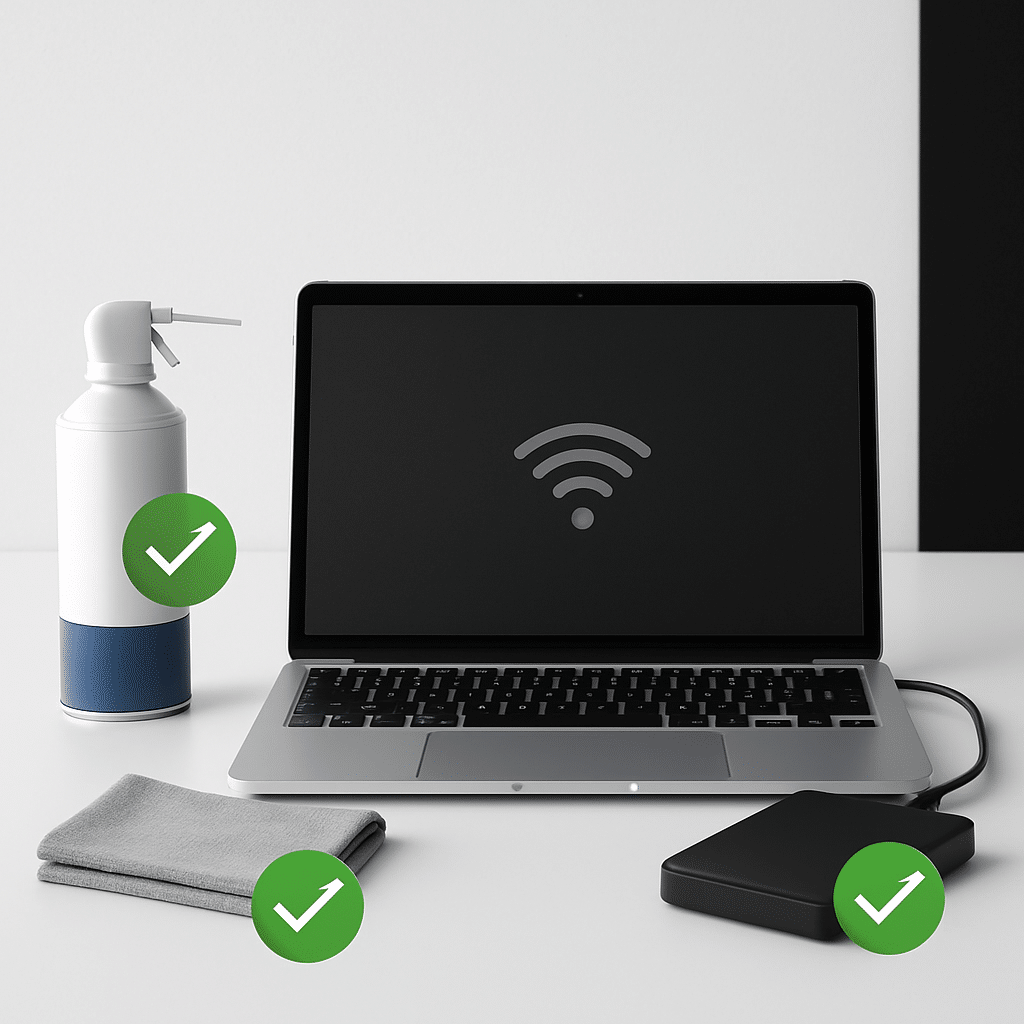
Want your computer to feel faster, safer, and less cluttered? This simple maintenance checklist walks you through what to do, in order, with clear steps for Windows and macOS. In about an hour, you’ll free up space, update safely, tidy startup apps, and set up backups so future problems are easier to handle.
Table of Contents
- Before You Start
- Quick Fix Steps
- Deeper Diagnosis
- Preventive Care
- When to Seek Help
- Conclusion
- Frequently Asked Questions
Before You Start
Time: 45–90 minutes. Difficulty: Easy to Medium. You’ll need internet for updates, your computer’s admin password, and (optional) an external drive for backups. A microfiber cloth and a can of compressed air help with cleaning.
- Back up key files first (documents, photos, school/work folders).
- Close apps and save your work. Some steps require a restart.
- Have your Wi‑Fi password handy if you plan to move your PC for cleaning.
Warning: Avoid risky actions such as registry edits, random “driver updater” tools, or factory resets. Never interrupt updates once they start. Unplug power before opening a desktop case or cleaning vents.
Quick Fix Steps
-
Restart your computer
A fresh start clears temporary glitches and finishes pending updates. Shut down fully, wait 15 seconds, then power on.
-
Check free storage space
Aim for at least 15% free space for smooth performance.
Windows
- Go to Settings > System > Storage. Turn on Storage Sense if available.
- Select Temporary files and remove items like “Temporary files” and “Delivery Optimization Files.” Review before deleting.
macOS
- Go to Apple menu > System Settings > General > Storage. Review Recommendations.
- Empty Trash and remove large files you no longer need.
-
Update your system
Updates patch security holes and improve stability.
Windows
- Settings > Windows Update > Check for updates. Install important updates.
- Optional: Settings > Windows Update > Advanced options > Optional updates to install trusted driver/firmware updates. Avoid third‑party driver tools.
macOS
- System Settings > General > Software Update. Install available updates.
-
Scan for malware
Windows
- Open Windows Security > Virus & threat protection > Quick scan. Remove anything flagged.
macOS
- macOS has built‑in protections that update with the system. If you suspect malware, consider a reputable antivirus from your system’s official app store. Read reviews and avoid random download sites.
Warning: Do not download “free cleaners” or “optimizer” apps from pop‑ups. Many are unsafe.
-
Tidy your browser
- Remove extensions you don’t use. In your browser’s Extensions/Add‑ons page, disable or remove suspicious items.
- Clear browsing data (cache) if pages feel slow. Keep passwords/autofill if you rely on them.
-
Reduce startup clutter
Windows
- Right‑click the taskbar > Task Manager > Startup apps. Disable high‑impact apps you don’t need at startup.
macOS
- System Settings > General > Login Items. Remove or toggle off items you don’t need to start automatically.
-
Clean vents and peripherals (safely)
- Shut down, unplug power and accessories. Use short bursts of compressed air on vents and keyboard.
- Wipe surfaces with a barely damp microfiber cloth. Do not spray liquid into ports or vents.
-
Back up important files
Windows
- Plug in an external drive. Go to Settings > Accounts > Windows backup or Control Panel > File History to set up backups.
macOS
- Connect an external drive. Go to System Settings > General > Time Machine > Add Backup Disk.
Deeper Diagnosis
Use these steps if problems remain after the quick fixes, or run them every few months for peace of mind.
Check what’s using resources
Windows
- Open Task Manager (right‑click taskbar > Task Manager). In Processes, sort by CPU, Memory, and Disk to spot heavy apps.
- In Startup apps, disable unneeded entries. Restart and test.
macOS
- Open Activity Monitor (Applications > Utilities). Sort by CPU and Memory to find hogs.
- System Settings > General > Login Items to remove extras.
Check disk health
Windows
- Open Command Prompt as administrator and run:
chkdsk C: /scan(safe, read‑only). Fixes are suggested if issues appear.
Warning: The repair command chkdsk C: /f can require a restart and may take a long time. Back up first and only run it if problems persist.
macOS
- Open Disk Utility (Applications > Utilities). Select your disk > First Aid > Run.
Repair system files (advanced)
Windows
- Open Command Prompt as administrator and run:
sfc /scannow. Wait for completion. - If errors persist:
DISM /Online /Cleanup-Image /RestoreHealth, then runsfc /scannowagain.
Note: These commands verify and repair system components. Keep the PC plugged in and do not interrupt.
Battery and power checks (laptops)
Windows
- Open Command Prompt and run:
powercfg /batteryreport. Note the file path it prints (usually your user folder). Open the HTML report to review battery health.
macOS
- System Settings > Battery. Check “Battery Health.” Consider service if it shows “Service Recommended.”
Optional hardware tests
- Windows: Type “Windows Memory Diagnostic,” choose “Restart now and check for problems.”
- macOS: Shut down. Turn on and continue holding the power button to enter startup options, then follow Apple Diagnostics prompts (varies by model).
Warning: If you are not comfortable with hardware tests or opening a case, skip and seek help. Static electricity can damage parts.
Preventive Care
-
Monthly
- Install OS and app updates. Restart after big updates.
- Review storage and remove unneeded downloads and large videos.
- Check startup apps and disable new clutter.
- Run a malware scan (Windows) or review security settings (macOS).
-
Backups (3-2-1 simple version)
- Keep 3 copies of important files: your computer + 1 external drive + 1 cloud or off‑site copy.
- Test restore a file once in a while so you know it works.
-
Password hygiene
- Use a password manager and turn on two‑factor authentication (2FA) where possible.
- Change passwords after a known breach and never reuse them across sites.
-
Safe downloads
- Download apps from your OS’s official store or the developer’s official site only.
- Avoid “registry cleaners,” “driver updaters,” and “optimizer” apps. They can cause harm.
-
Cooling and dust
- Keep vents clear of fabric and walls. Clean dust quarterly with compressed air.
- Monitor temperatures if the fan is loud or the case feels hot.
-
Browsers and email
- Keep your browser updated. Review extensions monthly; remove ones you don’t recognize.
- Be cautious with email attachments and links. When in doubt, don’t click.
-
Phones and tablets (bonus)
- Keep iOS/Android updated, review app permissions, and back up to a computer or cloud service.
When to Seek Help
- Frequent crashes, blue/black screens, or the system won’t boot.
- Clicking or grinding noises from the computer (possible drive failure).
- Overheating: the system shuts down or is too hot to touch.
- Repeated malware detections or warnings you cannot clear.
- Battery swelling (case bulging) or battery health marked “Service Recommended.”
- Disk health tools show errors you cannot repair, or SMART warnings appear.
Tip: Record what you tried and any error messages. This saves time when you contact support or a repair shop.
Conclusion
By following this checklist, you freed space, updated safely, trimmed startup clutter, scanned for threats, and set up backups. Your computer should feel snappier and stay safer. Mark a monthly reminder to repeat the quick steps, and use the deeper checks each season or when problems pop up.
Frequently Asked Questions
How often should I run this checklist?
Do the quick steps monthly and the deeper diagnosis every 3–6 months, or sooner if you notice slowdowns.
Is antivirus needed on macOS?
macOS has built‑in protections that update with the system. If you download apps outside the official store or share files widely, consider a reputable antivirus from a trusted source.
Is it safe to delete temporary files?
Yes, removing temporary files and cache is safe when done through built‑in tools (Storage/Storage Sense on Windows; Storage recommendations on macOS).
Should I defragment my drive?
No for SSDs. Modern systems handle optimization automatically. Only older hard drives may benefit, and your OS manages that on a schedule.
Leave a Reply