
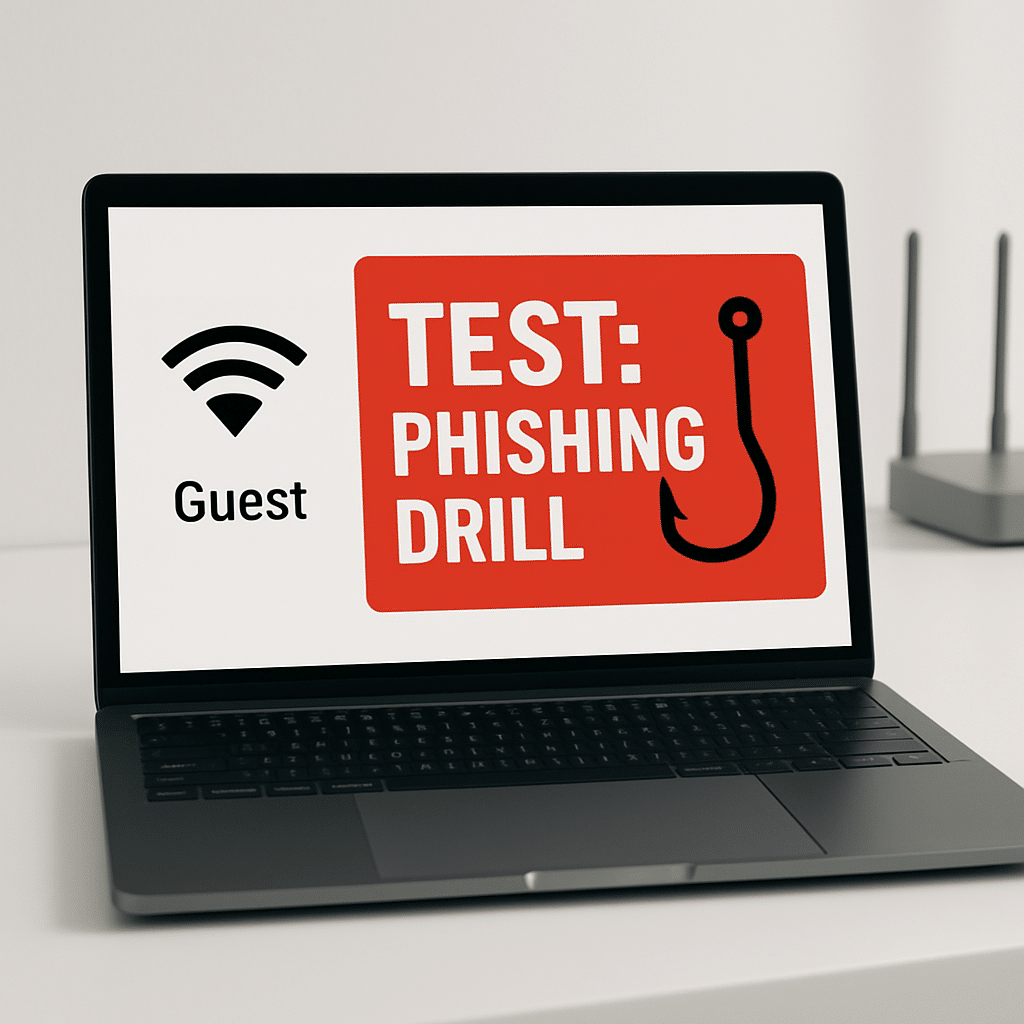
Want a safe way to teach your family to spot online scams? A guest Wi‑Fi can act like a sandbox: a separate, temporary network where you can run a gentle, no-harm phishing awareness drill. In this guide, you’ll set up a guest network, run a simple test message, and debrief together—without risking your main devices or accounts.
Table of Contents
- Before You Start
- Quick Fix Steps
- Deeper Diagnosis
- Preventive Care
- When to Seek Help
- Conclusion
- Frequently Asked Questions
Before You Start
Phishing: a scam message that tries to trick you into clicking a bad link or giving away passwords. Guest Wi‑Fi: a separate Wi‑Fi network for visitors that keeps them away from your main devices. Router: the box that creates your home Wi‑Fi network.
What you need
- A home router that supports a “Guest” or “Guest Network.”
- Router admin access (the username/password from a label on the router or your records).
- At least one phone, tablet, or computer for each participant.
Time and difficulty
- Time: 30–60 minutes for setup, drill, and debrief.
- Difficulty: Easy to Medium (basic Wi‑Fi settings and device connection).
Safety notes
- Warning: Do not factory reset your router. A reset wipes settings and can disrupt your internet. If unsure, stop and ask your internet provider or a tech‑savvy friend.
- Warning: Do not send real phishing emails, do not imitate real banks or services, and never ask family to type real passwords. Keep your drill clearly labeled as a test.
- Note: Avoid changing advanced router settings (firewall, DNS, port forwarding). Only enable the Guest network and set a password.
Quick Fix Steps
-
Set clear rules for a safe drill
- Tell everyone: “This is a family phishing awareness test. No real passwords. No real personal info.”
- Agree on a reporting method: e.g., reply “Report: Suspicious” in your family chat or tell the organizer.
- Keep the drill inside your home and your household members only.
-
Enable your Guest Wi‑Fi
- Connect a computer or phone to your regular Wi‑Fi.
- Open a browser and go to your router’s admin page (often
http://192.168.1.1orhttp://192.168.0.1). Check your router’s label for the exact address. - Sign in with the router admin username and password from the label or your notes.
- Find “Guest Network” or “Guest Wi‑Fi” settings. Turn it on.
- Name it clearly, like
Home-Guest, and set a strong, unique password (12+ characters). - Look for a setting like “Allow guests to access local network/lan/intranet” and turn it off to isolate guests from your main devices.
Tip: If your router has a “Schedule” option for Guest Wi‑Fi, set it to turn off after the drill.
-
Connect family devices to the Guest network
Windows
- Select the Wi‑Fi icon. Choose your guest network (e.g.,
Home-Guest). - Enter the guest password and connect.
macOS
- Click the Wi‑Fi icon in the menu bar. Pick the guest network.
- Enter the password and join.
iOS (iPhone/iPad)
- Go to Settings > Wi‑Fi. Tap the guest network.
- Enter the password and join.
Android
- Go to Settings > Network & Internet > Internet (names vary). Tap the guest network.
- Enter the password and connect.
Note: If a device auto‑connects to your main Wi‑Fi, choose “Forget” on the main network first, then join the Guest.
- Select the Wi‑Fi icon. Choose your guest network (e.g.,
-
Create a harmless test message (no links, no data collection)
- Make a simple “test” message as an image or screenshot so nothing is clickable. Label it clearly: “TEST: Phishing Drill.”
- Include 2–4 common red flags for practice: generic greeting, urgent tone, misspellings, odd sender address, request for personal info, or unexpected attachment mention.
- Do not use a real company’s logo or name. Keep it generic.
- Do not ask anyone to sign in, download, or click. This is a spotting exercise only.
-
Run the drill
- Ask everyone to stay on the Guest Wi‑Fi during the drill window (10–15 minutes).
- Share the test image via your usual family channel (text, messaging app) or show it in person.
- Invite them to “report” it using your agreed method. Praise quick, safe reporting.
-
Debrief together
- Show the red flags and explain why they matter.
- Reinforce the rule: never enter passwords from an email or message link. Go directly to the site by typing the address yourself.
- Decide on one improvement to try this week (e.g., hover to preview links, verify sender address, or use multi‑factor authentication).
-
Clean up
- Have everyone reconnect to your main Wi‑Fi after the drill.
- Optionally disable the Guest network or let its schedule turn it off.
Deeper Diagnosis
If the Guest network won’t enable
- Confirm your router supports Guest Wi‑Fi. Look for a “Guest” tab in the admin page or consult the printed quick guide.
- Try a different browser if the admin page looks broken.
- Check for a firmware update (in the router admin page). Apply only if it’s a simple “Update” button. Warning: Do not interrupt power during an update.
If devices can’t join the Guest Wi‑Fi
- Re‑enter the password carefully. Toggle Wi‑Fi off and on.
- Forget the network and reconnect:
- Windows: Settings > Network & Internet > Wi‑Fi > Manage known networks > select network > Forget.
- macOS: System Settings > Wi‑Fi > Details next to the network > Forget This Network.
- iOS: Settings > Wi‑Fi > tap i next to network > Forget This Network.
- Android: Settings > Network & Internet > Internet > tap network > Forget.
- Move closer to the router. Guest networks can have lower signal strength.
If isolation isn’t working
- In the router’s Guest settings, confirm options like “Access to local network” are disabled.
- Quick check: from a guest‑connected device, try to reach a local device (like a printer’s web page). If it fails to load, isolation likely works.
Find your router login page quickly
- Try:
http://192.168.1.1,http://192.168.0.1, or check your device’s “Router”/“Gateway” address: - Windows: Open Command Prompt, type
ipconfig, press Enter. Look for “Default Gateway.” - macOS: System Settings > Wi‑Fi > Details > Router address.
- iOS: Settings > Wi‑Fi > tap i next to your network > Router.
- Android: Settings > Network & Internet > Internet > tap your network > Advanced (look for Gateway).
Warning: If you can’t find the admin password, do not factory reset unless you are comfortable re‑setting your entire network from scratch.
Preventive Care
- Update devices regularly: phones, tablets, computers, and the router firmware.
- Use strong, unique passwords and turn on multi‑factor authentication where possible.
- Back up important data (photos, documents) to a trusted location on a regular schedule.
- Teach the “stop and verify” habit: if a message asks for something urgent, contact the sender through a known, separate channel.
- Schedule a short family drill every 3–6 months. Rotate themes: fake invoices, prize claims, delivery notices—always clearly labeled as tests and never using real brands.
- Keep smart home gadgets on the Guest network by default to reduce risk to your main devices.
- Set your Wi‑Fi security to WPA2 or WPA3 in router settings for stronger protection.
When to Seek Help
- If you lose internet after changing settings and can’t restore it, contact your internet provider or router support.
- If you can’t access the router admin page or forgot credentials, ask your provider or a trusted technician before attempting a reset.
- If anyone clicked a real suspicious link outside of the drill and entered info, change the affected password immediately, enable multi‑factor authentication, and watch accounts for unusual activity.
- If you notice unknown devices on your network or settings you didn’t change, seek professional help.
Conclusion
By running your drill on a Guest Wi‑Fi, you gave your family a safe place to practice spotting scams without risking your main network. You set clear rules, kept the test harmless, and talked through red flags together. Repeat this occasionally, keep devices updated, and make “stop and verify” a family habit.
Frequently Asked Questions
Why use a Guest Wi‑Fi for a drill?
It keeps test activity separate from your main devices and files. If someone clicks something by mistake, isolation reduces risk to printers, shared folders, and smart home gear.
Will a Guest network slow down my internet?
Not usually. Everyone shares the same internet connection either way. If speed drops, reduce the number of connected devices or pause streaming during the drill.
Can kids take part safely?
Yes. Use a clearly labeled test image with no links or downloads. Focus on spotting red flags and asking for help before clicking.
What if someone clicks during the drill?
Because you used a harmless, non‑clickable image (or a safe, clearly labeled test), there’s no damage. Use it as a teachable moment: slow down, verify the sender, and when unsure, don’t click.
Leave a Reply