
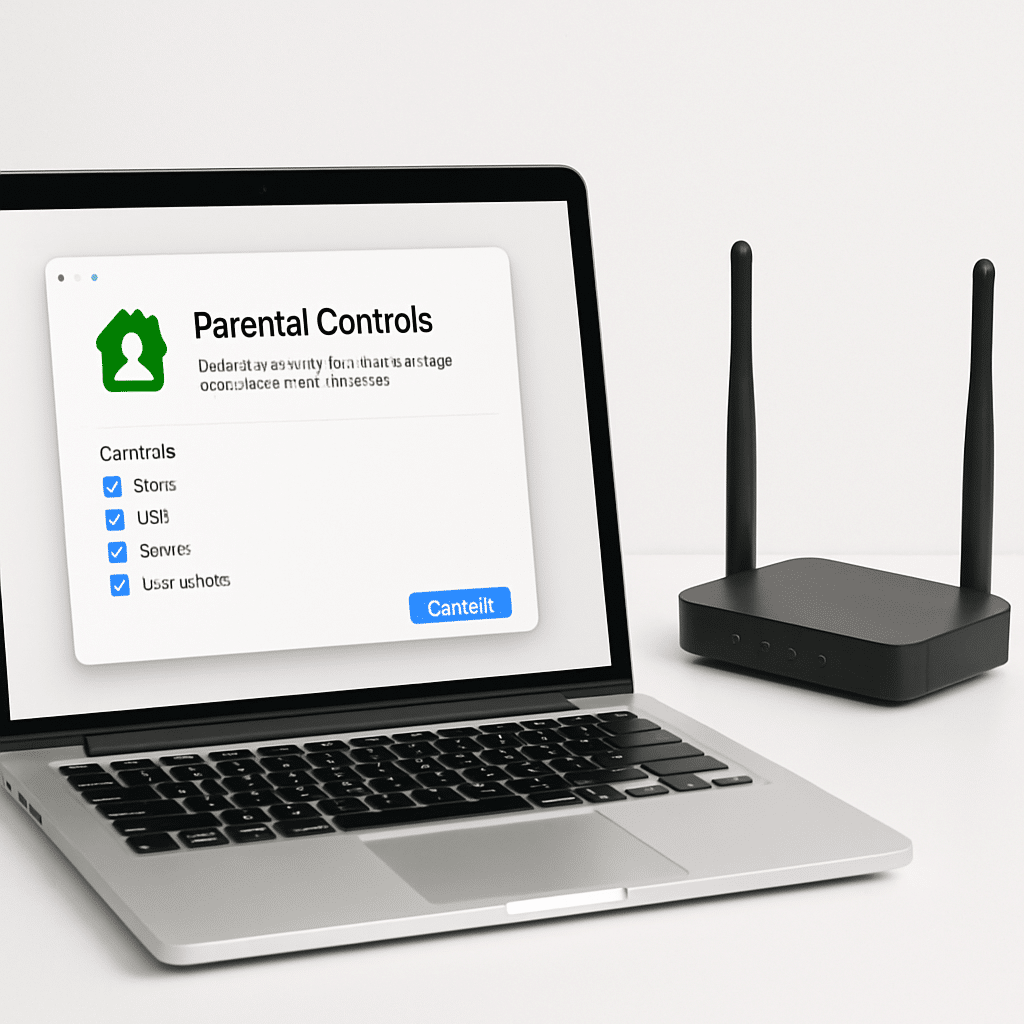
Want fewer arguments and healthier habits? This guide shows you how to set clear, reliable screen time limits on a child’s laptop using built‑in tools and your home router (the box that creates your Wi‑Fi). You’ll set daily schedules, block late‑night access, and add safeguards so limits stick.
Table of Contents
- Before You Start
- Quick Fix Steps
- Set Up Built-in Controls
- Schedule Internet at the Router
- Deeper Diagnosis
- Preventive Care
- When to Seek Help
- Conclusion
- Frequently Asked Questions
Before You Start
What you need:
- Admin access to the child’s laptop (you can install or change settings).
- Your parent account details (Windows account, Apple ID, or Chromebook family account).
- Router login (username/password found on a sticker or in your notes).
Time: 20–45 minutes for the first setup. Difficulty: Easy to Medium.
What can go wrong:
- Locking yourself out with a passcode you forget. Write passcodes down in a safe place.
- Over‑restricting school apps or breaking video calls. Test after changes.
- Changing router settings you don’t understand can break internet for everyone.
Warning: Do not factory reset your router unless instructed by your internet provider. Do not download “parental control” apps from random sites. Built‑in tools and your router are safer and usually enough.
Quick Fix Steps
- Create a separate, non‑admin account for your child on the laptop. Keep the admin password private.
- Turn on the system’s built‑in screen time controls for the child account (Windows/macOS/ChromeOS). Set a daily schedule and a bedtime.
- Add app and website limits for distractions. Leave school and communication tools allowed.
- Set a screen time passcode (macOS) or require parent approval (Windows/ChromeOS) so kids can’t change settings.
- On your router, add an “access schedule” for the child’s device to cut internet at night as a backup.
- Test: Sign in as the child, try opening a game or site after the cutoff, and confirm it’s blocked.
Tip: Start with reasonable limits. For example, school nights 8:00 pm cutoff, weekends 10:00 pm, 1–2 hours of games per day.
Set Up Built-in Controls
Windows (11/10)
- Open
Settings > Accounts > Family. Add a family member and choose “Member” or “Child.” Use your child’s email if they have one, or create one during setup. - After adding, select the child account. Open the family safety settings when prompted. You can manage from the PC or a web page.
- Turn on Screen time. Set a daily schedule (start/end) and per‑day limits if you like.
- Open Apps and games to set age filters and specific app limits (e.g., 60 minutes for games).
- Open Content filters to restrict adult sites and optionally allow only specific sites needed for school.
- Sign your child into Windows with their child account. Keep your admin account separate and password‑protected.
Note: If limits don’t apply, make sure the child signs in with their child account, not yours.
macOS (Ventura, Sonoma, or newer)
- Open
System Settings > Screen Time. Click to set up Screen Time for your child. If needed, create a child account underSystem Settings > Users & Groups. - Click your child’s name in Screen Time. Turn on Use Screen Time Passcode and choose a passcode only you know.
- Set Downtime hours (bedtime), App Limits (e.g., 45 minutes for social apps), and Always Allowed (school apps, messages).
- Open Content & Privacy. Turn it on and set age‑appropriate restrictions for web content and media.
- Have your child use their standard (non‑admin) account daily. Keep your admin account separate.
Chromebook (ChromeOS)
- Make sure your child signs into the Chromebook with their child Google account managed by your family settings.
- From your parent account’s family settings (on the web or your phone), set daily limits and a bedtime for the Chromebook.
- Set app/site restrictions and choose apps that are always allowed for schoolwork.
- On the Chromebook, confirm in
Settings > Accountsthat the device shows it is supervised.
Tip: Built‑in controls are the first line of defense. Router schedules (next section) add a second layer in case a child tries to bypass limits.
Schedule Internet at the Router
Most routers let you pause or schedule Wi‑Fi for specific devices. This cuts internet access during off hours, even if laptop settings are changed.
- Connect to your home Wi‑Fi. In a browser, open your router’s admin page (often something like
http://192.168.0.1orhttp://192.168.1.1). Log in with the router admin password. - Find a section named Parental Controls, Access Schedule, Device Management, or Profiles.
- Identify your child’s laptop by name or MAC address. If unsure, get the MAC on the laptop:
- Windows: open Command Prompt and run
getmacoripconfig /all(look for “Physical Address”). - macOS:
System Settings > Network > Wi‑Fi > Details(look for “Wi‑Fi Address”). - ChromeOS:
Settings > Network > Wi‑Fi > Network(look for “MAC address”).
- Windows: open Command Prompt and run
- Create a schedule (e.g., block 8:30 pm–6:30 am on school nights; later on weekends). Save your changes.
- Test by trying to browse after cutoff. The device should lose internet while other devices still work.
Note: Some laptops use “randomized” MAC addresses on Wi‑Fi. If your schedule doesn’t stick, turn off MAC randomization for your home network on the child’s laptop, or add the new MAC to the router schedule.
Warning: Do not change WAN, DNS, or DHCP settings unless you know what they do. That can break your entire network.
Deeper Diagnosis
All laptops
- Confirm the child is using their child account, not your admin account.
- Check the system date/time. If it’s wrong, schedules trigger at odd times. Enable automatic time.
- Look for VPNs or proxy apps. These can bypass filters. Remove or disable them on the child account.
- See if the laptop is joining a neighbor’s or mobile hotspot network to bypass your router schedule. Forget other networks.
Windows checks
- Open
Settings > Accounts > Familyand ensure the child shows as a family member. Re‑apply screen time settings if they’re missing. - On the child account, make sure “Screen time” is on and the schedule shows the expected blocks.
macOS checks
- Open
System Settings > Screen Timeand confirm you’re viewing the child. Verify Use Screen Time Passcode is on. - Revisit Downtime and App Limits. Ensure school apps are “Always Allowed” to prevent unexpected blocks.
Router checks
- Verify the device in the schedule matches the laptop’s current MAC address.
- Ensure the schedule is applied to both Wi‑Fi bands (2.4 GHz and 5 GHz) if your router separates them.
- If you changed SSID or password recently, reconnect the laptop and re‑check the schedule.
Command snippets you can copy:
- Windows:
getmacoripconfig /all(look for the Wi‑Fi adapter’s Physical Address). - Test connectivity:
ping example.com(blocked devices should fail during off hours).
Preventive Care
- Review limits weekly. Adjust for school projects, holidays, and sports seasons.
- Keep the laptop updated: Windows/macOS updates and browser updates reduce issues.
- Use a standard (non‑admin) daily account for your child. Keep admin passwords private.
- Label devices in your router (“Jordan‑Laptop”) so schedules are easy to manage.
- Set a simple family rule: ask permission before installing new apps or using new networks.
- Back up schoolwork regularly so blocks don’t risk progress.
- Consider a separate “Guest Wi‑Fi” for friends’ devices so your schedules don’t need constant edits.
When to Seek Help
- Persistent bypassing (e.g., changing time zone, using hotspots, or VPNs) you cannot control.
- Router schedule doesn’t work or crashes the network after you followed safe steps.
- Screen time settings won’t save, or child accounts won’t add correctly.
Who to call:
- Your internet provider’s support for router scheduling help and Wi‑Fi stability.
- Laptop maker or OS support for account issues or Screen Time/Family settings.
- A local professional if you’re worried about malware or repeated VPN/proxy bypasses.
Tip: Take screenshots of your settings and note error messages. This speeds up support calls.
Conclusion
You set up a child account, turned on built‑in screen time tools, and added a router schedule as a backup. You tested the cutoff and adjusted app allowances so school tools work smoothly. Keep reviewing limits together as your child grows, and tweak schedules to fit real life.
Frequently Asked Questions
Are these limits perfect?
Nothing is perfect, but combining device controls with a router schedule is reliable. Talk with your child about why the limits exist, and keep passwords private.
Can my child change the time zone to bypass bedtime?
Set automatic time/date on the laptop and require a passcode (macOS) or parent approval (Windows/ChromeOS). Router schedules aren’t affected by the laptop’s clock.
What about offline games after Wi‑Fi is blocked?
Device screen time limits can block specific apps even offline. Use both app limits and the router schedule to cover online and offline time.
We share one laptop. How do limits work?
Create separate accounts: one child account with limits, one adult admin. Switch users when each person uses the laptop. Limits apply only to the child account.
Leave a Reply