
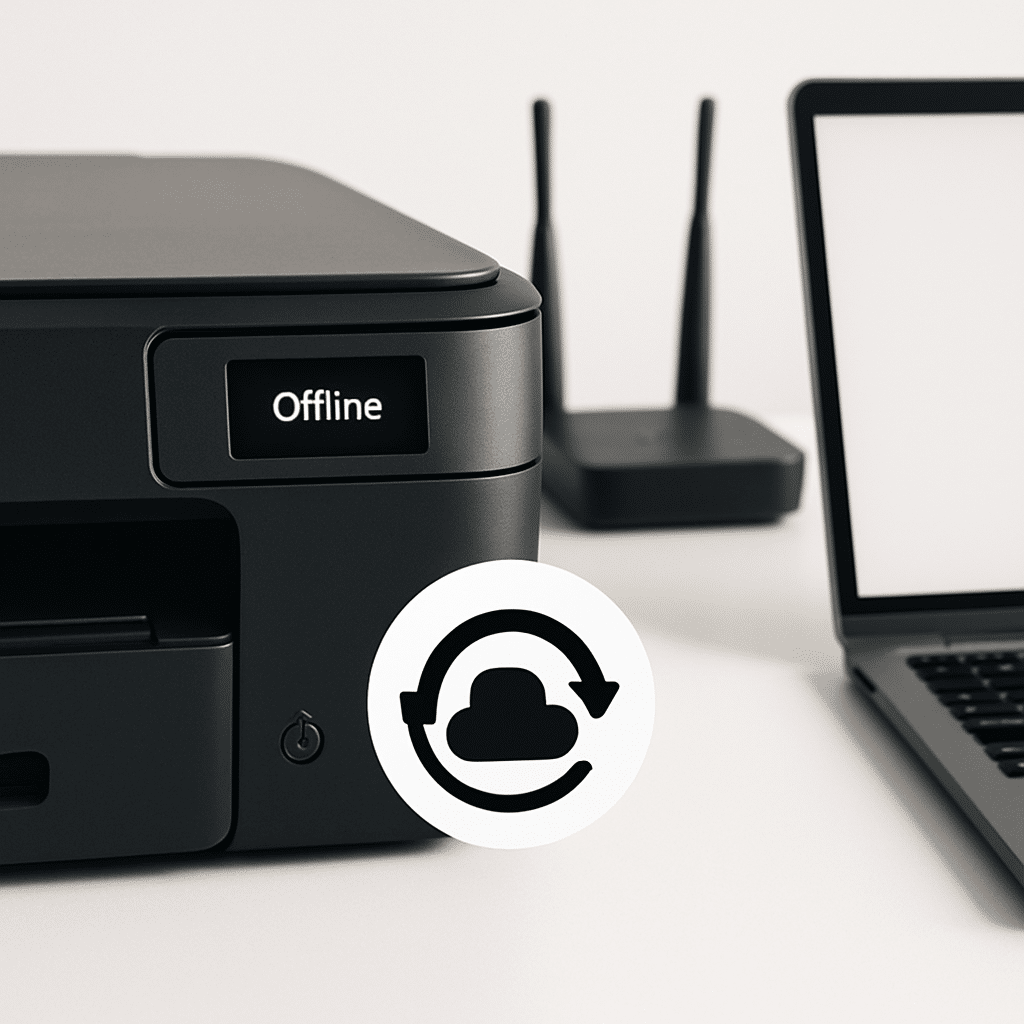
Did your printer suddenly show “Offline” right after a backup or system restore? You’re not alone. Restores can roll back drivers, network settings, and permissions. In this guide, you’ll bring your printer back online safely, step by step, on Windows, macOS, iOS, and Android.
Table of Contents
- Table of Contents
- Before You Start
- Quick Fix Steps
- Deeper Diagnosis
- Preventive Care
- When to Seek Help
- Conclusion
- Frequently Asked Questions
Before You Start
Plan for 20–45 minutes. Difficulty: Easy to Medium. You’ll check power, network, and software. You won’t need special tools.
- Prerequisites: Wi‑Fi name and password, your computer/phone admin password, and (optional) a USB cable for testing.
- Have your printer’s model name handy to find drivers on the manufacturer’s website.
What can go wrong: Clearing the print system or removing printers will delete saved printers and queues. Driver downloads can include extra apps if you click the wrong link.
Warning: Only download drivers from the printer maker’s official site or your operating system’s built‑in updates. Avoid third‑party “driver download” sites.
Quick Fix Steps
- Check power and connections. Make sure the printer is on and shows no error lights. For wired printers, confirm the USB or Ethernet cable is fully seated. For Wi‑Fi printers, look for a solid Wi‑Fi light.
- Restart everything in order. Turn off the printer. Unplug your router (the box that creates your home Wi‑Fi network) for 30 seconds, then plug it back in. When Wi‑Fi is stable, turn the printer back on, then restart your computer or phone.
- Confirm the same network. On the printer’s screen, view network details to see its Wi‑Fi name (SSID) and IP address. On your computer/phone, make sure you’re on the same Wi‑Fi name. Different networks (like “MyWiFi” vs. “MyWiFi‑Guest”) will show the printer as offline.
- Clear the print queue and set the printer online.
Windows
Settings > Bluetooth & devices > Printers & scanners > select your printer > Open print queue. In the Printer menu, uncheck “Use Printer Offline” and “Pause Printing.” Click “Set as default” if available.
macOS
System Settings > Printers & Scanners > select your printer > Open Print Queue. Click Resume. Right‑click the printer in the list and choose “Set default printer.”
iOS (iPhone/iPad)
Close the app you’re printing from. Reopen and try Share > Print again. Ensure Wi‑Fi is on and VPN is off.
Android
Settings > Connected devices or Printing > Default Print Service. Turn it on. If you use a print plugin, make sure it’s on and updated.
- Remove and re‑add the printer.
Windows
Settings > Bluetooth & devices > Printers & scanners > select your printer > Remove. Click “Add device” to find it again. If asked, choose the network version (Wi‑Fi/Ethernet) rather than a cloud option.
macOS
System Settings > Printers & Scanners. Select the printer, click the minus (–) to remove. Click Add (+), wait for the printer to appear, and add it. If you see choices, try “AirPrint” first, then your specific driver if needed.
iOS/Android
Reinstall or re‑enable your printing service. On iOS, AirPrint is built in—just ensure both devices are on the same Wi‑Fi. On Android, open the Play Store to update your print service plugin if you use one.
- Update the driver or system.
Windows
Settings > Windows Update > Check for updates. Then visit the printer maker’s official support page and install the latest driver for your model and Windows version.
macOS
System Settings > General > Software Update. Install any printer or system updates. Re‑add the printer if needed.
iOS/Android
Update your OS and printing apps from the App Store/Play Store. Then try printing again.
Tip: If USB printing works but Wi‑Fi does not, focus on network steps below.
Deeper Diagnosis
1) Verify the printer’s IP and network reachability
On the printer, print a Network Status page or view Network settings. Note the IP address (for example, 192.168.1.50).
- Windows: Press Windows key, type “cmd”, open Command Prompt, then run:
ping 192.168.1.50 - macOS: Open Terminal (Applications > Utilities) and run:
ping -c 4 192.168.1.50 - Success looks like replies with low time (ms). If it times out, the devices aren’t seeing each other.
Note: If your router separates 2.4 GHz and 5 GHz with “guest” isolation, your phone/computer may not reach the printer. Connect both to the same non‑guest network.
2) Check the router’s device list
Log in to your router’s admin page (often shown on a sticker on the router). Look under Connected Devices/Clients to confirm the printer is listed and has the IP you noted.
Tip: If your printer reconnects with a new IP after a restore, your computer may still point to the old one. Re‑adding the printer usually fixes this.
3) Windows: Fix the printer port (when IP changed)
- Settings > Bluetooth & devices > Printers & scanners > select your printer > Printer properties > Ports tab.
- If you see an old IP, click “Add Port” > “Standard TCP/IP Port,” then enter the current IP. Complete the wizard and select the new port.
Warning: Avoid third‑party “port monitors” you didn’t install before. Stick to “Standard TCP/IP Port.”
4) Windows: Restart the Print Spooler (service)
Warning: This cancels pending jobs. Safe, but close apps first.
- Press Windows key, type “services”, open Services.
- Find “Print Spooler” > right‑click > Restart.
5) macOS: Reset the printing system (last resort)
Warning: This removes all printers and scanners from your Mac. You will re‑add them afterward.
- System Settings > Printers & Scanners.
- Right‑click (or Control‑click) in the printers list and choose “Reset printing system…”.
- Click Add (+) and add your printer again (try AirPrint first).
6) Check firewalls
- Windows: Settings > Privacy & Security > Windows Security > Firewall & network protection > Allow an app. Ensure “File and Printer Sharing” is allowed on Private networks.
- macOS: System Settings > Network > Firewall > Options. Allow your printer software and AirPrint if listed.
- Mobile: Turn off VPN and private DNS while testing, then try printing again.
7) Try USB to isolate the issue
Connect the printer via USB directly to your computer and try a test page. If USB prints fine, the issue is network configuration, not the printer hardware.
Preventive Care
- Reserve the printer’s IP: In your router’s admin page, make a “DHCP reservation” for the printer so its IP never changes. This prevents “offline” after resets.
- Keep drivers and OS updated: Use Windows Update/macOS Software Update. On mobile, update the system and your print service/plugin.
- Safe downloads: Bookmark the official support page for your printer model. Avoid driver sites that bundle extras.
- Document settings: Write down your Wi‑Fi name/password and the printer’s IP. Tape the note inside a cabinet for easy access later.
- Backups with awareness: After a restore or backup recovery, plan a quick printer test so you can fix issues while steps are fresh.
When to Seek Help
- The printer doesn’t appear in the router’s device list even after a power cycle.
- You can’t ping the printer’s IP from any device on the same network.
- Windows/macOS shows recurring spooler errors or drivers fail to install.
- The printer has hardware error lights or won’t stay powered on.
Contact the printer manufacturer’s support if it fails self‑tests or shows hardware errors. Contact your internet provider or router support if devices can’t see each other on the same network. A local technician can help set a DHCP reservation and reconfigure drivers if needed.
Conclusion
After a backup or system restore, “Printer Offline” usually means drivers, ports, or network details changed. By checking power, network, queues, drivers, and (if needed) ports and firewalls, you can bring your printer back online. Keep your printer’s IP reserved and software updated to avoid repeat issues.
Frequently Asked Questions
Why did a system restore break my printer?
Restores can roll back drivers, erase saved ports, or change permissions. Re‑adding the printer and updating drivers usually fixes it.
Should I factory‑reset my printer?
Only as a last resort. A factory reset erases all network settings. Try re‑adding the printer, reserving its IP, and updating drivers first.
Is AirPrint (macOS/iOS) better than a vendor driver?
AirPrint is simple and often reliable. If you need advanced features (like custom trays), install the official driver too.
Can a VPN cause “Printer Offline”?
Yes. VPNs can block local network discovery. Turn off the VPN during printing or allow local network access in your VPN app.
Leave a Reply