
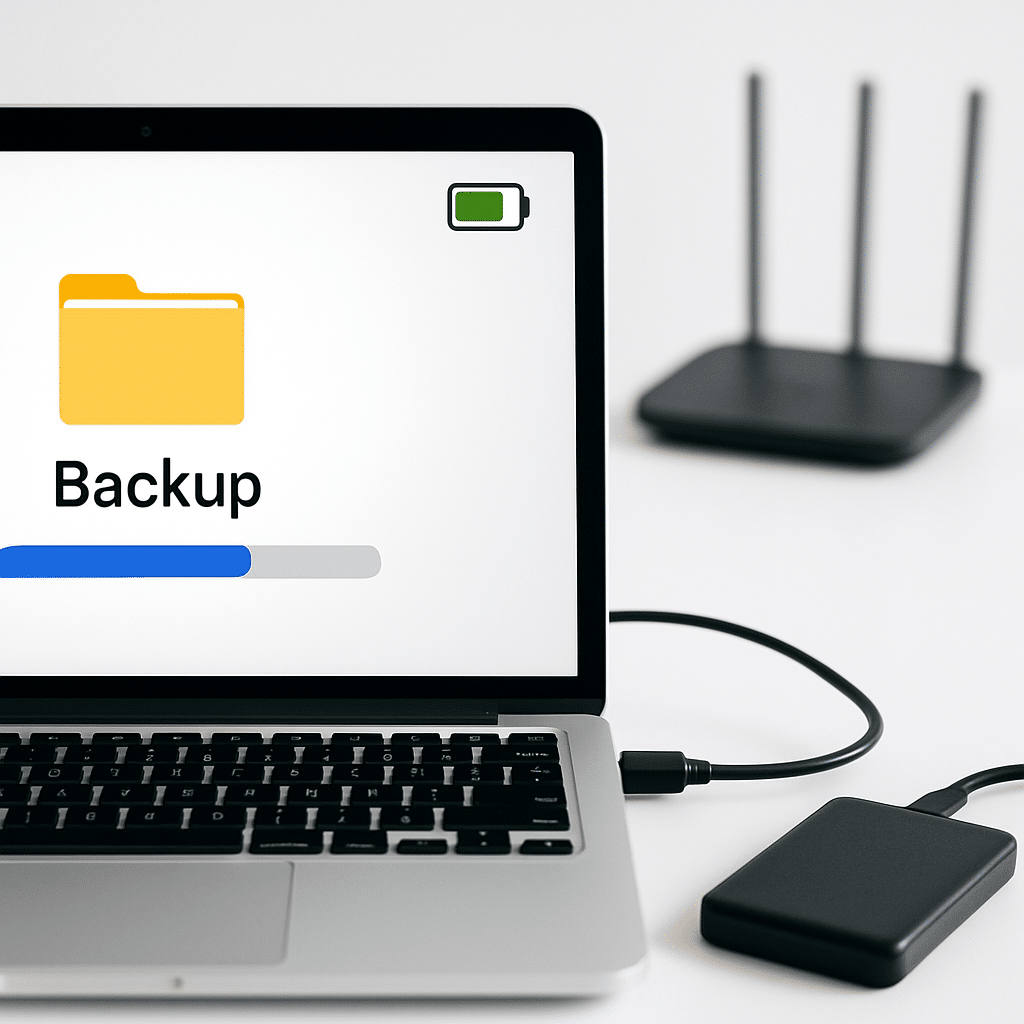
About to replace or service a battery in your laptop, phone, or tablet? Before you pick up a screwdriver or book an appointment, make a safe, complete backup. This guide walks you through quick and thorough backups on Windows, macOS, iOS, and Android, so your files, photos, and settings are protected if anything goes wrong.
Table of Contents
- Table of Contents
- Before You Start
- Quick Fix Steps
- Deeper Diagnosis
- Preventive Care
- When to Seek Help
- Conclusion
- Frequently Asked Questions
Before You Start
Backing up means making a second copy of your data in another place. You can back up to an external drive (a USB drive or hard drive you plug in) or to a trusted cloud account (online storage you sign into). Choose the method that feels easiest for you today.
- Prerequisites: Power adapter, stable internet (for cloud), an external drive with enough free space, and your account passwords.
- Time estimate: 30–90 minutes for most home users. Large photo/video libraries may take longer.
- Difficulty: Easy to Medium. You can do it step by step.
- What can go wrong: Not enough storage space, slow Wi‑Fi, a loose cable, or the device shutting off mid‑backup. We’ll help you avoid these.
Warning: Do not factory reset, edit the Windows Registry, or install unfamiliar “backup accelerator” tools you find online. These actions can cause data loss or security risks.
Note: If you plan to open your device for a battery swap, know that this can void warranties and risks damage from static electricity. If you are not confident, use a professional service.
Quick Fix Steps
- Plug in power. Charge your device to at least 50% and keep it on the charger. This prevents shutoffs during backup.
- Pick your backup destination. Use an external drive for a quick local copy, or your trusted cloud account for an online copy. If possible, do both for extra safety.
- Keep the device awake. Temporarily stop it from sleeping. This helps long backups finish.
- Windows/macOS: Move the mouse occasionally or adjust sleep settings for this session.
- iOS/Android: Turn off auto‑lock temporarily and keep the screen on while plugged in.
- Start a backup (follow your OS steps below).
Windows (PC)
- External drive: Connect the drive. Open
Control Panel > System and Security > File Historyand turn it on. Or useSettings > Accounts > Windows backupin newer versions. - Manual copy (quick): Open your user folders (Documents, Pictures, Desktop, Videos, Music). Copy them to a folder on the external drive named with today’s date.
- Cloud: Sign in to your cloud storage app. Move or sync important folders there.
macOS (Mac)
- External drive: Connect the drive. Go to
System Settings > Time Machine. Select your drive and click Back Up Now. - Manual copy (quick): Drag your user folders from
Finder > Hometo the external drive. - Cloud: Sign in to your cloud app and sync key folders.
iOS (iPhone/iPad)
- Cloud backup: Go to
Settings > [your name] > iCloud > iCloud Backup. Turn it on and tap Back Up Now while on Wi‑Fi and power. - Computer backup: Connect to a Mac (Finder) or PC (iTunes). Select your device and click Back Up Now. Choose encrypted backup if you want passwords and health data saved.
Android (Phone/Tablet)
- Cloud backup: Go to
Settings > System > Backup(orSettings > Accounts and backupon some devices). Turn on device backup and run it now on Wi‑Fi and power. - Computer/external copy: Connect with a USB cable. On the phone, allow file transfer. On your computer, copy the DCIM (photos/videos) and other important folders to an external drive.
- Verify a few files. Open your external drive or cloud app. Spot‑check that recent photos, documents, and important app data are present and open correctly.
- Safely finish up. Eject the external drive before unplugging. Write down where your backup lives (drive label or cloud account). Keep the drive in a safe, dry place.
Deeper Diagnosis
If your backup is slow, stops, or throws errors, work through these checks.
1) Confirm you have enough space
- Estimate your data size: Check Properties/Get Info on your Documents, Pictures/Photos, and Desktop folders.
- Check target free space: On the external drive or cloud account, confirm free space exceeds your data size by at least 10%.
2) Try a different cable, port, or Wi‑Fi
- USB: Switch to a different USB port or try another cable, especially if transfers pause or disconnect.
- Wi‑Fi: Move closer to your router (the box that creates your home Wi‑Fi network). For very large backups, consider an ethernet cable on computers.
3) Restart and retry
- Restart the device and, if used, the external drive (unplug/replug). Then start the backup again.
4) OS‑specific checks
Windows
- If File History fails, try a manual copy of key folders to the drive as a fallback.
- Optional size check via Command Prompt:
dir /s E:\BackupFolder(replace the path). Compare size to your user folders.
macOS
- If Time Machine is slow, let it run; the first backup is the longest. If it errors, choose a different external drive or make a manual copy.
- Optional size check via Terminal:
du -sh /Volumes/YourBackupDrive.
iOS
- Check last backup time in
Settings > [your name] > iCloud > iCloud Backup. If it’s old, plug in, join Wi‑Fi, and tap Back Up Now. - Computer backup stuck? Try a different USB cable/port and ensure the phone is unlocked and trusted.
Android
- Confirm backup status in
Settings > System > Backup. Turn on Wi‑Fi and power, then run a manual backup. - If file transfer fails, on your phone select File Transfer (MTP) when prompted, then try again.
5) Encrypted backups
- If you choose encryption, write down the backup password and keep it safe. Without it, you cannot restore.
Warning: If your external drive clicks loudly, disconnect it and do not keep trying. This can be a failing drive. Jump to When to Seek Help.
Preventive Care
Make backup a habit so future maintenance is stress‑free.
- Automate backups:
- Windows: Turn on File History or Windows Backup and leave the drive connected when possible.
- macOS: Enable Time Machine for hourly backups when the drive is connected.
- iOS/Android: Keep cloud backup on. Devices usually back up automatically when on Wi‑Fi and power.
- Follow 3‑2‑1: 3 copies of your data, on 2 different media, with 1 off‑site (cloud counts as off‑site).
- Update safely: Keep your OS and backup apps updated. Only download software from the official app store or the system’s built‑in tools.
- Care for drives: Eject before unplugging. Store drives away from heat and moisture. Run a disk check a few times per year.
- Battery care tie‑in: After battery service, confirm your clock, Wi‑Fi, and apps work. Run a quick post‑maintenance backup to capture any changes.
When to Seek Help
- Backups fail repeatedly, or you see errors like “disk failure,” “read‑only,” or “corrupted.”
- Your external drive makes new clicking/grinding sounds or disappears from your computer.
- You are locked out of your cloud account or lost two‑factor authentication access.
- You are unsure about opening your device for a battery swap. A professional can do both the backup and the battery safely.
Conclusion
Backing up before battery maintenance protects your photos, projects, and memories. You learned fast ways to copy your data, how to double‑check it, and how to set up safer routines. With a verified backup, you can proceed with confidence—whether you replace a battery yourself or hand the job to a pro.
Frequently Asked Questions
Do I really need a backup if I’m only calibrating the battery?
Yes. Even simple maintenance can go sideways. A quick backup takes less time than recovering lost data.
Which is better: cloud or external drive?
Both have strengths. External drives are fast and private at home. Cloud backups are off‑site and automatic. Using both is best.
How can I tell my backup actually worked?
Spot‑check by opening a few recent files from the backup. Confirm last backup times in your OS settings and compare folder sizes to your originals.
Can I back up a phone without Wi‑Fi?
Yes. Use a computer backup via a USB cable. It’s often faster for large photo libraries.
Leave a Reply