
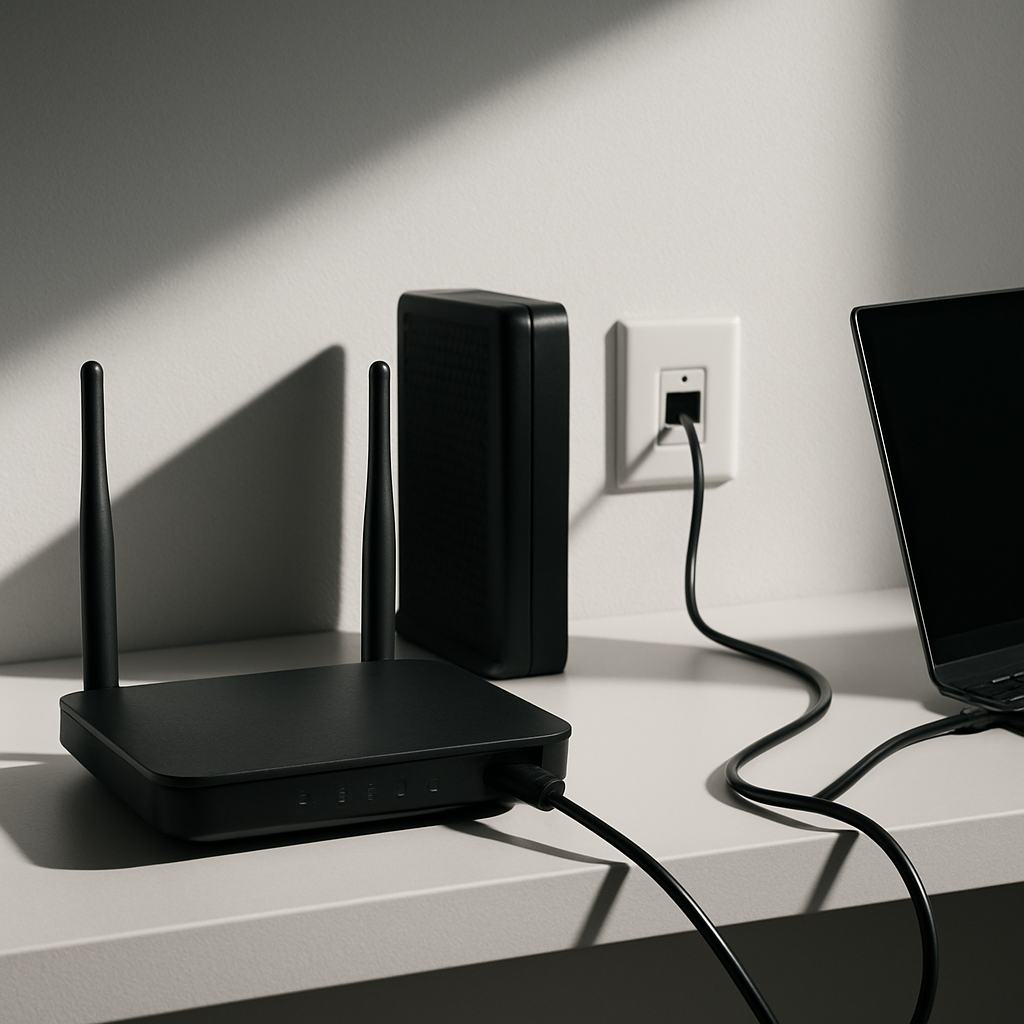
Just moved and your internet feels stuck in slow motion? You can fix most post-move Wi‑Fi issues with a few careful checks. This guide walks you through quick wins and deeper tests to get your home back up to speed. You will learn how to place your router (the box that creates your home Wi‑Fi network), test with a cable, spot wiring issues, and know when to call your internet provider.
Table of Contents
- Before You Start
- Quick Fix Steps
- Deeper Diagnosis
- Preventive Care
- When to Seek Help
- Conclusion
- Frequently Asked Questions
Before You Start
What you need: a phone or computer, your router and modem (the modem connects to the wall and brings internet in), and an Ethernet cable (looks like a thick phone cable with a clip). Keep your Wi‑Fi password handy.
- Time estimate: 20–60 minutes for quick fixes; up to 90 minutes for deeper checks.
- Difficulty: Easy to Medium.
- What can go wrong: unplugging the wrong cable; changing settings and forgetting them; doing a factory reset and losing your configuration.
Warning: Avoid factory resets or “network reset” features until you finish the safe steps below. These actions erase saved settings and passwords.
Quick Fix Steps
- Power-cycle in the right order. Unplug power from the modem and router. Wait 60 seconds. Plug in the modem and wait for solid “online” lights. Then plug in the router and wait 2 minutes. Test again.
- Place the router well. Put it high, in the open, and near the center of your home. Keep it away from thick walls, metal, microwaves, and cordless bases. Avoid closets and cabinets. Tip: If you can see the router from where you use Wi‑Fi, speeds are usually better.
- Try a wired test. Connect a laptop to a LAN port on the router with an Ethernet cable. Run an internet speed test (search your browser for “speed test”). If wired speed is fine but Wi‑Fi is slow, focus on placement and wireless settings.
- Reconnect your devices. On your phone or laptop, forget the old network and join the correct one in your new home. Double-check the password. If your router shows both 2.4 GHz and 5 GHz names, use 5 GHz when you are close, and 2.4 GHz for longer range.
- Pause heavy apps. Stop cloud backups, streaming, or game updates during testing. These can hide the real issue. Test again afterward.
- Temporarily turn off VPNs and security tunnels. These can slow traffic. Disable them just for testing, then turn them back on.
- Check cables and jacks. Finger-tighten coax or fiber connectors. Make sure the internet/ONT wall jack is the one your provider activated. WAN (internet) cable should go into the router’s WAN/Internet port, not a LAN port.

Deeper Diagnosis
1) Read your modem and router lights
Normal: power solid, downstream/upstream solid or blinking briefly, online/internet solid, Wi‑Fi blinking with activity. If the online light never goes solid, the problem is on the provider side or the wall wiring.

Note: After moving, your modem or fiber terminal may need to be reactivated for the new address. Call your provider if lights look wrong.
2) Run controlled speed tests
- Close all apps that use bandwidth.
- Use a wired Ethernet test first. Run 2–3 tests at different times of day.
- Then test on Wi‑Fi from the same room as the router, and again from a far room. Compare results.
Tip: Write down plan speed, wired speed, and Wi‑Fi speed. This points to whether the issue is the line from your provider, the router, or just signal reach.
3) Find your router’s address and check status
You will log in to the router’s admin page to confirm it sees the internet and to adjust Wi‑Fi settings if needed.
Windows
- Press Windows Key + R, type
cmd, press Enter. - Type
ipconfigand press Enter. Look for “Default Gateway” (for example,192.168.0.1). - Enter that address in your browser. Sign in with your router credentials.
macOS
- Apple menu > System Settings > Network > Wi‑Fi > Details.
- Open TCP/IP. Note the “Router” address.
- Enter it in your browser. Sign in.
iOS (iPhone/iPad)
- Settings > Wi‑Fi > tap the “i” next to your network.
- Find “Router”. Enter it in your browser on a device connected to the network.
Android
- Settings > Network & Internet > Internet (or Wi‑Fi) > tap your network.
- Advanced or Details > Gateway. Enter it in your browser.
In the admin page, confirm WAN/Internet status is “Connected.” Check for firmware updates, and apply them during a quiet time. In Wi‑Fi settings, try:
- Set 2.4 GHz channel to 1, 6, or 11 (whichever is least crowded).
- Set 5 GHz to a mid channel (for example, 36–48) if you have interference.
- Use WPA2 or WPA3 security. Avoid WEP.
Warning: Do not click “Factory Reset” unless you have a full backup of settings and your login details. You could lose internet access until reconfigured.
4) Fix device network settings
Windows
- Forget and rejoin Wi‑Fi: Settings > Network & Internet > Wi‑Fi > Manage known networks.
- Clear DNS cache: open Command Prompt and run
ipconfig /flushdns. - Renew your address:
ipconfig /releasethenipconfig /renew. - Warning: “Network reset” (Settings > Network & Internet > Advanced network settings > Network reset) removes adapters and Wi‑Fi passwords. Use only if other steps fail.
macOS
- Forget and rejoin: System Settings > Network > Wi‑Fi > Known Networks.
- Renew address: System Settings > Network > Wi‑Fi > Details > TCP/IP > Renew DHCP Lease.
- Keep DNS on Automatic unless you know you need manual DNS.
iOS
- Settings > Wi‑Fi > tap “i” > Forget This Network. Rejoin.
- Warning: Reset Network Settings (Settings > General > Transfer or Reset > Reset) erases all saved Wi‑Fi and VPNs. Use only as a last resort.
Android
- Settings > Network & Internet > Internet (or Wi‑Fi) > your network > Forget. Rejoin.
- Warning: Reset network settings clears Wi‑Fi, mobile, and Bluetooth settings. Use only if other steps fail.
To test basic connectivity, you can ping a public address. On Windows use ping -n 4 1.1.1.1. On macOS/Linux use ping -c 4 1.1.1.1. You should see replies with low times.
5) Spot interference and building issues
- New neighbors can crowd channels. Change channels as noted above.
- Use 5 GHz for speed near the router. Use 2.4 GHz for distance through walls.
- Thick walls, metal, and floors block Wi‑Fi. Move the router or add a second access point for coverage.
6) Verify wiring and activation after the move
- Make sure the correct wall jack is live. Try another jack if available.
- Coax: hand‑tighten both ends. Ethernet: click fully into place. Fiber: do not bend sharply.
- If your provider uses a separate modem or optical terminal, confirm its power and status lights.
- If you are using both a provider’s gateway and your own router, ask support to put the gateway in bridge mode or set your router to access point mode to avoid double NAT and slowdowns.
Preventive Care
- Keep router firmware and device OS updated. Enable auto‑update where available.
- Use strong, unique admin and Wi‑Fi passwords. Store them in a safe place.
- Label cables and wall jacks now, while you remember where each goes.
- Place the router on a shelf with airflow. Heat can reduce performance.
- Back up important files regularly so brief outages do not cause data loss.
- Use a surge protector to protect networking gear from spikes.
When to Seek Help
- No solid “online” light on the modem after a full reboot sequence.
- Wired speed is consistently under about 70% of your plan across multiple times of day.
- Frequent drops (more than a few per day) even with good wiring and placement.
- You cannot log in to the router and do not know the admin password.
- Your router is 5+ years old and cannot meet your plan speed on wired tests.
- Building wiring appears damaged or inactive. Contact your ISP or property management.
Tip: When calling your provider, have this ready: your plan speed, wired and Wi‑Fi test results, modem model, and what the lights show.
Conclusion
After a move, slow internet is usually placement, wiring, or activation—not your devices. You learned to power‑cycle correctly, test with Ethernet, read modem lights, adjust Wi‑Fi channels, and verify jacks. If speeds are still low on a wired test, contact your provider with your notes. With these steps, most homes get back to full speed without risky resets.
Frequently Asked Questions
What is the difference between a modem and a router?
The modem connects your home to the internet through the wall jack. The router creates your private Wi‑Fi and routes traffic between your devices and the modem.
Should I use 2.4 GHz or 5 GHz?
Use 5 GHz for higher speeds near the router. Use 2.4 GHz for longer range through walls. If both share one network name, your router may pick automatically.
Is a factory reset a good idea?
Only as a last resort. It erases your settings and can leave you offline. Try this guide first, then contact support for safe reset instructions if needed.
Do I need mesh Wi‑Fi now that I moved?
If one router cannot cover your new space, a second access point or a mesh system can help. Test placement and channels first to see if that solves it.
Leave a Reply