
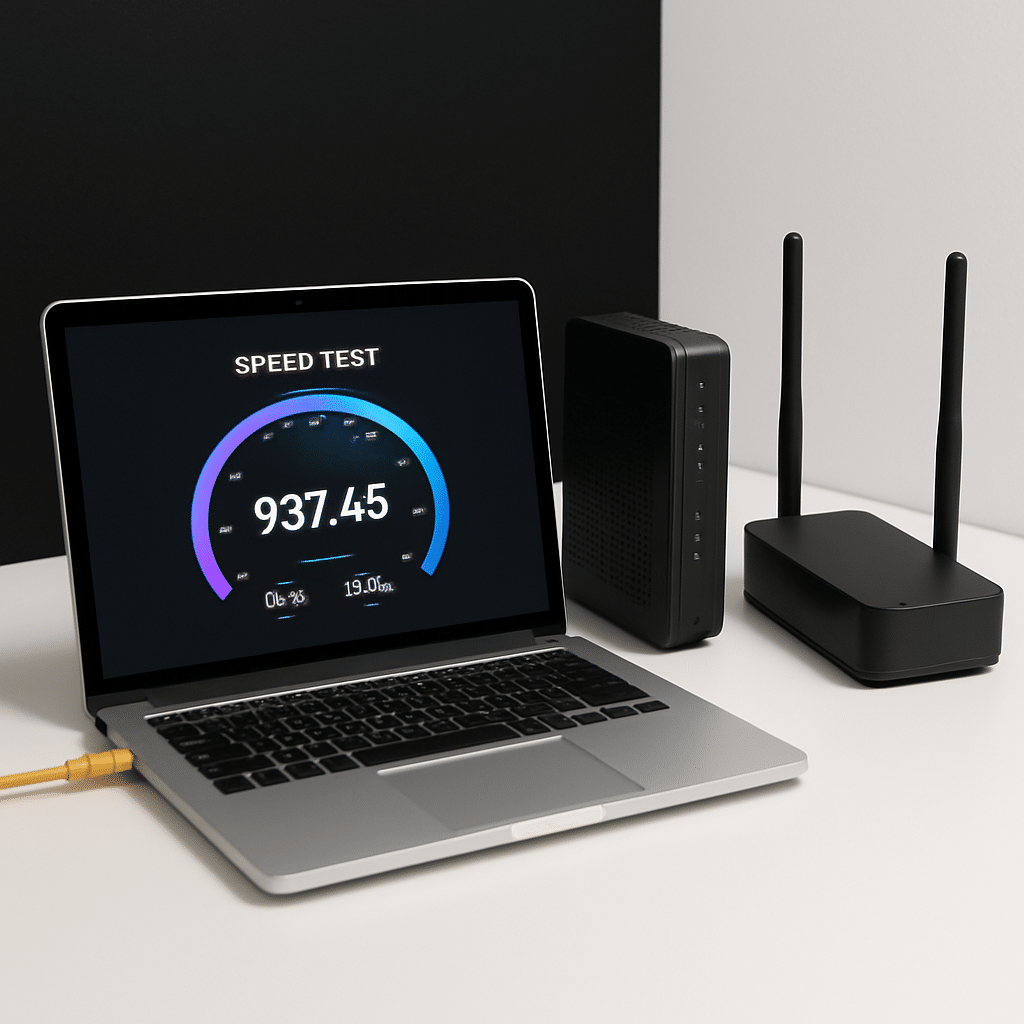
Your internet feels slow, but is it really? Many common speed myths lead to bad fixes and wasted money. In this guide, you will safely test your connection, spot what truly limits speed, and debunk myths with simple, repeatable checks. By the end, you will know what to try, what to ignore, and when to call for help.
Table of Contents
- Table of Contents
- Before You Start
- Quick Fix Steps
- Deeper Diagnosis
- Preventive Care
- When to Seek Help
- Conclusion
- Frequently Asked Questions
Before You Start
Router: the box that creates your home Wi‑Fi network. Modem: the box from your internet provider that connects to the wall. Some homes have a single box that does both.
What you need
- A device with a web browser (computer or phone).
- An Ethernet cable for a wired test (if your device has an Ethernet port or adapter).
- Your internet plan speed (check your bill or account).
- Optional: your router’s admin address (often
http://192.168.1.1orhttp://192.168.0.1).
Time and difficulty
- Time: 20–45 minutes.
- Difficulty: Easy to Medium.
What can go wrong
- Testing over busy Wi‑Fi and blaming your internet service.
- Running a single test and assuming it applies to all times of day.
- Changing advanced router options without notes to undo.
Warning: Do not factory reset your modem or router unless told by your provider or you have a full backup of settings. A reset can break your connection and remove custom Wi‑Fi names and passwords.
Quick Fix Steps
-
Run a clean speed test (myth: “Wi‑Fi speed equals internet speed”)
Close streaming apps, large downloads, and cloud backups. If possible, connect your computer to the router with an Ethernet cable. In your browser, search for “internet speed test” and use any reputable test. Run it twice.
Tip: Wired results show your true internet speed. Wi‑Fi can be slower than your plan due to distance, walls, or interference.
-
Power cycle your modem and router
Unplug power from the modem and the router. Wait 30 seconds. Plug in the modem first and wait for lights to stabilize (2–3 minutes). Then plug in the router and wait another 2 minutes. Test again.
-
Move closer and switch bands (myth: “2.4 GHz is always better”)
Stand near the router and test on Wi‑Fi. If your router offers multiple Wi‑Fi names or bands, try the 5 GHz or 6 GHz band for speed, and 2.4 GHz for longer range. Pick the one that balances speed and coverage for your spot.
-
Pause heavy use on other devices
Streaming, game updates, and backups can eat bandwidth. Temporarily pause them. Run the test again. Note the difference.
-
Update software
Update your device’s operating system. Check your router’s admin page for firmware updates. Only download firmware from your router’s built‑in update tool.
Warning: Avoid “speed booster” apps or random installers. They rarely help and can be unsafe.
Deeper Diagnosis
Check modem and router lights
- Look for “Online/Internet” lights on the modem and “WAN/Internet” on the router. Solid (not blinking error) is good.
- Blinking activity lights are normal. A red or off “Internet” light suggests an outage or line issue.
Compare wired vs. Wi‑Fi speeds
- If wired speed is near your plan (for example, 80–100% of rated speed), but Wi‑Fi is much lower, your internet is fine. The bottleneck is Wi‑Fi coverage or device limits.
- If both wired and Wi‑Fi are low, the issue may be with your modem, ISP, or network congestion.
Open the router admin page (read‑only checks)
- In a browser, go to
http://192.168.1.1orhttp://192.168.0.1. Sign in with your saved credentials. - Look for Status or Internet/WAN pages. Note connection type, uptime, and any errors.
- Note: Do not change advanced settings unless you write down the original values. Skip features labeled experimental or beta.
Verify your Wi‑Fi link speed on each device
Link speed is your device’s Wi‑Fi connection rate to the router. It is the ceiling for your Wi‑Fi speed. It is not always the same as your internet plan speed.
Windows
- Right‑click Start > Task Manager > Performance > Wi‑Fi to see “Link speed.”
- Or run
netsh wlan show interfacesin Command Prompt to see “Receive rate (Mbps).” - Settings path:
Settings > Network & Internet > Wi‑Fi > Hardware properties.
macOS
- Hold Option and click the Wi‑Fi icon in the menu bar to see the PHY rate (your link speed) and band.
- In Terminal, run
networkQualityfor a simple speed and responsiveness test. - Settings path:
System Settings > Wi‑Fi > Details.
iOS
- Go to Settings > Wi‑Fi > tap the “i” next to your network. Note signal strength and band if shown. Then run a browser speed test.
- Stand near the router and test again to compare.
Android
- Settings > Network & Internet > Internet > tap your Wi‑Fi. Look for “Link speed” and frequency (2.4/5/6 GHz).
- Run a browser speed test and compare to link speed.
Debunk a few myths with quick tests
- Myth: More Wi‑Fi bars = fast internet. Bars show signal strength, not your plan speed. Test near and far from the router. If speed drops with distance, Wi‑Fi coverage is the issue.
- Myth: A VPN always speeds things up. VPNs often add overhead. Test with VPN off and on. If it is slower with VPN, that is normal.
- Myth: Changing DNS boosts download speed. DNS can make websites start loading faster, but it rarely changes large download rates. Time how quickly pages begin loading, not just raw Mbps.
- Myth: One test is enough. Run 3 tests at different times (morning, afternoon, evening). Average them for a fair result.
Record your findings
- Write down: Plan speed, wired average, Wi‑Fi average near router, Wi‑Fi average far from router, time of day.
- This separates ISP issues (low wired) from Wi‑Fi issues (low Wi‑Fi only).
Preventive Care
- Place your router well: Central location, eye‑level or higher, away from thick walls and metal. Avoid inside cabinets.
- Use better bands wisely: Use 5 GHz or 6 GHz for speed near the router. Use 2.4 GHz for longer range when needed.
- Keep software updated: Enable automatic updates on devices. Check router firmware in its admin page monthly.
- Prefer Ethernet where possible: TVs, consoles, and desktops work great on wired. This leaves more Wi‑Fi for mobile devices.
- Secure your Wi‑Fi: Use WPA2 or WPA3 encryption and a strong password. Disable WPS if you do not use it.
- Avoid “miracle” speed apps: They rarely help and can be unsafe. Stick to built‑in tools.
- Consider better coverage: For large homes, a mesh Wi‑Fi system covers more evenly than single‑plug extenders.
When to Seek Help
- Call your ISP if wired speeds are below about 80% of your plan across multiple tests and devices, or your modem’s Internet light is red/off.
- Contact your ISP if you see frequent evening slowdowns every day. It may be network congestion they must fix.
- Ask a local tech if Wi‑Fi is weak in parts of the home and you need help with placement, wiring, or mesh setup.
- Replace aging hardware if your router or modem is over 5–7 years old and caps your speeds below your plan (for example, 100 Mbps routers on a 300 Mbps plan).
Warning: Before replacing equipment, confirm with wired tests that your current gear is the bottleneck. New hardware will not fix an ISP outage.
Conclusion
You tested your connection the right way: clean, repeatable, and with both wired and Wi‑Fi. You learned that Wi‑Fi bars and internet speed are not the same, VPNs rarely make things faster, and one test does not tell the whole story. With your notes, you can decide whether to improve Wi‑Fi coverage, use Ethernet, or call your ISP. Keep your gear updated and your router well placed, and you will enjoy steadier, faster everyday internet.
Frequently Asked Questions
Is Wi‑Fi speed the same as my internet speed?
No. Wi‑Fi speed is your device’s wireless link to the router. Internet speed is what your home gets from the provider. A slow Wi‑Fi link can hide a fast internet plan.
Will a new router double my speed?
Only if your current router is the bottleneck. If wired tests are fast but Wi‑Fi is slow, a better‑placed or newer router can help. If wired is slow, call your ISP first.
Can a VPN make my internet faster?
Usually no. VPNs add extra hops and encryption, which often reduces speed. Use them for privacy needs, not as a speed boost.
Do I need to change DNS to get better speeds?
Changing DNS may make websites start loading faster, but it will not raise your maximum download/upload rates. Focus on wired tests to judge true plan speed.
Leave a Reply