
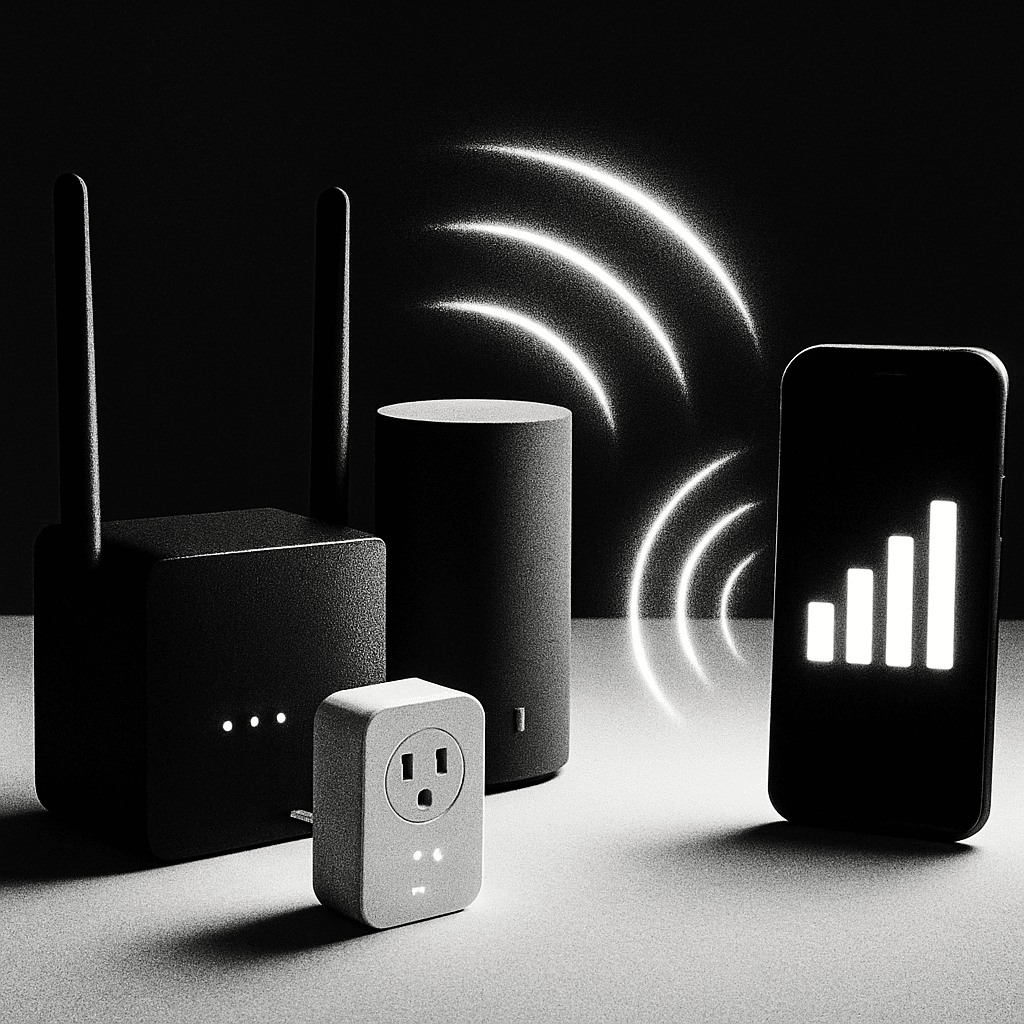
Dead zones, slow streams, or dropped calls at home? This guide helps you decide between a mesh system, a Wi‑Fi extender, or powerline adapters—and set them up the right way. You’ll learn what each option does, how to test your home, and the exact steps to get faster, more reliable Wi‑Fi with minimal fuss.
Table of Contents
- Before You Start
- Quick Fix Steps
- Choose: Mesh vs Extender vs Powerline
- Deeper Diagnosis
- Placement and Setup Basics
- Preventive Care
- When to Seek Help
- Conclusion
- Frequently Asked Questions
Before You Start
Key terms: Router: the box that creates your home Wi‑Fi network. Modem: the box that connects your home to your internet provider. Mesh system: several small routers (nodes) working together as one network. Extender: a device that repeats your router’s signal to reach farther. Powerline adapter: a pair of plugs that send data through your home’s electrical wiring, optionally creating a Wi‑Fi point at the far end.
- What you need: A phone or laptop, your Wi‑Fi name and password, access to power outlets, and 20–60 minutes.
- Difficulty: Easy to Medium.
- What can go wrong: Slower speeds if devices are placed poorly, interference from walls/appliances, or choosing gear that doesn’t fit your home layout.
- Safety: Avoid factory reset on your router unless you have your internet login details and a backup of settings. It erases your network.
Quick Fix Steps
- Power-cycle the basics. Unplug the modem and router for 30 seconds. Plug in the modem, wait 2 minutes, then plug in the router and wait 2 minutes.
- Move the router. Place it high, central, and in the open (not in a cabinet). Keep it away from microwaves, cordless bases, and thick brick walls.
- Check bands. Try 5 GHz (faster, shorter range) when near the router and 2.4 GHz (slower, longer range) for distant rooms.
- Update firmware. Log in to your router’s admin page and check for updates. Warning: Do not interrupt power during updates.
- Test your baseline. Stand 1–2 meters from the router and run a speed test. Note the result. Compare it to the slow room. If near-router speed is already low, contact your internet provider first.
Windows
- Forget and reconnect Wi‑Fi: Settings > Network & Internet > Wi‑Fi > Manage known networks > select your network > Forget. Reconnect using your password.
- Find your router’s IP: Open Command Prompt and run
ipconfig. Look for “Default Gateway.”
macOS
- Forget and reconnect: System Settings > Wi‑Fi > Details (next to your network) > Forget This Network. Reconnect.
- Find your router’s IP: Terminal > run
netstat -nr | grep default. Note the gateway address.
iOS (iPhone/iPad)
- Forget and reconnect: Settings > Wi‑Fi > tap the “i” > Forget This Network. Rejoin and test again.
Android
- Forget and reconnect: Settings > Network & Internet > Internet > your Wi‑Fi > Forget. Reconnect and test.
Choose: Mesh vs Extender vs Powerline
Mesh: Best for whole-home coverage
- Use it if you have a medium to large home, multiple floors, or want seamless roaming with one network name.
- Pros: Consistent coverage, easy expansion, one SSID. Often supports “wired backhaul” if you can run Ethernet to nodes for top speeds.
- Cons: Higher cost; placement matters.
Extender: Best for a single dead zone near the router
- Use it if you have good Wi‑Fi in most of the home but one trouble area that’s not too far from the router.
- Pros: Inexpensive, quick to set up.
- Cons: Often cuts speed in half if it repeats on the same band; may create a second network name; roaming can be clunky.
Powerline: Best when walls kill Wi‑Fi
- Use it if thick walls, metal, or long distances block wireless, and you have power outlets on the same electrical system.
- Pros: Stable connection over wiring; can add a Wi‑Fi access point or use a powerline kit with built-in Wi‑Fi at the far end.
- Cons: Speed depends on wiring quality; avoid surge protectors and GFCI/AFI circuits for best performance.
Quick picker:
- One small dead spot near the router (same floor): Try an extender.
- Big home, multiple floors, want one simple network: Choose mesh.
- Thick walls or far garage/office; Wi‑Fi won’t reach: Try powerline with a Wi‑Fi unit at the remote end.
Deeper Diagnosis
- Check modem and router lights. Solid power and internet lights are good. Blinking error or no light? Call your internet provider first.
- Measure each room. Near the router, run 2–3 speed tests and average them. Do the same in the problem room. If the problem room has less than 30–50% of near-router speed, you likely need mesh, an extender, or powerline.
- Note obstacles. Brick, stone, metal ducting, and floors can block signals. Microwaves and cordless phones can interfere on 2.4 GHz.
- Check router settings (advanced but safe). Log in to the router admin page using your default gateway (for example, http://192.168.0.1 or http://192.168.1.1). Look for “Wireless” or “Wi‑Fi” settings. Ensure your network uses WPA2 or WPA3 security and both 2.4 GHz and 5 GHz bands are enabled.
- Warning: Avoid “factory reset” unless basic steps fail and you have your ISP details. A factory reset erases Wi‑Fi names and passwords.
Placement and Setup Basics
Mesh setup
- Place the main node next to your modem or your existing router (if keeping it as the gateway). If your mesh supports it, connect nodes with Ethernet for best speeds (called “wired backhaul”).
- Place extra nodes halfway between the router and dead zones. Keep them in the open, chest height or higher, 1–2 rooms apart.
- Use the app or web setup wizard. Create one Wi‑Fi name and password for all nodes. Update firmware after setup.
- Test again in each room. Move a node a few feet if needed to improve the weak area.
Extender setup
- Plug the extender at the edge of the router’s good coverage (not in the dead zone). If your phone shows 2–3 bars of Wi‑Fi there, that’s good.
- Connect to the extender’s setup network and follow the wizard. Prefer using 5 GHz for the link to the router if available.
- Name the extended network clearly (for example, add “-EXT” to the end) unless your extender supports seamless roaming.
- Retest speeds in the target room. If slow, move the extender closer to the router.
Warning: Avoid WPS push-button setup if possible. It’s less secure than entering your Wi‑Fi password manually.
Powerline setup
- Plug one adapter into a wall outlet (not a surge strip) near the router. Connect it to the router with Ethernet.
- Plug the second adapter into a wall outlet in the target room. Press the “pair” button on both units if required.
- If your second adapter includes Wi‑Fi, set the network name and password. Otherwise, connect a small access point or device by Ethernet.
- Test speeds. Try different outlets in the same room; some circuits are faster than others.
Tip: For multi-floor homes, try placing mesh nodes on stairs/landings or plugging powerline on the same electrical phase when possible.
Preventive Care
- Update firmware for routers, mesh nodes, extenders, and powerline units every few months using their app or web admin.
- Use strong, unique passwords. Keep a written note in a safe place or a password manager.
- Download installers and manuals only from the official manufacturer website. Warning: Avoid driver/update tools from unknown sites.
- Keep devices cool and dust-free. Overheating reduces performance.
- Label your networks clearly (for example, “Home-2G” and “Home-5G”) if you need to pick bands manually.
When to Seek Help
- If near-router speeds are under 70% of your plan consistently, contact your internet provider.
- If your modem or router shows error lights or frequent disconnects, call your provider for line checks.
- If powerline speeds are very low in all outlets, consult an electrician to assess wiring or try a different technology (mesh).
- If setup fails after two attempts, contact the device’s support. Keep your receipt—some homes need a different solution.
Conclusion
Pick the tool that matches your home: an extender for one nearby dead spot, mesh for whole-home coverage and roaming, or powerline when walls block Wi‑Fi. Place devices carefully, update firmware, and test after each change. With the right choice and smart placement, you’ll enjoy smooth streaming and strong signals in every room.
Frequently Asked Questions
Can I mix mesh with an extender?
It’s possible but not ideal. Most mesh systems work best with their own nodes. If you need more coverage, add another mesh node or use Ethernet/powerline to feed a separate access point.
Is powerline secure?
Yes, powerline adapters encrypt traffic between paired units. Only paired adapters on your wiring can read the data. Always use the pair button and set a unique encryption key if the software offers it.
Should I keep 2.4 GHz and 5 GHz as one name?
For simplicity, one name works on many modern systems (“band steering”). If devices struggle to connect or roam, separate them into “-2G” and “-5G” so you can pick the best band manually.
What’s faster: extender, mesh, or powerline?
Mesh with wired backhaul is usually fastest. Wireless mesh or extenders can be fast if placed well. Powerline speeds vary with wiring but can beat Wi‑Fi through thick walls. Test to confirm.
Leave a Reply