
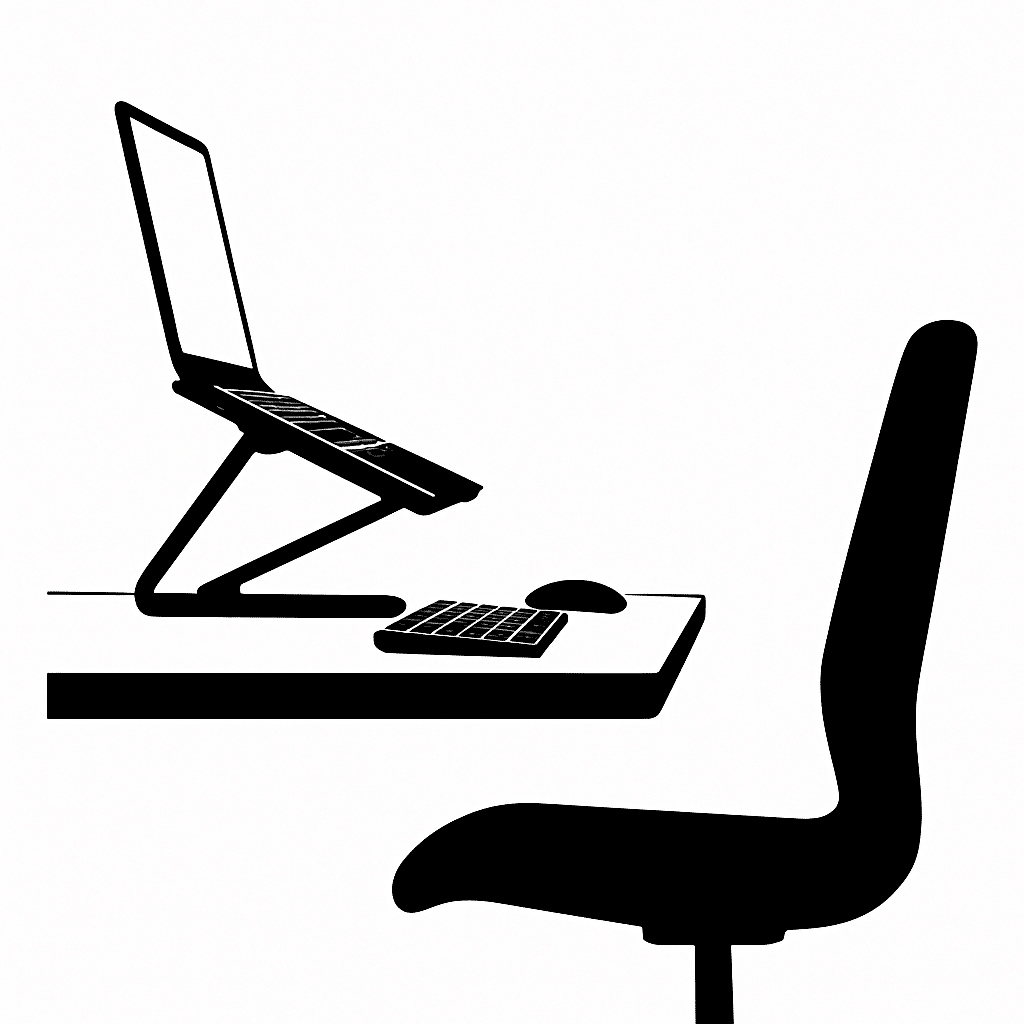
Your laptop can be comfy to use all day without a stiff neck or tired eyes. In this guide, you’ll set up your screen, seating, and settings step by step. By the end, you’ll have a simple, repeatable setup that keeps your body and eyes happier.
Table of Contents
- Before You Start
- Quick Fix Steps
- Set Up Your Physical Workspace
- Tune Your Display for Comfort
- Keyboard, Mouse, and Touchpad Comfort
- Healthy Habits and Breaks
- Deeper Diagnosis
- Preventive Care
- When to Seek Help
- Conclusion
- Frequently Asked Questions
Before You Start
Goal: Set up your laptop so your neck stays neutral (not bent) and your eyes relax. You’ll adjust your desk, chair, screen, and display settings. No special tools required.
What you’ll need
- Flat, stable surface (desk or table).
- Chair with height adjustment (or cushions to raise yourself).
- Laptop stand or a few sturdy books to raise the screen.
- External keyboard and mouse (recommended for best posture).
- Optional: External monitor and a tape measure.
Time and difficulty
- Time: 30–60 minutes for first setup; 5 minutes to fine-tune later.
- Difficulty: Easy to Medium.
What can go wrong
- Screen too low/high causing neck strain.
- Glare or too-bright screen causing eye strain.
- Unstable stacks of books leading to tip-overs.
Warning: Do not stack your laptop on wobbly piles. Use a stable stand or a short, wide stack of sturdy books. Avoid lifting heavy monitors alone.
Quick Fix Steps
- Raise the laptop so the top of the screen is at or just below eye level. Use a stand or books. Keep the screen about an arm’s length away (roughly 50–75 cm).
- Use an external keyboard and mouse so your wrists are level and your shoulders relaxed. Place them close to your body.
- Set text size to be readable at a glance. Increase “Scale” or “Zoom” until you can read headlines without leaning in.
- Adjust brightness to match the room. Not brighter than nearby paper. Reduce contrast with dim rooms.
- Turn on night/blue-light reduction in the evening to ease eye strain.
- Kill glare: move lamps behind and to the side, not facing the screen. Close blinds or tilt the screen slightly.
- Start the 20-20-20 rule. Every 20 minutes, look at something 20 feet (6 m) away for 20 seconds.
Set Up Your Physical Workspace
Chair and body position
- Sit back with your lower back supported. Use a cushion if needed.
- Feet flat on the floor or on a footrest (a box works). Knees about level with hips.
- Shoulders relaxed, elbows near your sides, forearms roughly parallel to the floor.
Screen height and distance
- Top of screen at or slightly below eye level. Eyes look slightly downward to the middle of the screen.
- Distance: about an arm’s length. If you lean forward to read, increase text size or move the screen closer.
External devices
- Place keyboard so the B key lines up roughly with your belly button. Keep it flat; tilt can increase wrist bend.
- Mouse close to the keyboard at the same height. Consider a mouse mat with a wrist rest if it helps.
- External monitor: place directly in front, same height as your laptop screen when used alone.
Tune Your Display for Comfort
Use these quick paths. They’re safe to change and easy to undo.
Windows
- Text size and scale:
Settings > System > Display > Scale. Try 125%–150%. - Brightness:
Settings > System > Display > Brightness. Match room light. - Night mode:
Settings > System > Display > Night light. Schedule for evenings. - ClearType (sharper fonts): Open Start and search “ClearType,” then follow the steps.
- Refresh rate (external monitor):
Settings > System > Display > Advanced displayand choose a higher rate if available (e.g., 75 Hz or 120 Hz).
macOS
- Text size/scale:
System Settings > Displays > More Space/Larger Text. Pick a comfortable option. - Brightness: Use the keyboard keys or
System Settings > Displays. - Night Shift:
System Settings > Displays > Night Shift. Schedule for evenings. - True Tone (if available):
System Settings > Displaysand toggle on to match ambient light. - Refresh rate (external monitor):
System Settings > Displays > Refresh Rate.
Extra tips
- Use dark mode if bright backgrounds bother your eyes. Switch back if text looks fuzzy.
- Keep your screen clean. Smudges add glare. Use a soft microfiber cloth, dry or lightly dampened.
Note: Avoid third-party “driver” or “tuning” utilities. Use the built-in settings above. Warning: Do not edit system files or the registry for display tweaks.
Keyboard, Mouse, and Touchpad Comfort
Windows
- Pointer speed:
Settings > Bluetooth & devices > Mouse. Adjust until small wrist moves reach the whole screen. - Touchpad sensitivity:
Settings > Bluetooth & devices > Touchpad. Reduce accidental taps if they bother you. - Sticky keys/filters (if needed):
Settings > Accessibility > Keyboard.
macOS
- Pointer speed:
System Settings > MouseorTrackpad. - Tap to click and tracking:
System Settings > Trackpad. Pick what feels natural. - Keyboard repeat and delay:
System Settings > Keyboard.
Keep wrists straight, not bent up or down. If your desk is high, use a wrist rest or raise your chair and add a footrest.
Healthy Habits and Breaks
- 20-20-20 rule: Every 20 minutes, look at something 20 feet (6 m) away for 20 seconds.
- Blink often. If your eyes feel dry, use preservative-free lubricating drops as directed on the label.
- Micro-breaks: Stand, roll shoulders, and stretch your neck every 30–60 minutes for 1–2 minutes.
- Light the room evenly. Avoid a bright window directly behind or in front of the screen.
- Use simple timers: set repeating reminders in your device’s Clock/Alarms or Calendar app.
Tip: If you use multiple screens, put your main work on the screen directly in front of you and at the best height.
Deeper Diagnosis
Check your measurements
- Eye-to-screen distance: aim for 50–75 cm (about arm’s length). If you squint, increase text size.
- Screen height: top edge at or slightly below eye level. Adjust stand height or add/remove a book.
- Forearm angle: roughly parallel to the floor when typing. Adjust chair height accordingly.
Hunt down glare and flicker
- Mirror test: if you can see a bright reflection of a lamp/window, change the screen angle or move the light.
- Auto-brightness: If your screen “pulses” or changes brightness, turn off automatic brightness.
Windows: turn off adaptive brightness
- Go to
Settings > System > Display. Turn off options like “Change brightness automatically when lighting changes.” - If on battery saver, check
Settings > System > Power & batteryand disable any auto-dim features that bother you.
macOS: steady brightness
- Go to
System Settings > Displaysand turn off “Automatically adjust brightness” if it distracts you.
Check refresh rate (external monitors)
- Windows:
Settings > System > Display > Advanced displayand choose a higher rate if available. - macOS:
System Settings > Displays > Refresh Rate.
Try readability aids
- Windows:
Settings > Accessibility > Text sizeandSettings > Accessibility > Contrast themes. - macOS:
System Settings > Accessibility > Display(increase contrast, reduce transparency).
Note: If you wear glasses, ask your optician about “computer” lenses set for your screen distance. Small changes can reduce strain.
Preventive Care
- Weekly: Wipe the screen with a microfiber cloth. Reset your chair and stand height if they drift.
- Monthly: Recheck your screen distance and text size. Your tasks may change; update settings to match.
- Evenings: Use Night light/Night Shift on a schedule to ease evening eye strain.
- Lighting: Replace harsh bulbs with warm, diffused light. Keep a desk lamp angled away from the screen.
- Software: Keep your operating system updated via built-in updates. Warning: Avoid downloading “tweak” tools from unknown sites.
For more ergonomic basics, see this plain-language overview from a safety agency: Office ergonomics tips (CCOHS).
When to Seek Help
- Pain, numbness, or headaches last more than 1–2 weeks despite these changes: consult a healthcare professional.
- Severe eye strain, blurred vision, or regular migraines: see an eye care professional.
- Screen flickers, shows lines, or brightness control fails: contact the device maker’s support or a trusted repair shop.
- External monitor won’t reach a comfortable height even with a stand: consider a monitor arm or a different stand.
Conclusion
A few simple changes can make a big difference: raise your screen, size up your text, soften your light, and take regular breaks. Save your setup notes so you can recreate it anywhere. Your neck and eyes will thank you.
Frequently Asked Questions
Do I need an external monitor?
No, but it helps. If you use only a laptop, a stand plus external keyboard and mouse can mimic a desktop setup for good posture.
What text size is best?
Use the largest size that you can read at arm’s length without leaning forward. Most people prefer 125%–150% scaling.
Is night/blue-light mode necessary?
It can feel easier on the eyes in the evening. Try it on a schedule. If colors look odd for your work, turn it off temporarily.
How far should the screen be?
About 50–75 cm (arm’s length). If you squint, increase text or move the screen slightly closer.
Leave a Reply