
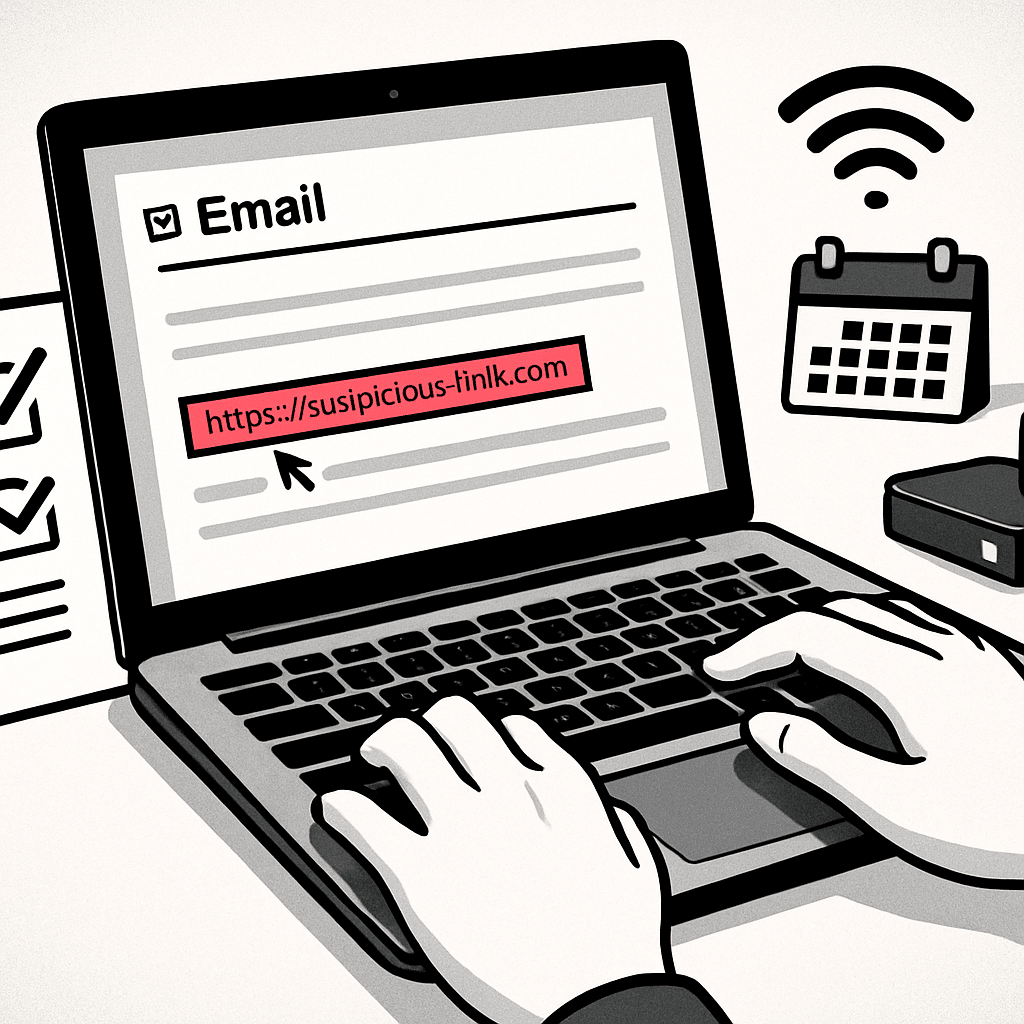
Phishing scams try to trick you into clicking a fake link or sharing personal info. In this friendly guide, you will set up a simple monthly drill that teaches your household how to spot and stop scams. In 10–20 minutes each month, you will practice safer clicks, smarter checks, and quick reporting.
Table of Contents
- Before You Start
- Quick Fix Steps
- Plan Your Drill
- Run the Drill
- Deeper Diagnosis
- Preventive Care
- When to Seek Help
- Frequently Asked Questions
Before You Start
Goal: practice spotting phishing messages (fake emails, texts, DMs) and build safe habits together.
Phishing: a scam that pretends to be someone you trust to steal passwords or money. Router: the box that creates your home Wi‑Fi network.
- Time needed: 10–20 minutes per month.
- Difficulty: Easy.
- Who: anyone in your home who uses email, texts, or social media.
What you need:
- Your regular email and messaging apps.
- A note or checklist (paper or digital) to track results.
- A calendar to set a recurring reminder.
Warning: Do not use real suspicious links or attachments in your drill. Use safe, made‑up examples only (see templates below). Never enter real passwords during practice.
Note: You do not need to change network settings, reset devices, or install special tools to run this drill.
Quick Fix Steps
- Create a monthly calendar event called “Phishing Drill – 10 minutes.” Invite your household if you share a calendar.
- Make a safe test message. Use the templates below. Send it to yourself and anyone participating.
- Practice the hover/press test. On computers, hover over links to see the real address. On phones, long‑press links to preview without opening.
- Practice reporting. Find your email or messaging app’s “Report phishing” or “Report spam” option. Do not forward scams to friends.
- Review the five red flags: urgent tone, strange sender, mismatched links, requests for passwords, unexpected attachments.
- Turn on two‑factor authentication (2FA) for your most important accounts (email, bank). This limits damage if a password leaks.
- Record outcomes: who spotted the issue, what worked, what to improve next month.
Plan Your Drill
Rotate scenario types each month so your family learns different patterns: email, text/SMS (smishing), social media DM, or a fake support message.
Email template (copy, paste, and adjust)
Subject: Important: Verify your account now

Hi [Your Name],

We detected unusual activity. Visit the secure portal to confirm your details:
http://example.com-security-check.com/login

Failure to act in 24 hours may result in account suspension.

Thanks,
Security Team
Text/SMS template (copy and paste)
[Bank Alert]: Your account is locked. Verify identity at http://examp1e-support.net now.
Tip: Use obviously fake domains in your drills (like example.com-security-check.com or examp1e-support.net). These are for practice only.
Decide roles:
- Sender: prepares the test message and records results.
- Observers: watch how others react (without shaming anyone).
- Participants: practice checks and reporting.
Create a simple scorecard:
- Did we check the sender address carefully?
- Did we hover/long‑press to preview the real link?
- Did we use the report button?
- Did anyone click? If yes, what could we change?
Run the Drill
Step 1: Send the test
- Send your safe test email/text/DM to participants.
- Warning: Never attach executable files (like .exe) or enable macros. For practice, attach a harmless text file you created yourself, if needed.
Step 2: Practice the 10‑second scan
- Check the sender: is the email or phone number slightly off?
- Scan for urgency: “act now,” “24‑hour deadline,” or threats.
- Look for odd spelling or grammar.
Step 3: Inspect the link safely
- On computers: hover over the link. Look in the status bar for the real domain (the part just before the last dot, e.g., example.com).
- On phones: long‑press the link to preview. Do not open the page.
- Optional: copy the link address and paste it into a plain text note to read it fully (do not visit it).
Step 4: Decide and act
- If anything feels off, report it using your app’s report button.
- Delete the message. Do not reply. Do not forward.
OS variations for link preview
Windows
- Hover the mouse over the link to see the actual URL in the status bar.
- Right‑click the link, choose copy link, and paste into a note to inspect (do not open).
macOS
- Hover over links to preview the destination. Press and hold Option while hovering in some apps to show details.
- Control‑click to copy the link and review it in a note.
iOS
- Long‑press a link to open the preview card. Read the full address before deciding.
- Tap outside the preview to cancel. Do not open if unsure.
Android
- Long‑press a link to preview or copy it. Inspect it in a note.
- Back out if the preview looks odd or the domain is unfamiliar.
Note: If a message claims to be from your bank, school, or a delivery service, ignore the link. Instead, go directly to the official website by typing the address yourself or using your saved bookmark.
Deeper Diagnosis
Check the sender details
- Open the sender’s details. Many apps let you tap or click the name to view the actual address or number.
- Watch for extra letters, misspellings, or strange domains.
Verify links and domains
- Read the domain carefully: real sites end with their proper domain (for example, example.com, not example.com.verify-login.co).
- Search online for the domain plus the word “scam” to see if others reported it. Do not open the suspicious site itself.
View full message headers (advanced, optional)
- Many email apps offer a “view original,” “view headers,” or “show details” option.
- Look for mismatched “From” and “Return‑Path” addresses. If they differ wildly, it’s likely a scam.
Browser safety check
- Ensure your browser’s phishing/malware protection is on. Look for settings like “Safe Browsing,” “Fraudulent site warning,” or “Deceptive site protection.”
- Clear any saved password prompts for suspicious sites if you accidentally visited one.
Warning: Do not change your system registry, edit the hosts file, or reset your router for this drill. These are risky and not required.
Preventive Care
- Update devices monthly. Install OS and app updates on Windows, macOS, iOS, and Android.
- Use a password manager and unique passwords for important accounts.
- Enable 2FA (two‑factor authentication) on email, banking, and cloud storage.
- Back up your files: at least one offline or cloud backup. Test a small restore quarterly.
- Teach “verify out‑of‑band”: if you get a money or password request, call or text the person at a known number before acting.
- Router care: log in monthly to check for updates. Do not factory‑reset unless support tells you to. Change default admin passwords if you still use them.
- Downloads: only from official sources. Avoid random pop‑ups offering updates or cleaners.
Tip: Keep a “Suspicious? Pause.” sticky note near your computer as a reminder to slow down and check links.
When to Seek Help
- You clicked a bad link and entered info: immediately change that account’s password, turn on 2FA, and review recent activity.
- You clicked and downloaded/ran a file: disconnect from the internet. Run a full device scan with your built‑in security tool. If unsure, contact a trusted professional.
- Money or transactions: contact your bank or card provider at the number on the back of your card (not numbers in the message). Act quickly.
- Children or elders targeted repeatedly: consider professional training or a local tech helper to review settings.
- Unusual device behavior after a suspicious click (pop‑ups, slowdowns): get expert help.
Wrap up each drill by noting wins and one improvement for next time. Keep it positive. The goal is steady progress, not perfection.
Frequently Asked Questions
How is phishing different from smishing?
Phishing usually arrives by email. Smishing is phishing by text/SMS. The red flags are the same: urgency, odd links, and requests for sensitive info.
What if someone falls for the drill?
Use it as a teaching moment. Review the red flags together. Celebrate the fix (reporting, deleting, and enabling 2FA) so confidence stays high.
How often should we run drills?
Monthly is ideal. It is short enough to remember and long enough to avoid fatigue. Rotate email, text, and social scenarios.
Do we need special software?
No. Your existing email and messaging apps have report buttons and link previews. Good habits and updates are your best defense.
Leave a Reply