
Traveling with your laptop doesn’t have to be stressful. With a few smart steps, you can protect your device from drops, spills, and prying eyes. This guide walks you through packing your laptop safely for flights, commutes, and shipping, so you arrive with your data and hardware intact.
Table of Contents
- Before You Start
- Quick Fix Steps
- Deeper Diagnosis
- Preventive Care
- When to Seek Help
- Conclusion
- Frequently Asked Questions
Before You Start
Gather a few basics and plan your time. Doing this calmly prevents last-minute mistakes like packing while the laptop is still on.
- Supplies: padded sleeve or laptop pocket, microfiber cloth, cable ties/Velcro, small zip-top bags (for accessories), desiccant packs (optional), sturdy shipping box and foam if mailing.
- Time needed: 15–30 minutes (45–60 if doing a full backup or turning on encryption).
- Difficulty: Easy to Medium.
- What can go wrong: cracked screens, bent ports, liquid damage, theft, or data exposure if the laptop is lost.
Warning: Do not factory reset your laptop to “clean it” before travel. You risk losing files. Back up instead. Avoid downloading new “optimizer” apps or drivers from unknown sources right before a trip.
Note: For flights, keep laptops in carry-on. Most airlines forbid laptops with lithium batteries in checked baggage. Check your airline’s current rules.
Shut Down Safely (not just sleep)
- Windows: Select
Start > Power > Shut down. - macOS: Select
Apple menu > Shut Down…. - Linux (common desktop environments): Use
Power > Shut Downfrom the system menu.
Turn On Full-Disk Encryption (keeps data safe if lost)
- Windows:
Settings > Privacy & security > Device encryptionorBitLocker Device Encryptionon Pro editions. - macOS:
System Settings > Privacy & Security > FileVault. - ChromeOS: Encryption is on by default when you use a Google account.
- Linux: Often enabled during install (LUKS). If unsure, consult your distro’s help page.
Tip: Add a lock screen password/PIN now if you don’t have one. This protects your data while traveling.
Quick Fix Steps
Short on time? Do these essentials before you head out the door.
- Back up your important files. Use an external drive or a trusted cloud account you already use. Verify you can open a few backed-up files.
- Shut down your laptop fully. Close all apps first to prevent data loss.
- Unplug accessories. Coil the charger loosely (no tight bends) and secure with a tie. Place small items (mouse, dongles) in a zip-top bag.
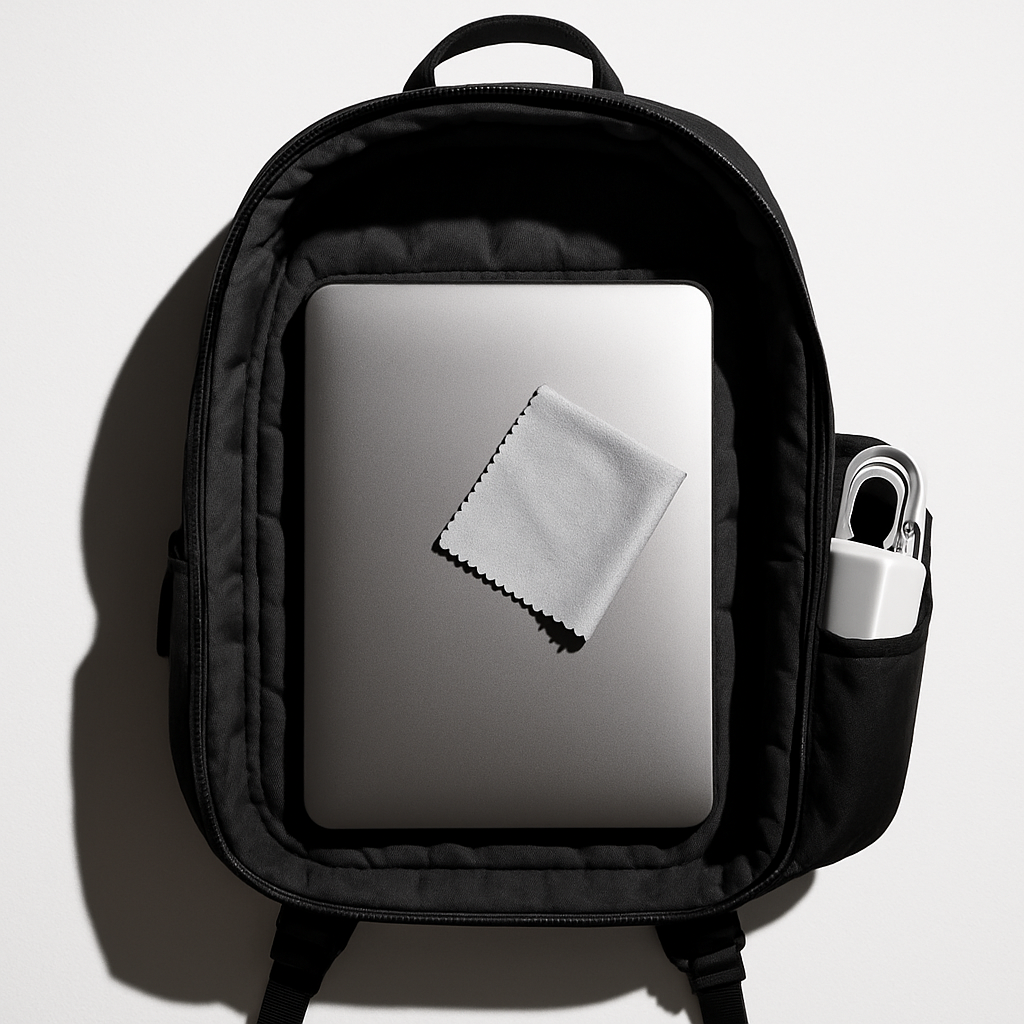
- Protect the screen. Place a clean microfiber cloth on the keyboard to stop key marks and dust from rubbing the display.
- Use a padded sleeve. Slide the laptop into a snug sleeve, then place it in the center of your bag—away from edges and corners.
- Carry-on only (for flights). Keep the laptop upright if possible and don’t stack heavy items on top.
Warning: Don’t pack a laptop while it’s still warm or running. Heat can build up and damage components.
Deeper Diagnosis
Want extra protection or shipping-ready packing? Use these checks and upgrades for better impact, moisture, and theft protection.
1) Choose the right bag and fit
- Bag structure: A backpack or brief with a dedicated, padded laptop compartment reduces pressure on corners.
- Snug fit: The laptop shouldn’t wiggle. Add a thin foam sheet if needed to fill gaps—no hard objects near the lid or base.
2) Screen and body protection
- Use a thin foam or microfiber layer between keyboard and screen to prevent scuffs.
- Add edge protection: A sleeve with reinforced corners helps absorb drops, which tend to hit corners first.
- Avoid hard objects (adapters, power bricks) touching the lid; place them in a separate pocket.
3) Moisture and temperature control
- Rain: Keep a lightweight rain cover for your bag or a large zip-top bag that can hold the laptop sleeve in a pinch.
- Humidity: Toss in a few desiccant packs (the “do not eat” packets) near the sleeve, not directly on vents.
- Heat/cold: Don’t leave the laptop in a hot car or in freezing temperatures. Let a cold laptop warm up to room temp before powering on to avoid condensation.
4) Data security beyond the basics
- Require a password at startup (pre-boot) by enabling encryption as noted above.
- Turn on device location/tracking.
Windows
- Tracking:
Settings > Privacy & security > Find my device(requires a Microsoft account). - Wake behaviors:
Control Panel > Power Options, disable any options that power on when opening the lid if your bag is tight.
macOS
- Tracking:
System Settings > Apple ID > iCloud > Find My Mac. - Lid open behaviors:
System Settings > Battery > Options(disable “Wake for network access” if you prefer minimal wake-ups in a bag).
Note: Don’t set firmware/BIOS passwords unless you’re comfortable with recovery steps. If you forget them, you may lock yourself out.
5) If you must ship your laptop
- Power down fully. Do not ship a laptop that’s sleeping or hibernating.
- Place the laptop in an anti-static sleeve or a clean plastic bag, then wrap with 2–3 inches (5–8 cm) of dense foam or bubble wrap.
- Use the double-box method: inner box with padding around the laptop, then place that box inside a larger outer box with more padding all around.
- Fill all voids so nothing moves when shaken. Avoid loose packing peanuts—they shift and expose corners.
- Include contact info (name, email/phone) inside the inner box. Do not include passwords or sensitive info.
Warning: Lithium battery shipping rules vary by carrier and destination. Check your carrier’s policy. Some services require ground shipping or special labels.
Preventive Care
Protecting your laptop is a habit, not a one-time task. Add these routines to your travel checklist.
- Update and restart at least a day before travel so surprise updates don’t hit at the airport. Avoid installing new, untested apps right before you go.
- Back up before every trip. Keep at least one backup separate from your laptop (external drive at home or trusted cloud).
- Use a surge-protecting travel adapter in hotels or cafés.
- Keep the laptop in the middle of your bag, not at the very back or bottom where impacts are strongest.
- Use lockable zippers or a small cable lock when you must step away briefly. Sit with your bag strap looped around a chair leg in crowded areas.
- Enable screen lock on resume: set auto-lock to 5–10 minutes.
Find My Device (optional but helpful)
- Windows:
Settings > Privacy & security > Find my device. - macOS:
System Settings > Apple ID > iCloud > Find My Mac. - Android tablet:
Settings > Security & privacy > Find My Device. - iPadOS:
Settings > Apple ID > Find My.
When to Seek Help
- Battery looks swollen, case is bulging, or you smell a chemical/metallic odor. Power down and see a repair professional immediately.
- Hinge is loose or cracked, ports wobble, or the screen shows pressure lines. Get it inspected before travel to avoid a total break in transit.
- Spill happened. Turn off, unplug, do not charge, and see a professional. Packing it wet can cause more damage.
- Encryption or backups confuse you. A tech-savvy friend or local shop can help set it up safely without wiping your data.
- International shipping with batteries. Use a professional shipper who knows the regulations.
Conclusion
With a proper shutdown, a quick backup, and smart padding, your laptop is ready for safe transit. Center it in your bag, keep it dry, and protect your data with a strong sign-in and encryption. For shipping, double-box and pad every side. These small steps save money, time, and stress when you arrive.
Frequently Asked Questions
Should I take my laptop as carry-on or check it?
Carry-on. Most airlines restrict lithium batteries in checked baggage, and carry-on reduces damage and theft risk.
Do airport scanners harm laptops?
No. X-ray scanners are safe for laptops. Place your laptop in a separate bin if asked, and handle it gently.
Is it safe to put the charger in the same compartment?
Yes, if it’s in a separate pocket. Keep hard items (chargers, adapters) away from the laptop’s lid and screen to prevent pressure damage.
Should I remove the battery for shipping?
Most modern laptops have internal batteries. Do not open the case. Ship using carrier rules for lithium batteries, and pack with ample padding.
Leave a Reply