
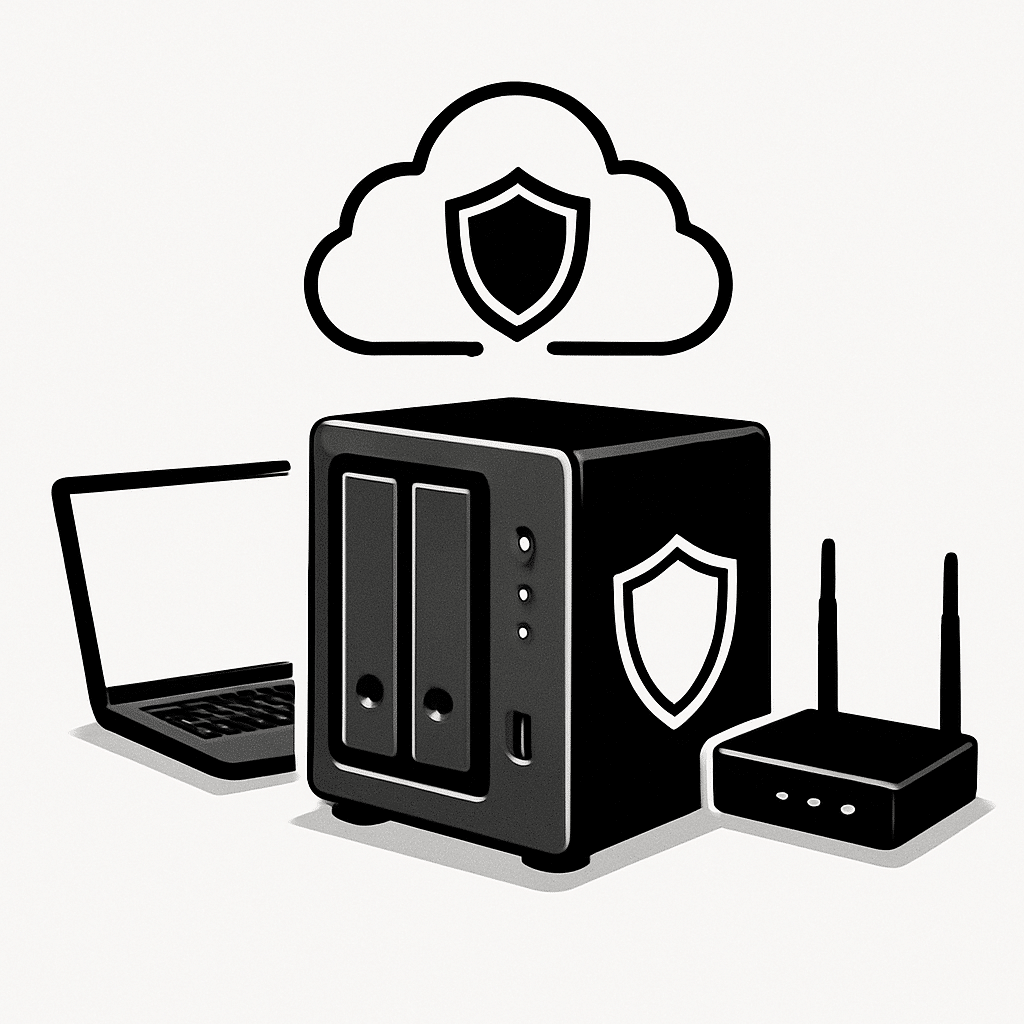
Your family photos, school projects, and tax documents deserve better than a lucky break. In this guide, you’ll set up simple, layered defenses to keep malware (bad software that can encrypt or delete files) away from your files on a NAS (Network Attached Storage: a small file server in your home) and in the cloud (online storage). You’ll also learn what to do if something goes wrong, with steps for Windows, macOS, iOS, and Android.
Table of Contents
- NAS vs Cloud: What You’re Securing
- Before You Start
- Quick Fix Steps
- Set Up Safe Storage on a NAS
- Harden Your Cloud Storage
- Create a Smart, Layered Backup Plan
- Deeper Diagnosis
- Preventive Care
- When to Seek Help
- Conclusion
- Frequently Asked Questions
NAS vs Cloud: What You’re Securing
NAS: your files live on a box in your home, reachable on your Wi‑Fi or over the internet if you enable remote access. You control the hardware, users, and backups.
Cloud storage: your files live on a provider’s servers and sync to your devices. You get version history and access anywhere, but your security depends on strong logins and settings.
Goal: Reduce the chances malware can reach your files, and make it easy to recover clean copies if it does.
Before You Start
- What you need: your router login (Router: the box that creates your home Wi‑Fi network), NAS admin login if you have one, and access to your cloud storage account.
- Time estimate: 45–90 minutes for setup; 10–15 minutes for quick fixes.
- Difficulty: Medium. You’ll mostly click through settings. No coding required.
- What can go wrong: locking yourself out of shares, stopping sync unexpectedly, or deleting the wrong file version.
Warning: Do not factory reset your NAS or router unless a professional tells you to and you have verified, offline backups. A reset wipes settings and can erase data.
Note: “Read-only” means you can view and copy a file, but not change it. It’s safer for precious folders.
Quick Fix Steps
- Pause syncing on all devices to stop malware from spreading changes. Close any desktop sync apps or use their “Pause” option.
- Disconnect the suspected device from the network (turn off Wi‑Fi or unplug Ethernet). Then run a full malware scan.
- Check your cloud storage “Version history” for recent changes. Restore clean versions for any files changed today or yesterday.
- On your NAS, switch important family folders to read-only for everyday accounts until you’re sure devices are clean.
- Change passwords for your NAS admin and cloud account. Turn on two-factor authentication (2FA) if not already on.
- Update your devices (OS updates) and reopen syncing only after scans come back clean.
Windows
- Run a full scan: Settings > Privacy & Security > Windows Security > Virus & threat protection > Scan options > Full scan.
- Pause sync apps: right-click their tray icon > Pause/Exit.
macOS
- Run a scan with your installed antivirus or use built-in protections and remove suspicious apps: System Settings > Privacy & Security.
- Pause sync apps: click the menu bar icon > Pause/Quit.
iOS/Android
- Remove any apps you don’t recognize. Update the OS. Avoid sideloading apps from unknown sources.
- Pause mobile sync by turning off background sync inside the app settings, if available.
Set Up Safe Storage on a NAS
Create separate user accounts
- Create a unique admin account with a long password. Disable or rename the default “admin” if your NAS allows it.
- Create family user accounts. Give them access only to the folders they need.
- Use read-only access for irreplaceable folders (e.g., “Family Photos”). Create a separate “Drop Box” folder for uploads.
Enable snapshots and recycle bins
- In your NAS file or storage settings, look for “Snapshots,” “Versioning,” or “Previous Versions.” Enable scheduled snapshots (for example, hourly for 24 hours, daily for 7–30 days).
- Turn on a shared folder recycle bin if available. This catches accidental deletes.
- If your NAS supports “immutable” or “write-once” snapshots, enable them for at least a few days of protection.
Tip: Snapshots are lifesavers against ransomware. They let you roll back a folder to yesterday’s clean state.
Restrict remote access
- Open your router admin page (usually http://192.168.0.1 or http://192.168.1.1). Sign in.
- Turn off UPnP (Universal Plug and Play) to prevent automatic port openings.
- Under Port Forwarding/Virtual Server, remove any rules exposing file-sharing ports (e.g., 445, 139) to the internet.
- If you need remote access, use a secure remote method such as a VPN or the NAS’s secured relay service. Avoid direct port exposure.
Warning: Do not open NAS file sharing to the internet. Attackers scan these ports constantly.
Schedule anti-malware scans on the NAS
- Install only official antivirus packages from your NAS’s trusted app source.
- Schedule weekly scans and enable real-time scanning if supported.
- Turn on notifications (email or mobile) for threats and failed backups.
Connect to the NAS safely
Windows
- Open File Explorer and type the path in the address bar:
\\nas-name\Familyor\\192.168.1.50\Family. - Use non-admin accounts for daily access. Map shares as read-only where possible.
macOS
- Finder > Go > Connect to Server… and enter
smb://nas-name/Family. - Connect with a standard user account. Keep admin only for changes.
iOS
- Files app > More (…) > Connect to Server. Enter
smb://nas-name. Save the login. - Use read-only folders for browsing family photos.
Android
- In your file manager, add a network location (SMB) and enter
smb://nas-name. - Use separate accounts for uploads vs browsing.
Harden Your Cloud Storage
Lock down your login
- Set a long, unique password (at least 14 characters). Use a password manager if possible.
- Turn on two-factor authentication (2FA). Prefer an authenticator app over SMS when available.
- Review connected apps/devices. Remove any you don’t recognize.
Use version history and offline copies
- Ensure “Version history” is turned on. Test it: edit a test file, then restore the previous version.
- Mark key folders “Do not sync automatically” on less-trusted devices (kids’ laptops). Access them on-demand.
- Keep a periodic offline export of must-keep files (see backup section).
Share safely
- For shared links, set “view only” and add an expiration date.
- Do not share your main family folder. Share specific subfolders instead.
- Review sharing settings monthly.
Note: If a device gets infected, pausing sync quickly can prevent bad changes from spreading to the cloud.
Create a Smart, Layered Backup Plan
Follow the 3-2-1 rule: 3 copies of your data, on 2 different media, with 1 offsite copy.
- Primary copy: your live files (NAS and/or cloud).
- Secondary copy: a local backup (external drive or NAS backup job).
- Offsite copy: cloud backup or an external drive stored away from home.
On a NAS
- Schedule a backup job from your NAS to an external USB drive weekly. Keep the drive unplugged when not backing up.
- Alternatively, back up the NAS to a separate cloud backup service. Encrypt the backup.
On computers
- Windows: turn on File History or a full system backup. Store on an external drive.
- macOS: turn on Time Machine to an external drive or a NAS share configured for Time Machine.
On phones and tablets
- Enable your device’s built-in cloud backup for photos and documents.
- Periodically export important albums to your NAS as a second copy.
Tip: Test a restore every few months. Pick a random file, restore it, and confirm it opens. Backups you cannot restore are not backups.
Deeper Diagnosis
Check for signs of ransomware
- Look for many files renamed with odd extensions or a “readme” ransom note.
- On the NAS, check recent activity logs and CPU/disk spikes during the time of change.
Inspect your router and network
- Router lights: Internet steady, Wi‑Fi steady. Rapid flashing when no one’s using devices may indicate background activity.
- Router admin page: confirm UPnP is off and no suspicious port forwards exist.
Use version history and snapshots to trace damage
- Cloud: open a changed file’s version history to see when and from which device it changed. Roll back to the last clean version.
- NAS: view snapshot timeline for the affected share and restore the folder to a time just before the incident.
Check device infection status
- Windows: run a Full scan or an Offline scan from Windows Security. Path: Settings > Privacy & Security > Windows Security > Virus & threat protection > Scan options.
- macOS: update macOS, remove unknown login items (System Settings > General > Login Items), and scan with antivirus if installed.
- iOS/Android: remove suspicious apps, update OS, and review app permissions.
Preventive Care
- Updates: turn on automatic updates for your OS, NAS firmware, router firmware, and apps.
- Passwords: use long, unique passwords and 2FA for NAS, router, and cloud accounts.
- Least privilege: daily use accounts should not be admins. Use read-only shares for important folders.
- Safe downloads: install apps only from trusted stores. Be careful with email attachments and macros.
- Network hygiene: keep UPnP off, and do not expose file-sharing ports to the internet.
- Ransomware protection: enable built-in protections where available. Windows: Settings > Windows Security > Ransomware protection.
- Alerts: enable email/mobile alerts for NAS failures, malware detections, and backup errors.
When to Seek Help
- You see ransom notes, or thousands of files changed within minutes.
- Restores fail, or snapshots/version history are missing.
- You suspect your NAS or router admin password is compromised.
- Remote access was enabled to your NAS with open ports.
Contact a trusted local technician or your device vendor’s support. Ask for help with safe malware removal and clean restores. If someone demands payment to unlock your files, do not pay; seek professional guidance immediately.
Conclusion
By separating everyday access from admin access, turning on snapshots and version history, and keeping strong backups, you’ve built solid defenses for both NAS and cloud storage. If trouble strikes, pause sync, isolate the device, scan, and restore from snapshots or versions. Keep practicing good habits—updates, 2FA, and read-only shares—and your family’s files will stay safer.
Frequently Asked Questions
Q: Is a NAS safer than the cloud?
A: Both can be safe when set up well. A NAS gives you control and snapshots; cloud storage gives you strong version history and offsite protection. Use both for best results.
Q: Do I need antivirus on the NAS?
A: It helps. Many NAS systems support antivirus scans. Still, your first defense is clean, updated computers and phones.
Q: What is the best backup schedule?
A: Daily or weekly for most families. Pair automated snapshots/version history with a weekly offline backup to an external drive.
Q: Can I recover from ransomware without backups?
A: Sometimes via cloud version history or NAS snapshots. Without these, recovery is difficult. Set them up now to be safe.
Leave a Reply