
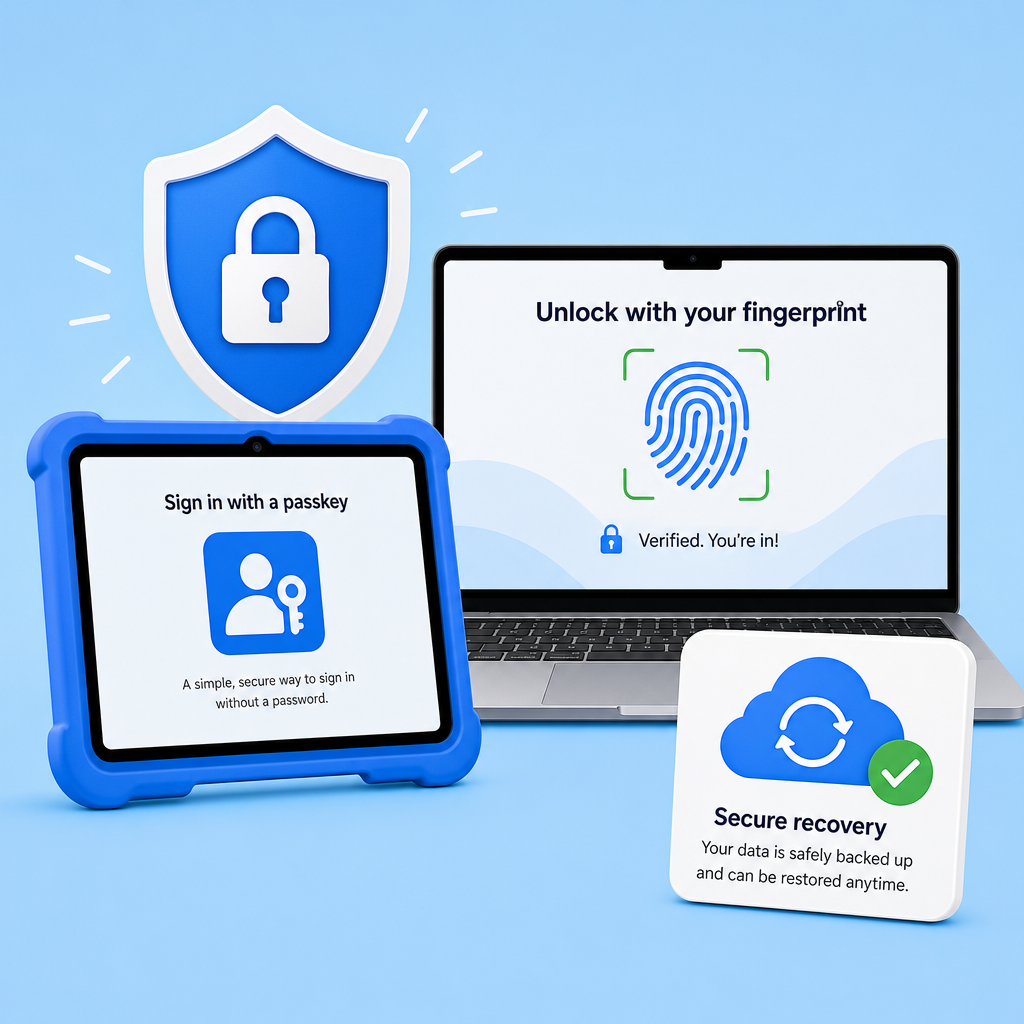
Passkeys let kids sign in without remembering long passwords. They use a device unlock method, such as a fingerprint, face scan, or screen lock, to prove who is signing in. This guide shows you how to set up passkeys safely, keep a recovery option, and avoid locking anyone out of an account.
Table of Contents
- Before You Start
- Quick Fix Steps
- Deeper Diagnosis
- Preventive Care
- When to Seek Help
- Frequently Asked Questions
Before You Start
A passkey is a secure sign-in credential stored on a device or in an approved password manager. It is different from a password because websites do not receive a secret word that can be copied or guessed.
- Difficulty: Easy to Medium.
- Time: About 10–20 minutes per account.
- You need: The child’s account, a supported browser or app, and the child’s phone, tablet, or computer.
- Also prepare: The current password and a recovery method, such as a parent-managed recovery email or phone number, if the service allows it.
Warning: Do not delete the old password, remove a device, or factory-reset a phone until the passkey has been tested. A factory reset erases a device and can remove passkeys stored only on it.
Note: Passkey menus vary by website and app. Look for labels such as Passkeys, Security, Sign-in methods, or Account settings. Never download a “passkey installer” from an advertisement or an unknown website.
Quick Fix Steps
1. Update and unlock the child’s device
Install normal operating system and browser updates from the device’s built-in settings. Make sure the child can unlock the device with a screen PIN, pattern, fingerprint, or face scan. The device lock is usually what protects the passkey.
2. Open the account’s security settings
Sign in through the official website or app. Open the account menu, then choose Settings, Security, or Sign-in options. If this is a child account, use the service’s normal family or parental controls rather than bypassing them.
3. Add a passkey
Select Add passkey or a similar option. Follow the on-screen prompt to approve the action with the device’s screen lock. Give the passkey a clear name, such as “Alex’s tablet,” if the service offers that choice.
4. Check where the passkey is saved
The service may save it on the device, sync it through the device account, or store it in a compatible password manager. Read the prompt carefully. If the child uses several devices, repeat the setup on each one or choose the service’s option to use another device.
5. Test the passkey before changing anything else
Sign out, or open a private browser window, and sign in again. Choose the passkey option and approve it with the device lock. Keep the old password available until this test works and you have confirmed a recovery method.
6. Keep a safe backup route
Save the account’s recovery codes in a secure family location, if provided. Do not print or store them where anyone can casually photograph them. Make sure a parent knows how to recover the account without knowing or sharing the child’s private passkey.
Deeper Diagnosis
If the passkey does not appear or the sign-in fails, work through these checks. Do not repeatedly guess account details; too many failed attempts can trigger a temporary lock.
Check the operating system
- Windows: Open Settings and search for Windows Update. Check that a PIN or another Windows sign-in method is set up. Then retry the website in an up-to-date browser.
- macOS: Open System Settings and check General > Software Update. Confirm that the child can unlock the Mac with its normal login password or Touch ID, if available.
- iPhone or iPad: Open Settings > General > Software Update. Confirm that a device passcode and, if desired, Face ID or Touch ID are enabled.
- Android: Open Settings and search for System update or Software update. Check that a screen lock is enabled and that the browser or app is current.
Check the account and browser
- Confirm that you are using the correct account. Family accounts can have separate child and parent profiles.
- Try the official app or a current browser. Avoid links from unexpected emails or messages.
- Look under Security for a list of saved passkeys. Remove only a passkey you recognize and can replace.
- Make sure the device has internet access, then restart the app or browser. A restart can clear a temporary sign-in problem.
- If the website asks to use a nearby phone, turn on Bluetooth on both devices and keep them close. Approve only a request you started.
Tip: If a passkey is missing after a device change, check whether it was synced through the device account or a password manager. Do not assume that every passkey automatically transfers between operating systems.
Preventive Care
Keep devices and accounts ready
- Turn on automatic operating system, browser, and app updates from official settings.
- Use a different device screen lock for each child when practical. Do not share the parent’s main device PIN.
- Review the account’s passkey list every few months. Remove lost, sold, or borrowed devices.
- Keep recovery codes in a trusted password manager or another secure family record.
- Back up important photos and files before repairing, replacing, or resetting a device.
Teach safe sign-in habits
Tell kids to approve a passkey request only when they just started a sign-in. A surprise prompt may be an attempt to access the account. Teach them never to share a device PIN, recovery code, or approval prompt with a friend, caller, or online stranger.
Warning: Use only the official app store, the service’s typed-in website address, or a trusted bookmark. Do not install software offered by pop-ups that claim to “fix” passkeys.
When to Seek Help
Contact the website or app’s official support team when the passkey option is missing from a supported account, recovery codes do not work, or the account is locked. Use the support link inside the official service, not a phone number from a search advertisement.
Ask your internet provider for help only when the device cannot reach the account or other websites. A passkey problem is usually an account, device, or browser issue, not a router problem. A router is the box that creates your home Wi-Fi network.
Get help from a trusted technician before resetting a device, changing advanced security settings, editing the Windows registry, or removing an account profile. These actions can erase data or make recovery harder.
Once the passkey has been tested, the child can sign in more easily and with less risk from guessed or reused passwords. Keep a recovery method, review devices occasionally, and make sure everyone knows to approve only sign-in requests they started.
Frequently Asked Questions
Can a child use a passkey on more than one device?
Usually, yes. Add a passkey on each supported device, or use the service’s option to sign in with another device. Check how the service syncs passkeys before relying on automatic transfer.
Should we delete the password after adding a passkey?
Not immediately. Test the passkey and confirm recovery codes or another approved recovery method first. Some services still require a password for account recovery or specific actions.
What if the child loses the phone or tablet?
Use another registered device or the account’s official recovery process. Remove the lost device’s passkey after regaining access, then add a new passkey on the replacement device.
Are passkeys completely risk-free?
No security method is perfect. Passkeys reduce phishing and password reuse, but the device lock, recovery options, and account email must still be protected.
Leave a Reply